> ## Documentation Index
> Fetch the complete documentation index at: https://docs.stackone.com/llms.txt
> Use this file to discover all available pages before exploring further.

# Autodesk OAuth 2.0 (Three-Legged) connector profile – StackOne setup guide

> Set up the OAuth 2.0 (Three-Legged) connector profile for Autodesk in StackOne. One-time admin setup required before your users can link Autodesk accounts via Hub.

<Warning>An Autodesk Platform Services (APS) developer account is required. If you don't have one, sign up at [https://aps.autodesk.com/](https://aps.autodesk.com/).</Warning>

<Panel>
  <div className="not-prose guides-scope-selector" data-guides-scope-selector data-guide-actions-json="[{&#x22;id&#x22;:&#x22;autodesk_list_hubs&#x22;,&#x22;label&#x22;:&#x22;List Hubs&#x22;,&#x22;scopes&#x22;:[&#x22;data:read&#x22;]},{&#x22;id&#x22;:&#x22;autodesk_get_hub&#x22;,&#x22;label&#x22;:&#x22;Get Hub&#x22;,&#x22;scopes&#x22;:[&#x22;data:read&#x22;]},{&#x22;id&#x22;:&#x22;autodesk_list_projects&#x22;,&#x22;label&#x22;:&#x22;List Projects&#x22;,&#x22;scopes&#x22;:[&#x22;data:read&#x22;]},{&#x22;id&#x22;:&#x22;autodesk_get_project&#x22;,&#x22;label&#x22;:&#x22;Get Project&#x22;,&#x22;scopes&#x22;:[&#x22;data:read&#x22;]},{&#x22;id&#x22;:&#x22;autodesk_list_top_folders&#x22;,&#x22;label&#x22;:&#x22;List Top Folders&#x22;,&#x22;scopes&#x22;:[&#x22;data:read&#x22;]},{&#x22;id&#x22;:&#x22;autodesk_get_folder&#x22;,&#x22;label&#x22;:&#x22;Get Folder&#x22;,&#x22;scopes&#x22;:[&#x22;data:read&#x22;]},{&#x22;id&#x22;:&#x22;autodesk_list_folder_contents&#x22;,&#x22;label&#x22;:&#x22;List Folder Contents&#x22;,&#x22;scopes&#x22;:[&#x22;data:read&#x22;]},{&#x22;id&#x22;:&#x22;autodesk_create_folder&#x22;,&#x22;label&#x22;:&#x22;Create Folder&#x22;,&#x22;scopes&#x22;:[&#x22;data:create&#x22;]},{&#x22;id&#x22;:&#x22;autodesk_update_folder&#x22;,&#x22;label&#x22;:&#x22;Update Folder&#x22;,&#x22;scopes&#x22;:[&#x22;data:write&#x22;]},{&#x22;id&#x22;:&#x22;autodesk_search_folder&#x22;,&#x22;label&#x22;:&#x22;Search Folder&#x22;,&#x22;scopes&#x22;:[&#x22;data:read&#x22;,&#x22;data:search&#x22;]},{&#x22;id&#x22;:&#x22;autodesk_get_item&#x22;,&#x22;label&#x22;:&#x22;Get Item&#x22;,&#x22;scopes&#x22;:[&#x22;data:read&#x22;]},{&#x22;id&#x22;:&#x22;autodesk_get_item_tip&#x22;,&#x22;label&#x22;:&#x22;Get Item Tip Version&#x22;,&#x22;scopes&#x22;:[&#x22;data:read&#x22;]},{&#x22;id&#x22;:&#x22;autodesk_list_item_versions&#x22;,&#x22;label&#x22;:&#x22;List Item Versions&#x22;,&#x22;scopes&#x22;:[&#x22;data:read&#x22;]},{&#x22;id&#x22;:&#x22;autodesk_create_item&#x22;,&#x22;label&#x22;:&#x22;Create Item&#x22;,&#x22;scopes&#x22;:[&#x22;data:create&#x22;]},{&#x22;id&#x22;:&#x22;autodesk_update_item&#x22;,&#x22;label&#x22;:&#x22;Update Item&#x22;,&#x22;scopes&#x22;:[&#x22;data:write&#x22;]},{&#x22;id&#x22;:&#x22;autodesk_create_storage&#x22;,&#x22;label&#x22;:&#x22;Create Storage&#x22;,&#x22;scopes&#x22;:[&#x22;data:create&#x22;]},{&#x22;id&#x22;:&#x22;autodesk_get_signed_s3_download_url&#x22;,&#x22;label&#x22;:&#x22;Get Signed S3 Download URL&#x22;,&#x22;scopes&#x22;:[&#x22;data:read&#x22;]},{&#x22;id&#x22;:&#x22;autodesk_get_signed_s3_upload_urls&#x22;,&#x22;label&#x22;:&#x22;Get Signed S3 Upload URLs&#x22;,&#x22;scopes&#x22;:[&#x22;data:write&#x22;]},{&#x22;id&#x22;:&#x22;autodesk_upload_to_s3&#x22;,&#x22;label&#x22;:&#x22;Upload Binary To Signed S3 URL&#x22;,&#x22;scopes&#x22;:[&#x22;data:write&#x22;]},{&#x22;id&#x22;:&#x22;autodesk_signed_s3_upload&#x22;,&#x22;label&#x22;:&#x22;Signed S3 Upload&#x22;,&#x22;scopes&#x22;:[&#x22;data:write&#x22;]},{&#x22;id&#x22;:&#x22;autodesk_upload_file_in_project_folder&#x22;,&#x22;label&#x22;:&#x22;Upload File In Project Folder&#x22;,&#x22;scopes&#x22;:[&#x22;data:create&#x22;]},{&#x22;id&#x22;:&#x22;autodesk_get_version&#x22;,&#x22;label&#x22;:&#x22;Get Version&#x22;,&#x22;scopes&#x22;:[&#x22;data:read&#x22;]},{&#x22;id&#x22;:&#x22;autodesk_get_version_download_formats&#x22;,&#x22;label&#x22;:&#x22;Get Version Download Formats&#x22;,&#x22;scopes&#x22;:[&#x22;data:read&#x22;]},{&#x22;id&#x22;:&#x22;autodesk_get_version_downloads&#x22;,&#x22;label&#x22;:&#x22;Get Version Downloads&#x22;,&#x22;scopes&#x22;:[&#x22;data:read&#x22;]},{&#x22;id&#x22;:&#x22;autodesk_create_version&#x22;,&#x22;label&#x22;:&#x22;Create Version&#x22;,&#x22;scopes&#x22;:[&#x22;data:create&#x22;]},{&#x22;id&#x22;:&#x22;autodesk_list_webhooks&#x22;,&#x22;label&#x22;:&#x22;List Webhooks&#x22;,&#x22;scopes&#x22;:[&#x22;data:read&#x22;]},{&#x22;id&#x22;:&#x22;autodesk_get_webhook&#x22;,&#x22;label&#x22;:&#x22;Get Webhook&#x22;,&#x22;scopes&#x22;:[&#x22;data:read&#x22;]},{&#x22;id&#x22;:&#x22;autodesk_list_webhooks_by_system&#x22;,&#x22;label&#x22;:&#x22;List Webhooks By System&#x22;,&#x22;scopes&#x22;:[&#x22;data:read&#x22;]},{&#x22;id&#x22;:&#x22;autodesk_create_webhook&#x22;,&#x22;label&#x22;:&#x22;Create Webhook&#x22;,&#x22;scopes&#x22;:[&#x22;data:read&#x22;,&#x22;data:write&#x22;]},{&#x22;id&#x22;:&#x22;autodesk_update_webhook&#x22;,&#x22;label&#x22;:&#x22;Update Webhook&#x22;,&#x22;scopes&#x22;:[&#x22;data:read&#x22;,&#x22;data:write&#x22;]},{&#x22;id&#x22;:&#x22;autodesk_delete_webhook&#x22;,&#x22;label&#x22;:&#x22;Delete Webhook&#x22;,&#x22;scopes&#x22;:[&#x22;data:read&#x22;,&#x22;data:write&#x22;]}]" style={{ borderRadius: '8px', padding: '16px', marginBottom: '24px' }}>
    <div className="guides-scope-selector__title" style={{ fontSize: '16px', fontWeight: '600', marginBottom: '12px' }}>Select Actions to adjust the guide</div>
    <div className="guides-scope-selector__muted" style={{ fontSize: '13px', marginBottom: '12px' }}>Some actions may require additional configuration in the provider to be accessible. Choose the actions you need and the guide will be updated.</div>

    <div style={{ display: 'flex', gap: '8px', marginBottom: '12px', flexWrap: 'wrap' }}>
      <input type="text" placeholder="Search actions..." className="guides-scope-selector__input" data-guide-action-search style={{ padding: '8px 12px', borderRadius: '6px', fontSize: '13px', flex: 1, minWidth: '160px' }} />

      <button type="button" className="guides-scope-selector__quick-btn" data-guide-select-all style={{ padding: '6px 10px', borderRadius: '6px', fontSize: '12px', cursor: 'pointer' }}>Select all</button>
      <button type="button" className="guides-scope-selector__quick-btn" data-guide-clear style={{ padding: '6px 10px', borderRadius: '6px', fontSize: '12px', cursor: 'pointer' }}>Clear</button>
    </div>

    <div className="guides-scope-selector__list" style={{ maxHeight: '240px', overflowY: 'auto', borderRadius: '6px', marginBottom: '12px' }}>
      <div className="guides-scope-selector__list-header" style={{ display: 'flex', alignItems: 'center', gap: '10px', padding: '8px 12px', fontSize: '12px', fontWeight: '600', position: 'sticky', top: 0, zIndex: 1 }}>
        <div style={{ width: '16px', flexShrink: 0 }} />

        <div style={{ flex: 1, textAlign: 'left' }}>Action</div>
        <div style={{ minWidth: '120px', marginLeft: 'auto', textAlign: 'right' }}>Scope(s)</div>
      </div>

      <div className="guides-scope-selector__muted" data-guide-loading style={{ padding: '16px', textAlign: 'center', fontSize: '13px' }}>Loading actions...</div>
      <div className="guides-scope-selector__muted" data-guide-no-results hidden style={{ padding: '16px', textAlign: 'center', fontSize: '13px' }}>No actions match your search.</div>
    </div>

    <div className="guides-scope-selector__url-section" style={{ marginTop: '12px', paddingTop: '12px' }}>
      <div className="guides-scope-selector__muted" style={{ fontSize: '12px', fontWeight: '500', marginBottom: '6px' }}>Dynamic Guide URL</div>

      <div style={{ display: 'flex', alignItems: 'center', gap: '8px', flexWrap: 'wrap' }}>
        <input type="text" readOnly className="guides-scope-selector__input" data-guide-url style={{ flex: 1, minWidth: '200px', padding: '8px 10px', borderRadius: '6px', fontSize: '12px', fontFamily: 'monospace' }} />

        <button type="button" className="guides-scope-selector__copy-btn" data-guide-copy-url style={{ width: '120px', padding: '8px 14px', borderRadius: '6px', fontSize: '13px', fontWeight: '500', cursor: 'pointer', whiteSpace: 'nowrap', marginLeft: 'auto' }}>Copy URL</button>
      </div>

      <div style={{ marginTop: '12px' }}>
        <div className="guides-scope-selector__muted" style={{ fontSize: '12px', fontWeight: '500', marginBottom: '6px' }}>Scopes Selected</div>

        <div style={{ display: 'flex', alignItems: 'stretch', gap: '8px', flexWrap: 'wrap' }}>
          <pre className="guides-scope-selector__input" role="textbox" aria-readonly="true" tabIndex={0} data-guide-scopes-output style={{ flex: 1, minWidth: '200px', minHeight: '88px', maxHeight: '120px', overflowY: 'auto', margin: 0, padding: '8px 10px', borderRadius: '6px', fontSize: '12px', fontFamily: 'monospace', whiteSpace: 'pre-wrap' }} />

          <div className="guides-scope-selector__muted" style={{ display: 'flex', flexDirection: 'column', gap: '8px', fontSize: '12px', fontWeight: '500', flexShrink: 0, alignItems: 'flex-start' }}>
            <div style={{ whiteSpace: 'nowrap' }}>Separator</div>

            <select className="guides-scope-selector__input" data-guide-scope-delimiter style={{ width: '100%', padding: '6px 10px', borderRadius: '6px', fontSize: '12px' }}>
              <option value="space">Space</option>
              <option value="comma">Comma</option>
              <option value="semicolon">Semicolon</option>
              <option value="pipe">Pipe</option>
              <option value="newline">Newline</option>
            </select>

            <button type="button" className="guides-scope-selector__copy-btn" data-guide-copy-scopes style={{ width: '120px', padding: '8px 14px', borderRadius: '6px', fontSize: '13px', fontWeight: '500', cursor: 'pointer', whiteSpace: 'nowrap' }}>Copy scopes</button>
          </div>
        </div>
      </div>
    </div>
  </div>
</Panel>

<section data-guide-section data-guide-scopes="">
  <h2>Register OAuth application</h2>

  <p>Create an OAuth application in the Autodesk Platform Services portal to obtain a Client ID and Client Secret.</p>

  <Steps>
    <Step title="Sign in to Autodesk Platform Services">
      <div data-guide-step data-guide-scopes="" data-guide-display-scopes-list="">
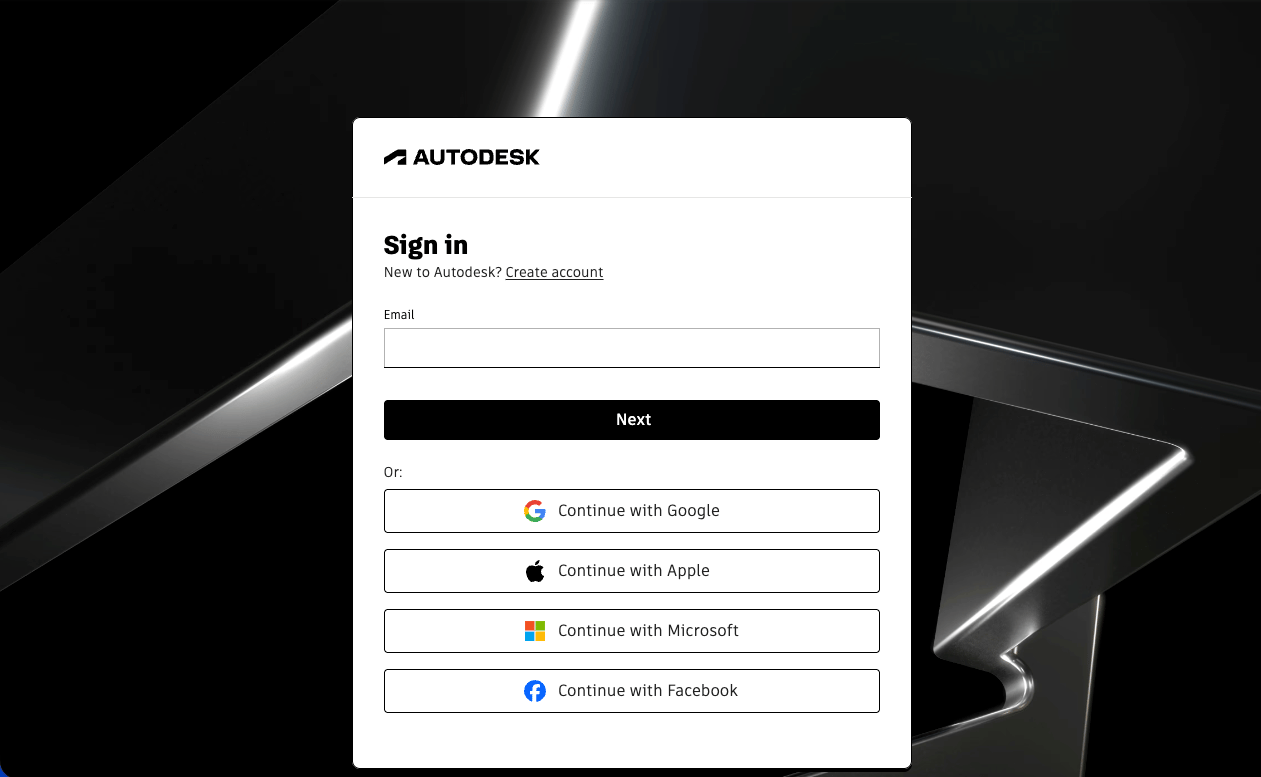
        <p>Sign in to the <a href="https://aps.autodesk.com/hubs" target="_blank" rel="noopener noreferrer">APS developer portal hub</a>.</p>

        <img src="https://mintcdn.com/stackone-60/jsL_dX8vwRUcAlgF/connectors/autodesk/images/setup-login-step0.png?fit=max&auto=format&n=jsL_dX8vwRUcAlgF&q=85&s=fd4889cf181c1a51f79207e635a39a45" alt="The APS Developer Hubs page showing the Applications list with the Create application button in the top right." width="1261" height="777" data-path="connectors/autodesk/images/setup-login-step0.png" />
      </div>
    </Step>

    <Step title="Open Applications page">
      <div data-guide-step data-guide-scopes="" data-guide-display-scopes-list="">
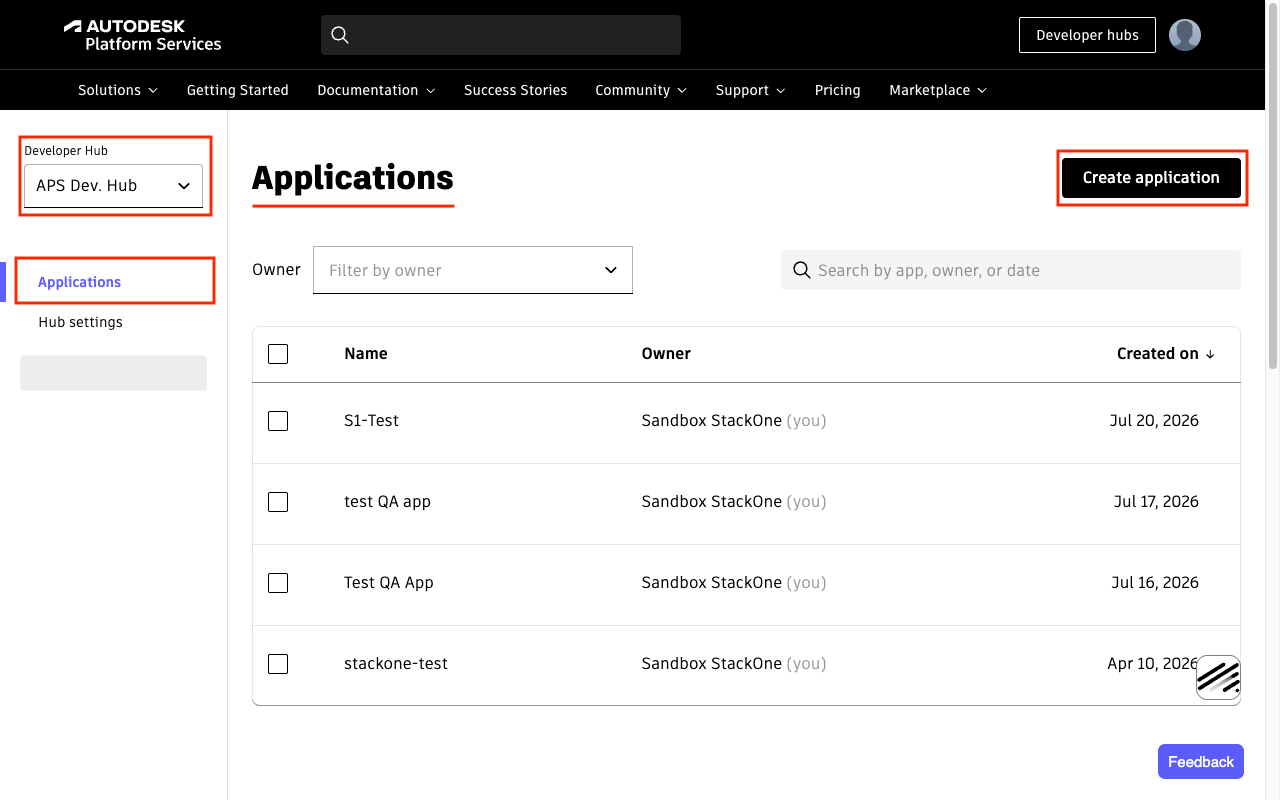
        <p>After signing in, you will be directed to the <strong>Applications</strong> page.</p>

        <ul>
          <li>Click the <strong>Create application</strong> button in the top right.</li>
        </ul>

        <img src="https://mintcdn.com/stackone-60/jsL_dX8vwRUcAlgF/connectors/autodesk/images/setup-developer-hubs.png?fit=max&auto=format&n=jsL_dX8vwRUcAlgF&q=85&s=d7865a2635129ca224a1958b50a89ad7" alt="The APS Developer Hubs page showing the Applications list with the Create application button in the top right." width="1280" height="800" data-path="connectors/autodesk/images/setup-developer-hubs.png" />
      </div>
    </Step>

    <Step title="Create application">
      <div data-guide-step data-guide-scopes="" data-guide-display-scopes-list="">
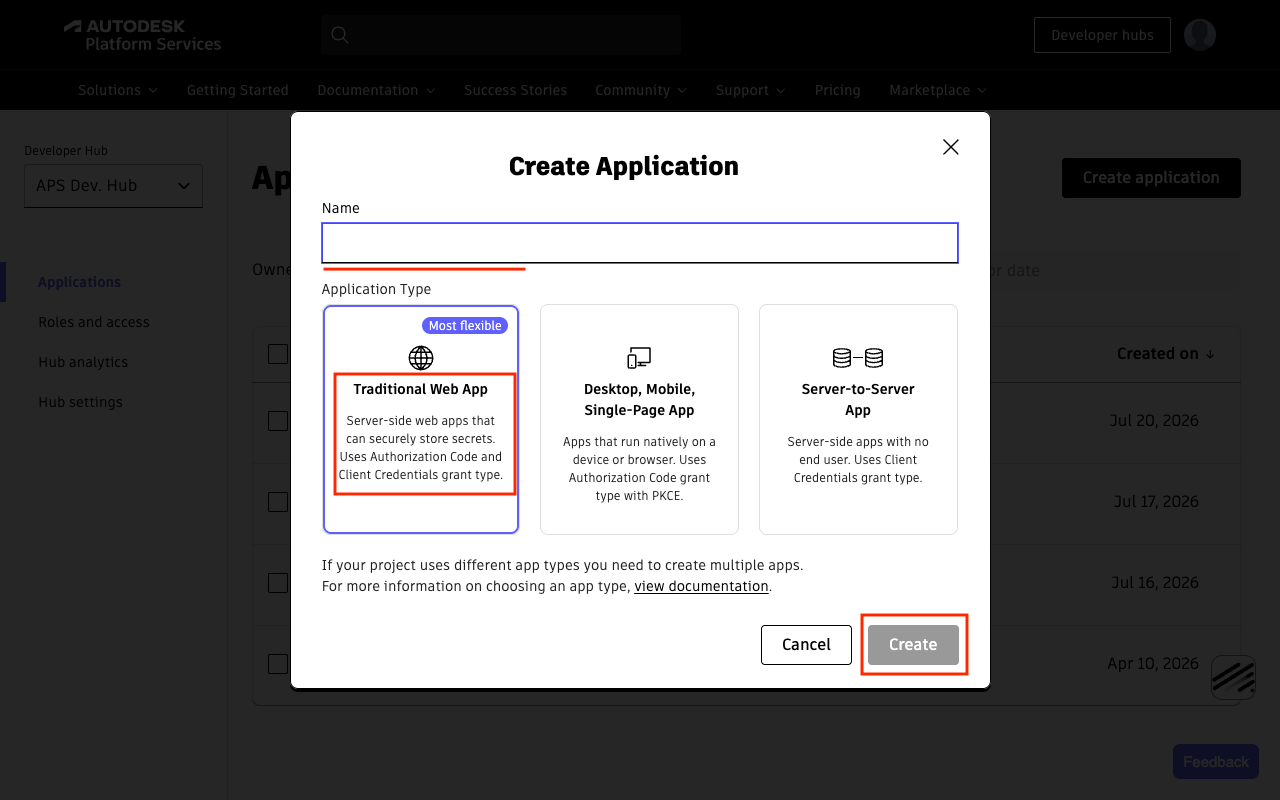
        <p>Fill in the details in the dialog.</p>

        <ul>
          <li>App Name: e.g. `StackOne Integrations`</li>
          <li>Application Type: select <strong>Traditional Web App</strong></li>
          <li>Click <strong>Create</strong>.</li>
        </ul>

        <img src="https://mintcdn.com/stackone-60/jsL_dX8vwRUcAlgF/connectors/autodesk/images/setup-create-application-dialog.png?fit=max&auto=format&n=jsL_dX8vwRUcAlgF&q=85&s=2be365da7fb95dfe7bd7849b86bd3616" alt="The Create Application dialog showing the Name field and Application Type options — Traditional Web App, Desktop/Mobile/Single-Page App, and Server-to-Server App." width="1280" height="800" data-path="connectors/autodesk/images/setup-create-application-dialog.png" />
      </div>
    </Step>

    <Step title="Configure Callback URL">
      <div data-guide-step data-guide-scopes="" data-guide-display-scopes-list="">
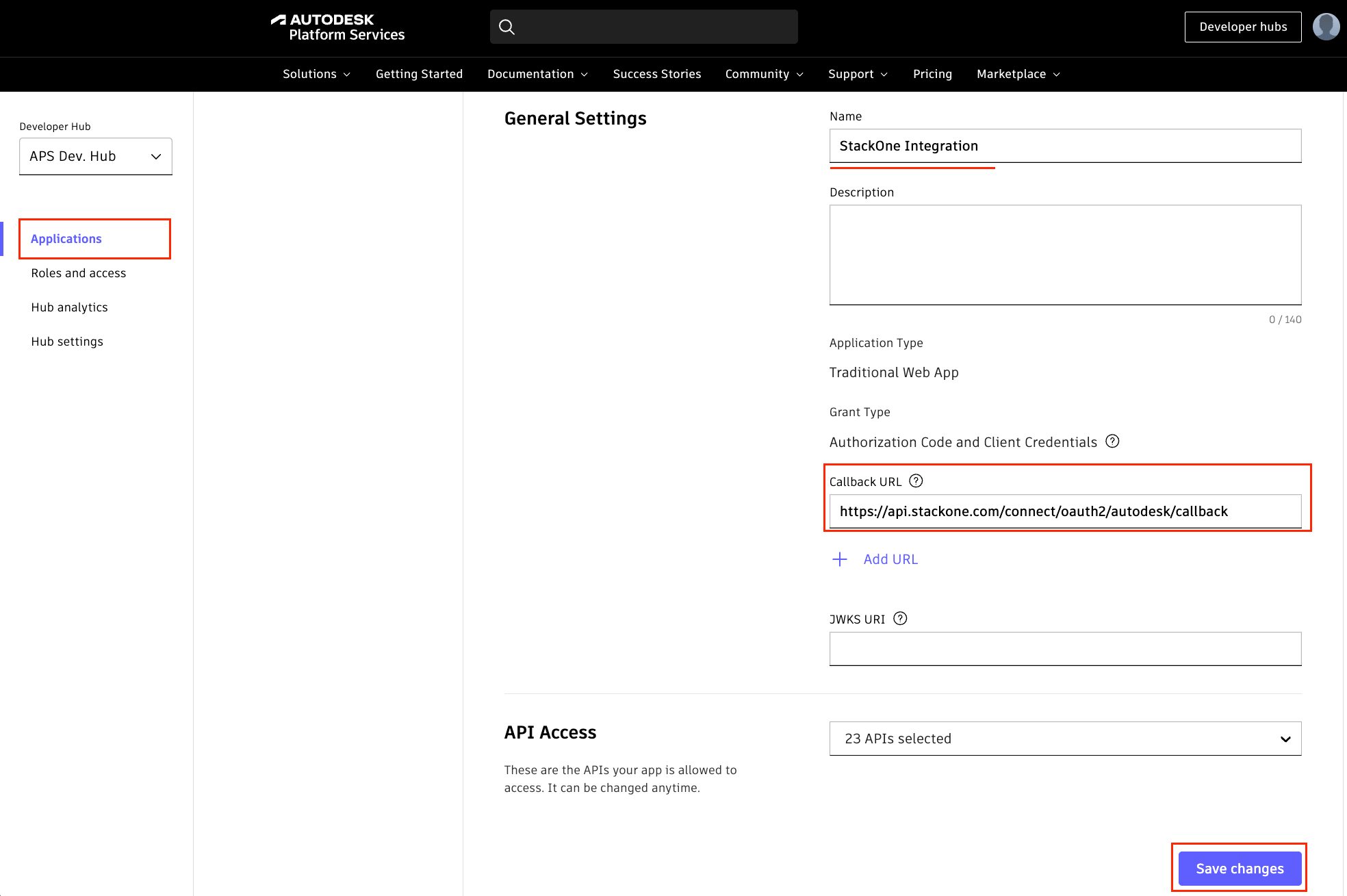
        <p>After the app is created, configure the Callback URL in the app settings page.</p>

        <ul>
          <li>Callback URL: `https://api.stackone.com/connect/oauth2/autodesk/callback`</li>
          <li>Click <strong>Save changes</strong>.</li>
        </ul>

        <img src="https://mintcdn.com/stackone-60/jsL_dX8vwRUcAlgF/connectors/autodesk/images/setup-callback-url.png?fit=max&auto=format&n=jsL_dX8vwRUcAlgF&q=85&s=9a76431e2286116104da4368b1c1d5c0" alt="The app settings General Settings section showing the Callback URL field." width="1968" height="1309" data-path="connectors/autodesk/images/setup-callback-url.png" />
      </div>
    </Step>

    <Step title="Select APIs">
      <div data-guide-step data-guide-scopes="" data-guide-display-scopes-list="">
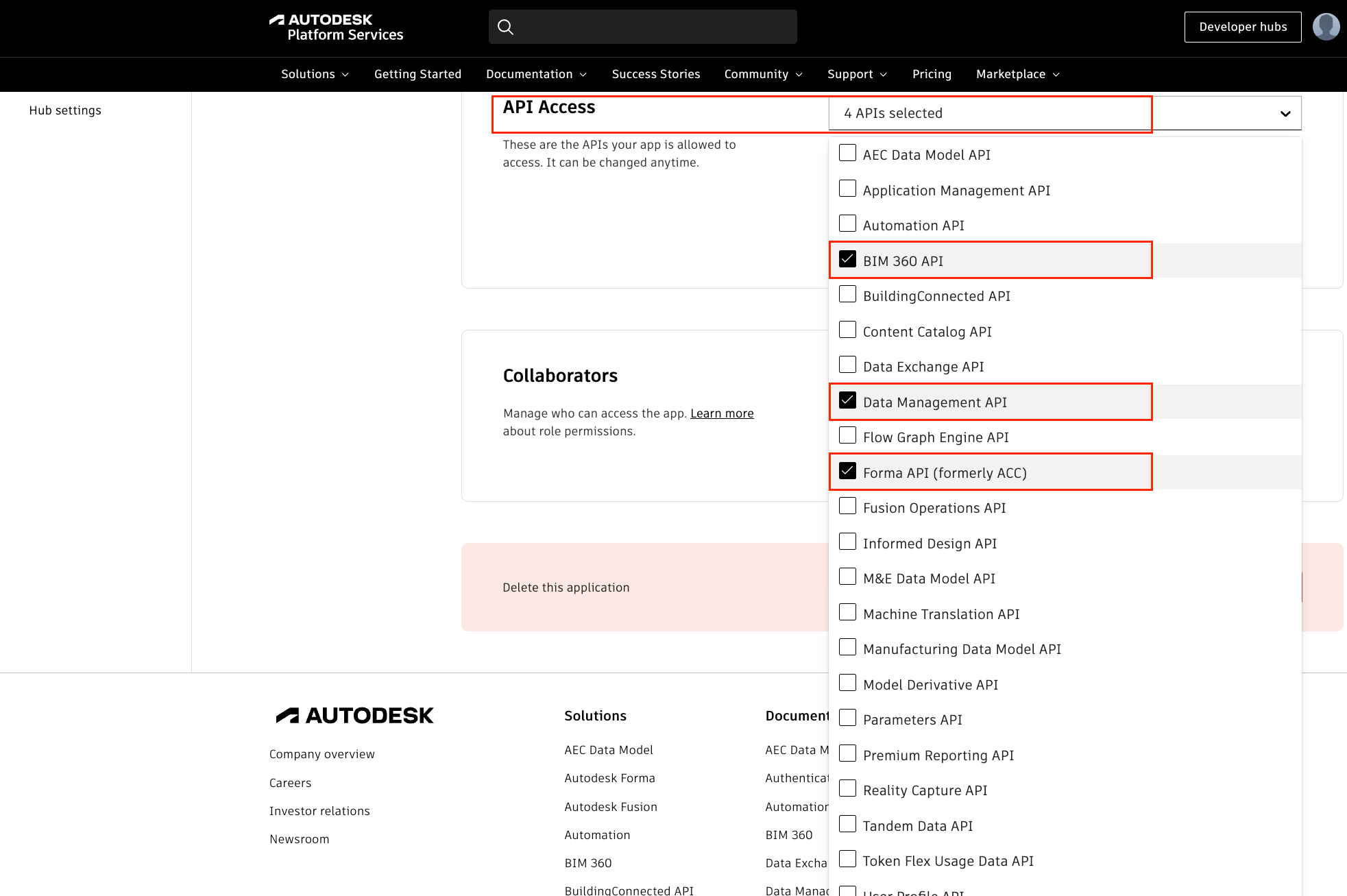
        <p>Navigate to the <strong>API Access</strong> section in the app settings page. All APIs are enabled by default. The StackOne integration uses the following APIs.</p>

        <ul>
          <li><strong>Data Management API</strong> — required for `data:*` and `bucket:*` scopes (files, folders, hubs, projects, storage).</li>
          <li><strong>Forma API (formerly ACC)</strong> — required for `account:*` scopes (account admin, projects, companies, users).</li>
          <li><strong>BIM 360 API</strong> — required for BIM 360 account administration endpoints (`/hq/v1/accounts/...`).</li>
          <li><strong>Webhooks API</strong> — required if using webhook actions.</li>
          <li>You may deselect any other APIs you do not need.</li>
        </ul>

        <img src="https://mintcdn.com/stackone-60/jsL_dX8vwRUcAlgF/connectors/autodesk/images/setup-api-access.png?fit=max&auto=format&n=jsL_dX8vwRUcAlgF&q=85&s=e4278acc3226d0964832ed09c3ef83f3" alt="The API Access section showing the required APIs — Data Management API, Forma API (formerly ACC), BIM 360 API, and Webhooks API." width="1965" height="1307" data-path="connectors/autodesk/images/setup-api-access.png" />
      </div>
    </Step>

    <Step title="Configure scopes">
      <div data-guide-step data-guide-scopes="account:read,account:write,data:read,data:write,data:create,data:search,bucket:read,bucket:create,bucket:delete" data-guide-display-scopes-list="account:read,account:write,data:read,data:write,data:create,data:search,bucket:read,bucket:create,bucket:delete">
        <div className="connector-guide-actions-badge" data-guide-actions-badge data-guide-actions-badge-scopes="account:read,account:write,data:read,data:write,data:create,data:search,bucket:read,bucket:create,bucket:delete" style={{ display: 'block', width: 'fit-content', maxWidth: '100%', padding: '2px 8px', borderRadius: '8px', fontSize: '12px', marginBottom: '8px', marginTop: '-10px', whiteSpace: 'nowrap', overflowX: 'auto', overflowY: 'hidden', msOverflowStyle: 'none', scrollbarWidth: 'none' }}>
          <span>Enables actions: </span><span data-guide-actions-badge-labels>Create Folder, Create Item, Create Storage, Create Version, Create Webhook, Delete Webhook, Get Folder, Get Hub, Get Item, Get Item Tip Version, Get Project, Get Signed S3 Download URL, Get Signed S3 Upload URLs, Get Version, Get Version Download Formats, Get Version Downloads, Get Webhook, List Folder Contents, List Hubs, List Item Versions, List Projects, List Top Folders, List Webhooks, List Webhooks By System, Search Folder, Signed S3 Upload, Update Folder, Update Item, Update Webhook, Upload Binary To Signed S3 URL, Upload File In Project Folder</span>
        </div>

        <p>The following scopes are configured in StackOne's connector setup, not in the APS portal. Select the scopes required for your integration.</p>

        <div style={{ marginTop: '8px' }} data-guide-display-scopes>
          <div className="connector-guide-scopes-container">
            <ul className="not-prose" style={{ listStyleType: "'- '", paddingLeft: '1em', margin: 0 }}>
              <li style={{ overflowWrap: 'anywhere', wordBreak: 'break-word' }} data-guide-display-scope="account:read">
                <button type="button" className="connector-guide-scope-copy" aria-label="Copy account:read" title="Copy scope" data-copy="account:read">
                  <span className="connector-guide-scope-copy__label">account:read</span>
                  <span className="connector-guide-scope-copy__icon" aria-hidden="true">⧉</span>
                </button>
              </li>

              <li style={{ overflowWrap: 'anywhere', wordBreak: 'break-word' }} data-guide-display-scope="account:write">
                <button type="button" className="connector-guide-scope-copy" aria-label="Copy account:write" title="Copy scope" data-copy="account:write">
                  <span className="connector-guide-scope-copy__label">account:write</span>
                  <span className="connector-guide-scope-copy__icon" aria-hidden="true">⧉</span>
                </button>
              </li>

              <li style={{ overflowWrap: 'anywhere', wordBreak: 'break-word' }} data-guide-display-scope="data:read">
                <button type="button" className="connector-guide-scope-copy" aria-label="Copy data:read" title="Copy scope" data-copy="data:read">
                  <span className="connector-guide-scope-copy__label">data:read</span>
                  <span className="connector-guide-scope-copy__icon" aria-hidden="true">⧉</span>
                </button>
              </li>

              <li style={{ overflowWrap: 'anywhere', wordBreak: 'break-word' }} data-guide-display-scope="data:write">
                <button type="button" className="connector-guide-scope-copy" aria-label="Copy data:write" title="Copy scope" data-copy="data:write">
                  <span className="connector-guide-scope-copy__label">data:write</span>
                  <span className="connector-guide-scope-copy__icon" aria-hidden="true">⧉</span>
                </button>
              </li>

              <li style={{ overflowWrap: 'anywhere', wordBreak: 'break-word' }} data-guide-display-scope="data:create">
                <button type="button" className="connector-guide-scope-copy" aria-label="Copy data:create" title="Copy scope" data-copy="data:create">
                  <span className="connector-guide-scope-copy__label">data:create</span>
                  <span className="connector-guide-scope-copy__icon" aria-hidden="true">⧉</span>
                </button>
              </li>

              <li style={{ overflowWrap: 'anywhere', wordBreak: 'break-word' }} data-guide-display-scope="data:search">
                <button type="button" className="connector-guide-scope-copy" aria-label="Copy data:search" title="Copy scope" data-copy="data:search">
                  <span className="connector-guide-scope-copy__label">data:search</span>
                  <span className="connector-guide-scope-copy__icon" aria-hidden="true">⧉</span>
                </button>
              </li>

              <li style={{ overflowWrap: 'anywhere', wordBreak: 'break-word' }} data-guide-display-scope="bucket:read">
                <button type="button" className="connector-guide-scope-copy" aria-label="Copy bucket:read" title="Copy scope" data-copy="bucket:read">
                  <span className="connector-guide-scope-copy__label">bucket:read</span>
                  <span className="connector-guide-scope-copy__icon" aria-hidden="true">⧉</span>
                </button>
              </li>

              <li style={{ overflowWrap: 'anywhere', wordBreak: 'break-word' }} data-guide-display-scope="bucket:create">
                <button type="button" className="connector-guide-scope-copy" aria-label="Copy bucket:create" title="Copy scope" data-copy="bucket:create">
                  <span className="connector-guide-scope-copy__label">bucket:create</span>
                  <span className="connector-guide-scope-copy__icon" aria-hidden="true">⧉</span>
                </button>
              </li>

              <li style={{ overflowWrap: 'anywhere', wordBreak: 'break-word' }} data-guide-display-scope="bucket:delete">
                <button type="button" className="connector-guide-scope-copy" aria-label="Copy bucket:delete" title="Copy scope" data-copy="bucket:delete">
                  <span className="connector-guide-scope-copy__label">bucket:delete</span>
                  <span className="connector-guide-scope-copy__icon" aria-hidden="true">⧉</span>
                </button>
              </li>
            </ul>
          </div>
        </div>
      </div>
    </Step>

    <Step title="Copy credentials">
      <div data-guide-step data-guide-scopes="" data-guide-display-scopes-list="">
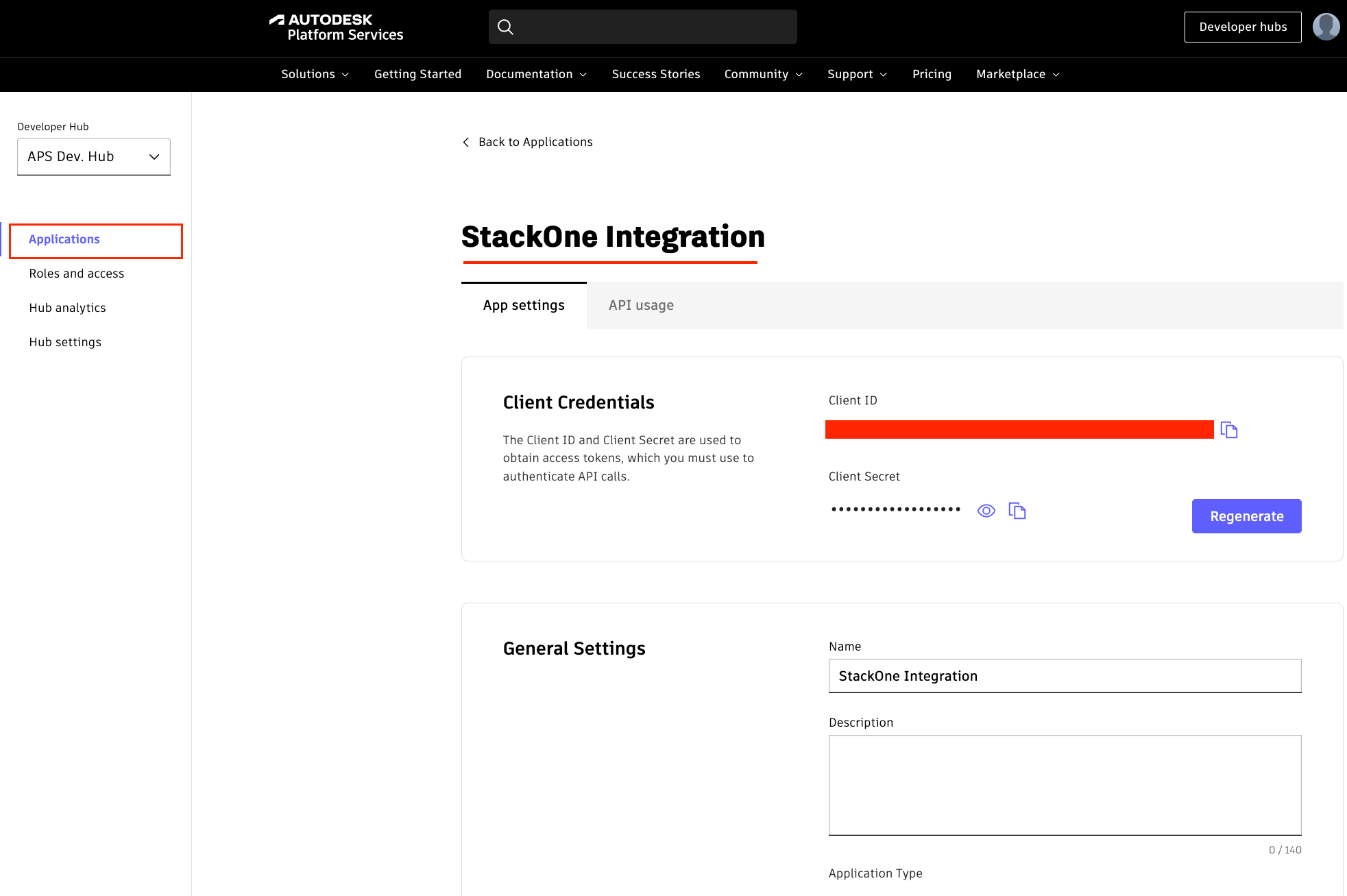
        <p>Open the application details page and copy the credentials.</p>

        <ul>
          <li>Copy the <strong>Client ID</strong>.</li>
          <li>Copy the <strong>Client Secret</strong> and store it securely for use later.</li>
          <li>The Client Secret is shown in full only once — regenerate it from the app details if lost.</li>
        </ul>

        <img src="https://mintcdn.com/stackone-60/jsL_dX8vwRUcAlgF/connectors/autodesk/images/setup-client-credentials.png?fit=max&auto=format&n=jsL_dX8vwRUcAlgF&q=85&s=1702ccacb2e8aec0504add5f6e918ccc" alt="The Client Credentials section showing the Client ID and Client Secret fields with a Regenerate button." width="1965" height="1307" data-path="connectors/autodesk/images/setup-client-credentials.png" />
      </div>
    </Step>
  </Steps>
</section>

## Creating the StackOne Connector Profile

To create the Connector Profile in StackOne for <strong>Autodesk</strong>:

<Steps>
  <Step title="Navigate to Connector Profiles">
    Login to StackOne and navigate to [Connector Profiles](https://app.stackone.com/connector_profiles)
  </Step>

  <Step title="Create New Connector Profile">
    <ul>
      <li>Click <strong>+ Connector Profile</strong></li>
      <li>Search for and select <strong>Autodesk</strong></li>
      <li>Select <strong>Type</strong> as <strong>OAuth 2.0 (Three-Legged)</strong></li>

      <li>
        Fill out the fields using details retrieved from your provider:

        <ul style={{ marginLeft: '20px' }}>
          <li><strong>Client ID</strong></li>
          <li><strong>Client Secret</strong></li>
          <li><strong>Scopes</strong> (Optional)</li>
        </ul>
      </li>

      <li>(Optional) Select <strong>Actions</strong> to be enabled for this Connector Profile</li>
      <li>Click <strong>Create profile</strong></li>
    </ul>
  </Step>
</Steps>

Congratulations! The new Connector Profile will now show up in your project ready to be used. You can now continue to <a href="/connect/managing-connectors/linking-accounts">Link Accounts</a> for <strong>Autodesk</strong>.