> ## Documentation Index
> Fetch the complete documentation index at: https://docs.stackone.com/llms.txt
> Use this file to discover all available pages before exploring further.

# Basecamp OAuth 2.0 connector profile – StackOne setup guide

> Set up the OAuth 2.0 connector profile for Basecamp in StackOne. One-time admin setup required before your users can link Basecamp accounts via Hub.

<Warning>You must have access to register applications on the 37signals Launchpad. This is typically available to account administrators or developers.</Warning>

<section data-guide-section data-guide-scopes="">
  <h2>Register an OAuth Application</h2>

  <p>Create an OAuth 2.0 application on the 37signals Launchpad to obtain your API credentials.</p>

  <Steps>
    <Step title="Access the Launchpad Integrations Page">
      <div data-guide-step data-guide-scopes="" data-guide-display-scopes-list="">
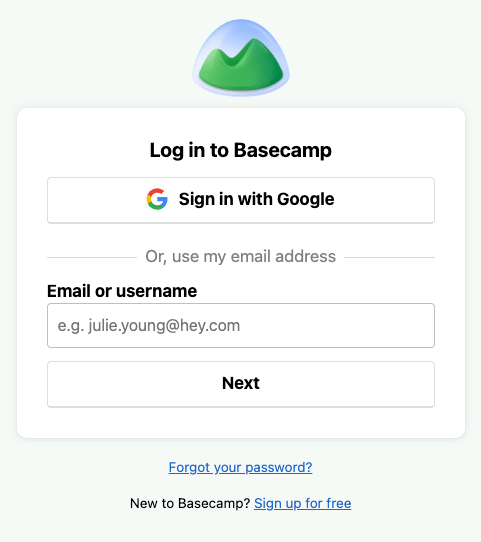
        <p>Navigate to <a href="https://launchpad.37signals.com/integrations" target="_blank" rel="noopener noreferrer">37signals Launchpad</a> and sign in with your Basecamp account.</p>

        <img src="https://mintcdn.com/stackone-60/X3hsrbcDUPSraEHE/connectors/basecamp/images/basecamp-signin-step-0.png?fit=max&auto=format&n=X3hsrbcDUPSraEHE&q=85&s=5169303fd7ff11a7ff34e4d615f550b3" alt="37signals Launchpad Integrations (Developers Portal) Page" width="481" height="542" data-path="connectors/basecamp/images/basecamp-signin-step-0.png" />
      </div>
    </Step>

    <Step title="Create a New Application">
      <div data-guide-step data-guide-scopes="" data-guide-display-scopes-list="">
        <p>Click <strong>Register another application</strong> to begin creating a new OAuth application.</p>
      </div>
    </Step>

    <Step title="Complete the Application Form">
      <div data-guide-step data-guide-scopes="" data-guide-display-scopes-list="">
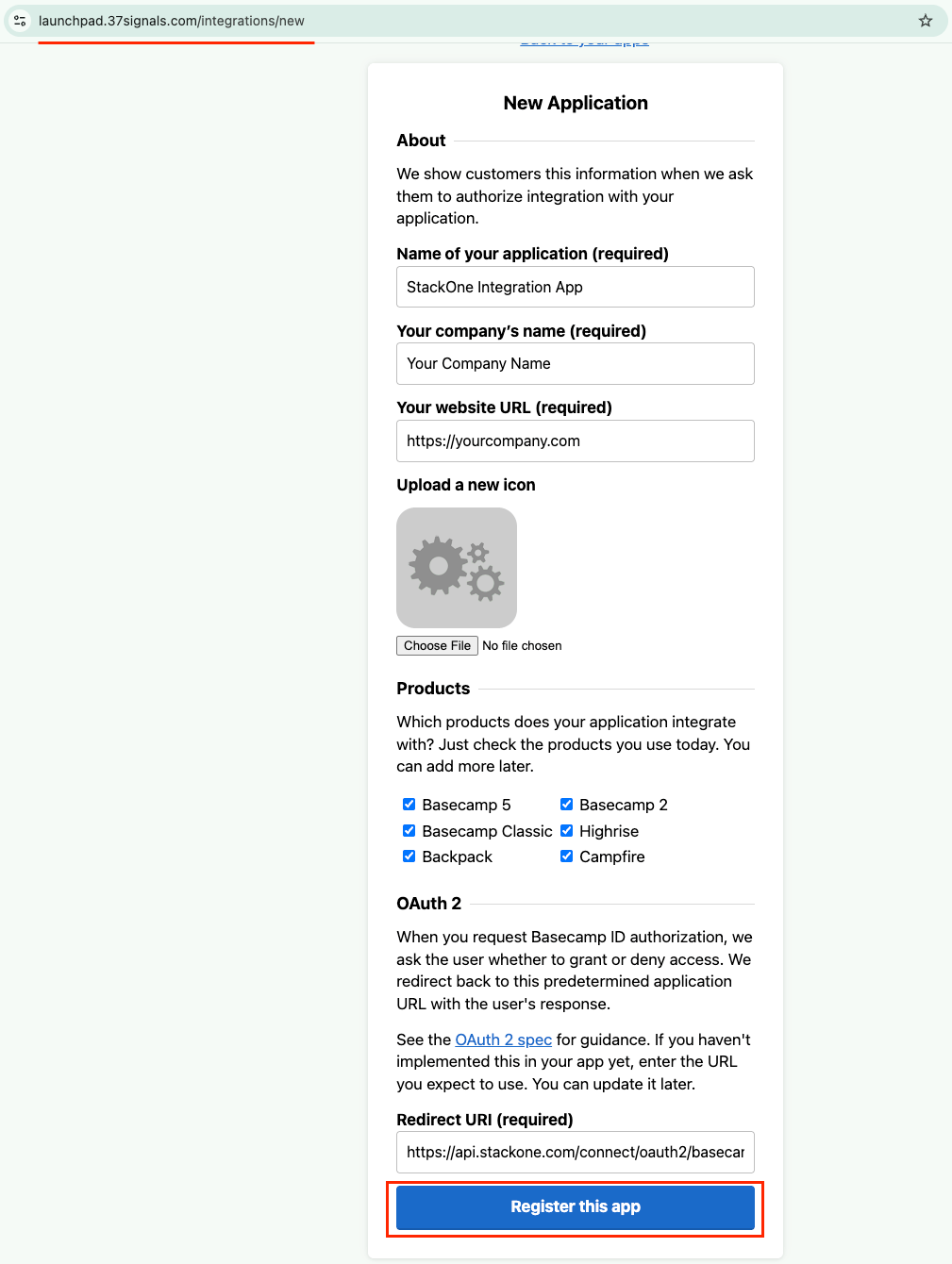
        <p>Navigate to the <a href="https://launchpad.37signals.com/integrations/new" target="_blank" rel="noopener noreferrer">application form</a> and fill in the required details.</p>

        <ul>
          <li><strong>Name of your application</strong>: Enter a descriptive name (e.g., StackOne Integration App)</li>
          <li><strong>Your company's name</strong>: Enter your organisation name</li>
          <li><strong>Your website URL</strong>: Enter your company website URL</li>
          <li><strong>Products</strong>: Select the `Basecamp 5` product from the list</li>
          <li><strong>Redirect URI</strong>: Use `https://api.stackone.com/connect/oauth2/basecamp/callback`</li>
          <li>This URL must match exactly for the OAuth flow to work correctly</li>
          <li>Click <strong>Register this app</strong> to complete the registration</li>
        </ul>

        <img src="https://mintcdn.com/stackone-60/X3hsrbcDUPSraEHE/connectors/basecamp/images/basecamp-app-form-step-3.png?fit=max&auto=format&n=X3hsrbcDUPSraEHE&q=85&s=69c0279a33fba8e1c0def39375409e07" alt="37signals Launchpad Application Registration Form" width="1009" height="1340" data-path="connectors/basecamp/images/basecamp-app-form-step-3.png" />
      </div>
    </Step>

    <Step title="Copy Your Credentials">
      <div data-guide-step data-guide-scopes="" data-guide-display-scopes-list="">
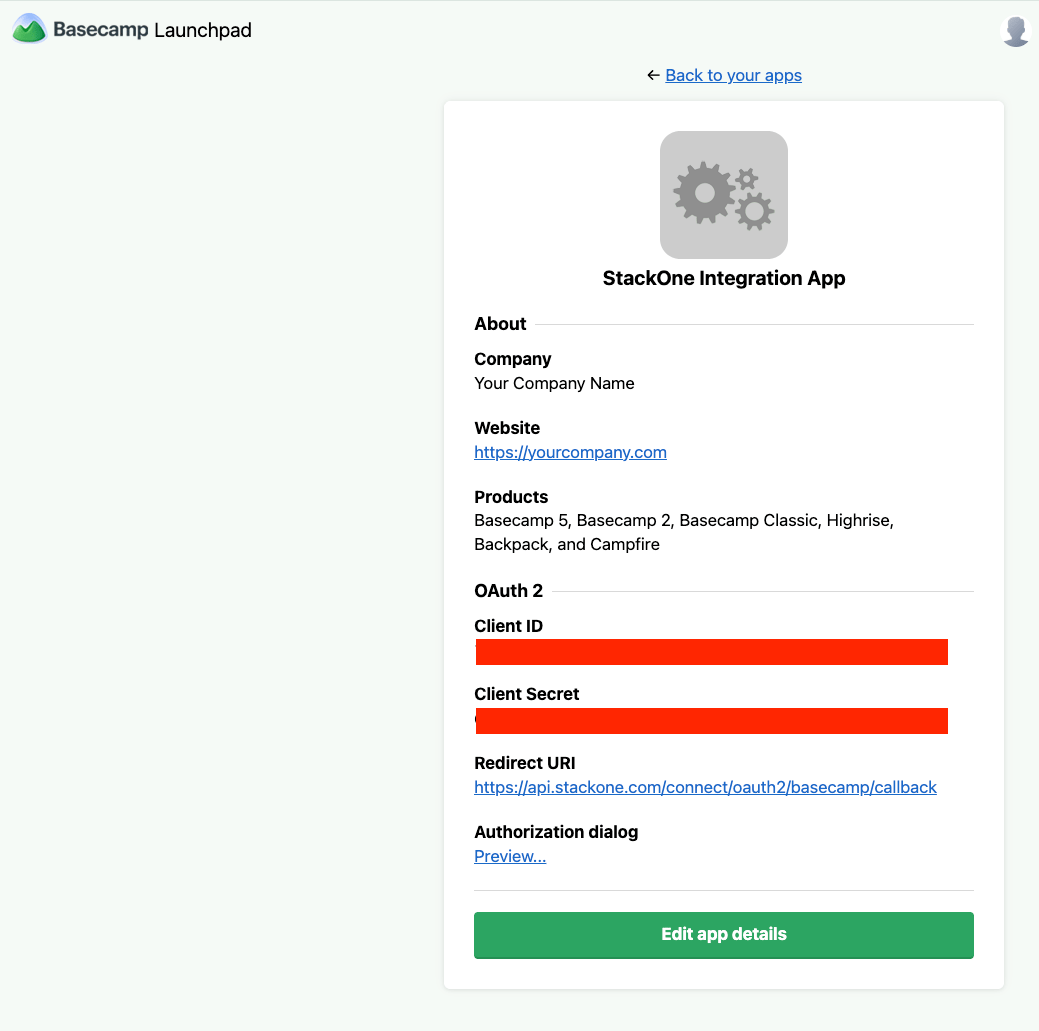
        <p>Once registered, click your application name to view the credentials.</p>

        <ul>
          <li>Copy the <strong>Client ID</strong> displayed on the application details page</li>
          <li>Copy the <strong>Client Secret</strong> and store it securely — you will need it later</li>
          <li><strong>Important</strong>: The Client Secret is sensitive and should never be shared or exposed publicly</li>
        </ul>

        <img src="https://mintcdn.com/stackone-60/X3hsrbcDUPSraEHE/connectors/basecamp/images/basecamp-client-id-and-secret-step-4.png?fit=max&auto=format&n=X3hsrbcDUPSraEHE&q=85&s=2a3e3ae17698fa4b5953484283ed9239" alt="37signals Launchpad Application Credentials Page" width="1039" height="1031" data-path="connectors/basecamp/images/basecamp-client-id-and-secret-step-4.png" />
      </div>
    </Step>
  </Steps>
</section>

## Creating the StackOne Connector Profile

To create the Connector Profile in StackOne for <strong>Basecamp</strong>:

<Steps>
  <Step title="Navigate to Connector Profiles">
    Login to StackOne and navigate to [Connector Profiles](https://app.stackone.com/connector_profiles)
  </Step>

  <Step title="Create New Connector Profile">
    <ul>
      <li>Click <strong>+ Connector Profile</strong></li>
      <li>Search for and select <strong>Basecamp</strong></li>
      <li>Select <strong>Type</strong> as <strong>OAuth 2.0</strong></li>

      <li>
        Fill out the fields using details retrieved from your provider:

        <ul style={{ marginLeft: '20px' }}>
          <li><strong>Client ID</strong></li>
          <li><strong>Client Secret</strong></li>
        </ul>
      </li>

      <li>(Optional) Select <strong>Actions</strong> to be enabled for this Connector Profile</li>
      <li>Click <strong>Create profile</strong></li>
    </ul>
  </Step>
</Steps>

Congratulations! The new Connector Profile will now show up in your project ready to be used. You can now continue to <a href="/connect/managing-connectors/linking-accounts">Link Accounts</a> for <strong>Basecamp</strong>.