> ## Documentation Index
> Fetch the complete documentation index at: https://docs.stackone.com/llms.txt
> Use this file to discover all available pages before exploring further.

# Connect Contentful with Personal Access Token – StackOne Hub

> Link a Contentful account in the StackOne Hub using Personal Access Token. End-user guide to authorize the integration and start using Contentful actions.

<section data-guide-section data-guide-scopes="">
  <h2>Generate a Personal Access Token</h2>

  <p>Personal Access Tokens (PATs) authenticate against the Contentful Content Management API.<br />The token inherits the permissions of the user who creates it and starts with `CFPAT-`.</p>

  <Steps>
    <Step title="Navigate to CMA tokens">
      <div data-guide-step data-guide-scopes="" data-guide-display-scopes-list="">
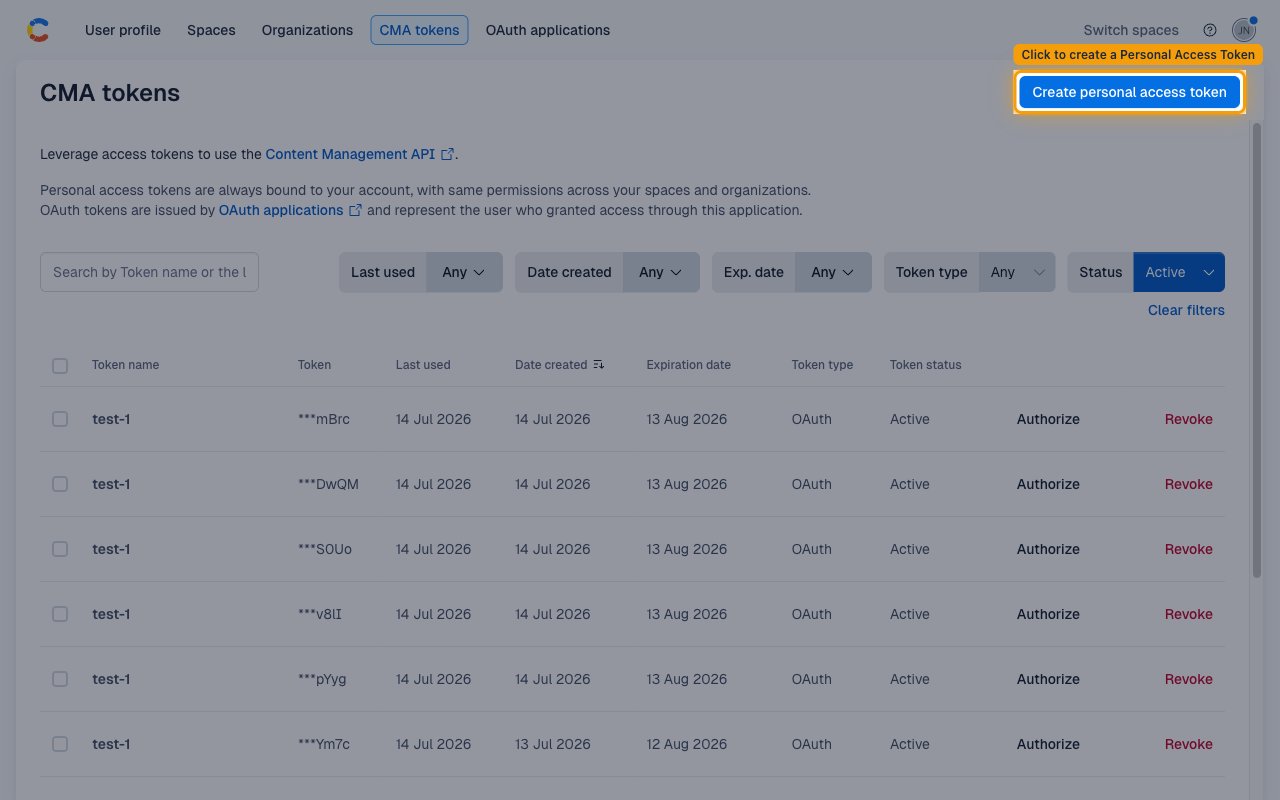
        <p>Sign in to your <a href="https://app.contentful.com" target="_blank" rel="noopener noreferrer">Contentful account</a>. Click your profile<br />avatar in the top-right corner, select <strong>Account settings</strong>, then click <strong>CMA tokens</strong><br />in the top navigation.</p>

        <img src="https://mintcdn.com/stackone-60/8Et9wQ4fF8r7yY8U/connectors/contentful/images/personal-access-token-config-step-1.png?fit=max&auto=format&n=8Et9wQ4fF8r7yY8U&q=85&s=afbef2065a53a37402261f4dafd1f99e" alt="CMA tokens page with Create personal access token button highlighted" width="1280" height="800" data-path="connectors/contentful/images/personal-access-token-config-step-1.png" />
      </div>
    </Step>

    <Step title="Create a new token">
      <div data-guide-step data-guide-scopes="" data-guide-display-scopes-list="">
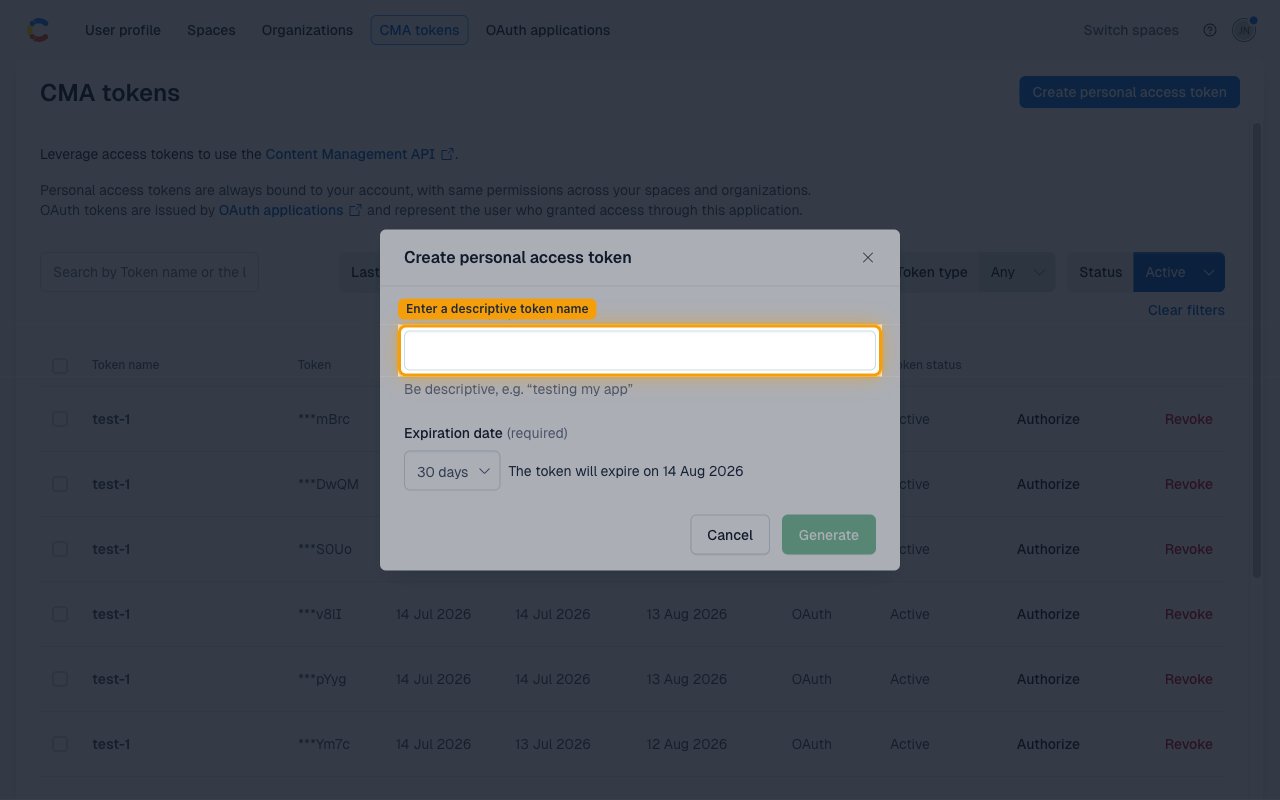
        <p>Click <strong>Create personal access token</strong> (top right of the CMA tokens page).</p>

        <img src="https://mintcdn.com/stackone-60/8Et9wQ4fF8r7yY8U/connectors/contentful/images/personal-access-token-config-step-2.png?fit=max&auto=format&n=8Et9wQ4fF8r7yY8U&q=85&s=2ca61f60ff8ca6b2e00ac55e5a51b632" alt="Create personal access token dialog with Token name field highlighted" width="1280" height="800" data-path="connectors/contentful/images/personal-access-token-config-step-2.png" />
      </div>
    </Step>

    <Step title="Fill in the token details and generate">
      <div data-guide-step data-guide-scopes="" data-guide-display-scopes-list="">
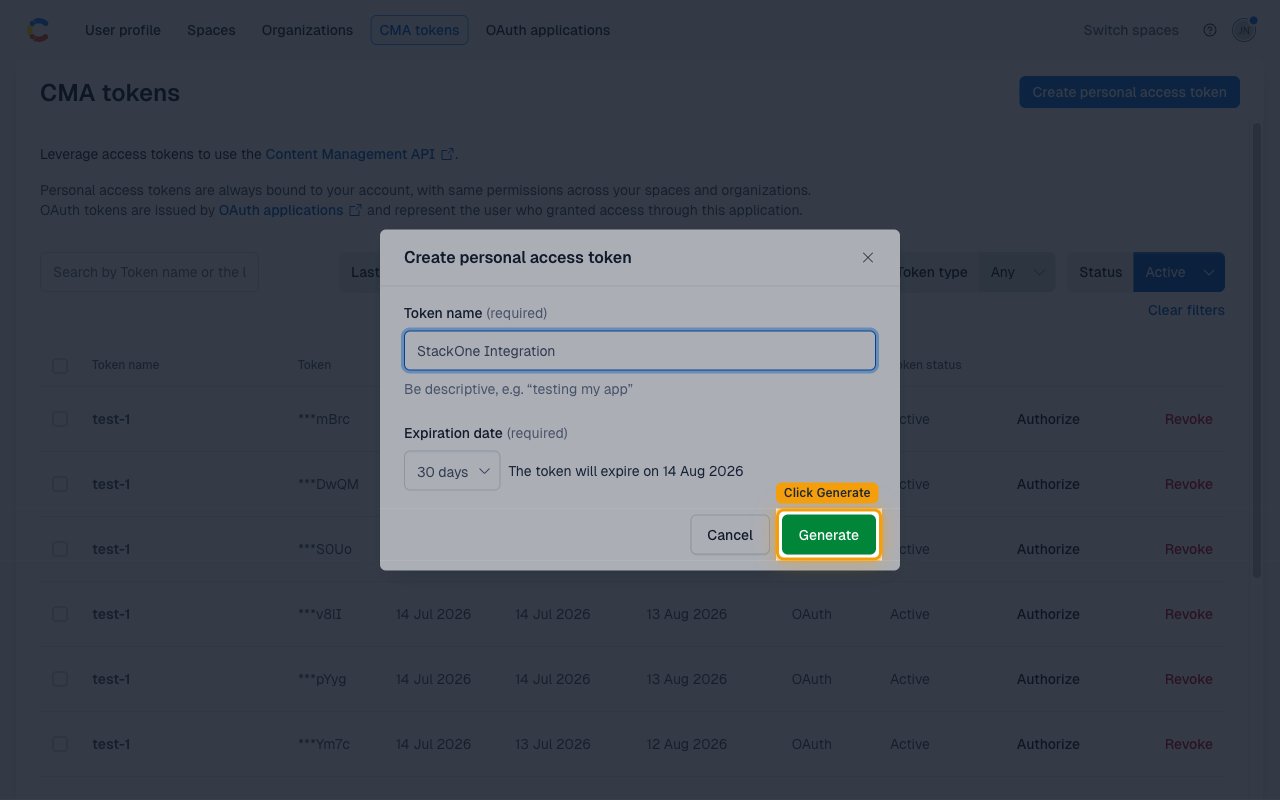
        <p>Enter a descriptive <strong>Token name</strong> (e.g., `StackOne`) and choose an <strong>Expiration date</strong><br />(default: 30 days). Click <strong>Generate</strong>.</p>

        <ul>
          <li>Token name: Enter a descriptive name — e.g., `StackOne`.</li>
          <li>Expiration date: Required — defaults to 30 days. Adjust to match your integration's needs.</li>
          <li>Click <strong>Generate</strong>.</li>
        </ul>

        <img src="https://mintcdn.com/stackone-60/8Et9wQ4fF8r7yY8U/connectors/contentful/images/personal-access-token-config-step-3.png?fit=max&auto=format&n=8Et9wQ4fF8r7yY8U&q=85&s=4b9c20d3249c8c336ca442c940b32b3f" alt="Token name filled in with Generate button highlighted" width="1280" height="800" data-path="connectors/contentful/images/personal-access-token-config-step-3.png" />
      </div>
    </Step>

    <Step title="Copy the token immediately">
      <div data-guide-step data-guide-scopes="" data-guide-display-scopes-list="">
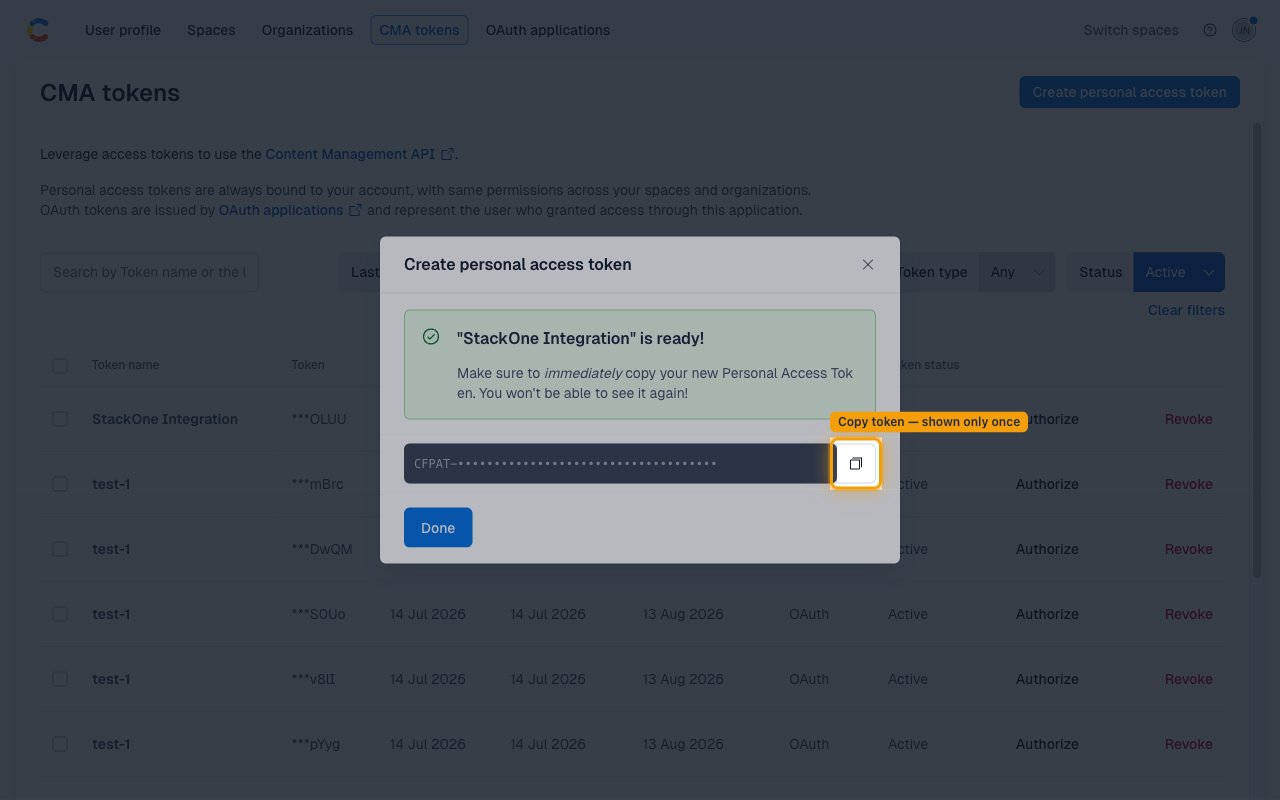
        <p>Contentful displays the token only once. Click <strong>Copy to clipboard</strong> and store it securely —<br />you will need it for the <strong>Personal Access Token</strong> field in StackOne.</p>

        <ul>
          <li>Click the <strong>copy icon</strong> next to the token value.</li>
          <li>Store the token securely — it starts with `CFPAT-` and cannot be retrieved again.</li>
        </ul>

        <img src="https://mintcdn.com/stackone-60/8Et9wQ4fF8r7yY8U/connectors/contentful/images/personal-access-token-config-step-4.png?fit=max&auto=format&n=8Et9wQ4fF8r7yY8U&q=85&s=6cc7366d3600f191f2f52d0d829a152b" alt="Generated token confirmation screen with copy button highlighted" width="1280" height="800" data-path="connectors/contentful/images/personal-access-token-config-step-4.png" />
      </div>
    </Step>
  </Steps>
</section>

<section data-guide-section data-guide-scopes="">
  <h2>Find your Space ID</h2>

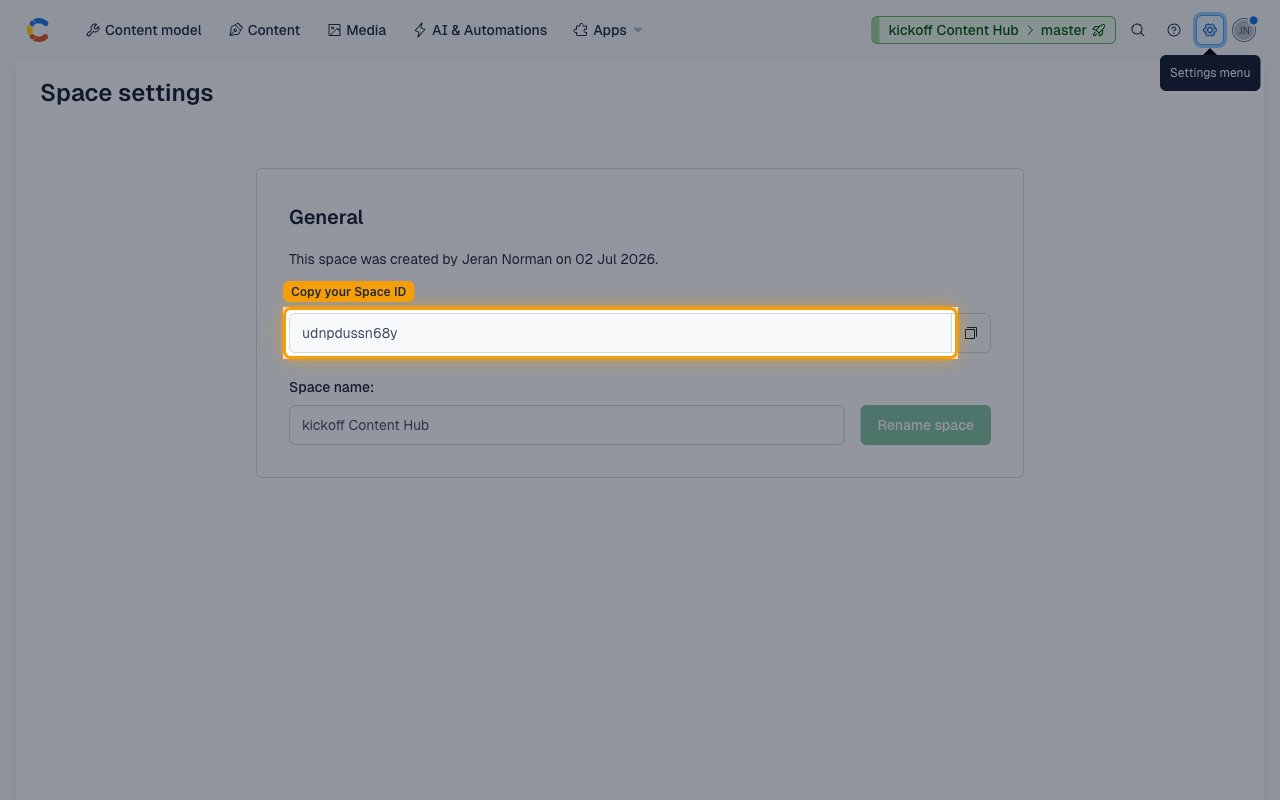
  <p>Space IDs are passed as an input parameter on each space-scoped CMS action call<br />(entries, assets, content types). For webhook event delivery, enter one or more<br />space IDs in the <strong>Webhook Space IDs</strong> field (comma-separated).</p>

  <Steps>
    <Step title="Open Space General settings">
      <div data-guide-step data-guide-scopes="" data-guide-display-scopes-list="">
        <p>From inside any space, click the <strong>Settings</strong> gear icon in the top-right navigation bar<br />and select <strong>General settings</strong> under the Space settings section.</p>

        <ul>
          <li>Click the <strong>Settings menu</strong> (gear icon, top-right of the space navigation bar).</li>
          <li>Under <strong>Space settings</strong>, click <strong>General settings</strong>.</li>
          <li>Copy the value shown in the <strong>Space ID</strong> field. It is a 12-character alphanumeric string (e.g., `abc123xyz789`). Use this value as the `space_id` input when calling CMS actions, or paste it into <strong>Webhook Space IDs</strong> for webhook event delivery.</li>
        </ul>

        <img src="https://mintcdn.com/stackone-60/8Et9wQ4fF8r7yY8U/connectors/contentful/images/personal-access-token-config-step-5.png?fit=max&auto=format&n=8Et9wQ4fF8r7yY8U&q=85&s=0ae75c74fbded261ca8cd353609860c9" alt="Space settings General page with Space ID field highlighted" width="1280" height="800" data-path="connectors/contentful/images/personal-access-token-config-step-5.png" />
      </div>
    </Step>
  </Steps>
</section>

<div data-whitelabel-hide>
  <h2>Linking the Account from the Hub</h2>

  <Steps>
    <Step title="Navigate to the Hub">
      Use one of the three <a href="/guides/accounts-section#linking-accounts">Linking Account Methods</a> to access the Hub.
    </Step>

    <Step title="Fill out the fields">
      Fill out the following fields using details from your provider:

      <ul>
        <li><strong>Personal Access Token</strong></li>
        <li><strong>Webhook Space IDs</strong> (Optional)</li>
      </ul>
    </Step>

    <Step title="Connect">
      <ul>
        <li>Click <strong>Connect</strong></li>
        <li>If applicable, the provider will redirect you to a sign-in or authorization page. Complete the provider's authorization flow.</li>
        <li>Once authorization is successful, you will see a confirmation popup</li>
      </ul>
    </Step>
  </Steps>

  <p>If the account linking is successful, you will see the newly linked account in your <a href="/guides/accounts-section">Accounts</a> page.</p>
</div>

## Next Steps

<Columns cols={2}>
  <Card title="Webhooks setup" href="/connectors/contentful/guides/webhook-setup">
    <p className="connector-page-auth-description" style={{ fontSize: '14px', marginTop: 0, marginBottom: 0 }}>
      Configure receiving Events for Contentful into StackOne.
    </p>
  </Card>
</Columns>