

 MCP
MCP A2A
A2AGenerating an Exa API key
To connect Exa with StackOne, generate an API key from the Exa Dashboard. Any Exa account works — sign-up is free, and a Personal team is enough to create a key.
Sign in to Exa
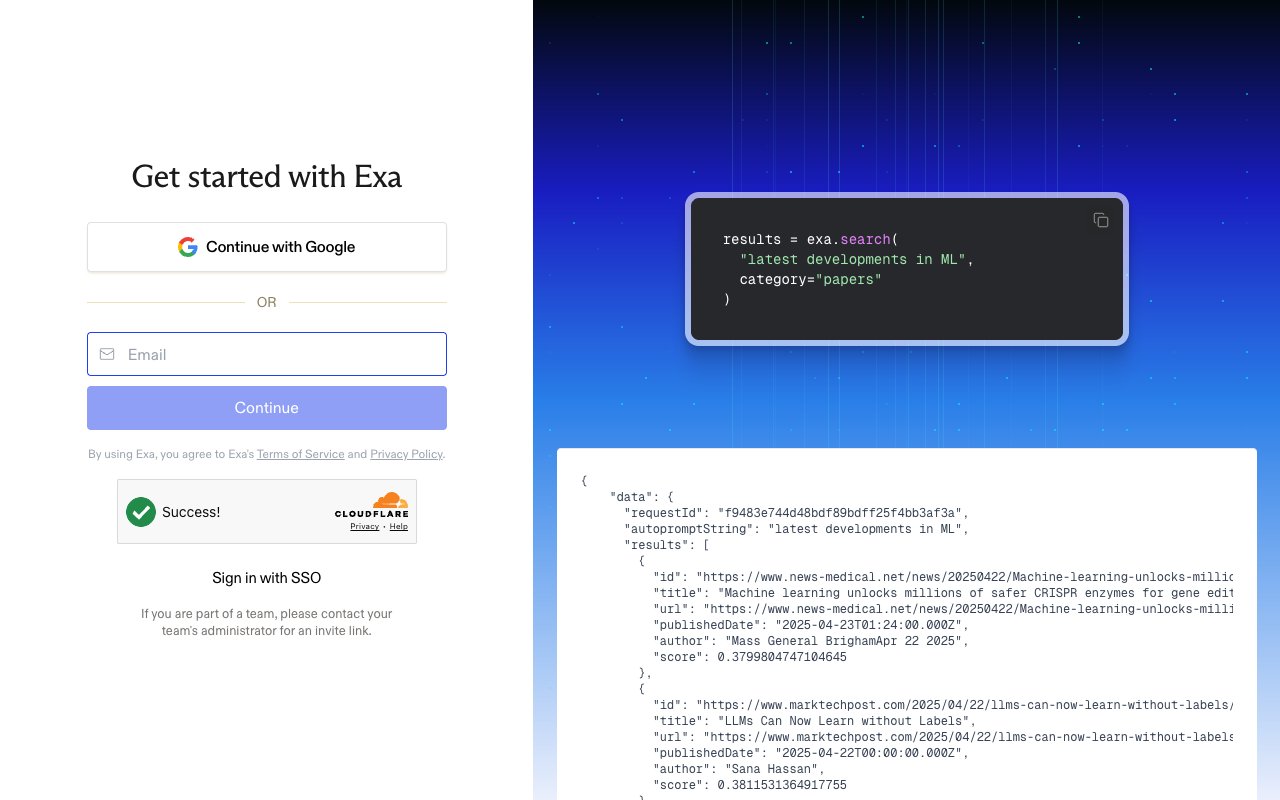
Sign in at the Exa Dashboard. On the Get started with Exa screen you can choose Continue with Google, enter your Email and click Continue, or use Sign in with SSO. If you don’t have an account yet, create one for free.
Open the API Keys page
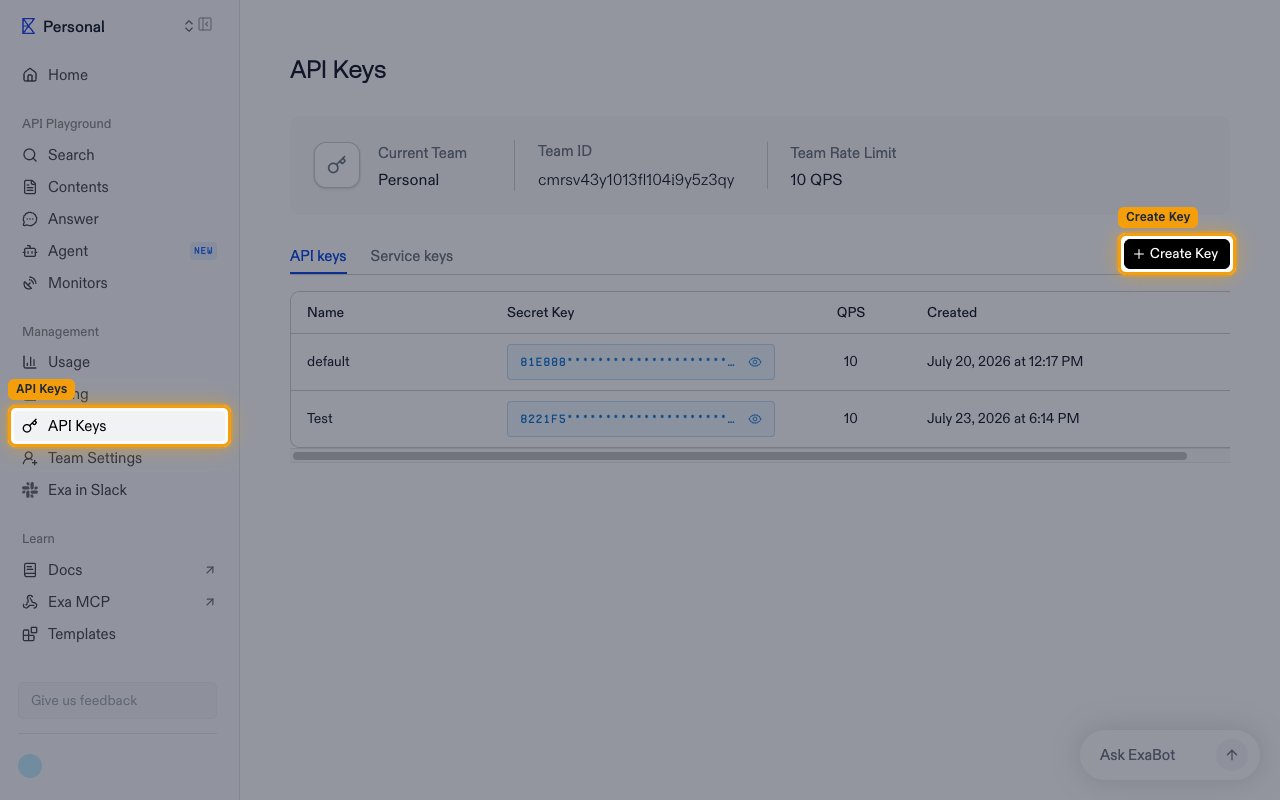
Open the API Keys page from the dashboard.
- In the left sidebar, under Management, click API Keys.
- Make sure the API keys tab is selected (not Service keys).
Create an API key
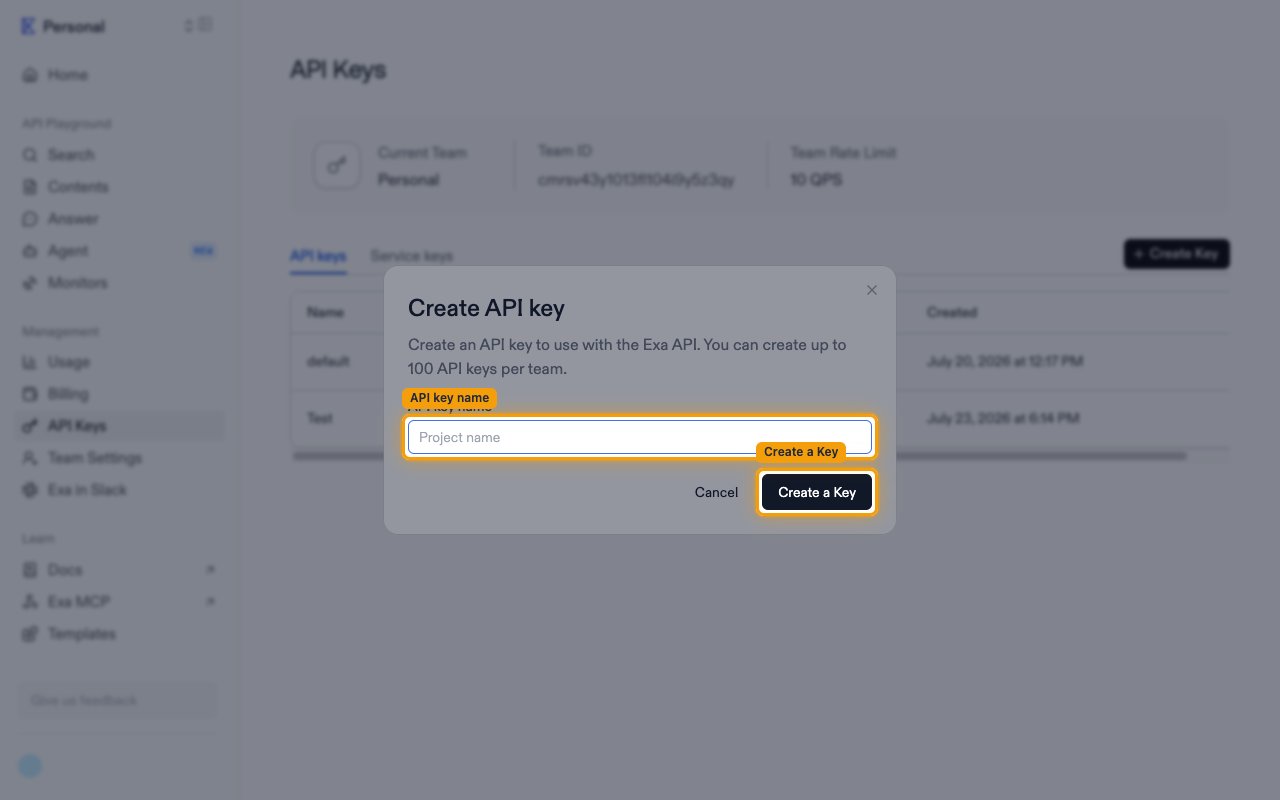
Click Create Key in the top-right corner. In the Create API key dialog, type a recognizable name in the API key name field, then click Create a Key.
Copy the API key
When the You have successfully created a new API key confirmation appears, copy the value from the API Key field using the copy button, then paste it into the API Key field in StackOne.
- The key is shown only once in this dialog and cannot be retrieved later — copy it before clicking Done.
Linking the Account from the Hub
Navigate to the Hub
Fill out the fields
- API Key
Connect
- Click Connect
- If applicable, the provider will redirect you to a sign-in or authorization page. Complete the provider’s authorization flow.
- Once authorization is successful, you will see a confirmation popup
If the account linking is successful, you will see the newly linked account in your Accounts page.