

 MCP
MCP A2A
A2AGet the API credentials from RECRU
RECRU exposes a single tenant-wide API user. The username and password both live on the Your API credentials panel in your backoffice — you copy them from there into the StackOne Connector profile.
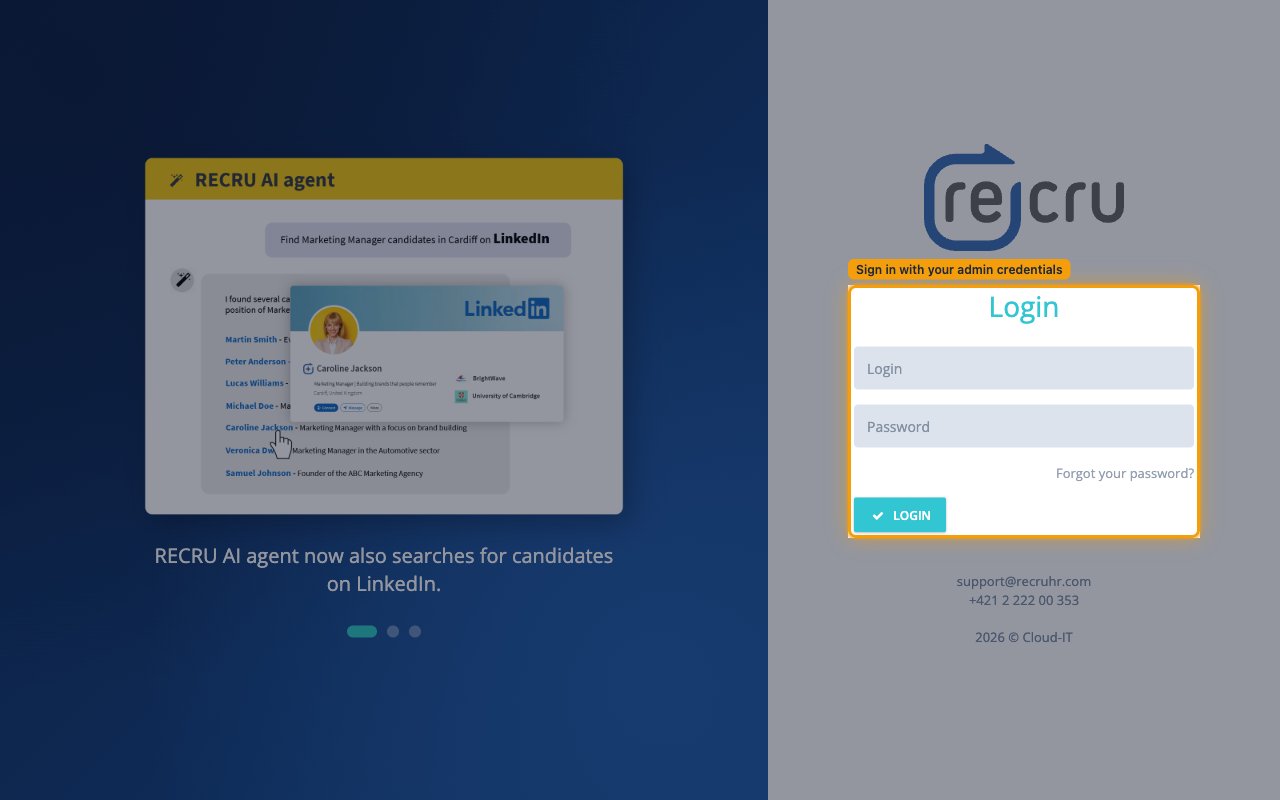
Sign in to RECRU
Open https://<tenant>.recru.eu in a browser (replace <tenant> with your RECRU subdomain — for example https://mytenant.recru.eu) and complete the Login form with your admin Login and Password.
Open API documentation in Settings
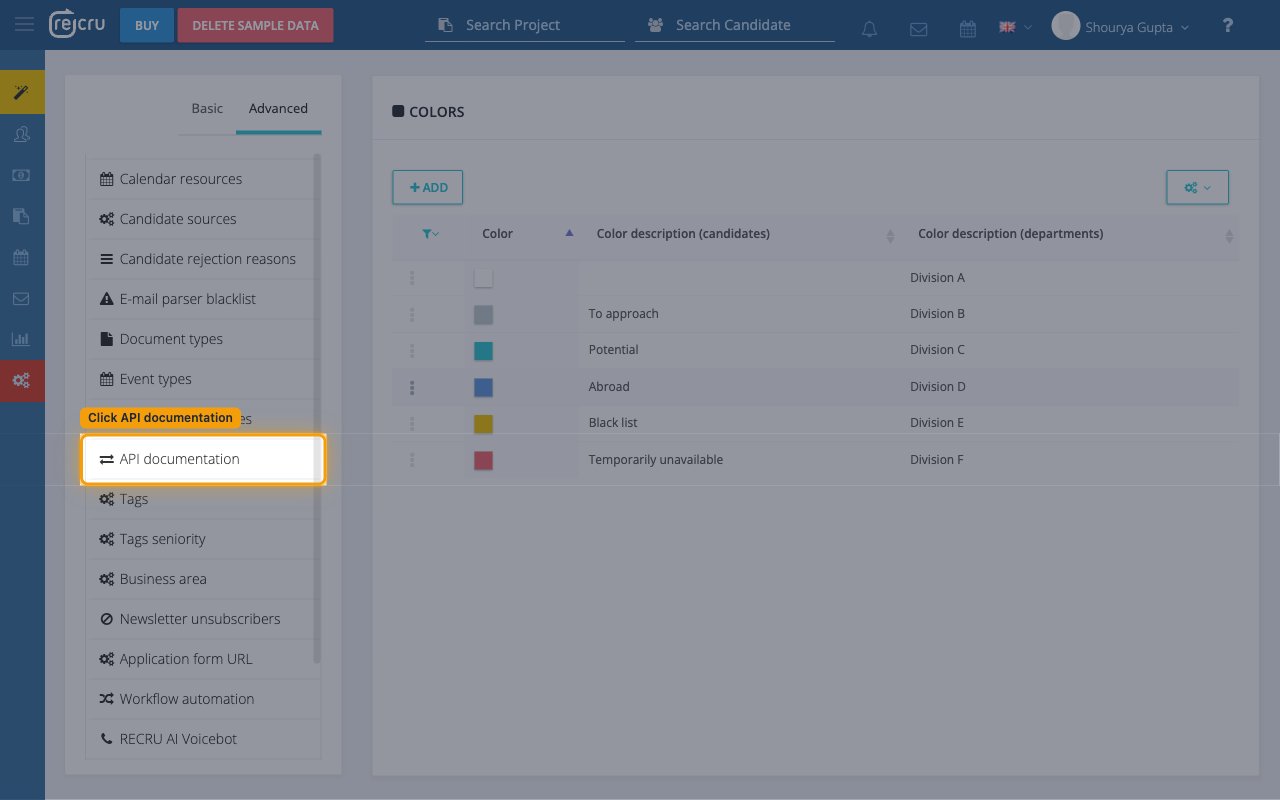
After signing in, open the API documentation screen from the backoffice sidebar.
- In the left navigation, click Settings.
- At the top of the Settings screen, switch from Basic to the Advanced tab.
- In the list on the left, click API documentation.
Copy the API username and password
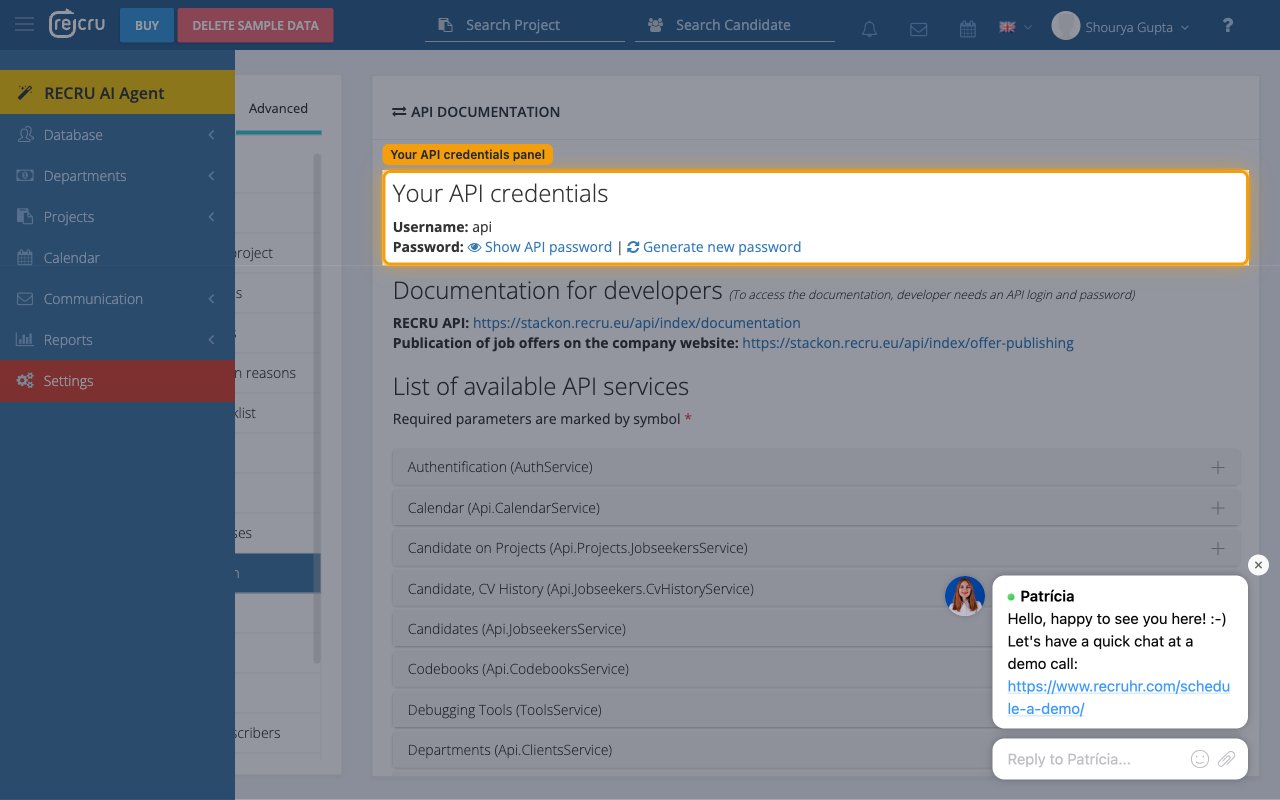
The Your API credentials panel at the top of the API DOCUMENTATION screen holds the two values StackOne needs. Copy the Username exactly as shown and reveal the password with Show API password, then paste both into the StackOne Connector profile.
- Copy the value next to Username: (RECRU pre-fills this as
api) and paste it into the Username field in the StackOne Connector profile. - Click Show API password to reveal the current password, then copy it into the API password field in the StackOne Connector profile.
- If no password has been set yet — or you need to rotate it — click Generate new password instead. The new value replaces the previous password immediately and is shown only once.
Creating the StackOne Connector Profile
To create the Connector Profile in StackOne for RECRU:Navigate to Connector Profiles