> ## Documentation Index
> Fetch the complete documentation index at: https://docs.stackone.com/llms.txt
> Use this file to discover all available pages before exploring further.
# Team Management
> Invite members, assign org and project roles, and manage organization security.
**Org Admins** manage who can access your StackOne organization from the organization's **Members** settings.
| Org role | Access |
| ------------- | -------------------------------------------------------------------------------------------------------------------- |
| **Org Admin** | Manage members and security settings; create and access any [project](/gateway/concepts/organizations-and-projects). |
| **Basic** | Only the projects they're added to. The Team Members section is hidden. |
Org and project roles are independent. A **Basic** member can be **Project Admin** on a specific project, with full control of that project and no org-wide access.
## Invite a member
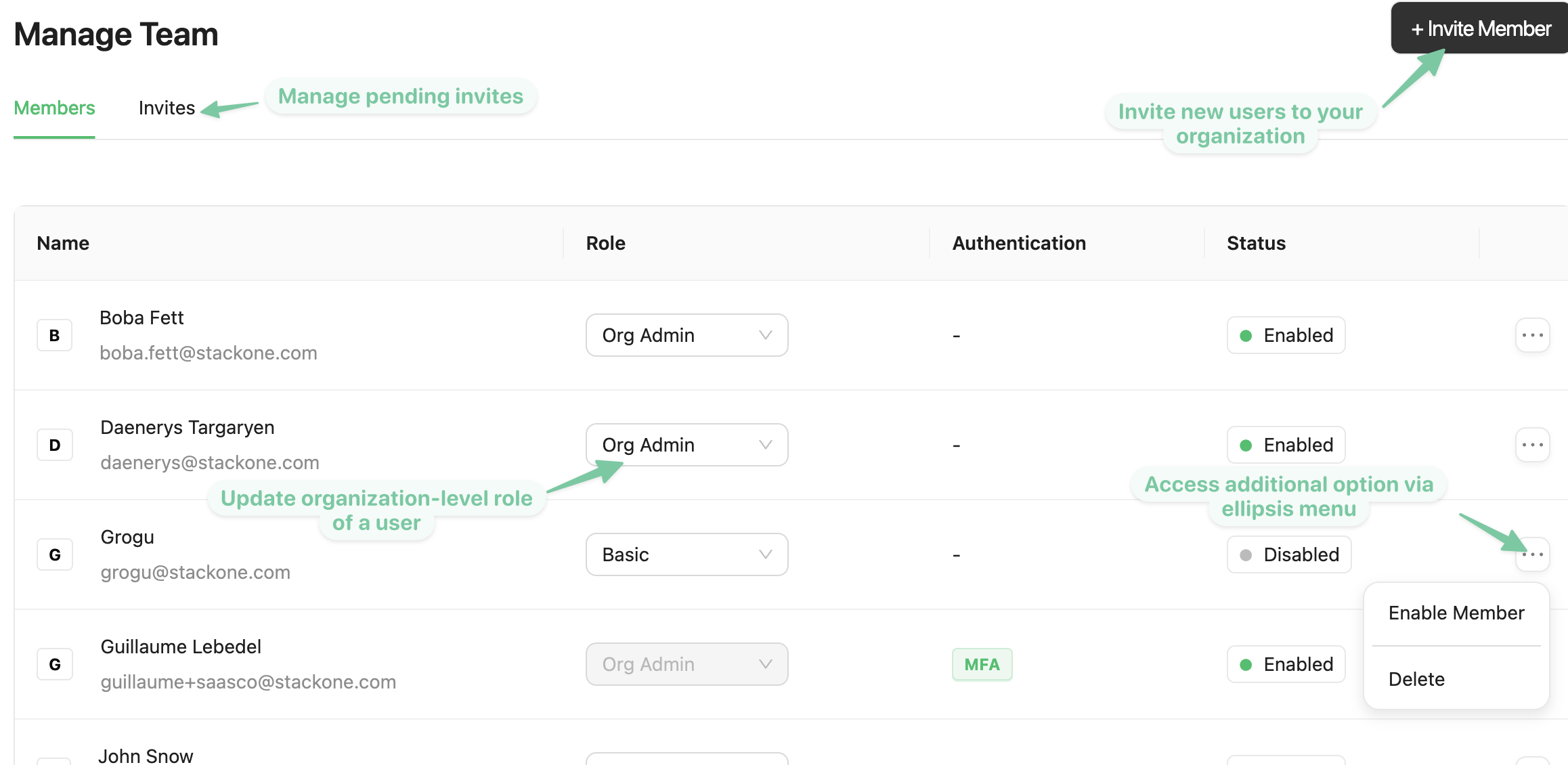
Invite people by email and assign their role at the time of invite. Pending invites can be resent or cancelled.
 ## Change a role
Change a member's org role from the Members list. Project-level access is assigned separately. See [Project members](#project-members).
## Project members
Project access is managed from **Project Settings → Team Members**, separately from org membership. Add or remove members per project and assign one of three roles:
| Resource | Project Admin | Member | Viewer |
| ---------------------------------------------------------- | ---------------------------------------------------------------------------------- | -------------------------------------------------------------------------- | -------------------------------------------- |
| [Linked accounts](/gateway/concepts/linked-accounts) | Link, edit, re-authenticate, suspend, delete, and run requests against any account | Link their own accounts, then edit, delete, and run requests against those | View status and details |
| [Connector profiles](/gateway/concepts/connector-profiles) | Create, configure, scope actions and events, and delete | View authentication type and enabled actions | View authentication type and enabled actions |
| [Request logs](/connect/troubleshooting) | View | View for their own accounts and accounts shared with them | View |
| [API keys](/embed/api-keys) | Create, scope, and revoke | No access | No access |
| [Webhooks](/connect/webhooks) | Create, route events, and delete | No access | No access |
| Project settings | Manage all settings | No access | No access |
**Member** suits rolling agent access out to a team. Each Member connects their own accounts and can only ever grant an agent the accounts they linked, so one project can serve a whole department without everyone seeing everyone else's connections. See [Who can grant access](/connect/agent-setup/overview#who-can-grant-access) for how this plays out when someone connects an AI client.
### Sharing a single account
Access can also be granted on one linked account at a time, which is how a shared connection reaches someone who is otherwise only a Member. Open the account, then manage its members:
| On a linked account | Can |
| ------------------- | -------------------------------------------------------------------------- |
| **Admin** | Run actions, edit, delete, re-authenticate, and manage who else has access |
| **Member** | Run actions only |
## Enable, disable, or delete a user
* **Disable** revokes access while keeping the account, so you can re-enable it later.
* **Delete** removes the user from the organization permanently.
From the Members list you can also unlock accounts locked by failed logins and reset another user's MFA.
## Passwords and MFA
Members manage their own credentials from their personal settings. Click your name in the bottom-left corner of the dashboard:
* **Change password**: open **Account** settings and click **Change Password**, then enter your current password, enter and confirm the new one, and save.
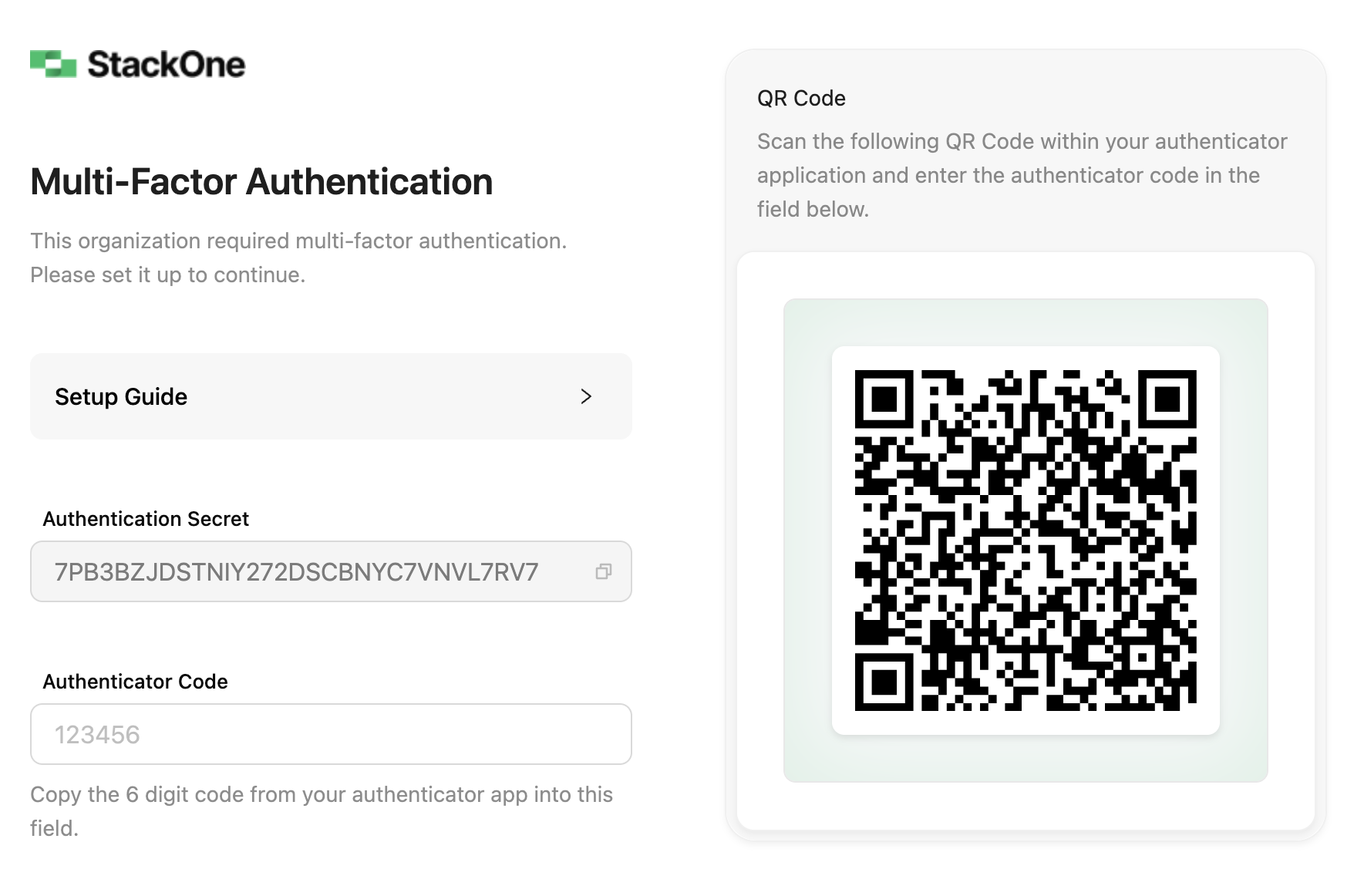
* **Enable Multi-Factor Authentication**: click **Enable Multi-Factor Authentication**, scan the QR code with your authenticator app (Google Authenticator, Microsoft Authenticator, 1Password, etc.), and confirm with the 6-digit code.
To enforce MFA for the whole organization, see [Organization security](#organization-security) below.
## Change a role
Change a member's org role from the Members list. Project-level access is assigned separately. See [Project members](#project-members).
## Project members
Project access is managed from **Project Settings → Team Members**, separately from org membership. Add or remove members per project and assign one of three roles:
| Resource | Project Admin | Member | Viewer |
| ---------------------------------------------------------- | ---------------------------------------------------------------------------------- | -------------------------------------------------------------------------- | -------------------------------------------- |
| [Linked accounts](/gateway/concepts/linked-accounts) | Link, edit, re-authenticate, suspend, delete, and run requests against any account | Link their own accounts, then edit, delete, and run requests against those | View status and details |
| [Connector profiles](/gateway/concepts/connector-profiles) | Create, configure, scope actions and events, and delete | View authentication type and enabled actions | View authentication type and enabled actions |
| [Request logs](/connect/troubleshooting) | View | View for their own accounts and accounts shared with them | View |
| [API keys](/embed/api-keys) | Create, scope, and revoke | No access | No access |
| [Webhooks](/connect/webhooks) | Create, route events, and delete | No access | No access |
| Project settings | Manage all settings | No access | No access |
**Member** suits rolling agent access out to a team. Each Member connects their own accounts and can only ever grant an agent the accounts they linked, so one project can serve a whole department without everyone seeing everyone else's connections. See [Who can grant access](/connect/agent-setup/overview#who-can-grant-access) for how this plays out when someone connects an AI client.
### Sharing a single account
Access can also be granted on one linked account at a time, which is how a shared connection reaches someone who is otherwise only a Member. Open the account, then manage its members:
| On a linked account | Can |
| ------------------- | -------------------------------------------------------------------------- |
| **Admin** | Run actions, edit, delete, re-authenticate, and manage who else has access |
| **Member** | Run actions only |
## Enable, disable, or delete a user
* **Disable** revokes access while keeping the account, so you can re-enable it later.
* **Delete** removes the user from the organization permanently.
From the Members list you can also unlock accounts locked by failed logins and reset another user's MFA.
## Passwords and MFA
Members manage their own credentials from their personal settings. Click your name in the bottom-left corner of the dashboard:
* **Change password**: open **Account** settings and click **Change Password**, then enter your current password, enter and confirm the new one, and save.
* **Enable Multi-Factor Authentication**: click **Enable Multi-Factor Authentication**, scan the QR code with your authenticator app (Google Authenticator, Microsoft Authenticator, 1Password, etc.), and confirm with the 6-digit code.
To enforce MFA for the whole organization, see [Organization security](#organization-security) below.
 ## Organization security
Open the **Security** page from your user menu to manage these org-wide settings:
| Setting | What it does |
| -------------------------------------------------------------------- | ------------------------------------------------------------------------------------------------------------------------------------------------------------------------------------------------------------------------------------------------- |
| MFA | Enforce time-based one-time-password MFA for all current and future members. Members without it are prompted on next login. They scan the QR code (or enter the secret) into any TOTP app, such as Google Authenticator, 1Password, or Bitwarden. |
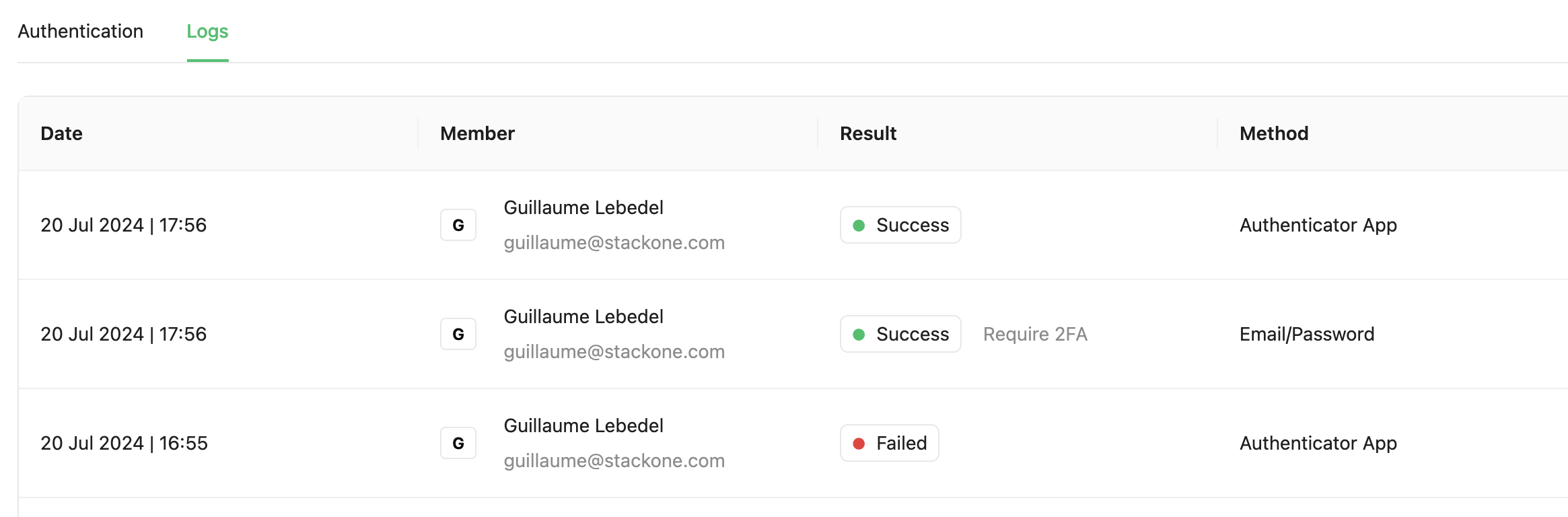
| [Security logs](https://app.stackone.com/organization/security_logs) | A record of every login attempt, success or failure, for monitoring and audit. |
| SSO | Configure SAML 2.0 single sign-on with your identity provider. See [SSO Setup](/secure/sso-setup). |
## Organization security
Open the **Security** page from your user menu to manage these org-wide settings:
| Setting | What it does |
| -------------------------------------------------------------------- | ------------------------------------------------------------------------------------------------------------------------------------------------------------------------------------------------------------------------------------------------- |
| MFA | Enforce time-based one-time-password MFA for all current and future members. Members without it are prompted on next login. They scan the QR code (or enter the secret) into any TOTP app, such as Google Authenticator, 1Password, or Bitwarden. |
| [Security logs](https://app.stackone.com/organization/security_logs) | A record of every login attempt, success or failure, for monitoring and audit. |
| SSO | Configure SAML 2.0 single sign-on with your identity provider. See [SSO Setup](/secure/sso-setup). |