> ## Documentation Index
> Fetch the complete documentation index at: https://docs.stackone.com/llms.txt
> Use this file to discover all available pages before exploring further.

# Connect Airship with Basic Auth – StackOne Hub

> Link a Airship account in the StackOne Hub using Basic Auth. End-user guide to authorize the integration and start using Airship actions.

<Warning>Ensure you have Admin privileges for your Airship account.</Warning>

<section data-guide-section data-guide-scopes="">
  <h2>Find your Airship region (EU or US)</h2>

  <p>Login to your Airship tenant and check your browser's URL bar to determine your region.</p>

  <Steps>
    <Step title="Login to Airship">
      <div data-guide-step data-guide-scopes="" data-guide-display-scopes-list="">
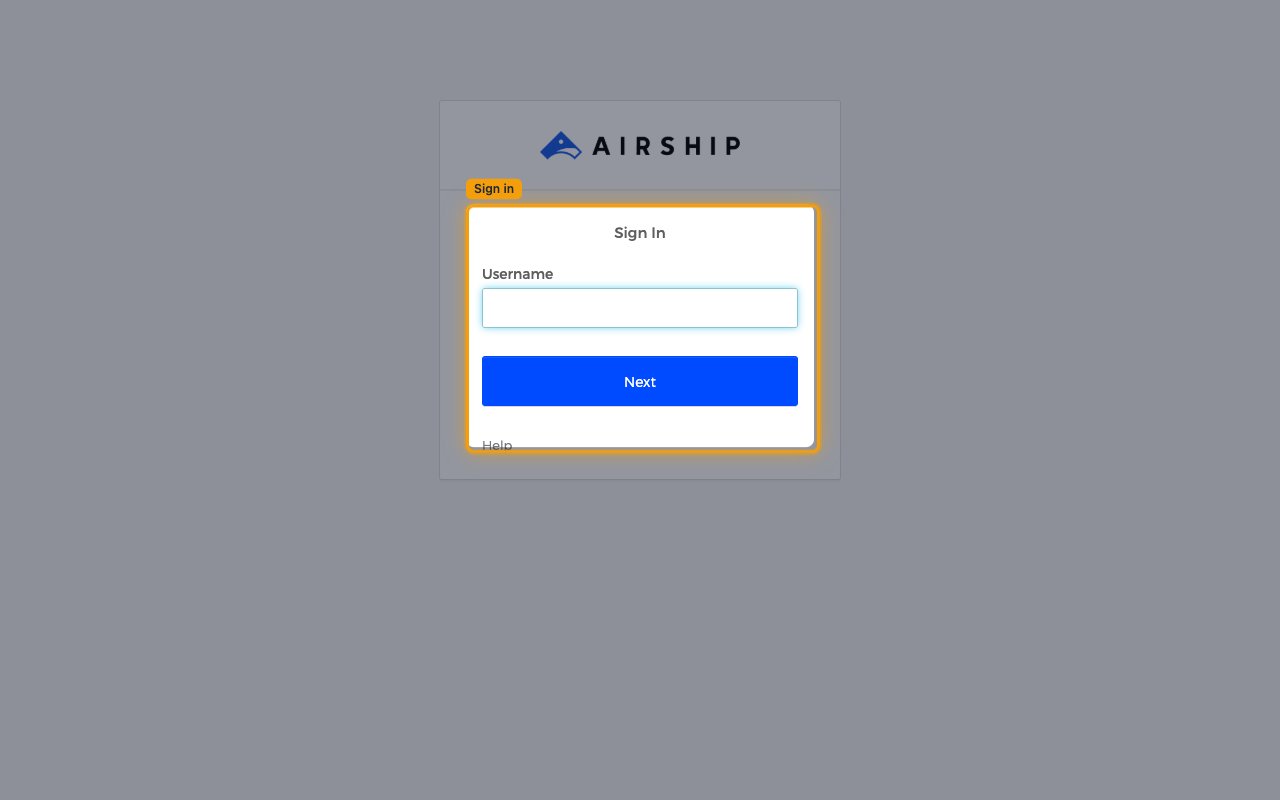
        <p>Login to your Airship tenant using the appropriate host for your region.</p>

        <ul>
          <li><a href="https://go.urbanairship.com" target="_blank" rel="noopener noreferrer">US Region</a></li>
          <li><a href="https://go.airship.eu" target="_blank" rel="noopener noreferrer">EU Region</a></li>
        </ul>

        <img src="https://mintcdn.com/stackone-60/tPJudaGb1Y6OixX6/connectors/airship/images/basic_auth-config-sign-in.png?fit=max&auto=format&n=tPJudaGb1Y6OixX6&q=85&s=586a7d663852c2bfcb4369210f88c945" alt="Airship Sign In page with the Username field and Next button highlighted." width="1280" height="800" data-path="connectors/airship/images/basic_auth-config-sign-in.png" />
      </div>
    </Step>

    <Step title="Confirm your region">
      <div data-guide-step data-guide-scopes="" data-guide-display-scopes-list="">
        <p>Your region is determined by the Airship domain your account is hosted on. Once you are<br />logged in, check your browser's address bar and match the domain below.</p>

        <ul>
          <li>`go.urbanairship.com` → <strong>US</strong></li>
          <li>`go.airship.eu` → <strong>EU</strong></li>
          <li>For example, the URL `https://go.airship.eu/apps/` means your region is <strong>EU</strong>.</li>
        </ul>
      </div>
    </Step>
  </Steps>
</section>

<section data-guide-section data-guide-scopes="">
  <h2>Retrieve your App Key</h2>

  <p>The App Key identifies your Airship project.</p>

  <Steps>
    <Step title="Select your project">
      <div data-guide-step data-guide-scopes="" data-guide-display-scopes-list="">
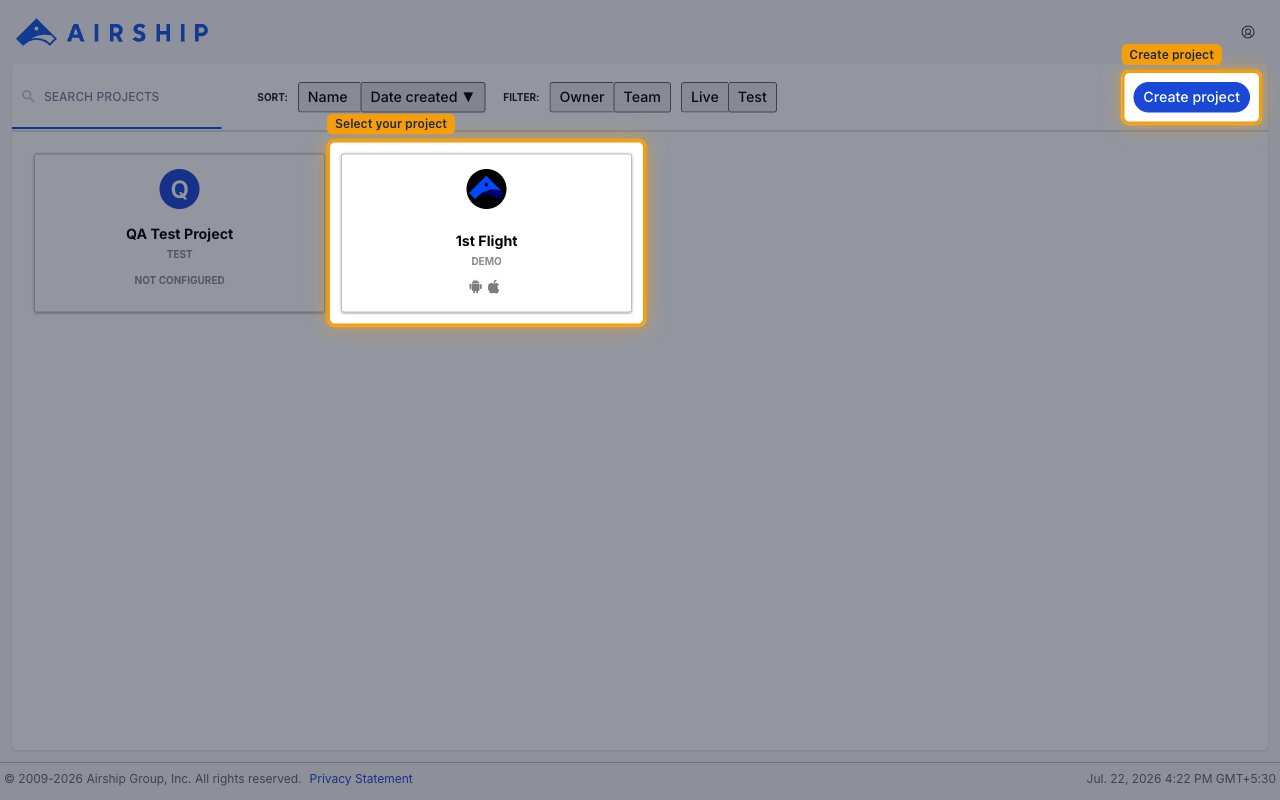
        <p>After logging in, the project dashboard lists the projects you have access to. Select the project you want to connect.</p>

        <ul>
          <li>If you do not have a project yet, click <strong>Create project</strong> in the top-right corner to create one.</li>
        </ul>

        <img src="https://mintcdn.com/stackone-60/tPJudaGb1Y6OixX6/connectors/airship/images/basic_auth-config-select-project.png?fit=max&auto=format&n=tPJudaGb1Y6OixX6&q=85&s=db63cfb3a3024226781a08f162dec815" alt="Airship project dashboard listing available projects, with a project card and the Create project button in the top-right corner highlighted." width="1280" height="800" data-path="connectors/airship/images/basic_auth-config-select-project.png" />
      </div>
    </Step>

    <Step title="Open Project Details">
      <div data-guide-step data-guide-scopes="" data-guide-display-scopes-list="">
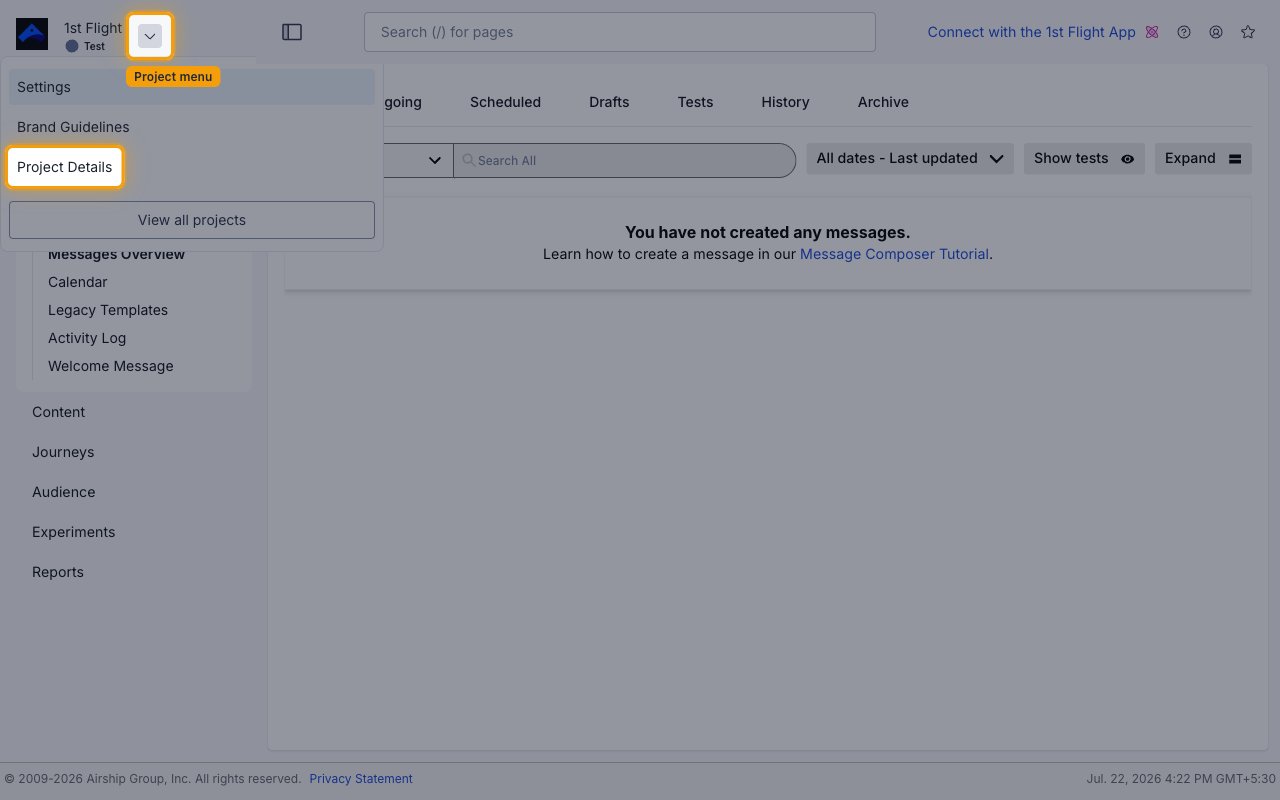
        <p>Click the dropdown arrow next to the project name in the top-left corner, then select <strong>Project Details</strong> from the menu.</p>

        <img src="https://mintcdn.com/stackone-60/tPJudaGb1Y6OixX6/connectors/airship/images/basic_auth-config-open-project-details.png?fit=max&auto=format&n=tPJudaGb1Y6OixX6&q=85&s=59df6430607b96ef1a7f794a4ed46829" alt="Project menu opened from the dropdown arrow beside the project name, showing Settings, Brand Guidelines and Project Details, with Project Details highlighted." width="1280" height="800" data-path="connectors/airship/images/basic_auth-config-open-project-details.png" />
      </div>
    </Step>

    <Step title="Copy App Key">
      <div data-guide-step data-guide-scopes="" data-guide-display-scopes-list="">
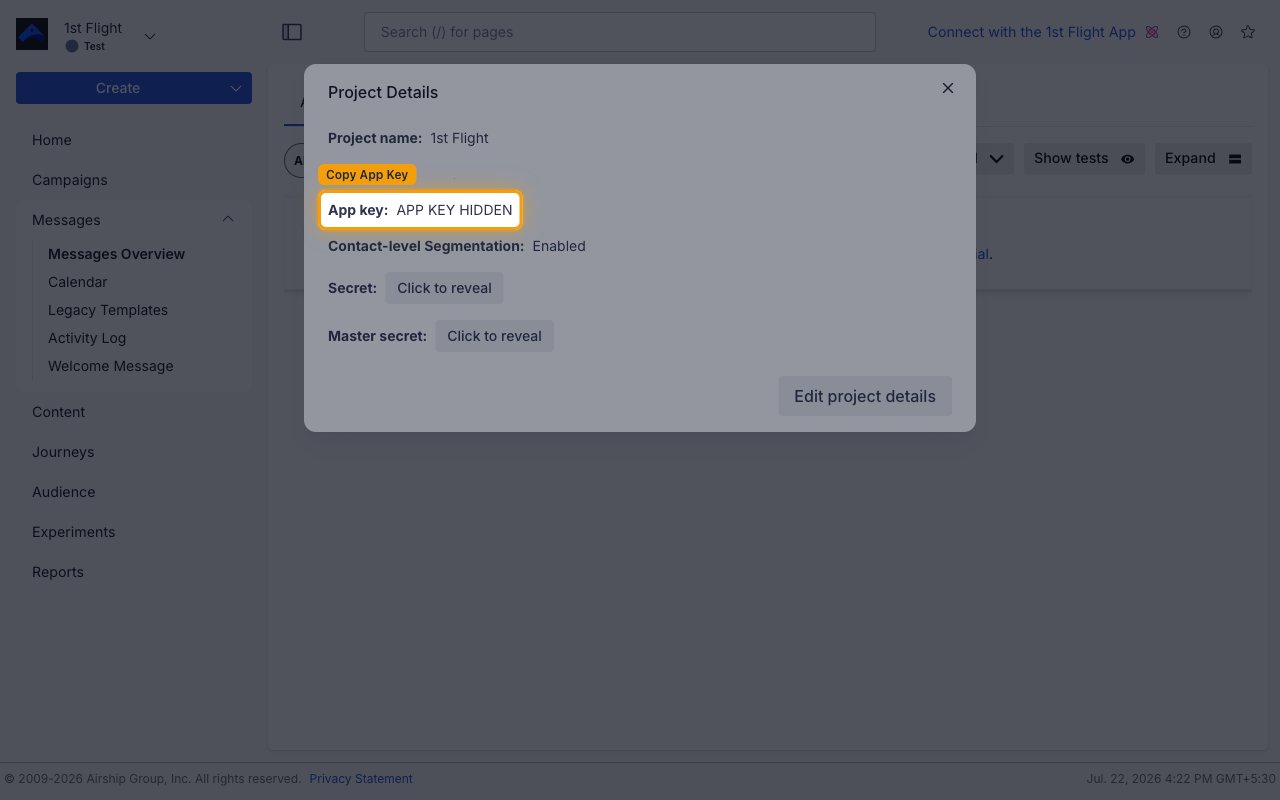
        <p>In the <strong>Project Details</strong> panel, copy the <strong>App key</strong> and store it securely for use later.</p>

        <img src="https://mintcdn.com/stackone-60/tPJudaGb1Y6OixX6/connectors/airship/images/basic_auth-config-copy-app-key.png?fit=max&auto=format&n=tPJudaGb1Y6OixX6&q=85&s=0650e5dd038f79015f4e72973ea5ece6" alt="Project Details panel with the App key row highlighted, its value redacted, alongside the Secret and Master secret rows." width="1280" height="800" data-path="connectors/airship/images/basic_auth-config-copy-app-key.png" />
      </div>
    </Step>
  </Steps>
</section>

<section data-guide-section data-guide-scopes="">
  <h2>Retrieve your Master Secret</h2>

  <p>The Master Secret is used for API authentication.</p>

  <Steps>
    <Step title="Reveal Master Secret">
      <div data-guide-step data-guide-scopes="" data-guide-display-scopes-list="">
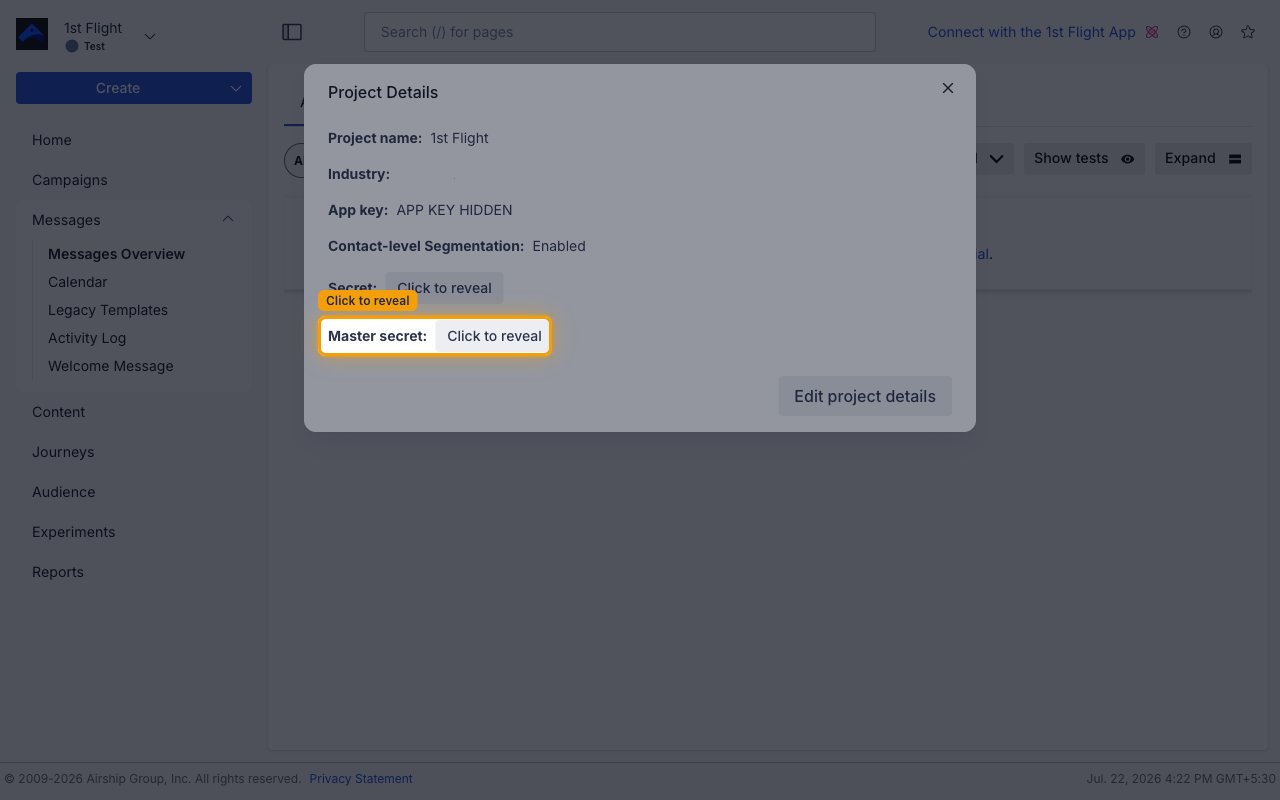
        <p>In the same <strong>Project Details</strong> panel, select <strong>Click to reveal</strong> next to <strong>Master secret</strong>.</p>

        <img src="https://mintcdn.com/stackone-60/tPJudaGb1Y6OixX6/connectors/airship/images/basic_auth-config-reveal-master-secret.png?fit=max&auto=format&n=tPJudaGb1Y6OixX6&q=85&s=c7bf6ede150eae89a58eb6c21dfa6d0b" alt="Project Details panel with the Master secret row and its Click to reveal button highlighted, distinct from the Secret row directly above it." width="1280" height="800" data-path="connectors/airship/images/basic_auth-config-reveal-master-secret.png" />
      </div>
    </Step>

    <Step title="Copy Master Secret">
      <div data-guide-step data-guide-scopes="" data-guide-display-scopes-list="">
        <p>Copy the contents of <strong>Master secret</strong> and store it securely for use later.</p>
      </div>
    </Step>
  </Steps>
</section>

<div data-whitelabel-hide>
  <h2>Linking the Account from the Hub</h2>

  <Steps>
    <Step title="Navigate to the Hub">
      Use one of the three <a href="/connect/managing-connectors/linking-accounts">Linking Account Methods</a> to access the Hub.
    </Step>

    <Step title="Fill out the fields">
      Fill out the following fields using details from your provider:

      <ul>
        <li><strong>Region</strong></li>
        <li><strong>App Key</strong></li>
        <li><strong>Master Secret</strong></li>
      </ul>
    </Step>

    <Step title="Connect">
      <ul>
        <li>Click <strong>Connect</strong></li>
        <li>If applicable, the provider will redirect you to a sign-in or authorization page. Complete the provider's authorization flow.</li>
        <li>Once authorization is successful, you will see a confirmation popup</li>
      </ul>
    </Step>
  </Steps>

  <p>If the account linking is successful, you will see the newly linked account in your <a href="/gateway/concepts/linked-accounts">Accounts</a> page.</p>
</div>