> ## Documentation Index
> Fetch the complete documentation index at: https://docs.stackone.com/llms.txt
> Use this file to discover all available pages before exploring further.

# Connect Autodesk with OAuth 2.0 (Two-Legged) – StackOne Hub

> Link a Autodesk account in the StackOne Hub using OAuth 2.0 (Two-Legged). End-user guide to authorize the integration and start using Autodesk actions.

<Warning>You must have administrator access to the BIM 360 / ACC account so you can retrieve the Account ID, provision the Custom Integration, and confirm the Data Region.</Warning>

<Panel>
  <div className="not-prose guides-scope-selector" data-guides-scope-selector data-guide-actions-json="[{&#x22;id&#x22;:&#x22;autodesk_list_account_users&#x22;,&#x22;label&#x22;:&#x22;List Account Users&#x22;,&#x22;scopes&#x22;:[&#x22;account:read&#x22;]},{&#x22;id&#x22;:&#x22;autodesk_get_account_user&#x22;,&#x22;label&#x22;:&#x22;Get Account User&#x22;,&#x22;scopes&#x22;:[&#x22;account:read&#x22;]},{&#x22;id&#x22;:&#x22;autodesk_create_account_user&#x22;,&#x22;label&#x22;:&#x22;Create Account User&#x22;,&#x22;scopes&#x22;:[&#x22;account:write&#x22;]},{&#x22;id&#x22;:&#x22;autodesk_update_account_user&#x22;,&#x22;label&#x22;:&#x22;Update Account User&#x22;,&#x22;scopes&#x22;:[&#x22;account:write&#x22;]},{&#x22;id&#x22;:&#x22;autodesk_list_account_projects&#x22;,&#x22;label&#x22;:&#x22;List Account Projects&#x22;,&#x22;scopes&#x22;:[&#x22;account:read&#x22;]},{&#x22;id&#x22;:&#x22;autodesk_create_account_project&#x22;,&#x22;label&#x22;:&#x22;Create Account Project&#x22;,&#x22;scopes&#x22;:[&#x22;account:write&#x22;]},{&#x22;id&#x22;:&#x22;autodesk_update_account_project&#x22;,&#x22;label&#x22;:&#x22;Update Account Project&#x22;,&#x22;scopes&#x22;:[&#x22;account:write&#x22;]},{&#x22;id&#x22;:&#x22;autodesk_create_account_company&#x22;,&#x22;label&#x22;:&#x22;Create Account Company&#x22;,&#x22;scopes&#x22;:[&#x22;account:write&#x22;]},{&#x22;id&#x22;:&#x22;autodesk_get_account_company&#x22;,&#x22;label&#x22;:&#x22;Get Account Company&#x22;,&#x22;scopes&#x22;:[&#x22;account:read&#x22;]},{&#x22;id&#x22;:&#x22;autodesk_update_account_company&#x22;,&#x22;label&#x22;:&#x22;Update Account Company&#x22;,&#x22;scopes&#x22;:[&#x22;account:write&#x22;]},{&#x22;id&#x22;:&#x22;autodesk_list_account_companies&#x22;,&#x22;label&#x22;:&#x22;List Account Companies&#x22;,&#x22;scopes&#x22;:[&#x22;account:read&#x22;]},{&#x22;id&#x22;:&#x22;autodesk_list_project_users&#x22;,&#x22;label&#x22;:&#x22;List Project Users&#x22;,&#x22;scopes&#x22;:[&#x22;account:read&#x22;]},{&#x22;id&#x22;:&#x22;autodesk_create_project_user&#x22;,&#x22;label&#x22;:&#x22;Add Project User&#x22;,&#x22;scopes&#x22;:[&#x22;account:write&#x22;]},{&#x22;id&#x22;:&#x22;autodesk_update_project_user&#x22;,&#x22;label&#x22;:&#x22;Update Project User&#x22;,&#x22;scopes&#x22;:[&#x22;account:write&#x22;]},{&#x22;id&#x22;:&#x22;autodesk_list_project_industry_roles&#x22;,&#x22;label&#x22;:&#x22;List Project Industry Roles&#x22;,&#x22;scopes&#x22;:[&#x22;account:read&#x22;]},{&#x22;id&#x22;:&#x22;autodesk_list_business_units&#x22;,&#x22;label&#x22;:&#x22;List Business Units&#x22;,&#x22;scopes&#x22;:[&#x22;account:read&#x22;]},{&#x22;id&#x22;:&#x22;autodesk_create_business_units&#x22;,&#x22;label&#x22;:&#x22;Create Business Units&#x22;,&#x22;scopes&#x22;:[&#x22;account:write&#x22;]},{&#x22;id&#x22;:&#x22;autodesk_list_buckets&#x22;,&#x22;label&#x22;:&#x22;List Buckets&#x22;,&#x22;scopes&#x22;:[&#x22;bucket:read&#x22;]},{&#x22;id&#x22;:&#x22;autodesk_create_bucket&#x22;,&#x22;label&#x22;:&#x22;Create Bucket&#x22;,&#x22;scopes&#x22;:[&#x22;bucket:create&#x22;]},{&#x22;id&#x22;:&#x22;autodesk_get_bucket_details&#x22;,&#x22;label&#x22;:&#x22;Get Bucket Details&#x22;,&#x22;scopes&#x22;:[&#x22;bucket:read&#x22;]},{&#x22;id&#x22;:&#x22;autodesk_delete_bucket&#x22;,&#x22;label&#x22;:&#x22;Delete Bucket&#x22;,&#x22;scopes&#x22;:[&#x22;bucket:delete&#x22;]},{&#x22;id&#x22;:&#x22;autodesk_list_bucket_objects&#x22;,&#x22;label&#x22;:&#x22;List Bucket Objects&#x22;,&#x22;scopes&#x22;:[&#x22;bucket:read&#x22;]},{&#x22;id&#x22;:&#x22;autodesk_delete_object&#x22;,&#x22;label&#x22;:&#x22;Delete Object&#x22;,&#x22;scopes&#x22;:[&#x22;data:write&#x22;]},{&#x22;id&#x22;:&#x22;autodesk_update_item&#x22;,&#x22;label&#x22;:&#x22;Update Item&#x22;,&#x22;scopes&#x22;:[&#x22;data:write&#x22;]},{&#x22;id&#x22;:&#x22;autodesk_get_signed_s3_download_url&#x22;,&#x22;label&#x22;:&#x22;Get Signed S3 Download URL&#x22;,&#x22;scopes&#x22;:[&#x22;data:read&#x22;]},{&#x22;id&#x22;:&#x22;autodesk_get_signed_s3_upload_urls&#x22;,&#x22;label&#x22;:&#x22;Get Signed S3 Upload URLs&#x22;,&#x22;scopes&#x22;:[&#x22;data:write&#x22;]},{&#x22;id&#x22;:&#x22;autodesk_upload_to_s3&#x22;,&#x22;label&#x22;:&#x22;Upload Binary To Signed S3 URL&#x22;,&#x22;scopes&#x22;:[&#x22;data:write&#x22;]},{&#x22;id&#x22;:&#x22;autodesk_signed_s3_upload&#x22;,&#x22;label&#x22;:&#x22;Signed S3 Upload&#x22;,&#x22;scopes&#x22;:[&#x22;data:write&#x22;]},{&#x22;id&#x22;:&#x22;autodesk_create_version&#x22;,&#x22;label&#x22;:&#x22;Create Version&#x22;,&#x22;scopes&#x22;:[&#x22;data:create&#x22;]},{&#x22;id&#x22;:&#x22;autodesk_list_webhooks&#x22;,&#x22;label&#x22;:&#x22;List Webhooks&#x22;,&#x22;scopes&#x22;:[&#x22;data:read&#x22;]},{&#x22;id&#x22;:&#x22;autodesk_get_webhook&#x22;,&#x22;label&#x22;:&#x22;Get Webhook&#x22;,&#x22;scopes&#x22;:[&#x22;data:read&#x22;]},{&#x22;id&#x22;:&#x22;autodesk_list_webhooks_by_system&#x22;,&#x22;label&#x22;:&#x22;List Webhooks By System&#x22;,&#x22;scopes&#x22;:[&#x22;data:read&#x22;]},{&#x22;id&#x22;:&#x22;autodesk_create_webhook&#x22;,&#x22;label&#x22;:&#x22;Create Webhook&#x22;,&#x22;scopes&#x22;:[&#x22;data:read&#x22;,&#x22;data:write&#x22;]},{&#x22;id&#x22;:&#x22;autodesk_update_webhook&#x22;,&#x22;label&#x22;:&#x22;Update Webhook&#x22;,&#x22;scopes&#x22;:[&#x22;data:read&#x22;,&#x22;data:write&#x22;]},{&#x22;id&#x22;:&#x22;autodesk_delete_webhook&#x22;,&#x22;label&#x22;:&#x22;Delete Webhook&#x22;,&#x22;scopes&#x22;:[&#x22;data:read&#x22;,&#x22;data:write&#x22;]}]" style={{ borderRadius: '8px', padding: '16px', marginBottom: '24px' }}>
    <div className="guides-scope-selector__title" style={{ fontSize: '16px', fontWeight: '600', marginBottom: '12px' }}>Select Actions to adjust the guide</div>
    <div className="guides-scope-selector__muted" style={{ fontSize: '13px', marginBottom: '12px' }}>Some actions may require additional configuration in the provider to be accessible. Choose the actions you need and the guide will be updated.</div>

    <div style={{ display: 'flex', gap: '8px', marginBottom: '12px', flexWrap: 'wrap' }}>
      <input type="text" placeholder="Search actions..." className="guides-scope-selector__input" data-guide-action-search style={{ padding: '8px 12px', borderRadius: '6px', fontSize: '13px', flex: 1, minWidth: '160px' }} />

      <button type="button" className="guides-scope-selector__quick-btn" data-guide-select-all style={{ padding: '6px 10px', borderRadius: '6px', fontSize: '12px', cursor: 'pointer' }}>Select all</button>
      <button type="button" className="guides-scope-selector__quick-btn" data-guide-clear style={{ padding: '6px 10px', borderRadius: '6px', fontSize: '12px', cursor: 'pointer' }}>Clear</button>
    </div>

    <div className="guides-scope-selector__list" style={{ maxHeight: '240px', overflowY: 'auto', borderRadius: '6px', marginBottom: '12px' }}>
      <div className="guides-scope-selector__list-header" style={{ display: 'flex', alignItems: 'center', gap: '10px', padding: '8px 12px', fontSize: '12px', fontWeight: '600', position: 'sticky', top: 0, zIndex: 1 }}>
        <div style={{ width: '16px', flexShrink: 0 }} />

        <div style={{ flex: 1, textAlign: 'left' }}>Action</div>
        <div style={{ minWidth: '120px', marginLeft: 'auto', textAlign: 'right' }}>Scope(s)</div>
      </div>

      <div className="guides-scope-selector__muted" data-guide-loading style={{ padding: '16px', textAlign: 'center', fontSize: '13px' }}>Loading actions...</div>
      <div className="guides-scope-selector__muted" data-guide-no-results hidden style={{ padding: '16px', textAlign: 'center', fontSize: '13px' }}>No actions match your search.</div>
    </div>

    <div className="guides-scope-selector__url-section" style={{ marginTop: '12px', paddingTop: '12px' }}>
      <div className="guides-scope-selector__muted" style={{ fontSize: '12px', fontWeight: '500', marginBottom: '6px' }}>Dynamic Guide URL</div>

      <div style={{ display: 'flex', alignItems: 'center', gap: '8px', flexWrap: 'wrap' }}>
        <input type="text" readOnly className="guides-scope-selector__input" data-guide-url style={{ flex: 1, minWidth: '200px', padding: '8px 10px', borderRadius: '6px', fontSize: '12px', fontFamily: 'monospace' }} />

        <button type="button" className="guides-scope-selector__copy-btn" data-guide-copy-url style={{ width: '120px', padding: '8px 14px', borderRadius: '6px', fontSize: '13px', fontWeight: '500', cursor: 'pointer', whiteSpace: 'nowrap', marginLeft: 'auto' }}>Copy URL</button>
      </div>

      <div style={{ marginTop: '12px' }}>
        <div className="guides-scope-selector__muted" style={{ fontSize: '12px', fontWeight: '500', marginBottom: '6px' }}>Scopes Selected</div>

        <div style={{ display: 'flex', alignItems: 'stretch', gap: '8px', flexWrap: 'wrap' }}>
          <pre className="guides-scope-selector__input" role="textbox" aria-readonly="true" tabIndex={0} data-guide-scopes-output style={{ flex: 1, minWidth: '200px', minHeight: '88px', maxHeight: '120px', overflowY: 'auto', margin: 0, padding: '8px 10px', borderRadius: '6px', fontSize: '12px', fontFamily: 'monospace', whiteSpace: 'pre-wrap' }} />

          <div className="guides-scope-selector__muted" style={{ display: 'flex', flexDirection: 'column', gap: '8px', fontSize: '12px', fontWeight: '500', flexShrink: 0, alignItems: 'flex-start' }}>
            <div style={{ whiteSpace: 'nowrap' }}>Separator</div>

            <select className="guides-scope-selector__input" data-guide-scope-delimiter style={{ width: '100%', padding: '6px 10px', borderRadius: '6px', fontSize: '12px' }}>
              <option value="space">Space</option>
              <option value="comma">Comma</option>
              <option value="semicolon">Semicolon</option>
              <option value="pipe">Pipe</option>
              <option value="newline">Newline</option>
            </select>

            <button type="button" className="guides-scope-selector__copy-btn" data-guide-copy-scopes style={{ width: '120px', padding: '8px 14px', borderRadius: '6px', fontSize: '13px', fontWeight: '500', cursor: 'pointer', whiteSpace: 'nowrap' }}>Copy scopes</button>
          </div>
        </div>
      </div>
    </div>
  </div>
</Panel>

<section data-guide-section data-guide-scopes="account:read,account:write">
  <h2>Provision app as a Custom Integration</h2>

  <div className="connector-guide-actions-badge" data-guide-actions-badge data-guide-actions-badge-scopes="account:read,account:write" style={{ display: 'block', width: 'fit-content', maxWidth: '100%', padding: '2px 8px', borderRadius: '8px', fontSize: '12px', marginBottom: '8px', marginTop: '-10px', whiteSpace: 'nowrap', overflowX: 'auto', overflowY: 'hidden', msOverflowStyle: 'none', scrollbarWidth: 'none' }}>
    <span>Required for: </span><span data-guide-actions-badge-labels>Add Project User, Create Account Company, Create Account Project, Create Account User, Create Business Units, Get Account Company, Get Account User, List Account Companies, List Account Projects, List Account Users, List Business Units, List Project Industry Roles, List Project Users, Update Account Company, Update Account Project, Update Account User, Update Project User</span>
  </div>

  <p>For BIM 360 account-admin endpoints (`/hq/v1/accounts/...`), the APS Client ID must be provisioned on the target BIM 360 account as a Custom Integration. Without this step, account-admin actions will return `403 Forbidden`.</p>

  <Steps>
    <Step title="Sign in to BIM 360 Account Admin">
      <div data-guide-step data-guide-scopes="" data-guide-display-scopes-list="">
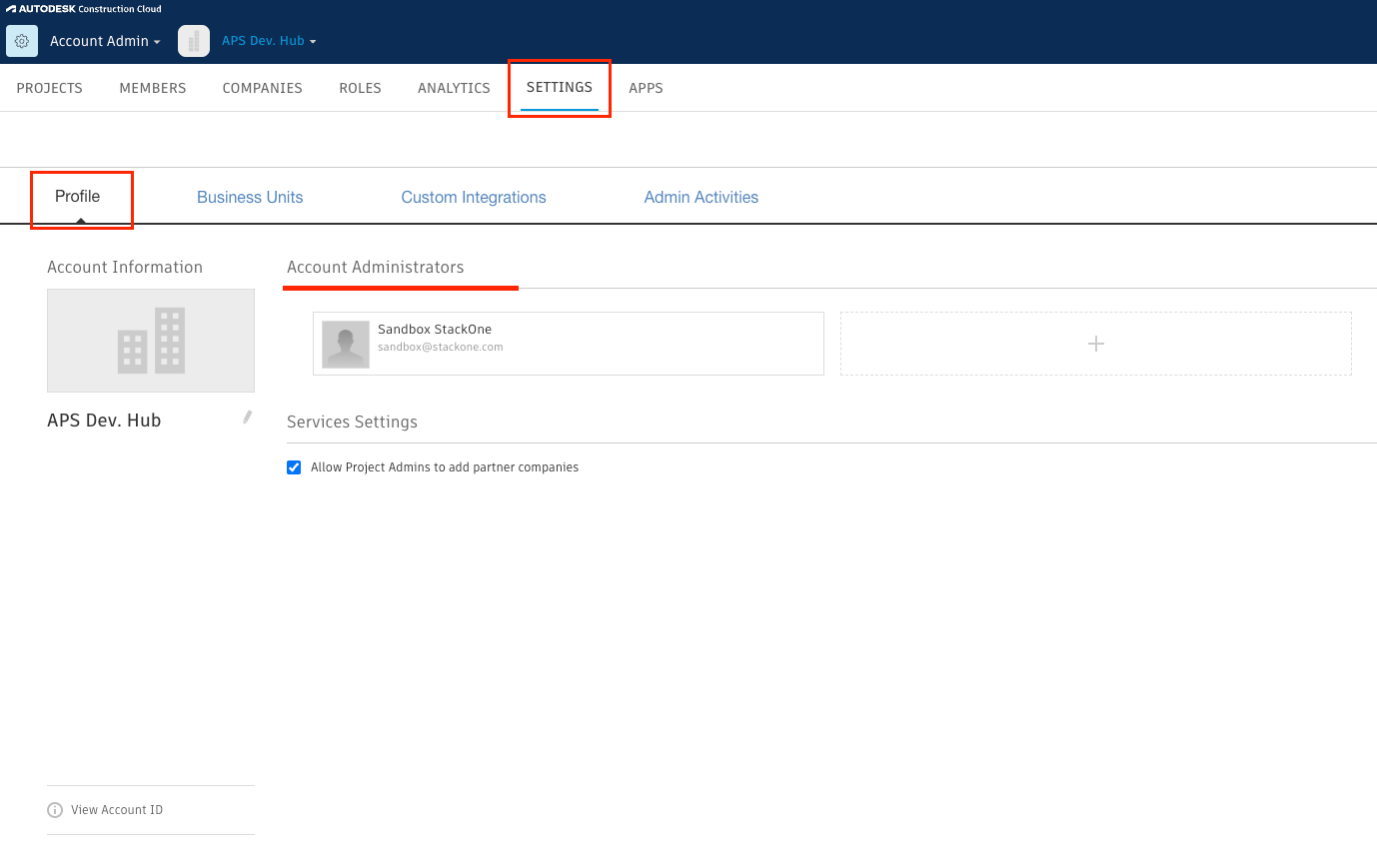
        <p>Sign in to the <a href="https://admin.b360.autodesk.com" target="_blank" rel="noopener noreferrer">BIM 360 Account Admin</a> portal.</p>

        <ul>
          <li>You must be an account administrator to complete this step.</li>
        </ul>

        <img src="https://mintcdn.com/stackone-60/jsL_dX8vwRUcAlgF/connectors/autodesk/images/config-settings-profile.png?fit=max&auto=format&n=jsL_dX8vwRUcAlgF&q=85&s=a9658b67c72b05100710ecd784a2f0ce" alt="The BIM 360 Account Admin Settings page showing the Profile tab with Account Information, APS Dev. Hub link, and View Account ID." width="1378" height="869" data-path="connectors/autodesk/images/config-settings-profile.png" />
      </div>
    </Step>

    <Step title="Add the custom integration">
      <div data-guide-step data-guide-scopes="" data-guide-display-scopes-list="">
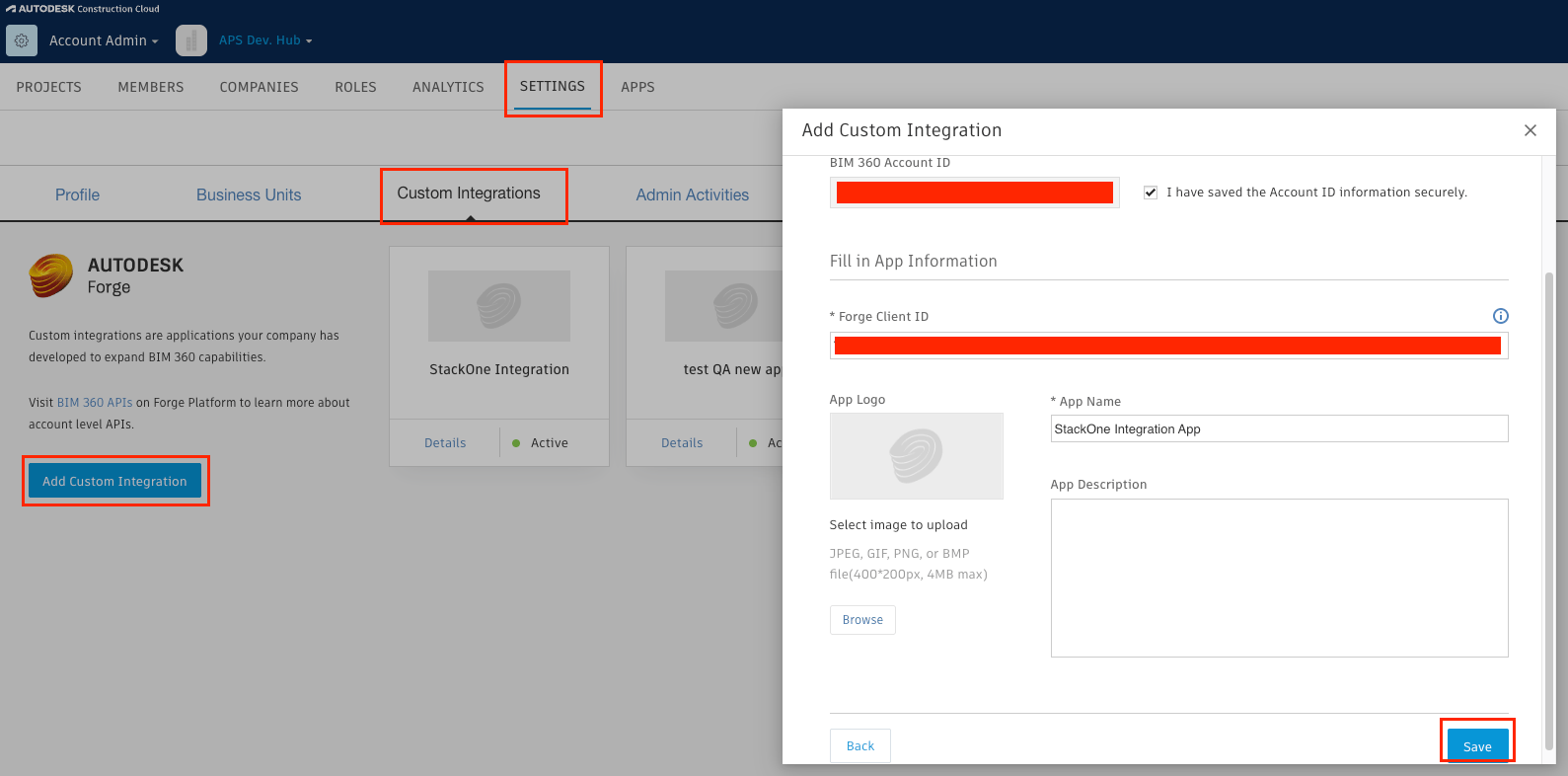
        <p>Click <strong>Settings</strong> in the top navigation bar, then select <strong>Custom Integrations</strong>.</p>

        <ul>
          <li>Click <strong>Add Custom Integration</strong>.</li>
          <li>Step 1 — Select Access: check <strong>BIM 360 Account Administration</strong> and click <strong>Next</strong>.</li>
          <li>Step 2 — Select <strong>I'm the developer</strong> OR <strong>Invite a developer</strong> and click <strong>Next</strong>.</li>
          <li>Step 3 — Enter the email of the developer you wish to invite (if you selected <strong>Invite a developer</strong> in Step 2) and click <strong>Next</strong>.</li>
          <li>Step 4 — Paste the <strong>Client ID</strong> you copied from the APS portal.</li>
          <li>Name the integration (e.g. `StackOne Integration App`).</li>
          <li>You can also copy the <strong>Account ID</strong> displayed in this dialog for the next step.</li>
          <li>Click <strong>Save</strong>.</li>
        </ul>

        <img src="https://mintcdn.com/stackone-60/jsL_dX8vwRUcAlgF/connectors/autodesk/images/config-add-custom-integration-step1.png?fit=max&auto=format&n=jsL_dX8vwRUcAlgF&q=85&s=f93e59f2e453f22825083aab53a4e432" alt="The Add Custom Integration dialog showing Step 1 — Select Access with BIM 360 Account Administration checked." width="1589" height="786" data-path="connectors/autodesk/images/config-add-custom-integration-step1.png" />
      </div>
    </Step>

    <Step title="Copy your account ID">
      <div data-guide-step data-guide-scopes="" data-guide-display-scopes-list="">
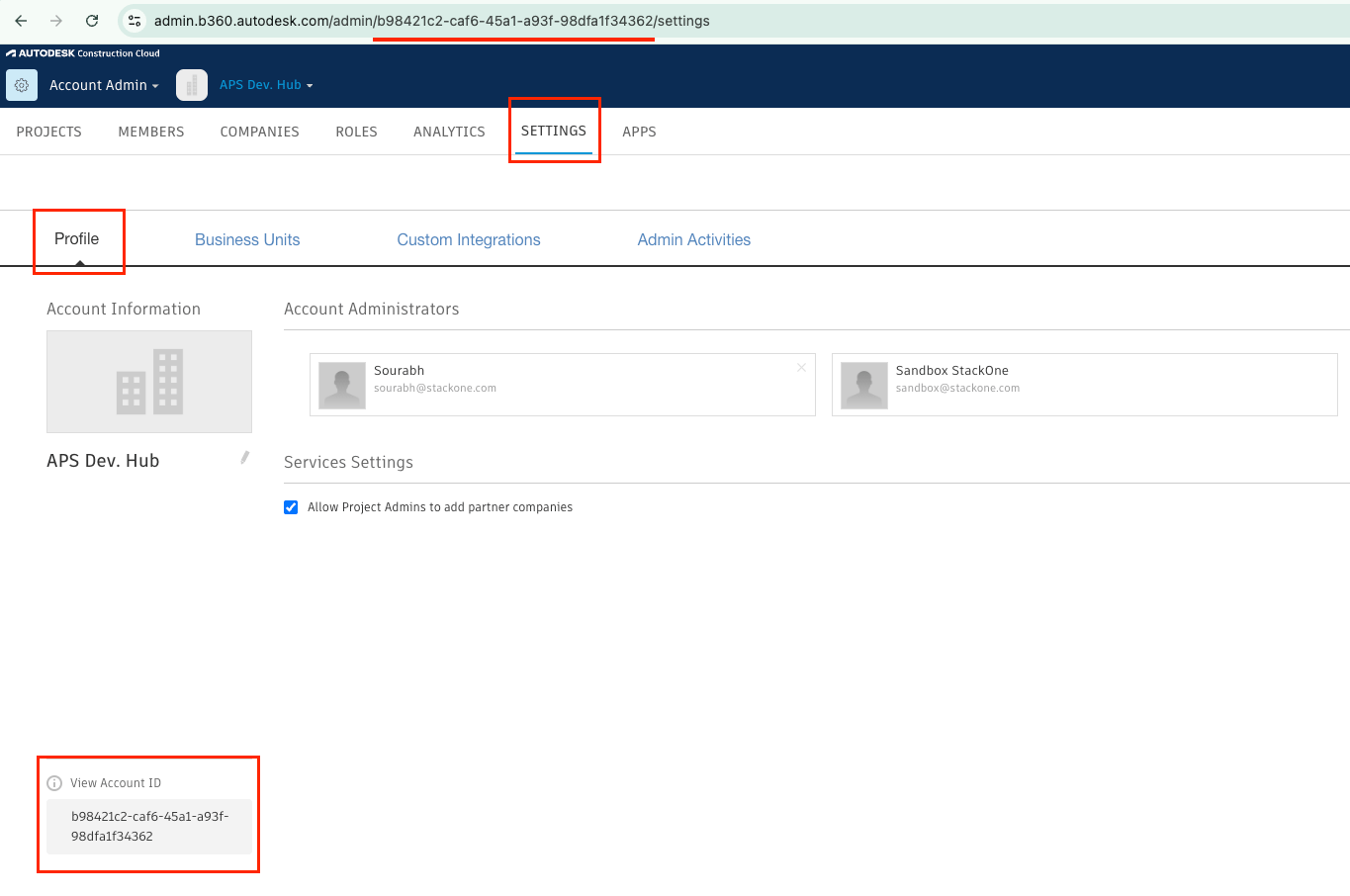
        <p>While in the BIM 360 Account Admin portal, copy your account ID — you will need it in the next step.</p>

        <ul>
          <li>Navigate to <strong>Settings</strong> → <strong>Profile</strong> → click <strong>View Account ID</strong> to see your account ID directly.</li>
          <li>Alternatively, look at your browser's address bar — the account ID is the UUID after `/admin/` in the URL (e.g. `https://admin.b360.autodesk.com/admin/{accountId}/settings`).</li>
          <li>Example: `b98421c2-caf6-45a1-a93f-98dfa1f34362`</li>
        </ul>

        <img src="https://mintcdn.com/stackone-60/jsL_dX8vwRUcAlgF/connectors/autodesk/images/config-view-account-id.png?fit=max&auto=format&n=jsL_dX8vwRUcAlgF&q=85&s=650e7f5333b89a2dce97b212ba57d4e6" alt="The BIM 360 Account Admin Settings Profile page with the Account ID revealed after clicking View Account ID." width="1365" height="906" data-path="connectors/autodesk/images/config-view-account-id.png" />
      </div>
    </Step>
  </Steps>
</section>

<section data-guide-section data-guide-scopes="">
  <h2>Find your data region</h2>

  <p>Your data region identifies the Autodesk data centre where your BIM 360 / ACC / Forma account is hosted. Sign in to your BIM 360 Account Admin or ACC portal and check your browser address bar — the domain identifies the region.</p>

  <ul>
    <li>United States — `acc.autodesk.com` → `US`</li>
    <li>Canada — `acc.can.autodesk.com` → `CAN`</li>
    <li>Europe — `acc.autodesk.eu` → `EMEA`</li>
    <li>United Kingdom — `acc.gbr.autodesk.com` → `GBR`</li>
    <li>Germany — `acc.deu.autodesk.com` → `DEU`</li>
    <li>India — `acc.ind.autodesk.com` → `IND`</li>
    <li>Japan — `acc.jpn.autodesk.com` → `JPN`</li>
    <li>Australia — `acc.aus.autodesk.com` → `AUS`</li>
    <li>See the <a href="https://aps.autodesk.com/en/docs/acc/v1/overview/acc-regions/" target="_blank" rel="noopener noreferrer">ACC regions reference</a> for the full list.</li>
  </ul>
</section>

<div data-whitelabel-hide>
  <h2>Linking the Account from the Hub</h2>

  <Steps>
    <Step title="Navigate to the Hub">
      Use one of the three <a href="/connect/managing-connectors/linking-accounts">Linking Account Methods</a> to access the Hub.
    </Step>

    <Step title="Fill out the fields">
      Fill out the following fields using details from your provider:

      <ul>
        <li><strong>Account ID</strong></li>
        <li><strong>Data Region</strong></li>
      </ul>
    </Step>

    <Step title="Connect">
      <ul>
        <li>Click <strong>Connect</strong></li>
        <li>If applicable, the provider will redirect you to a sign-in or authorization page. Complete the provider's authorization flow.</li>
        <li>Once authorization is successful, you will see a confirmation popup</li>
      </ul>
    </Step>
  </Steps>

  <p>If the account linking is successful, you will see the newly linked account in your <a href="/gateway/concepts/linked-accounts">Accounts</a> page.</p>
</div>