> ## Documentation Index
> Fetch the complete documentation index at: https://docs.stackone.com/llms.txt
> Use this file to discover all available pages before exploring further.

# Connect Azure Blob Storage with OAuth 2.0 (Entra ID) – StackOne Hub

> Link a Azure Blob Storage account in the StackOne Hub using OAuth 2.0 (Entra ID). End-user guide to authorize the integration and start using Azure Blob Storage actions.

<section data-guide-section data-guide-scopes="">
  <h2>Find your storage account name</h2>

  <p>Your storage account name identifies the Azure Storage resource StackOne connects to. Find it in the <a href="https://portal.azure.com" target="_blank" rel="noopener noreferrer">Azure portal</a>.</p>

  <Steps>
    <Step title="Open your storage account">
      <div data-guide-step data-guide-scopes="" data-guide-display-scopes-list="">
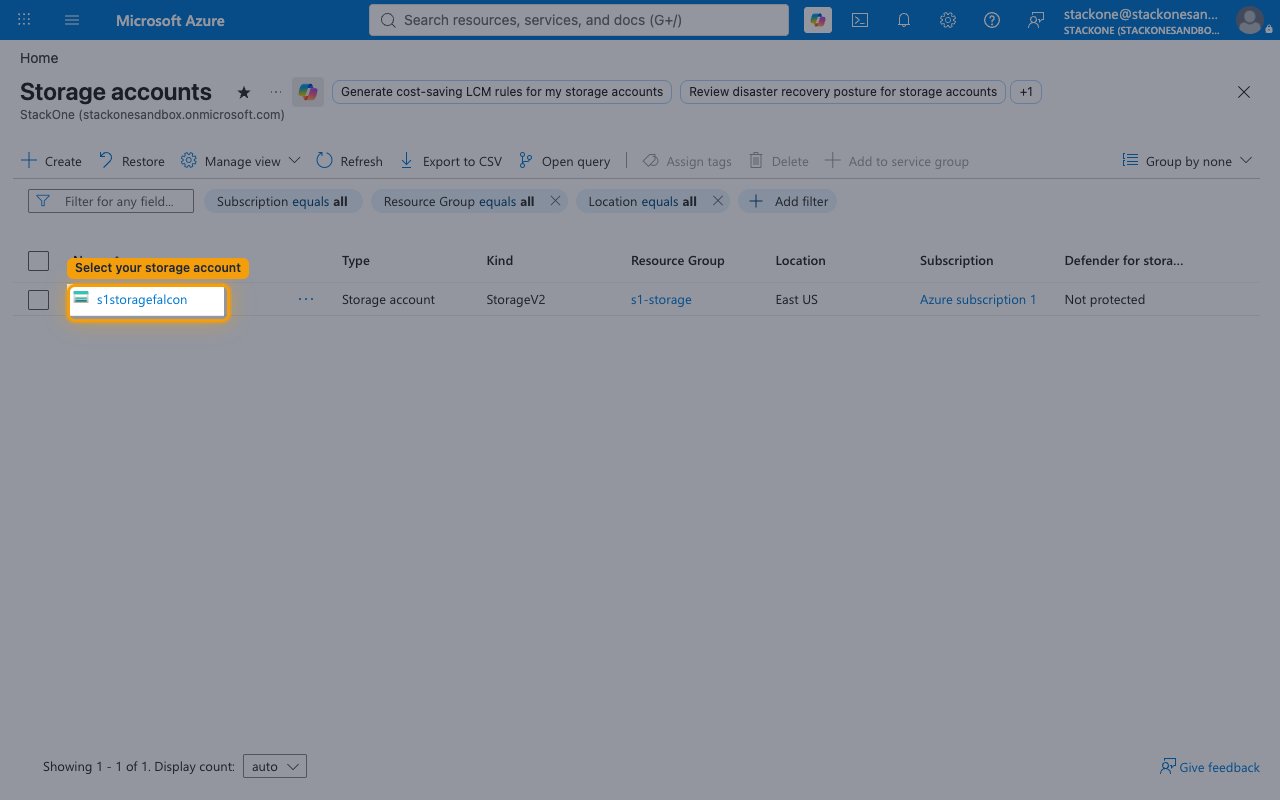
        <p>In the <a href="https://portal.azure.com" target="_blank" rel="noopener noreferrer">Azure portal</a>, use the search bar at the top to search for <strong>Storage accounts</strong> and open it, then select the storage account you want to connect.</p>

        <ul>
          <li>Depending on your portal experience, the page may open as <strong>Storage center | Blob Storage</strong> — your storage accounts are listed there as well.</li>
        </ul>

        <img src="https://mintcdn.com/stackone-60/8Et9wQ4fF8r7yY8U/connectors/azureblobstorage/images/oauth2-config-storage-accounts.png?fit=max&auto=format&n=8Et9wQ4fF8r7yY8U&q=85&s=1edd91d75162ba840a2376e8f7c6b515" alt="The Storage accounts list with a storage account highlighted" width="1280" height="800" data-path="connectors/azureblobstorage/images/oauth2-config-storage-accounts.png" />
      </div>
    </Step>

    <Step title="Copy the storage account name">
      <div data-guide-step data-guide-scopes="" data-guide-display-scopes-list="">
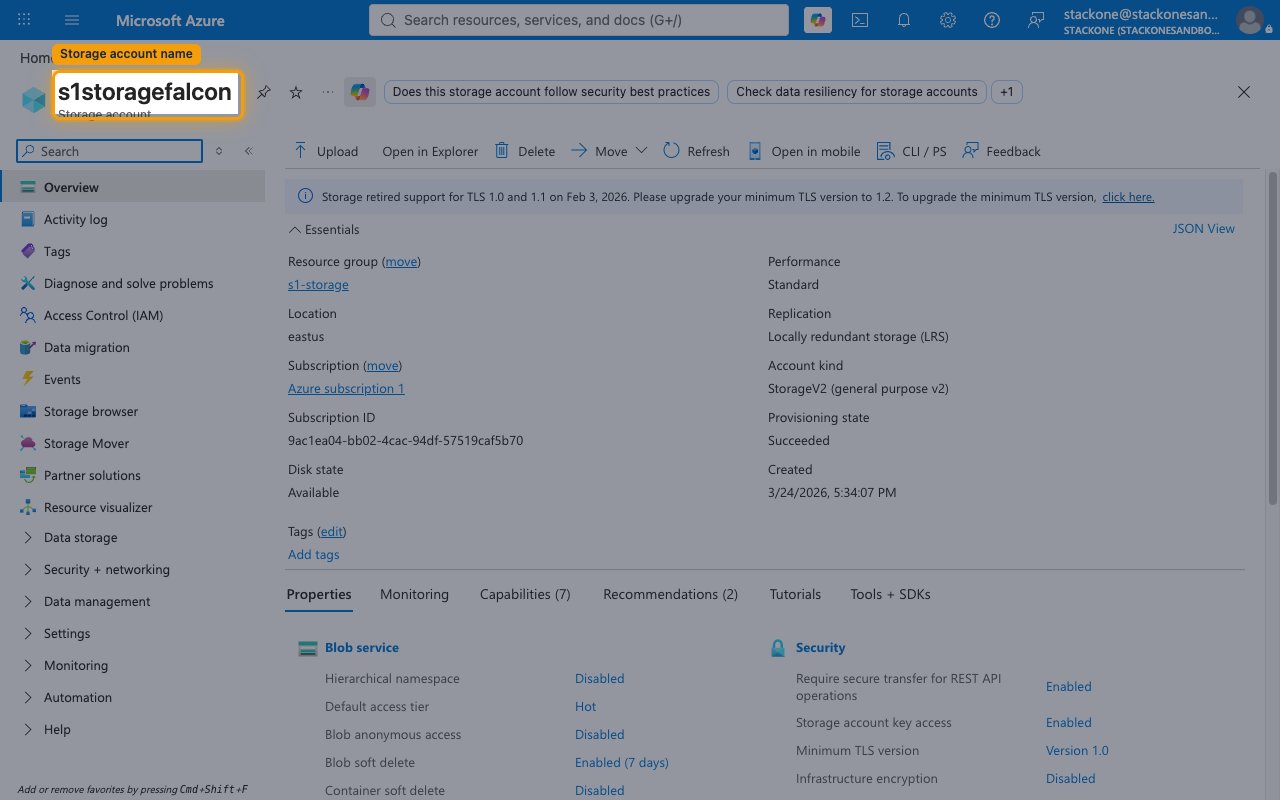
        <p>On the storage account's <strong>Overview</strong> page, copy its name (shown as the page heading). Paste it into the <strong>Storage Account Name</strong> field in StackOne Hub.</p>

        <ul>
          <li>Format: `mystorageaccount` (lowercase; 3–24 characters; letters and digits only).</li>
          <li>Example: if your blob endpoint is `https://acme-prod.blob.core.windows.net`, your storage account name is `acme-prod`.</li>
        </ul>

        <img src="https://mintcdn.com/stackone-60/8Et9wQ4fF8r7yY8U/connectors/azureblobstorage/images/oauth2-config-account-name.png?fit=max&auto=format&n=8Et9wQ4fF8r7yY8U&q=85&s=a85413fe92830206412d8219b7a33c5b" alt="The storage account Overview page with the account name highlighted" width="1280" height="800" data-path="connectors/azureblobstorage/images/oauth2-config-account-name.png" />
      </div>
    </Step>
  </Steps>
</section>

<section data-guide-section data-guide-scopes="">
  <h2>Receiving webhook events (optional)</h2>

  <p>To have Azure send blob events to StackOne, you register StackOne's endpoint as an Azure Event Grid subscription on your storage account.</p>

  <Steps>
    <Step title="Copy the Native Webhook URL">
      <div data-guide-step data-guide-scopes="" data-guide-display-scopes-list="">
        <p>After the connection is created, StackOne Hub shows a read-only <strong>Native Webhook URL</strong> field. Copy this URL and use it as the endpoint when you create an Event Grid system topic subscription on your storage account in the <a href="https://portal.azure.com" target="_blank" rel="noopener noreferrer">Azure portal</a>.</p>

        <ul>
          <li>The <strong>Native Webhook URL</strong> is only available after the connection has been created, and does not need to be filled in — it is generated for you.</li>
        </ul>
      </div>
    </Step>
  </Steps>
</section>

<div data-whitelabel-hide>
  <h2>Linking the Account from the Hub</h2>

  <Steps>
    <Step title="Navigate to the Hub">
      Use one of the three <a href="/connect/managing-connectors/linking-accounts">Linking Account Methods</a> to access the Hub.
    </Step>

    <Step title="Fill out the fields">
      Fill out the following fields using details from your provider:

      <ul>
        <li><strong>Storage Account Name</strong></li>
      </ul>
    </Step>

    <Step title="Connect">
      <ul>
        <li>Click <strong>Connect</strong></li>
        <li>If applicable, the provider will redirect you to a sign-in or authorization page. Complete the provider's authorization flow.</li>
        <li>Once authorization is successful, you will see a confirmation popup</li>
      </ul>
    </Step>
  </Steps>

  <p>If the account linking is successful, you will see the newly linked account in your <a href="/gateway/concepts/linked-accounts">Accounts</a> page.</p>
</div>

## Next Steps

<Columns cols={2}>
  <Card title="Webhooks setup" href="/connectors/azureblobstorage/guides/webhook-setup">
    <p className="connector-page-auth-description" style={{ fontSize: '14px', marginTop: 0, marginBottom: 0 }}>
      Configure receiving Events for Azure Blob Storage into StackOne.
    </p>
  </Card>
</Columns>