> ## Documentation Index
> Fetch the complete documentation index at: https://docs.stackone.com/llms.txt
> Use this file to discover all available pages before exploring further.

# Connect Azure DevOps with OAuth 2.0 (Microsoft Entra ID) – StackOne Hub

> Link a Azure DevOps account in the StackOne Hub using OAuth 2.0 (Microsoft Entra ID). End-user guide to authorize the integration and start using Azure DevOps actions.

<section data-guide-section data-guide-scopes="">
  <h2>Find your organization details</h2>

  <p>Identify the Azure DevOps organization (and optionally a project) this connection should use.</p>

  <Steps>
    <Step title="Find your organization name">
      <div data-guide-step data-guide-scopes="" data-guide-display-scopes-list="">
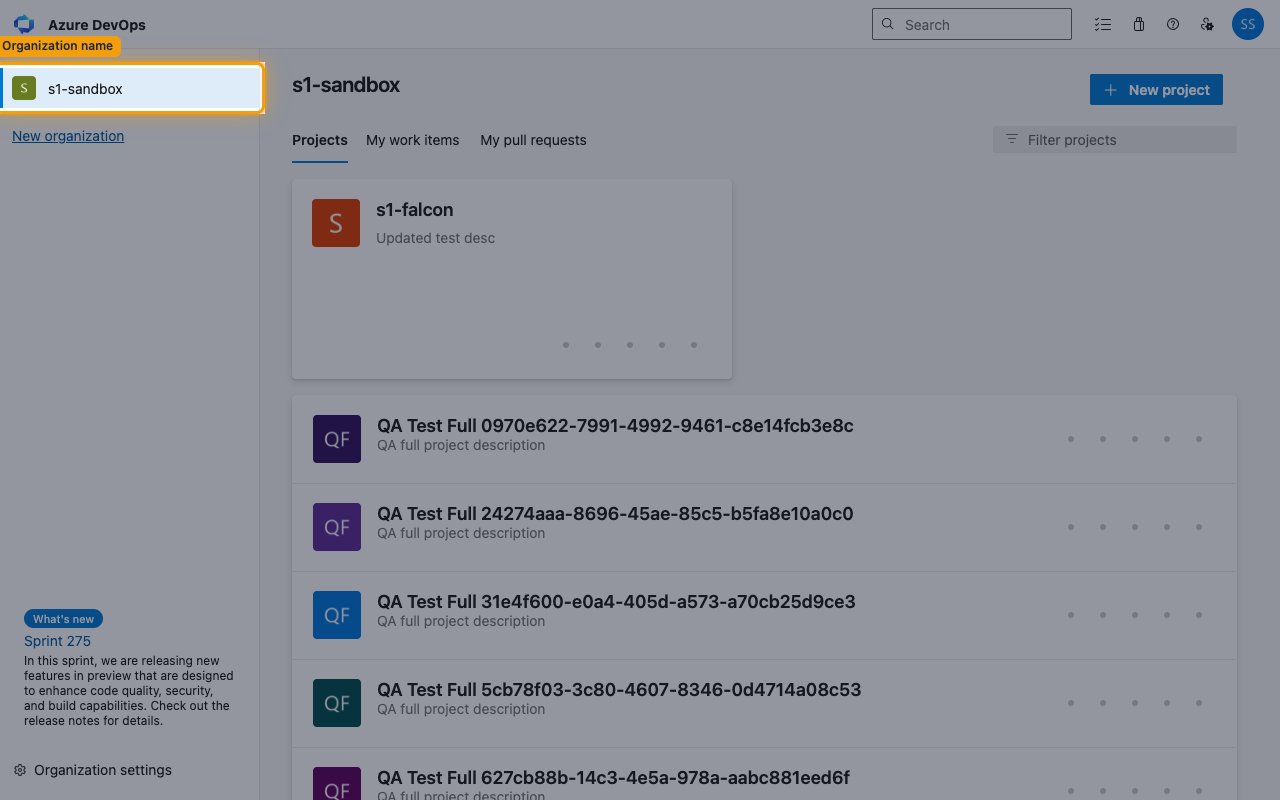
        <p>Sign in to <a href="https://dev.azure.com" target="_blank" rel="noopener noreferrer">Azure DevOps</a>. Your organization name appears in the top-left of the organization home page and in the browser URL. Enter it in the <strong>Organization</strong> field in StackOne Hub.</p>

        <ul>
          <li>Format: `https://dev.azure.com/{organization}`</li>
          <li>Example: if your URL is `https://dev.azure.com/s1-sandbox`, your organization is `s1-sandbox`</li>
        </ul>

        <img src="https://mintcdn.com/stackone-60/y3JLAGTnfHYE9tQB/connectors/azuredevops/images/oauth2-config-organization.png?fit=max&auto=format&n=y3JLAGTnfHYE9tQB&q=85&s=4189b40f9d26b807e7c56dbb0234395e" alt="Azure DevOps organization home page with the organization name highlighted in the sidebar" width="1280" height="800" data-path="connectors/azuredevops/images/oauth2-config-organization.png" />
      </div>
    </Step>

    <Step title="Set the Project name for webhook scoping">
      <div data-guide-step data-guide-scopes="" data-guide-display-scopes-list="">
        <p>The <strong>Project name (webhook scoping)</strong> field in StackOne Hub is optional in general, but required if you enable pipeline events — Azure DevOps only allows those to be created within a project, so their subscriptions fail if it is left blank. Work item, git, pull request, and build events work without it (delivered from all projects in the organization) or can be scoped to one project by setting it.</p>

        <ul>
          <li>Enter the project name exactly as it appears in your browser URL after the organization — the `{project}` segment of `https://dev.azure.com/{organization}/{project}`. For example, for `https://dev.azure.com/my-org/my-project` enter `my-project`.</li>
          <li>No need to look up any GUID — StackOne resolves the project name to the internal project ID automatically when it registers the webhooks.</li>
        </ul>
      </div>
    </Step>
  </Steps>
</section>

<div data-whitelabel-hide>
  <h2>Linking the Account from the Hub</h2>

  <Steps>
    <Step title="Navigate to the Hub">
      Use one of the three <a href="/connect/managing-connectors/linking-accounts">Linking Account Methods</a> to access the Hub.
    </Step>

    <Step title="Fill out the fields">
      Fill out the following fields using details from your provider:

      <ul>
        <li><strong>Organization</strong></li>
        <li><strong>Project name (webhook scoping)</strong> (Optional)</li>
      </ul>
    </Step>

    <Step title="Connect">
      <ul>
        <li>Click <strong>Connect</strong></li>
        <li>If applicable, the provider will redirect you to a sign-in or authorization page. Complete the provider's authorization flow.</li>
        <li>Once authorization is successful, you will see a confirmation popup</li>
      </ul>
    </Step>
  </Steps>

  <p>If the account linking is successful, you will see the newly linked account in your <a href="/gateway/concepts/linked-accounts">Accounts</a> page.</p>
</div>

## Next Steps

<Columns cols={2}>
  <Card title="Webhooks setup" href="/connectors/azuredevops/guides/webhook-setup">
    <p className="connector-page-auth-description" style={{ fontSize: '14px', marginTop: 0, marginBottom: 0 }}>
      Configure receiving Events for Azure DevOps into StackOne.
    </p>
  </Card>
</Columns>