> ## Documentation Index
> Fetch the complete documentation index at: https://docs.stackone.com/llms.txt
> Use this file to discover all available pages before exploring further.

# Connect Cohere with API Key – StackOne Hub

> Link a Cohere account in the StackOne Hub using API Key. End-user guide to authorize the integration and start using Cohere actions.

<section data-guide-section data-guide-scopes="">
  <h2>Generate your Cohere API key</h2>

  <p>Create an API key in the Cohere Dashboard and paste it into StackOne Hub to authenticate your connection.</p>

  <Steps>
    <Step title="Open the API Keys page">
      <div data-guide-step data-guide-scopes="" data-guide-display-scopes-list="">
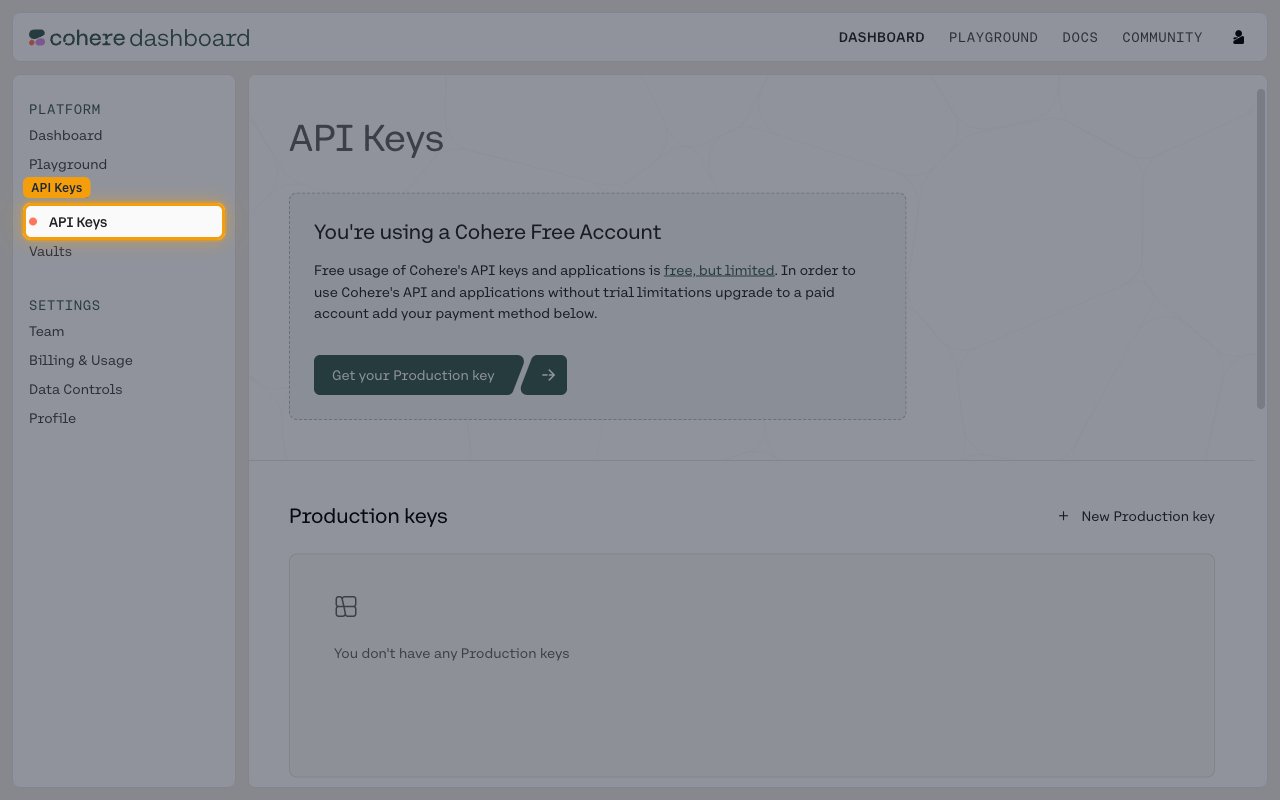
        <p>Sign in to the <a href="https://dashboard.cohere.com/" target="_blank" rel="noopener noreferrer">Cohere Dashboard</a>, then click <strong>API Keys</strong> in the left sidebar under <strong>Platform</strong>.</p>

        <img src="https://mintcdn.com/stackone-60/ty02T8LN9roHCune/connectors/cohere/images/custom-config-api-keys-page.png?fit=max&auto=format&n=ty02T8LN9roHCune&q=85&s=79d17dbe06c385a810cb3d7bea7ba5a2" alt="Cohere Dashboard with API Keys highlighted in the Platform sidebar" width="1280" height="800" data-path="connectors/cohere/images/custom-config-api-keys-page.png" />
      </div>
    </Step>

    <Step title="Create a Trial key">
      <div data-guide-step data-guide-scopes="" data-guide-display-scopes-list="">
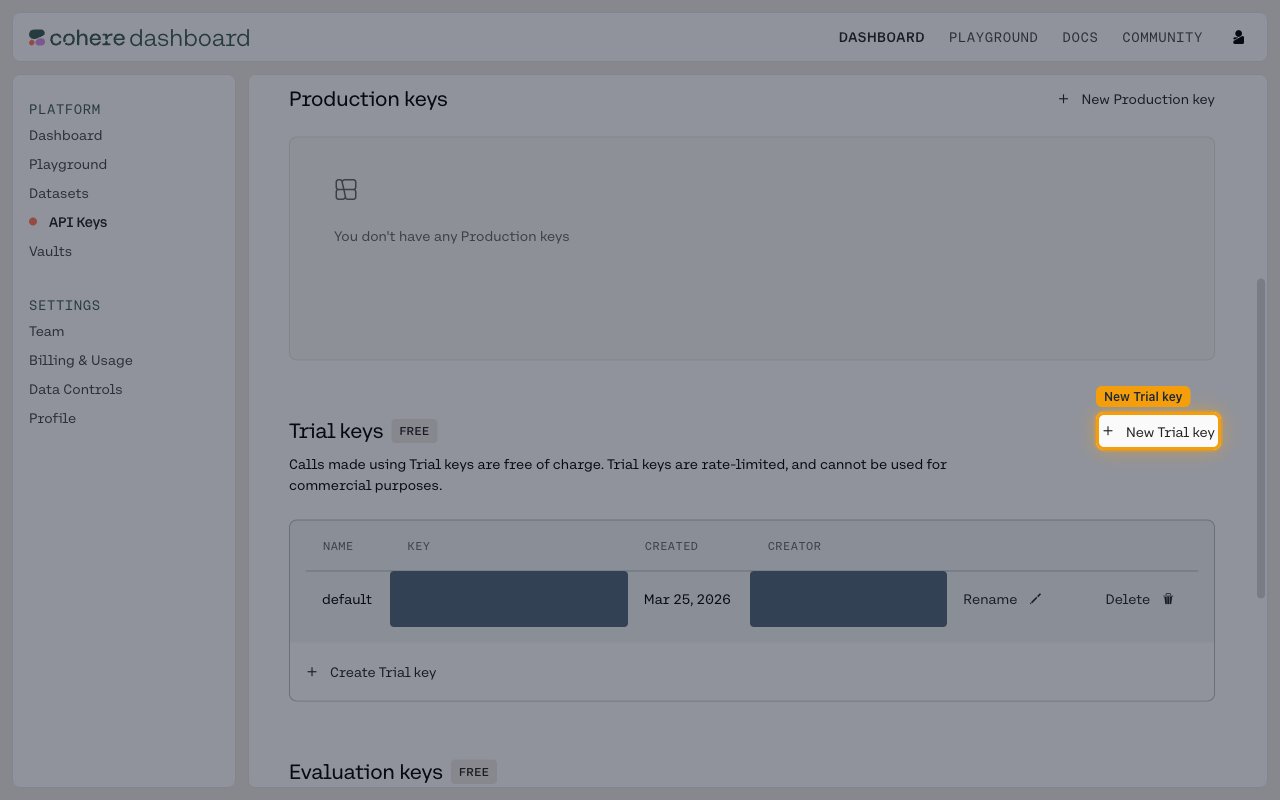
        <p>In the <strong>Trial keys</strong> section, click <strong>+ New Trial key</strong> (or <strong>+ Create Trial key</strong> below the keys table).</p>

        <ul>
          <li>Trial keys are free of charge and rate-limited, and cannot be used for commercial purposes.</li>
        </ul>

        <img src="https://mintcdn.com/stackone-60/ty02T8LN9roHCune/connectors/cohere/images/custom-config-new-trial-key.png?fit=max&auto=format&n=ty02T8LN9roHCune&q=85&s=428e2ab62cbedf778f24bc9ade81a286" alt="API Keys page with the New Trial key button highlighted in the Trial keys section" width="1280" height="800" data-path="connectors/cohere/images/custom-config-new-trial-key.png" />
      </div>
    </Step>

    <Step title="Generate the Trial key">
      <div data-guide-step data-guide-scopes="" data-guide-display-scopes-list="">
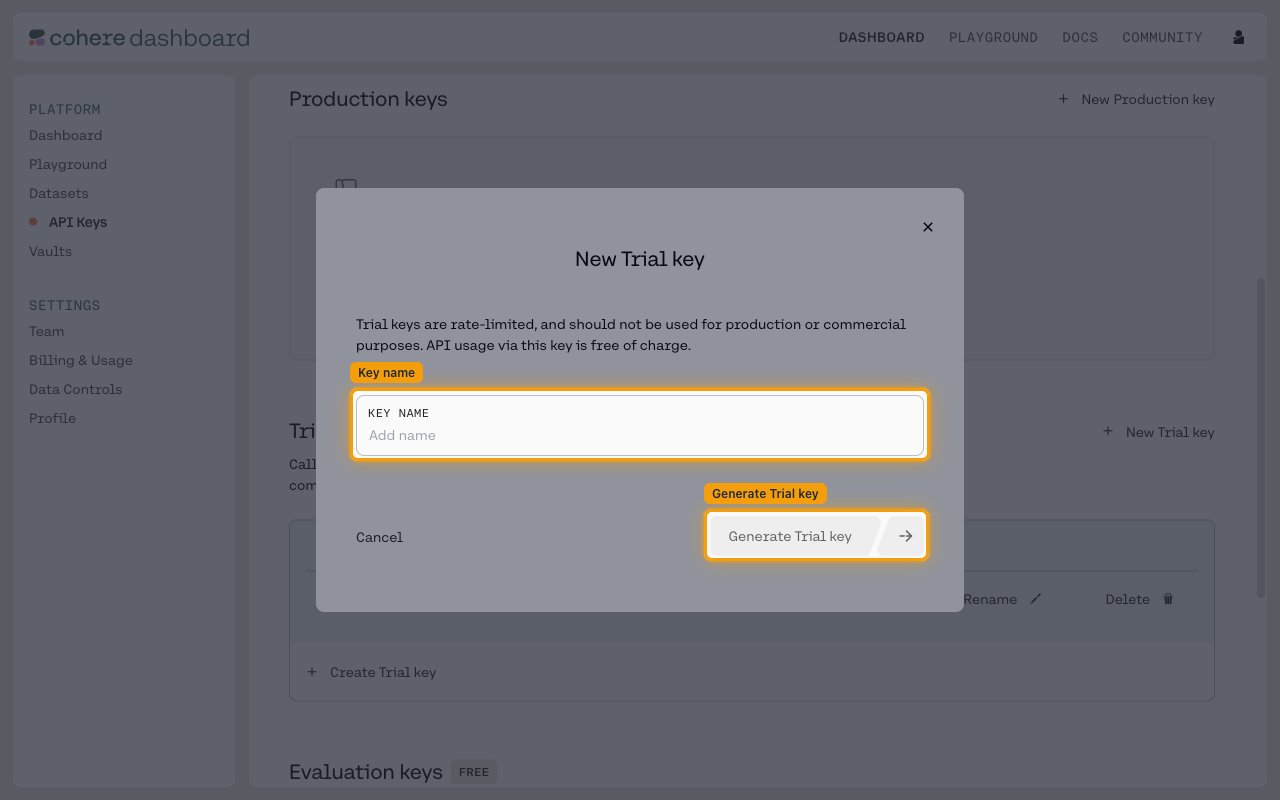
        <p>In the <strong>New Trial key</strong> dialog, enter a <strong>Key name</strong>, then click <strong>Generate Trial key</strong>.</p>

        <img src="https://mintcdn.com/stackone-60/ty02T8LN9roHCune/connectors/cohere/images/custom-config-generate-trial-key.png?fit=max&auto=format&n=ty02T8LN9roHCune&q=85&s=1b12d9eacb96bf5cd96cead625d1afc6" alt="New Trial key dialog with the Key name field and Generate Trial key button highlighted" width="1280" height="800" data-path="connectors/cohere/images/custom-config-generate-trial-key.png" />
      </div>
    </Step>

    <Step title="Copy your API key">
      <div data-guide-step data-guide-scopes="" data-guide-display-scopes-list="">
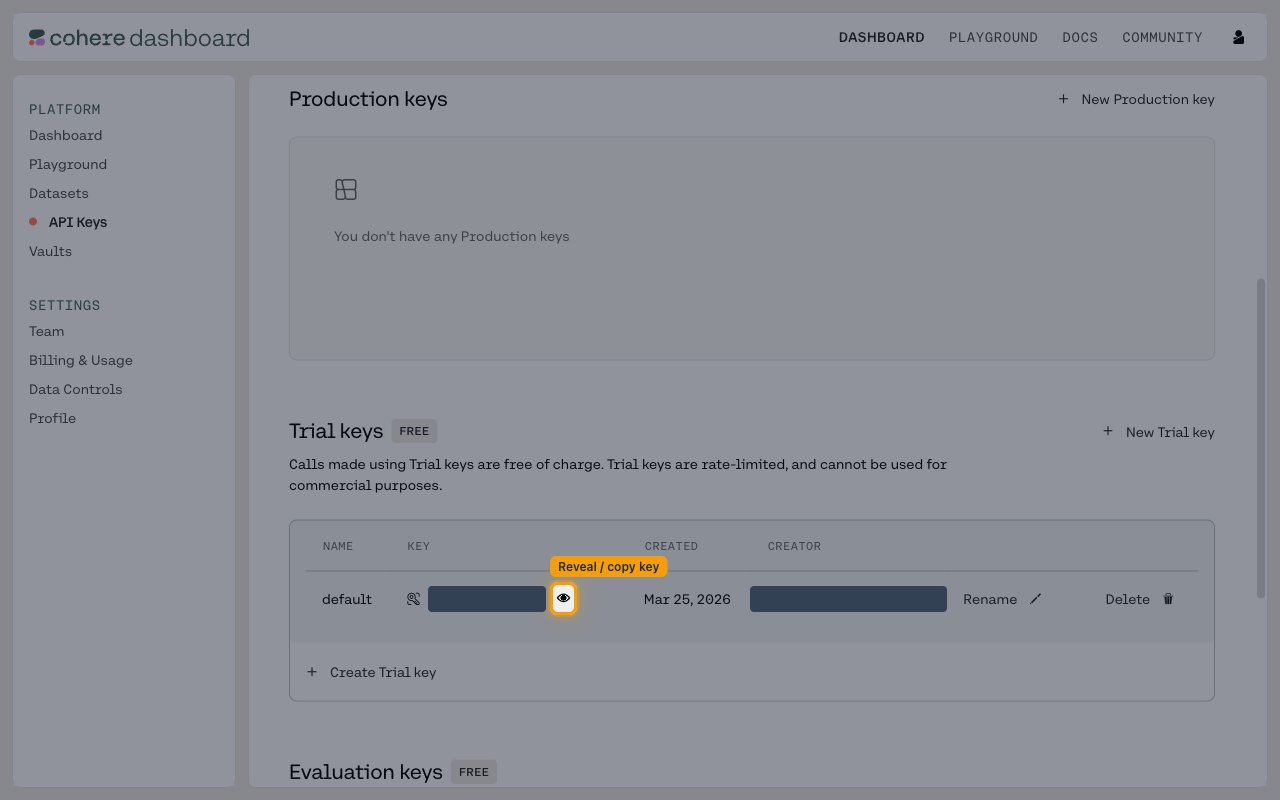
        <p>Reveal the key with the eye icon next to it, then copy the value. Paste it into the <strong>API Key</strong> field in StackOne Hub.</p>

        <ul>
          <li><strong>Important:</strong> Store your API key securely - it provides access to your Cohere account.</li>
        </ul>

        <img src="https://mintcdn.com/stackone-60/ty02T8LN9roHCune/connectors/cohere/images/custom-config-copy-key.png?fit=max&auto=format&n=ty02T8LN9roHCune&q=85&s=58f6e4f3587fb69ce63973b38d8ae76e" alt="Trial keys table with the reveal and copy control highlighted on a key row" width="1280" height="800" data-path="connectors/cohere/images/custom-config-copy-key.png" />
      </div>
    </Step>

    <Step title="Create a Production key for commercial use">
      <div data-guide-step data-guide-scopes="" data-guide-display-scopes-list="">
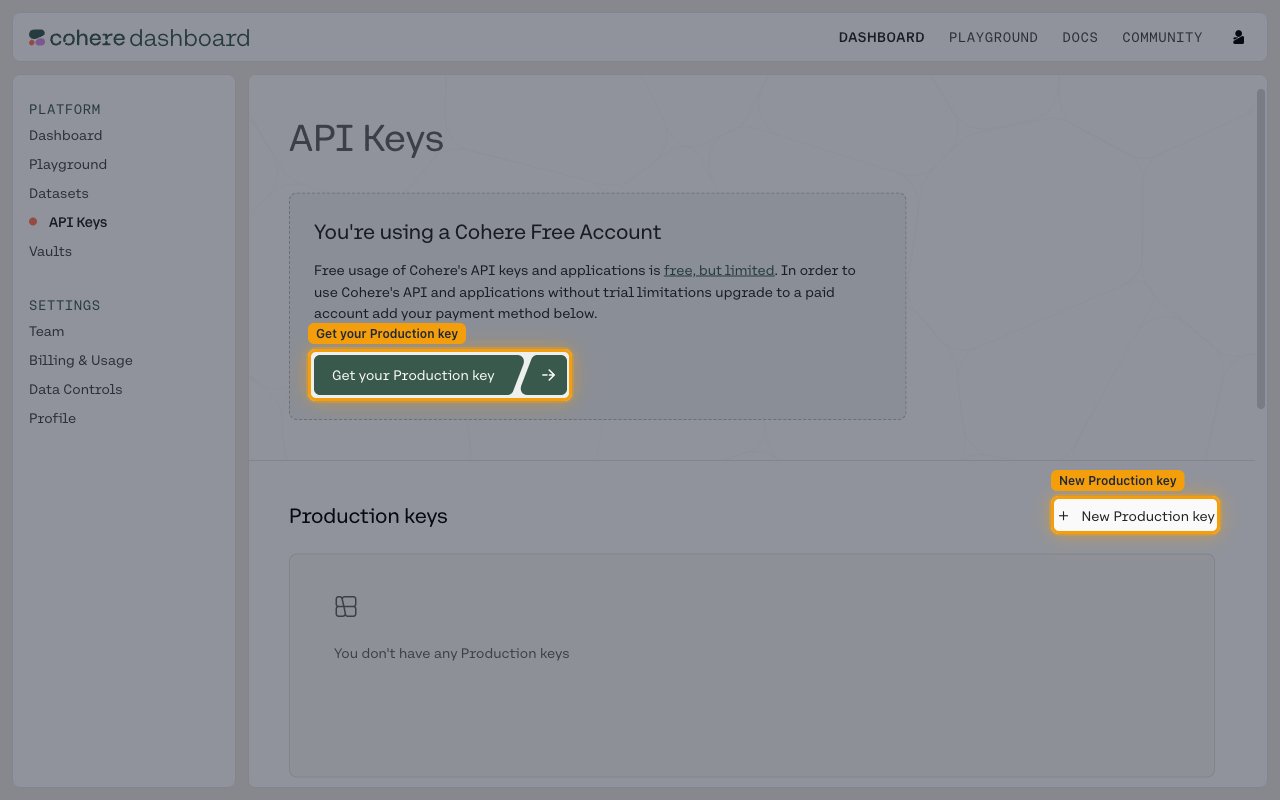
        <p>Trial keys cannot be used for production or commercial purposes. On a free account, click <strong>Get your Production key</strong> to add a payment method and upgrade, then click <strong>+ New Production key</strong> under <strong>Production keys</strong> to create one.</p>

        <img src="https://mintcdn.com/stackone-60/ty02T8LN9roHCune/connectors/cohere/images/custom-config-production-key.png?fit=max&auto=format&n=ty02T8LN9roHCune&q=85&s=9932e6f8be757119799e4b10896fd035" alt="API Keys page showing the Get your Production key upgrade button and the New Production key button" width="1280" height="800" data-path="connectors/cohere/images/custom-config-production-key.png" />
      </div>
    </Step>
  </Steps>
</section>

<div data-whitelabel-hide>
  <h2>Linking the Account from the Hub</h2>

  <Steps>
    <Step title="Navigate to the Hub">
      Use one of the three <a href="/connect/managing-connectors/linking-accounts">Linking Account Methods</a> to access the Hub.
    </Step>

    <Step title="Fill out the fields">
      Fill out the following fields using details from your provider:

      <ul>
        <li><strong>API Key</strong></li>
      </ul>
    </Step>

    <Step title="Connect">
      <ul>
        <li>Click <strong>Connect</strong></li>
        <li>If applicable, the provider will redirect you to a sign-in or authorization page. Complete the provider's authorization flow.</li>
        <li>Once authorization is successful, you will see a confirmation popup</li>
      </ul>
    </Step>
  </Steps>

  <p>If the account linking is successful, you will see the newly linked account in your <a href="/gateway/concepts/linked-accounts">Accounts</a> page.</p>
</div>