> ## Documentation Index
> Fetch the complete documentation index at: https://docs.stackone.com/llms.txt
> Use this file to discover all available pages before exploring further.

# Connect PayFit with API Key – StackOne Hub

> Link a PayFit account in the StackOne Hub using API Key. End-user guide to authorize the integration and start using PayFit actions.

<Warning>You must sign in as an administrator of your PayFit company — API keys can only be created by an admin.</Warning>

<Panel>
  <div className="not-prose guides-scope-selector" data-guides-scope-selector data-guide-actions-json="[{&#x22;id&#x22;:&#x22;payfit_list_health_insurance_contracts&#x22;,&#x22;label&#x22;:&#x22;List Health Insurance Contracts&#x22;,&#x22;scopes&#x22;:[&#x22;health-insurance:read&#x22;]},{&#x22;id&#x22;:&#x22;payfit_update_health_insurance_affiliation&#x22;,&#x22;label&#x22;:&#x22;Update Health Insurance Affiliation&#x22;,&#x22;scopes&#x22;:[&#x22;health-insurance:write&#x22;]},{&#x22;id&#x22;:&#x22;payfit_list_provident_fund_contracts&#x22;,&#x22;label&#x22;:&#x22;List Provident Fund Contracts&#x22;,&#x22;scopes&#x22;:[&#x22;health-insurance:read&#x22;]},{&#x22;id&#x22;:&#x22;payfit_update_provident_fund_affiliation&#x22;,&#x22;label&#x22;:&#x22;Update Provident Fund Affiliation&#x22;,&#x22;scopes&#x22;:[&#x22;health-insurance:write&#x22;]},{&#x22;id&#x22;:&#x22;payfit_list_worked_time&#x22;,&#x22;label&#x22;:&#x22;List Worked Time&#x22;,&#x22;scopes&#x22;:[&#x22;time:read&#x22;]},{&#x22;id&#x22;:&#x22;payfit_list_collaborators&#x22;,&#x22;label&#x22;:&#x22;List Collaborators&#x22;,&#x22;scopes&#x22;:[&#x22;collaborators:read&#x22;]},{&#x22;id&#x22;:&#x22;payfit_get_collaborator&#x22;,&#x22;label&#x22;:&#x22;Get Collaborator&#x22;,&#x22;scopes&#x22;:[&#x22;collaborators:read&#x22;]},{&#x22;id&#x22;:&#x22;payfit_create_collaborator&#x22;,&#x22;label&#x22;:&#x22;Create Collaborator&#x22;,&#x22;scopes&#x22;:[&#x22;collaborators:write&#x22;]},{&#x22;id&#x22;:&#x22;payfit_list_collaborator_payslips&#x22;,&#x22;label&#x22;:&#x22;List Collaborator Payslips&#x22;,&#x22;scopes&#x22;:[&#x22;contracts:payslips:read&#x22;]},{&#x22;id&#x22;:&#x22;payfit_get_collaborator_payslip&#x22;,&#x22;label&#x22;:&#x22;Get Collaborator Payslip&#x22;,&#x22;scopes&#x22;:[&#x22;contracts:payslips:read&#x22;]},{&#x22;id&#x22;:&#x22;payfit_list_collaborators_meal_vouchers&#x22;,&#x22;label&#x22;:&#x22;List Collaborators Meal Vouchers&#x22;,&#x22;scopes&#x22;:[&#x22;collaborators:meal-vouchers:read&#x22;]},{&#x22;id&#x22;:&#x22;payfit_list_contracts&#x22;,&#x22;label&#x22;:&#x22;List Contracts&#x22;,&#x22;scopes&#x22;:[&#x22;contracts:read&#x22;]},{&#x22;id&#x22;:&#x22;payfit_get_contract&#x22;,&#x22;label&#x22;:&#x22;Get Contract&#x22;,&#x22;scopes&#x22;:[&#x22;contracts:read&#x22;]},{&#x22;id&#x22;:&#x22;payfit_create_contract&#x22;,&#x22;label&#x22;:&#x22;Create Contract&#x22;,&#x22;scopes&#x22;:[&#x22;collaborators:contracts:write&#x22;]},{&#x22;id&#x22;:&#x22;payfit_list_absences&#x22;,&#x22;label&#x22;:&#x22;List Absences&#x22;,&#x22;scopes&#x22;:[&#x22;time:read&#x22;]}]" style={{ borderRadius: '8px', padding: '16px', marginBottom: '24px' }}>
    <div className="guides-scope-selector__title" style={{ fontSize: '16px', fontWeight: '600', marginBottom: '12px' }}>Select Actions to adjust the guide</div>
    <div className="guides-scope-selector__muted" style={{ fontSize: '13px', marginBottom: '12px' }}>Some actions may require additional configuration in the provider to be accessible. Choose the actions you need and the guide will be updated.</div>

    <div style={{ display: 'flex', gap: '8px', marginBottom: '12px', flexWrap: 'wrap' }}>
      <input type="text" placeholder="Search actions..." className="guides-scope-selector__input" data-guide-action-search style={{ padding: '8px 12px', borderRadius: '6px', fontSize: '13px', flex: 1, minWidth: '160px' }} />

      <button type="button" className="guides-scope-selector__quick-btn" data-guide-select-all style={{ padding: '6px 10px', borderRadius: '6px', fontSize: '12px', cursor: 'pointer' }}>Select all</button>
      <button type="button" className="guides-scope-selector__quick-btn" data-guide-clear style={{ padding: '6px 10px', borderRadius: '6px', fontSize: '12px', cursor: 'pointer' }}>Clear</button>
    </div>

    <div className="guides-scope-selector__list" style={{ maxHeight: '240px', overflowY: 'auto', borderRadius: '6px', marginBottom: '12px' }}>
      <div className="guides-scope-selector__list-header" style={{ display: 'flex', alignItems: 'center', gap: '10px', padding: '8px 12px', fontSize: '12px', fontWeight: '600', position: 'sticky', top: 0, zIndex: 1 }}>
        <div style={{ width: '16px', flexShrink: 0 }} />

        <div style={{ flex: 1, textAlign: 'left' }}>Action</div>
        <div style={{ minWidth: '120px', marginLeft: 'auto', textAlign: 'right' }}>Scope(s)</div>
      </div>

      <div className="guides-scope-selector__muted" data-guide-loading style={{ padding: '16px', textAlign: 'center', fontSize: '13px' }}>Loading actions...</div>
      <div className="guides-scope-selector__muted" data-guide-no-results hidden style={{ padding: '16px', textAlign: 'center', fontSize: '13px' }}>No actions match your search.</div>
    </div>

    <div className="guides-scope-selector__url-section" style={{ marginTop: '12px', paddingTop: '12px' }}>
      <div className="guides-scope-selector__muted" style={{ fontSize: '12px', fontWeight: '500', marginBottom: '6px' }}>Dynamic Guide URL</div>

      <div style={{ display: 'flex', alignItems: 'center', gap: '8px', flexWrap: 'wrap' }}>
        <input type="text" readOnly className="guides-scope-selector__input" data-guide-url style={{ flex: 1, minWidth: '200px', padding: '8px 10px', borderRadius: '6px', fontSize: '12px', fontFamily: 'monospace' }} />

        <button type="button" className="guides-scope-selector__copy-btn" data-guide-copy-url style={{ width: '120px', padding: '8px 14px', borderRadius: '6px', fontSize: '13px', fontWeight: '500', cursor: 'pointer', whiteSpace: 'nowrap', marginLeft: 'auto' }}>Copy URL</button>
      </div>

      <div style={{ marginTop: '12px' }}>
        <div className="guides-scope-selector__muted" style={{ fontSize: '12px', fontWeight: '500', marginBottom: '6px' }}>Scopes Selected</div>

        <div style={{ display: 'flex', alignItems: 'stretch', gap: '8px', flexWrap: 'wrap' }}>
          <pre className="guides-scope-selector__input" role="textbox" aria-readonly="true" tabIndex={0} data-guide-scopes-output style={{ flex: 1, minWidth: '200px', minHeight: '88px', maxHeight: '120px', overflowY: 'auto', margin: 0, padding: '8px 10px', borderRadius: '6px', fontSize: '12px', fontFamily: 'monospace', whiteSpace: 'pre-wrap' }} />

          <div className="guides-scope-selector__muted" style={{ display: 'flex', flexDirection: 'column', gap: '8px', fontSize: '12px', fontWeight: '500', flexShrink: 0, alignItems: 'flex-start' }}>
            <div style={{ whiteSpace: 'nowrap' }}>Separator</div>

            <select className="guides-scope-selector__input" data-guide-scope-delimiter style={{ width: '100%', padding: '6px 10px', borderRadius: '6px', fontSize: '12px' }}>
              <option value="space">Space</option>
              <option value="comma">Comma</option>
              <option value="semicolon">Semicolon</option>
              <option value="pipe">Pipe</option>
              <option value="newline">Newline</option>
            </select>

            <button type="button" className="guides-scope-selector__copy-btn" data-guide-copy-scopes style={{ width: '120px', padding: '8px 14px', borderRadius: '6px', fontSize: '13px', fontWeight: '500', cursor: 'pointer', whiteSpace: 'nowrap' }}>Copy scopes</button>
          </div>
        </div>
      </div>
    </div>
  </div>
</Panel>

<section data-guide-section data-guide-scopes="">
  <h2>Log in to PayFit</h2>

  <p>Sign in to the <a href="https://app.payfit.com" target="_blank" rel="noopener noreferrer">PayFit dashboard</a> with an administrator account. API keys give access to your own company's data and can only be created by an admin.</p>
</section>

<section data-guide-section data-guide-scopes="">
  <h2>Create your PayFit API key</h2>

  <p>PayFit API keys are created and managed from the Integrations area of your company dashboard.</p>

  <Steps>
    <Step title="Open the API access page">
      <div data-guide-step data-guide-scopes="" data-guide-display-scopes-list="">
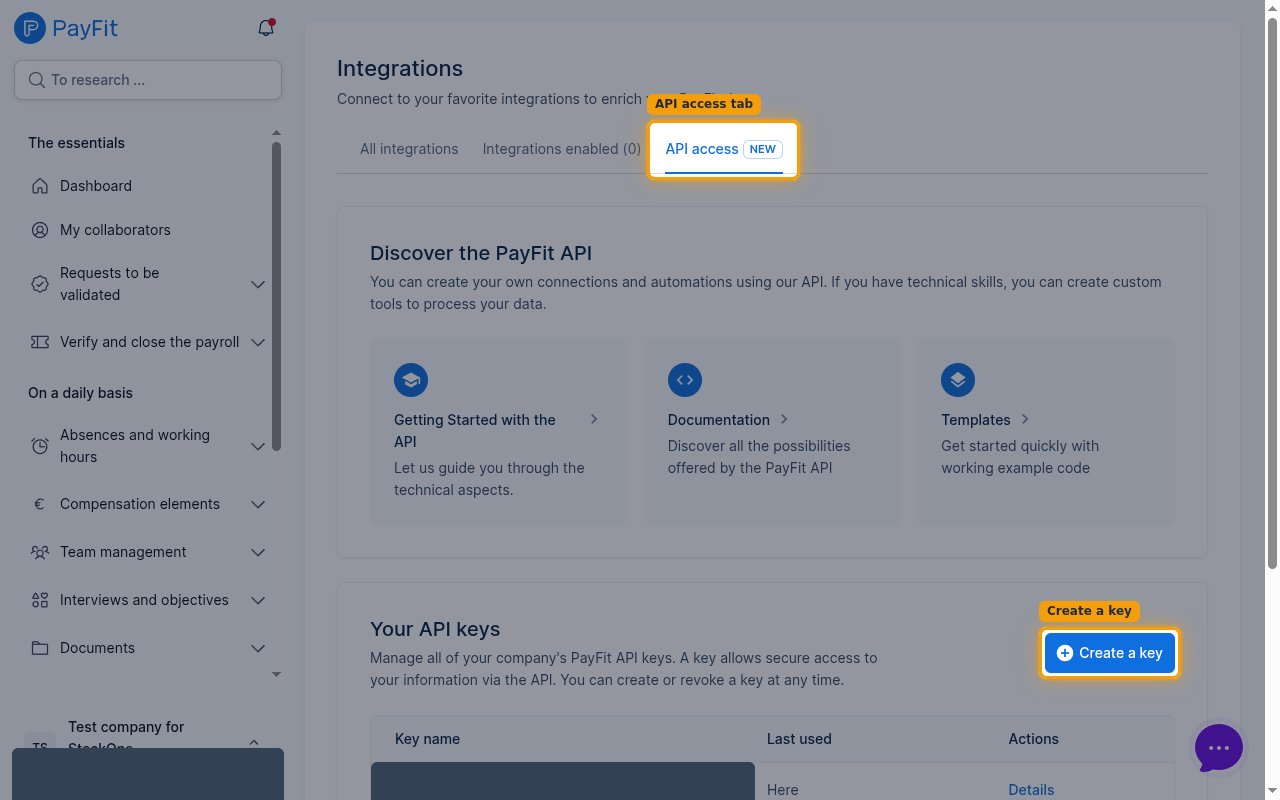
        <p>In the left sidebar, under <strong>My structure</strong>, click <strong>Integrations</strong>, then open the <strong>API access</strong> tab. Under <strong>Your API keys</strong>, click <strong>Create a key</strong>.</p>

        <ul>
          <li>You can also go straight to the API access page once you are signed in: `https://app.payfit.com/integrations/hub/api` — PayFit redirects it to your company-specific URL, so it only works while logged in.</li>
        </ul>

        <img src="https://mintcdn.com/stackone-60/kEIzQuPsCv8-q8Nl/connectors/payfit/images/api_key-config-api-access.png?fit=max&auto=format&n=kEIzQuPsCv8-q8Nl&q=85&s=71bc860da363f930dd7e3415e7570a26" alt="PayFit Integrations page with the API access tab and the Create a key button" width="1280" height="800" data-path="connectors/payfit/images/api_key-config-api-access.png" />
      </div>
    </Step>

    <Step title="Enter a name and select scopes">
      <div data-guide-step data-guide-scopes="contracts:read,contracts:payslips:read,collaborators:read,collaborators:write,collaborators:contracts:write,collaborators:meal-vouchers:read,time:read,health-insurance:read,health-insurance:write" data-guide-display-scopes-list="contracts:read,contracts:payslips:read,collaborators:read,collaborators:write,collaborators:contracts:write,collaborators:meal-vouchers:read,time:read,health-insurance:read,health-insurance:write">
        <div className="connector-guide-actions-badge" data-guide-actions-badge data-guide-actions-badge-scopes="contracts:read,contracts:payslips:read,collaborators:read,collaborators:write,collaborators:contracts:write,collaborators:meal-vouchers:read,time:read,health-insurance:read,health-insurance:write" style={{ display: 'block', width: 'fit-content', maxWidth: '100%', padding: '2px 8px', borderRadius: '8px', fontSize: '12px', marginBottom: '8px', marginTop: '-10px', whiteSpace: 'nowrap', overflowX: 'auto', overflowY: 'hidden', msOverflowStyle: 'none', scrollbarWidth: 'none' }}>
          <span>Enables actions: </span><span data-guide-actions-badge-labels>Create Collaborator, Create Contract, Get Collaborator, Get Collaborator Payslip, Get Contract, List Absences, List Collaborator Payslips, List Collaborators, List Collaborators Meal Vouchers, List Contracts, List Health Insurance Contracts, List Provident Fund Contracts, List Worked Time, Update Health Insurance Affiliation, Update Provident Fund Affiliation</span>
        </div>

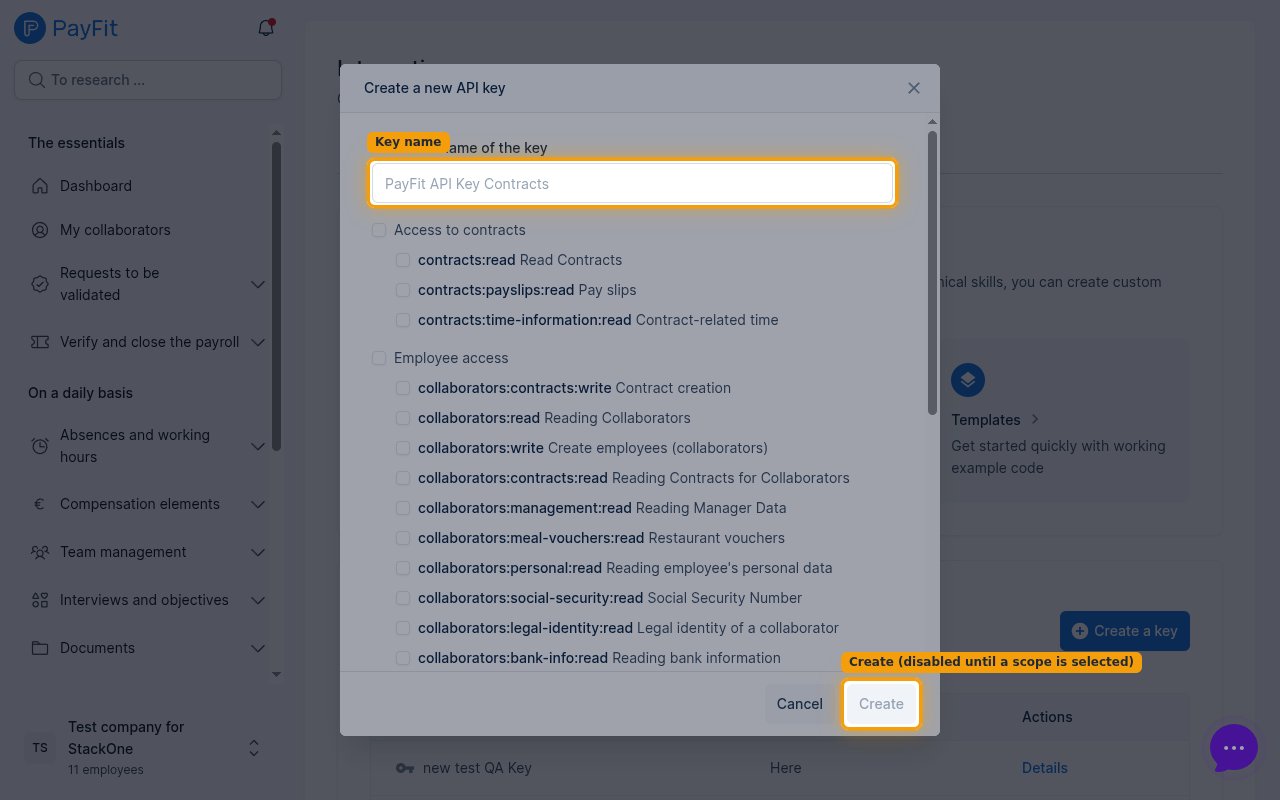
        <p>In the <strong>Create a new API key</strong> dialog, type a name for the key in <strong>Name of the key</strong>. Then tick the scopes the key should grant. The <strong>Create</strong> button stays disabled until at least one scope is selected. Selecting the correct scopes is critical — if a required scope is missing, the matching actions return no data or fail with a permission error, so enable every scope the integration needs.</p>

        <img src="https://mintcdn.com/stackone-60/kEIzQuPsCv8-q8Nl/connectors/payfit/images/api_key-config-create-key-scopes.png?fit=max&auto=format&n=kEIzQuPsCv8-q8Nl&q=85&s=b59e00f6626f29ba5e78133ab21d9cba" alt="Create a new API key dialog showing the name field, scope checkboxes and the disabled Create button" width="1280" height="800" data-path="connectors/payfit/images/api_key-config-create-key-scopes.png" />

        <div style={{ marginTop: '8px' }} data-guide-display-scopes>
          <div className="connector-guide-scopes-container">
            <ul className="not-prose" style={{ listStyleType: "'- '", paddingLeft: '1em', margin: 0 }}>
              <li style={{ overflowWrap: 'anywhere', wordBreak: 'break-word' }} data-guide-display-scope="contracts:read">
                <button type="button" className="connector-guide-scope-copy" aria-label="Copy contracts:read" title="Copy scope" data-copy="contracts:read">
                  <span className="connector-guide-scope-copy__label">contracts:read</span>
                  <span className="connector-guide-scope-copy__icon" aria-hidden="true">⧉</span>
                </button>
              </li>

              <li style={{ overflowWrap: 'anywhere', wordBreak: 'break-word' }} data-guide-display-scope="contracts:payslips:read">
                <button type="button" className="connector-guide-scope-copy" aria-label="Copy contracts:payslips:read" title="Copy scope" data-copy="contracts:payslips:read">
                  <span className="connector-guide-scope-copy__label">contracts:payslips:read</span>
                  <span className="connector-guide-scope-copy__icon" aria-hidden="true">⧉</span>
                </button>
              </li>

              <li style={{ overflowWrap: 'anywhere', wordBreak: 'break-word' }} data-guide-display-scope="collaborators:read">
                <button type="button" className="connector-guide-scope-copy" aria-label="Copy collaborators:read" title="Copy scope" data-copy="collaborators:read">
                  <span className="connector-guide-scope-copy__label">collaborators:read</span>
                  <span className="connector-guide-scope-copy__icon" aria-hidden="true">⧉</span>
                </button>
              </li>

              <li style={{ overflowWrap: 'anywhere', wordBreak: 'break-word' }} data-guide-display-scope="collaborators:write">
                <button type="button" className="connector-guide-scope-copy" aria-label="Copy collaborators:write" title="Copy scope" data-copy="collaborators:write">
                  <span className="connector-guide-scope-copy__label">collaborators:write</span>
                  <span className="connector-guide-scope-copy__icon" aria-hidden="true">⧉</span>
                </button>
              </li>

              <li style={{ overflowWrap: 'anywhere', wordBreak: 'break-word' }} data-guide-display-scope="collaborators:contracts:write">
                <button type="button" className="connector-guide-scope-copy" aria-label="Copy collaborators:contracts:write" title="Copy scope" data-copy="collaborators:contracts:write">
                  <span className="connector-guide-scope-copy__label">collaborators:contracts:write</span>
                  <span className="connector-guide-scope-copy__icon" aria-hidden="true">⧉</span>
                </button>
              </li>

              <li style={{ overflowWrap: 'anywhere', wordBreak: 'break-word' }} data-guide-display-scope="collaborators:meal-vouchers:read">
                <button type="button" className="connector-guide-scope-copy" aria-label="Copy collaborators:meal-vouchers:read" title="Copy scope" data-copy="collaborators:meal-vouchers:read">
                  <span className="connector-guide-scope-copy__label">collaborators:meal-vouchers:read</span>
                  <span className="connector-guide-scope-copy__icon" aria-hidden="true">⧉</span>
                </button>
              </li>

              <li style={{ overflowWrap: 'anywhere', wordBreak: 'break-word' }} data-guide-display-scope="time:read">
                <button type="button" className="connector-guide-scope-copy" aria-label="Copy time:read" title="Copy scope" data-copy="time:read">
                  <span className="connector-guide-scope-copy__label">time:read</span>
                  <span className="connector-guide-scope-copy__icon" aria-hidden="true">⧉</span>
                </button>
              </li>

              <li style={{ overflowWrap: 'anywhere', wordBreak: 'break-word' }} data-guide-display-scope="health-insurance:read">
                <button type="button" className="connector-guide-scope-copy" aria-label="Copy health-insurance:read" title="Copy scope" data-copy="health-insurance:read">
                  <span className="connector-guide-scope-copy__label">health-insurance:read</span>
                  <span className="connector-guide-scope-copy__icon" aria-hidden="true">⧉</span>
                </button>
              </li>

              <li style={{ overflowWrap: 'anywhere', wordBreak: 'break-word' }} data-guide-display-scope="health-insurance:write">
                <button type="button" className="connector-guide-scope-copy" aria-label="Copy health-insurance:write" title="Copy scope" data-copy="health-insurance:write">
                  <span className="connector-guide-scope-copy__label">health-insurance:write</span>
                  <span className="connector-guide-scope-copy__icon" aria-hidden="true">⧉</span>
                </button>
              </li>
            </ul>
          </div>
        </div>
      </div>
    </Step>

    <Step title="Find each scope in its portal group">
      <div data-guide-step data-guide-scopes="" data-guide-display-scopes-list="">
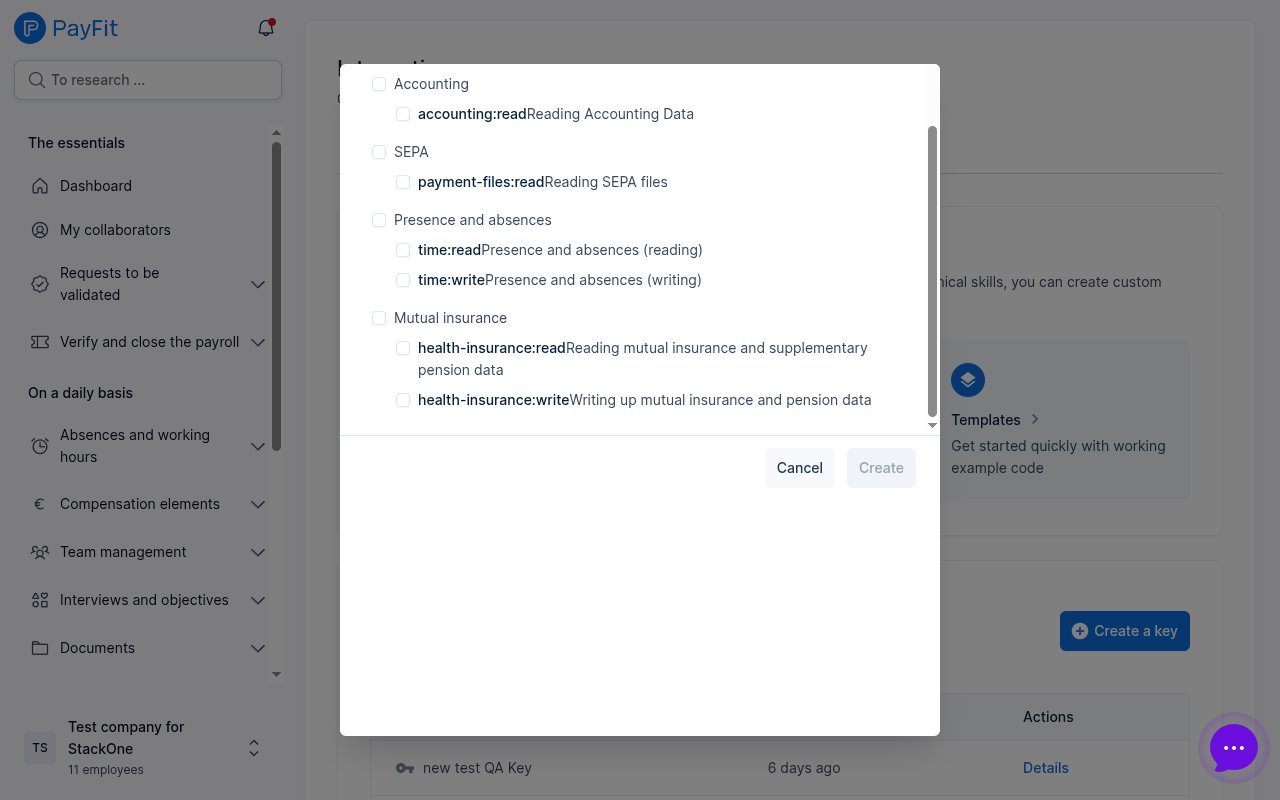
        <p>The scope list is grouped by area and is scrollable, so some scopes are further down. Select each scope the integration needs in its group.</p>

        <ul>
          <li>Under <strong>Access to contracts</strong>, select <strong>contracts:read</strong> and <strong>contracts:payslips:read</strong>.</li>
          <li>Under <strong>Employee access</strong>, select <strong>collaborators:read</strong>, <strong>collaborators:write</strong>, <strong>collaborators:contracts:write</strong>, and <strong>collaborators:meal-vouchers:read</strong>.</li>
          <li>Under <strong>Presence and absences</strong> (further down), select <strong>time:read</strong>, not <strong>contracts:time-information:read</strong> in the Access to contracts group.</li>
          <li>Under <strong>Mutual insurance</strong> (further down), select <strong>health-insurance:read</strong> and <strong>health-insurance:write</strong>.</li>
          <li>Leave scopes the integration does not use unticked, such as <strong>contracts:time-information:read</strong>, <strong>time:write</strong>, <strong>pension:read</strong>, <strong>accounting:read</strong>, and <strong>payment-files:read</strong>.</li>
        </ul>

        <img src="https://mintcdn.com/stackone-60/MCRQqdpoywjg66MI/connectors/payfit/images/api_key-config-scopes-scrolled.png?fit=max&auto=format&n=MCRQqdpoywjg66MI&q=85&s=9226072d64caf8a3bb48a2c2c4b649c6" alt="Lower part of the scope list showing the time and health-insurance scopes" width="1280" height="800" data-path="connectors/payfit/images/api_key-config-scopes-scrolled.png" />
      </div>
    </Step>

    <Step title="Copy your API key">
      <div data-guide-step data-guide-scopes="" data-guide-display-scopes-list="">
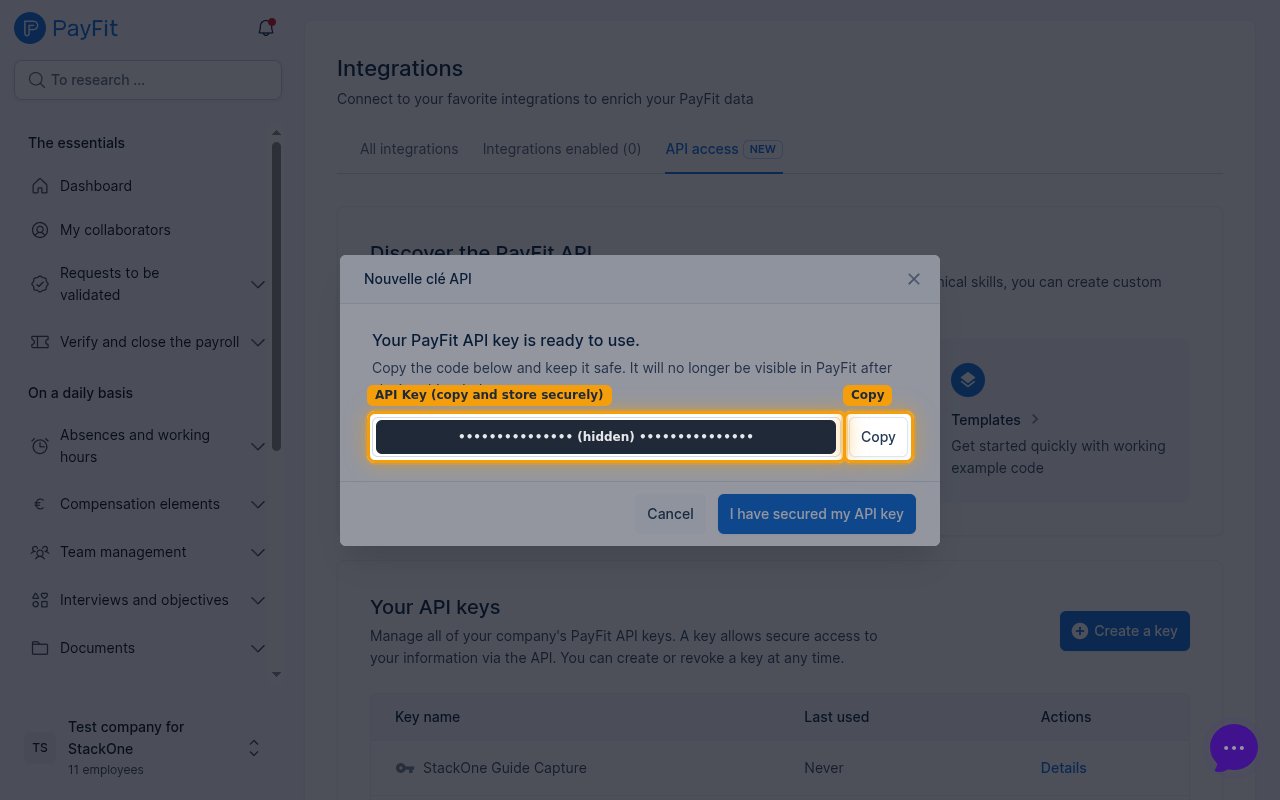
        <p>After clicking <strong>Create</strong>, PayFit shows <strong>Your PayFit API key is ready to use</strong>. Click <strong>Copy</strong> to copy the key, then click <strong>I have secured my API key</strong> to close the dialog.</p>

        <ul>
          <li>The key is displayed only once and cannot be retrieved later — it will no longer be visible in PayFit after you close this window, so copy and store it securely before closing.</li>
        </ul>

        <img src="https://mintcdn.com/stackone-60/kEIzQuPsCv8-q8Nl/connectors/payfit/images/api_key-config-copy-key.png?fit=max&auto=format&n=kEIzQuPsCv8-q8Nl&q=85&s=548d860e375e717c3173cb29db36aad9" alt="New API key dialog with the generated key value and the Copy button" width="1280" height="800" data-path="connectors/payfit/images/api_key-config-copy-key.png" />
      </div>
    </Step>
  </Steps>
</section>

<section data-guide-section data-guide-scopes="">
  <h2>Link the account in StackOne Hub</h2>

  <p>Connect PayFit to StackOne using the key you just copied.</p>

  <Steps>
    <Step title="Paste the key into the API Key field">
      <div data-guide-step data-guide-scopes="" data-guide-display-scopes-list="">
        <p>In StackOne Hub, paste the copied key into the <strong>API Key</strong> field. This is the only credential PayFit requires — StackOne sends it as a bearer token and automatically resolves your company from the key.</p>
      </div>
    </Step>
  </Steps>
</section>

<div data-whitelabel-hide>
  <h2>Linking the Account from the Hub</h2>

  <Steps>
    <Step title="Navigate to the Hub">
      Use one of the three <a href="/connect/managing-connectors/linking-accounts">Linking Account Methods</a> to access the Hub.
    </Step>

    <Step title="Fill out the fields">
      Fill out the following fields using details from your provider:

      <ul>
        <li><strong>API Key</strong></li>
      </ul>
    </Step>

    <Step title="Connect">
      <ul>
        <li>Click <strong>Connect</strong></li>
        <li>If applicable, the provider will redirect you to a sign-in or authorization page. Complete the provider's authorization flow.</li>
        <li>Once authorization is successful, you will see a confirmation popup</li>
      </ul>
    </Step>
  </Steps>

  <p>If the account linking is successful, you will see the newly linked account in your <a href="/gateway/concepts/linked-accounts">Accounts</a> page.</p>
</div>