> ## Documentation Index
> Fetch the complete documentation index at: https://docs.stackone.com/llms.txt
> Use this file to discover all available pages before exploring further.

# Connect Rally with API Key – StackOne Hub

> Link a Rally account in the StackOne Hub using API Key. End-user guide to authorize the integration and start using Rally actions.

<Warning>To generate an API key, you must have Subscription Administration privileges on the Rally account.</Warning>

<section data-guide-section data-guide-scopes="">
  <h2>Navigate to the API Keys Page</h2>

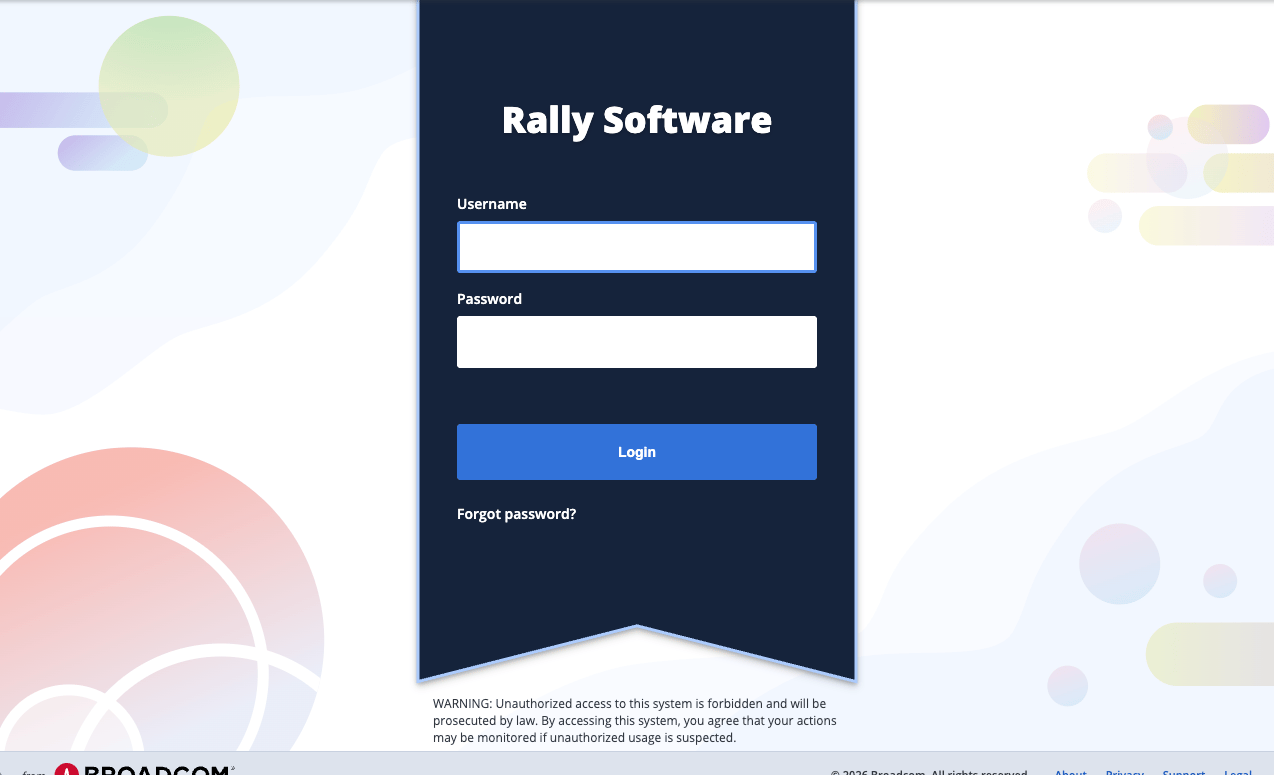
  <p>Log in to your <a href="https://rally1.rallydev.com" target="_blank" rel="noopener noreferrer">Rally account</a> and navigate to the API Keys management page.</p>

  <img src="https://mintcdn.com/stackone-60/dfstuqkD0DDrW5XG/connectors/rally/images/login-page.png?fit=max&auto=format&n=dfstuqkD0DDrW5XG&q=85&s=53bbc8de61c535925a5cb88ac164533d" alt="Rally login page" width="1274" height="775" data-path="connectors/rally/images/login-page.png" />

  <Steps>
    <Step title="Open Your Account Settings">
      <div data-guide-step data-guide-scopes="" data-guide-display-scopes-list="">
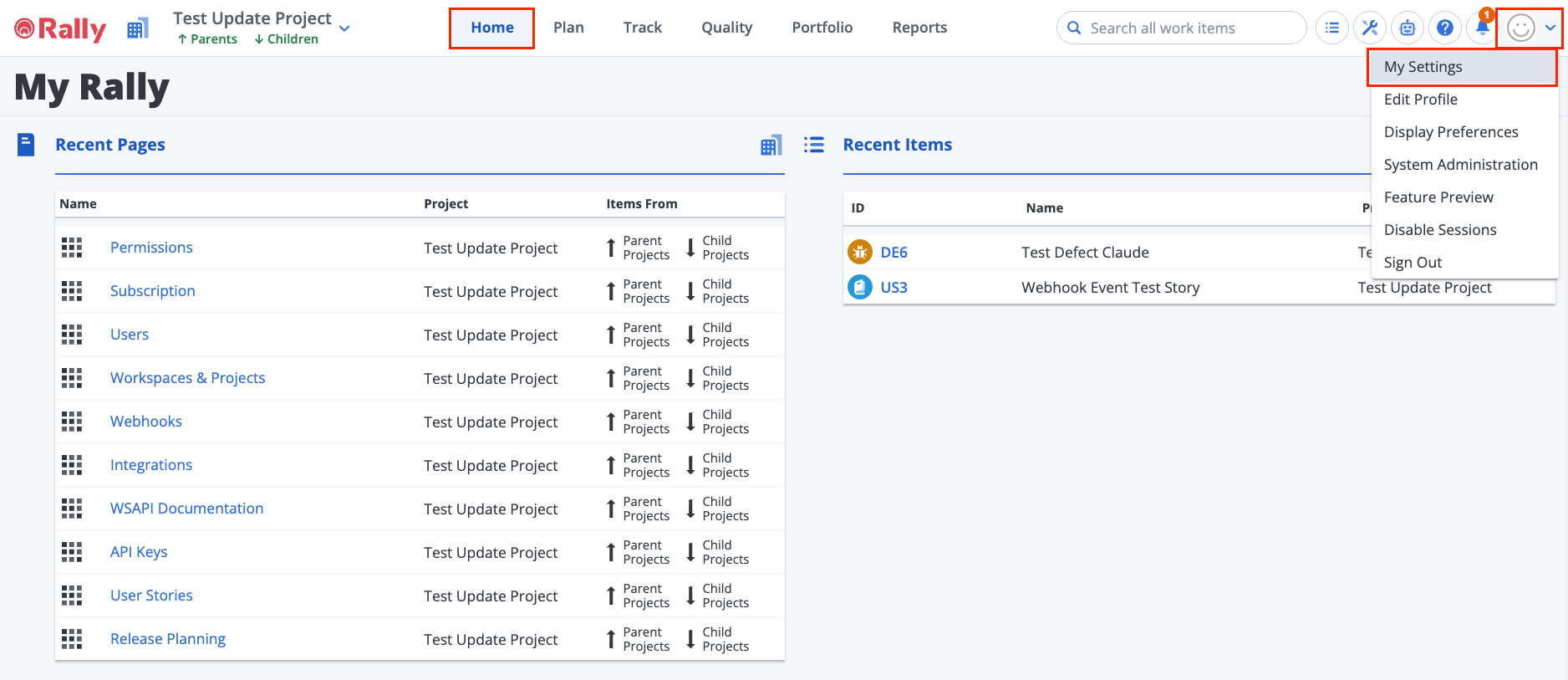
        <p>From the Rally dashboard, click the <strong>Avatar</strong> icon in the top-right corner and select <strong>My Settings</strong> from the dropdown menu.</p>

        <img src="https://mintcdn.com/stackone-60/dfstuqkD0DDrW5XG/connectors/rally/images/rally-dashboard.png?fit=max&auto=format&n=dfstuqkD0DDrW5XG&q=85&s=6a382384b60098c4c64000727d3a2388" alt="Rally dashboard with the profile dropdown menu open" width="1876" height="813" data-path="connectors/rally/images/rally-dashboard.png" />
      </div>
    </Step>

    <Step title="Open the API Keys Page">
      <div data-guide-step data-guide-scopes="" data-guide-display-scopes-list="">
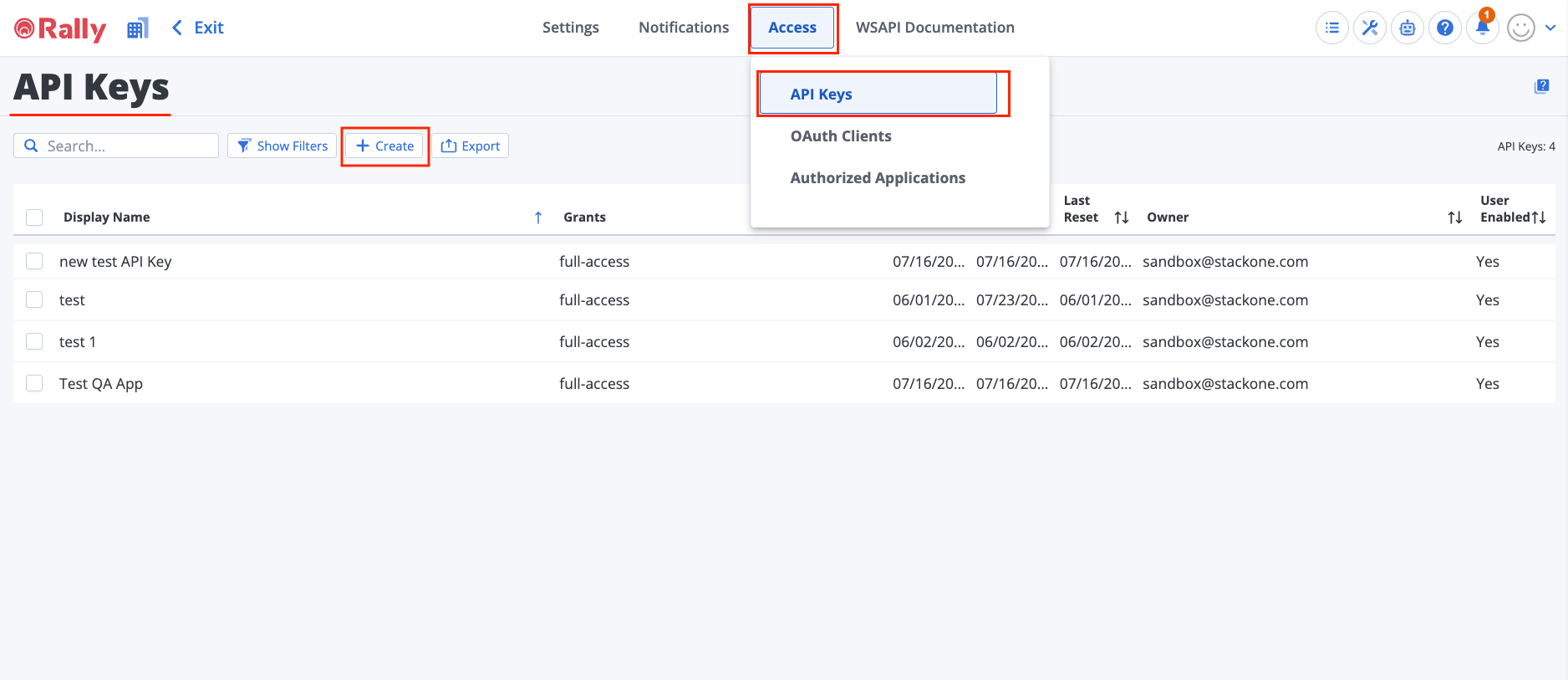
        <p>Navigate to the <strong>API Keys</strong> page. You can access it directly at `https://rally1.rallydev.com/login/accounts/index.html#/keys`.</p>

        <img src="https://mintcdn.com/stackone-60/dfstuqkD0DDrW5XG/connectors/rally/images/api-keys-page.png?fit=max&auto=format&n=dfstuqkD0DDrW5XG&q=85&s=18b55af54ff96a6853071dfcaec0ceff" alt="Rally API Keys page showing existing keys and the Create button" width="1876" height="813" data-path="connectors/rally/images/api-keys-page.png" />
      </div>
    </Step>
  </Steps>
</section>

<section data-guide-section data-guide-scopes="">
  <h2>Create and Copy Your API Key</h2>

  <p>On the API Keys page, create a new API key with full access permissions.</p>

  <Steps>
    <Step title="Create a New API Key">
      <div data-guide-step data-guide-scopes="" data-guide-display-scopes-list="">
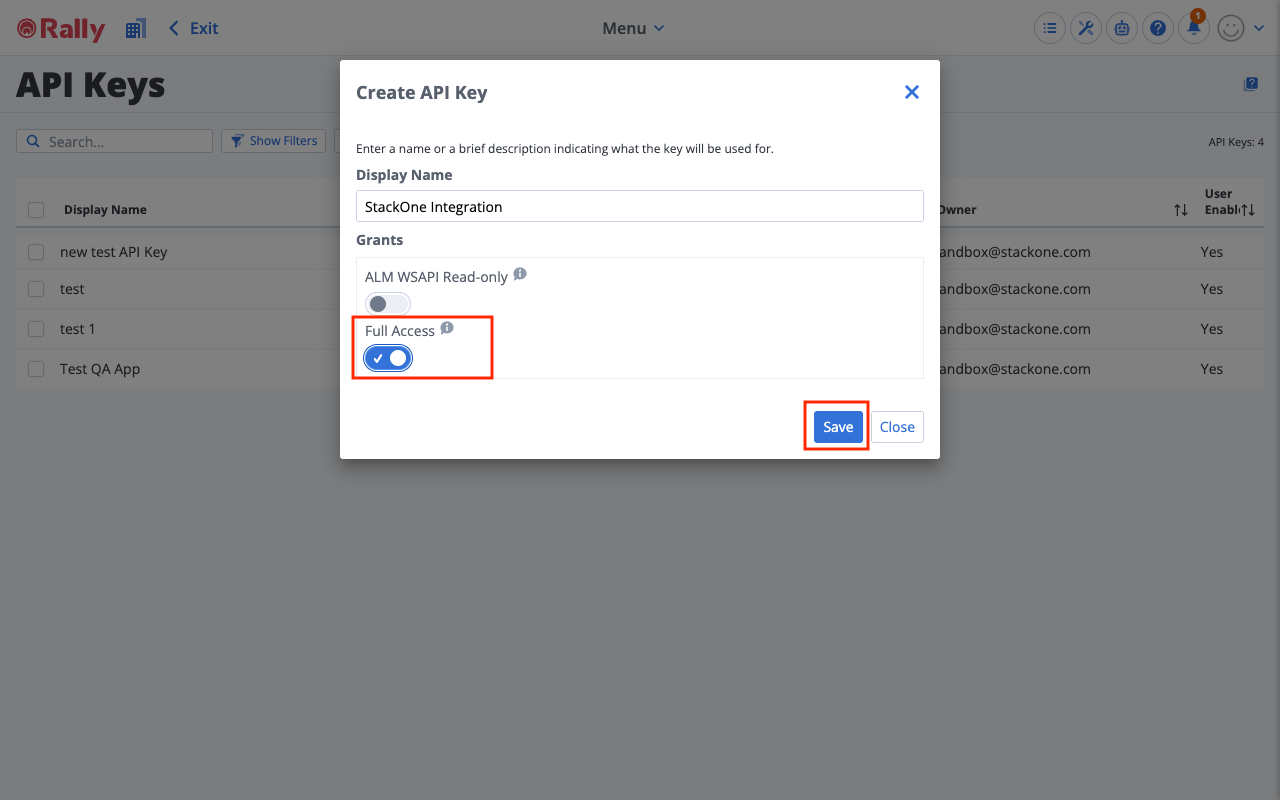
        <p>Click the <strong>+ Create</strong> button to open the Create API Key dialogue.</p>

        <ul>
          <li>Click the <strong>+ Create</strong> button on the API Keys page</li>
          <li>Enter a <strong>Display Name</strong> (e.g., StackOne Integration)</li>
          <li>Toggle the <strong>Full Access</strong> switch to enable full read and write permissions</li>
          <li>Click <strong>Save</strong> to generate the API key</li>
        </ul>

        <img src="https://mintcdn.com/stackone-60/dfstuqkD0DDrW5XG/connectors/rally/images/create-api-key-filled.png?fit=max&auto=format&n=dfstuqkD0DDrW5XG&q=85&s=8fe035fbaba422099f69080ac072f769" alt="Create API Key dialogue with Display Name filled in and Full Access toggled on" width="1280" height="800" data-path="connectors/rally/images/create-api-key-filled.png" />
      </div>
    </Step>

    <Step title="Copy the API Key">
      <div data-guide-step data-guide-scopes="" data-guide-display-scopes-list="">
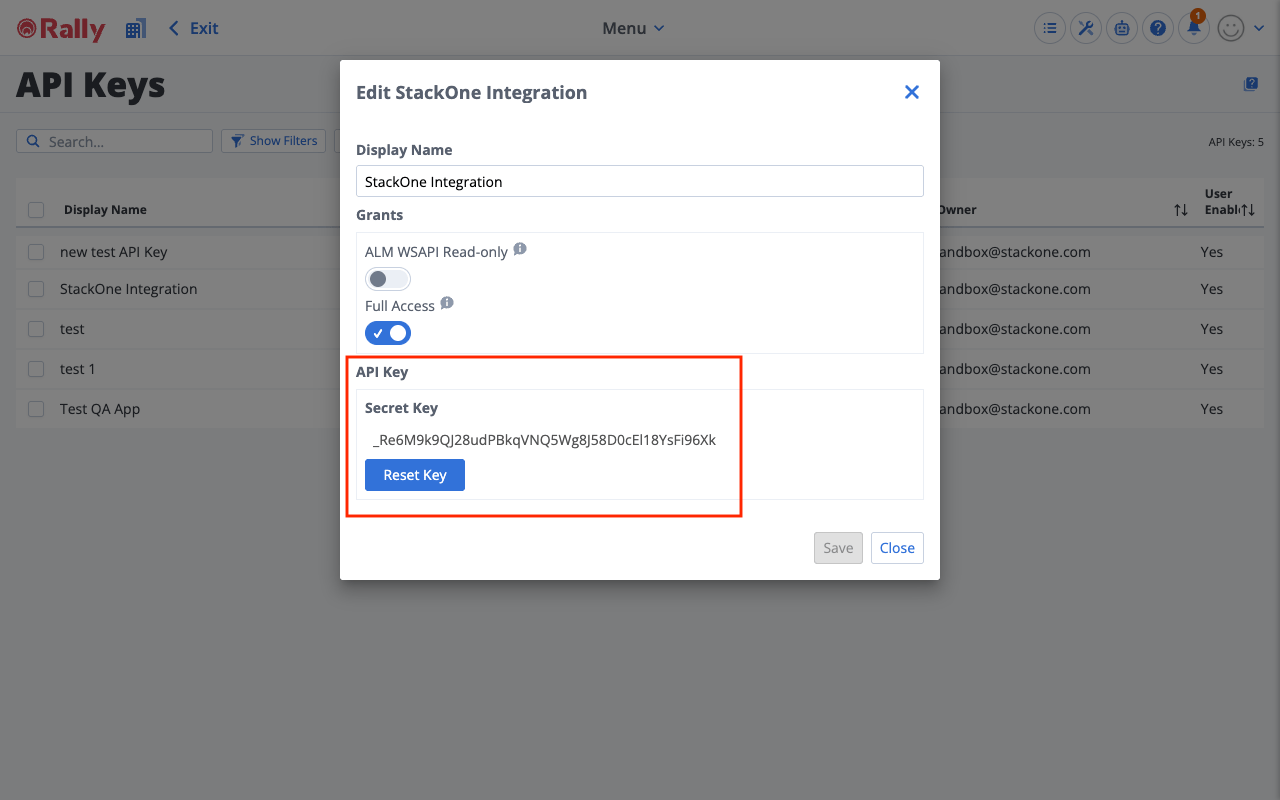
        <p>After saving, the dialogue displays the generated <strong>Secret Key</strong>. Copy it and store it securely.</p>

        <ul>
          <li>Copy the <strong>Secret Key</strong> shown in the dialogue — it is prefixed with an underscore (`_`)</li>
          <li>Store the key securely. You will need it when connecting Rally in StackOne</li>
          <li>To regenerate an existing key, select the key on the API Keys page, click <strong>Edit</strong>, then click <strong>Reset Key</strong> in the dialogue (this invalidates the previous key)</li>
          <li>Click <strong>Close</strong> to close the dialogue</li>
        </ul>

        <img src="https://mintcdn.com/stackone-60/dfstuqkD0DDrW5XG/connectors/rally/images/api-key-generated.png?fit=max&auto=format&n=dfstuqkD0DDrW5XG&q=85&s=9d11b50489c5af57c75fbfe3f07b74e5" alt="Edit API Key dialogue showing the generated Secret Key and Reset Key button" width="1280" height="800" data-path="connectors/rally/images/api-key-generated.png" />
      </div>
    </Step>
  </Steps>
</section>

<div data-whitelabel-hide>
  <h2>Linking the Account from the Hub</h2>

  <Steps>
    <Step title="Navigate to the Hub">
      Use one of the three <a href="/connect/managing-connectors/linking-accounts">Linking Account Methods</a> to access the Hub.
    </Step>

    <Step title="Fill out the fields">
      Fill out the following fields using details from your provider:

      <ul>
        <li><strong>API Key</strong></li>
      </ul>
    </Step>

    <Step title="Connect">
      <ul>
        <li>Click <strong>Connect</strong></li>
        <li>If applicable, the provider will redirect you to a sign-in or authorization page. Complete the provider's authorization flow.</li>
        <li>Once authorization is successful, you will see a confirmation popup</li>
      </ul>
    </Step>
  </Steps>

  <p>If the account linking is successful, you will see the newly linked account in your <a href="/gateway/concepts/linked-accounts">Accounts</a> page.</p>
</div>

## Next Steps

<Columns cols={2}>
  <Card title="Webhooks setup" href="/connectors/rally/guides/webhook-setup">
    <p className="connector-page-auth-description" style={{ fontSize: '14px', marginTop: 0, marginBottom: 0 }}>
      Configure receiving Events for Rally into StackOne.
    </p>
  </Card>
</Columns>