> ## Documentation Index
> Fetch the complete documentation index at: https://docs.stackone.com/llms.txt
> Use this file to discover all available pages before exploring further.

# Connect Sage HR with API Key – StackOne Hub

> Link a Sage HR account in the StackOne Hub using API Key. End-user guide to authorize the integration and start using Sage HR actions.

<Warning>Admin access to your Sage HR account is required to enable API access and generate an API key.</Warning>

<section data-guide-section data-guide-scopes="">
  <h2>Enabling API Access</h2>

  <p>To connect Sage HR with StackOne, enable API access in your account and copy the generated API key.</p>

  <Steps>
    <Step title="Sign in to Sage HR">
      <div data-guide-step data-guide-scopes="" data-guide-display-scopes-list="">
        <p>Sign in to your account from the <a href="https://app.sage.hr/" target="_blank" rel="noopener noreferrer">Sage HR login page</a>. You are taken to your company dashboard.</p>
      </div>
    </Step>

    <Step title="Open Settings">
      <div data-guide-step data-guide-scopes="" data-guide-display-scopes-list="">
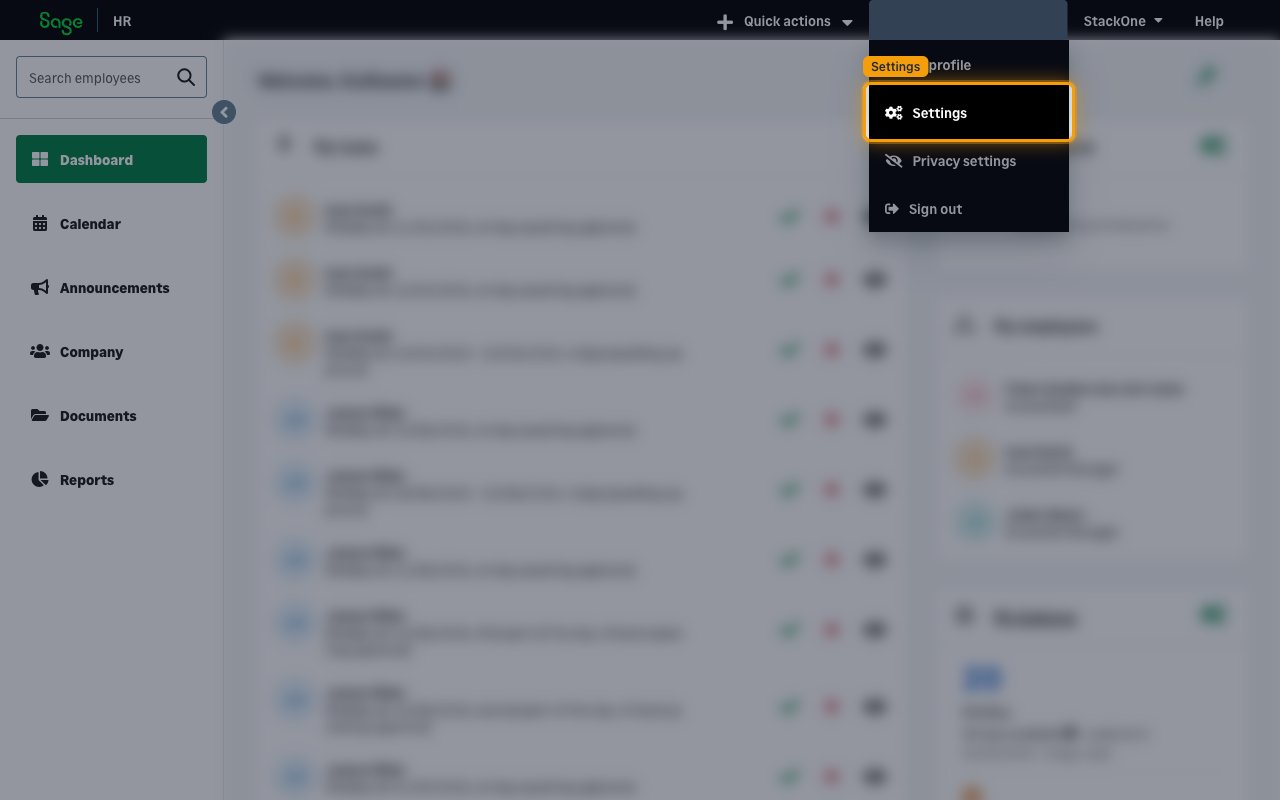
        <p>Click your name in the top-right corner of the global menu, then click <strong>Settings</strong> in the dropdown.</p>

        <img src="https://mintcdn.com/stackone-60/yO-ZxG3tMH0aPDGY/connectors/sagehr/images/custom-config-open-settings.png?fit=max&auto=format&n=yO-ZxG3tMH0aPDGY&q=85&s=43535e90f88a0ccf7440977258892e04" alt="The user menu open in the top-right corner with the Settings option highlighted" width="1280" height="800" data-path="connectors/sagehr/images/custom-config-open-settings.png" />
      </div>
    </Step>

    <Step title="Open the API settings">
      <div data-guide-step data-guide-scopes="" data-guide-display-scopes-list="">
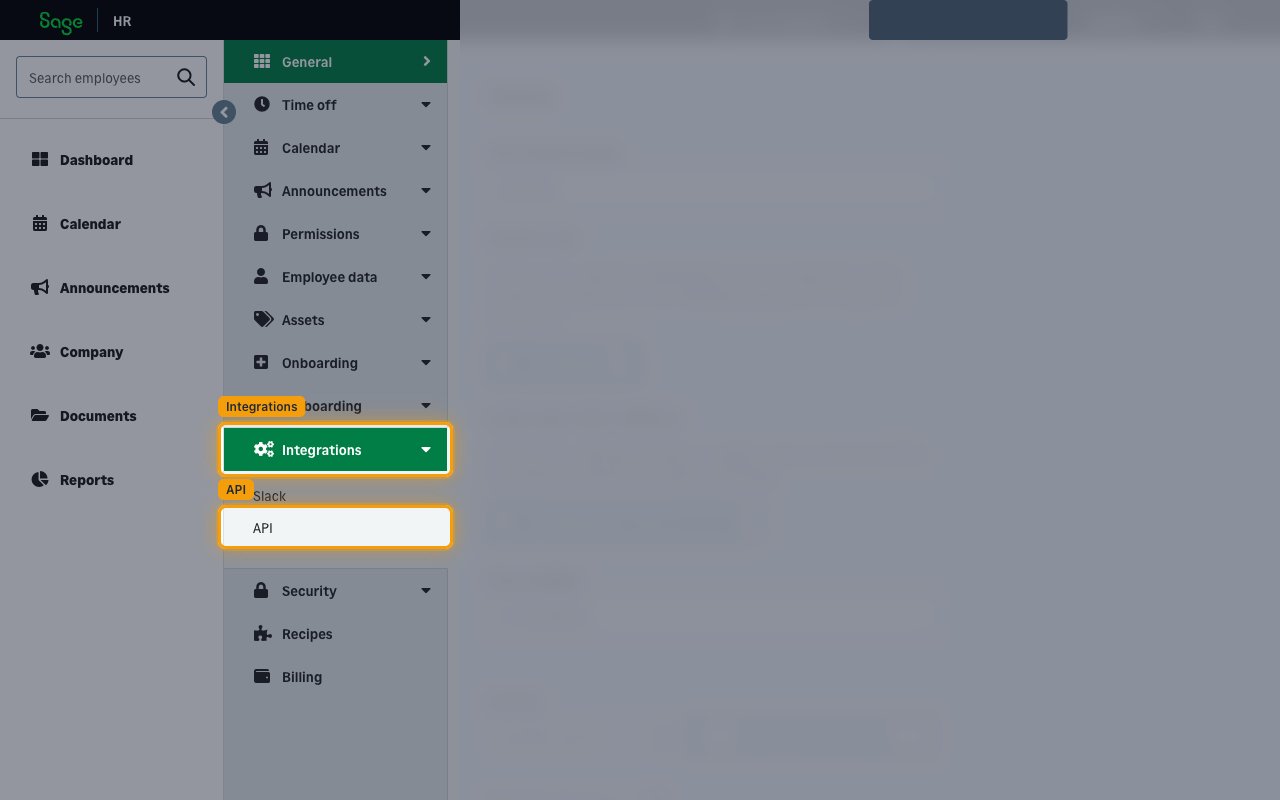
        <p>In the Settings sidebar on the left, click <strong>Integrations</strong> to expand it, then click <strong>API</strong>.</p>

        <img src="https://mintcdn.com/stackone-60/yO-ZxG3tMH0aPDGY/connectors/sagehr/images/custom-config-api-settings.png?fit=max&auto=format&n=yO-ZxG3tMH0aPDGY&q=85&s=22665ebb2d01185353174c5c939f861f" alt="The Settings sidebar with Integrations expanded and the API sub-item highlighted" width="1280" height="800" data-path="connectors/sagehr/images/custom-config-api-settings.png" />
      </div>
    </Step>

    <Step title="Enable API access">
      <div data-guide-step data-guide-scopes="" data-guide-display-scopes-list="">
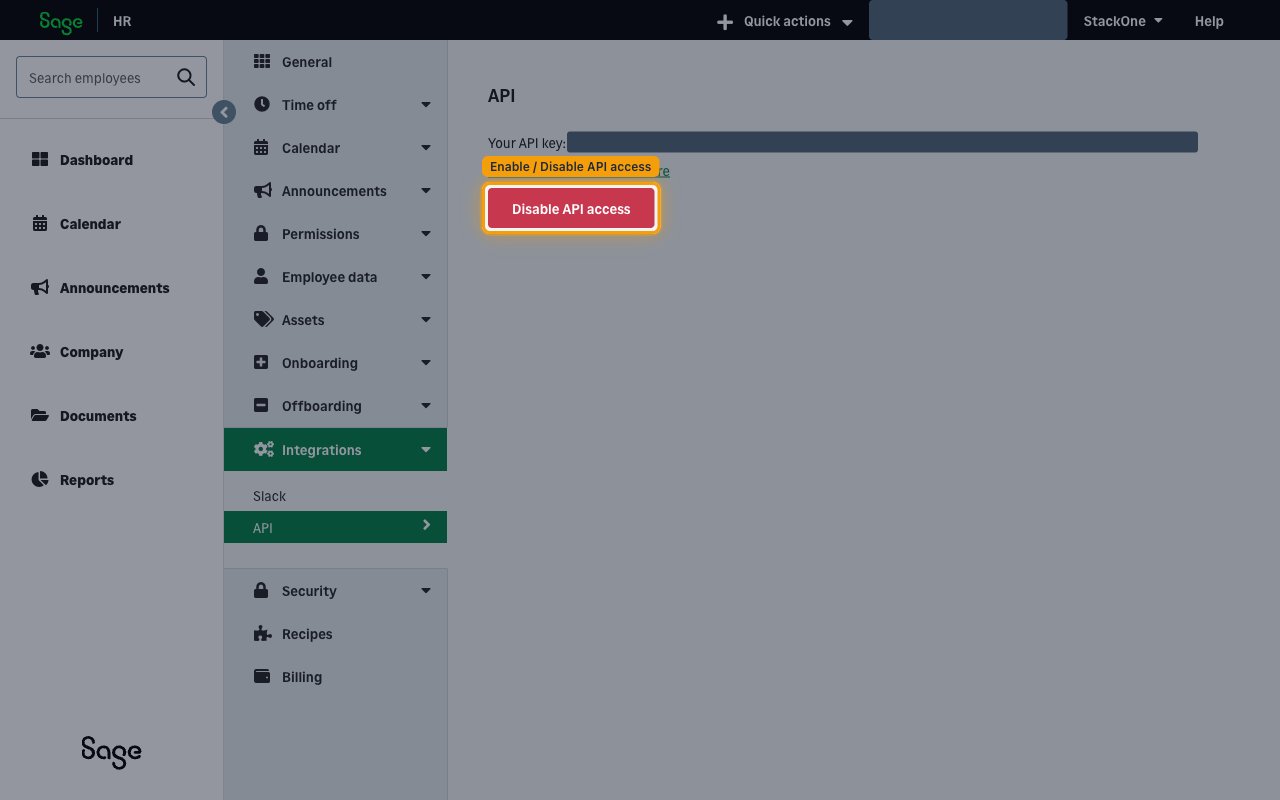
        <p>On the <strong>API</strong> page, click <strong>Enable API Access</strong> to turn on API access and generate your API key.</p>

        <ul>
          <li>If API access is already enabled, the button instead shows <strong>Disable API access</strong> — do not click it. You can copy your existing key directly (disabling and re-enabling regenerates the key and breaks existing connections).</li>
        </ul>

        <img src="https://mintcdn.com/stackone-60/yO-ZxG3tMH0aPDGY/connectors/sagehr/images/custom-config-enable-api-access.png?fit=max&auto=format&n=yO-ZxG3tMH0aPDGY&q=85&s=5738d4e3622d79a75463f135bc242dc6" alt="The API page showing the Disable API access button, indicating API access is already enabled" width="1280" height="800" data-path="connectors/sagehr/images/custom-config-enable-api-access.png" />
      </div>
    </Step>

    <Step title="Copy the API key">
      <div data-guide-step data-guide-scopes="" data-guide-display-scopes-list="">
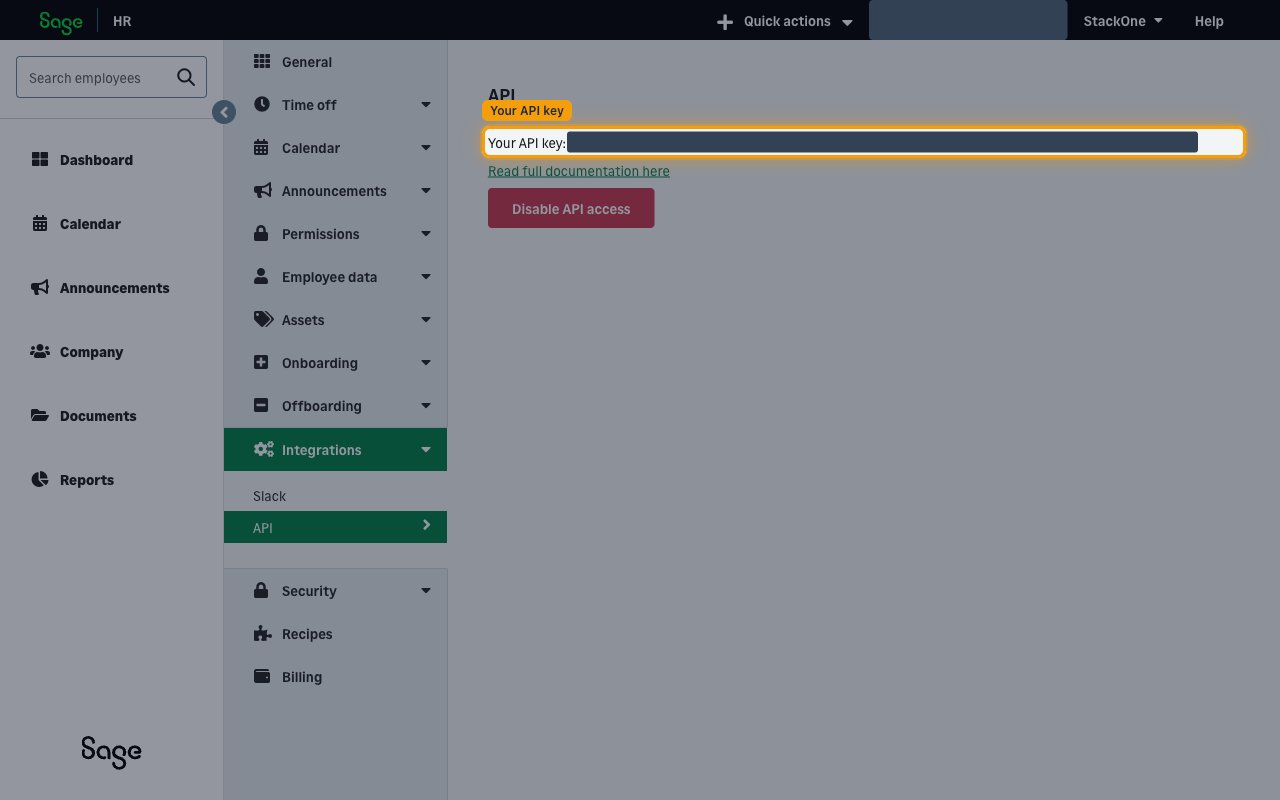
        <p>Copy the value shown next to <strong>Your API key:</strong> and paste it into the <strong>API Key</strong> field in StackOne Hub. Store it securely and keep it confidential, as it grants access to your Sage HR data.</p>

        <ul>
          <li>The key stays available on this <strong>API</strong> page, so you can return here to copy it again at any time.</li>
          <li>Use <strong>Read full documentation here</strong> on the same page to open the Sage HR API reference.</li>
        </ul>

        <img src="https://mintcdn.com/stackone-60/yO-ZxG3tMH0aPDGY/connectors/sagehr/images/custom-config-copy-api-key.png?fit=max&auto=format&n=yO-ZxG3tMH0aPDGY&q=85&s=10196fd62c1a1bf98244a0d61ab5af76" alt="The API page with the Your API key value highlighted (value redacted)" width="1280" height="800" data-path="connectors/sagehr/images/custom-config-copy-api-key.png" />
      </div>
    </Step>
  </Steps>
</section>

<section data-guide-section data-guide-scopes="">
  <h2>Finding your subdomain</h2>

  <p>Your subdomain identifies your Sage HR instance and is taken from the address you use to reach Sage HR.</p>

  <Steps>
    <Step title="Find your subdomain">
      <div data-guide-step data-guide-scopes="" data-guide-display-scopes-list="">
        <p>Your subdomain is the text before `.sage.hr` in your Sage HR web address. Paste it into the <strong>Subdomain</strong> field in StackOne Hub.</p>

        <ul>
          <li>Format: `https://{subdomain}.sage.hr`</li>
          <li>Example: for `https://mycompany.sage.hr`, the subdomain is `mycompany`</li>
        </ul>
      </div>
    </Step>
  </Steps>
</section>

<div data-whitelabel-hide>
  <h2>Linking the Account from the Hub</h2>

  <Steps>
    <Step title="Navigate to the Hub">
      Use one of the three <a href="/connect/managing-connectors/linking-accounts">Linking Account Methods</a> to access the Hub.
    </Step>

    <Step title="Fill out the fields">
      Fill out the following fields using details from your provider:

      <ul>
        <li><strong>Subdomain</strong></li>
        <li><strong>API Key</strong></li>
      </ul>
    </Step>

    <Step title="Connect">
      <ul>
        <li>Click <strong>Connect</strong></li>
        <li>If applicable, the provider will redirect you to a sign-in or authorization page. Complete the provider's authorization flow.</li>
        <li>Once authorization is successful, you will see a confirmation popup</li>
      </ul>
    </Step>
  </Steps>

  <p>If the account linking is successful, you will see the newly linked account in your <a href="/gateway/concepts/linked-accounts">Accounts</a> page.</p>
</div>