> ## Documentation Index
> Fetch the complete documentation index at: https://docs.stackone.com/llms.txt
> Use this file to discover all available pages before exploring further.

# Connect ServiceNow with Basic Auth – StackOne Hub

> Link a ServiceNow account in the StackOne Hub using Basic Auth. End-user guide to authorize the integration and start using ServiceNow actions.

<Warning>You will need a ServiceNow account with admin privileges (or equivalent roles that can manage API Access Policies). Basic Auth must be allowed in two places: (1) a REST API Access Policy covering the Table API, and (2) the BasicAuth inbound authentication profile must be Active.</Warning>

<section data-guide-section data-guide-scopes="">
  <h2>Before you begin</h2>

  <p>Make sure you have access to a ServiceNow instance before starting.</p>

  <Steps>
    <Step title="Check prerequisites">
      <div data-guide-step data-guide-scopes="" data-guide-display-scopes-list="">
        <p>You need an existing ServiceNow instance and an account with sufficient permissions.</p>

        <ul>
          <li>An active ServiceNow instance. If you do not have one, request a free Personal Developer Instance from the <a href="https://developer.servicenow.com/" target="_blank" rel="noopener noreferrer">ServiceNow Developer Program</a> or contact your ServiceNow administrator for access.</li>
          <li>An account with the admin role (or roles that can manage <strong>REST API Access Policies</strong> and <strong>Inbound Authentication Profile</strong> records).</li>
          <li>Your instance URL, in the format `https://{your-instance}.service-now.com` (for example, `https://dev12345.service-now.com`).</li>
        </ul>
      </div>
    </Step>
  </Steps>
</section>

<section data-guide-section data-guide-scopes="">
  <h2>Configure the REST API Access Policy</h2>

  <p>ServiceNow gates access to the Table API behind REST API Access Policies. You need a policy covering the Table API that allows Basic Authentication.</p>

  <Steps>
    <Step title="Sign in to your ServiceNow instance">
      <div data-guide-step data-guide-scopes="" data-guide-display-scopes-list="">
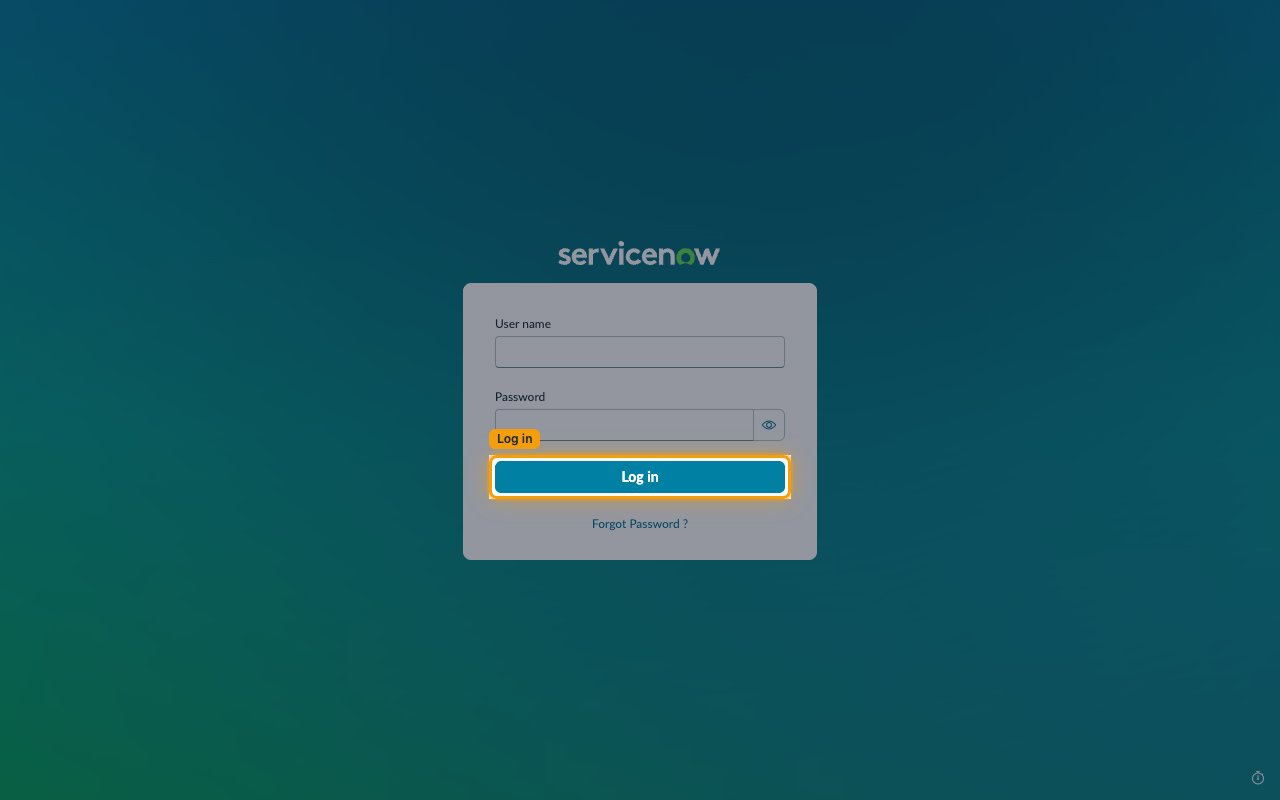
        <p>Open your instance URL and log in.</p>

        <ul>
          <li>Go to `https://{your-instance}.service-now.com`</li>
          <li>Enter your <strong>User name</strong> and <strong>Password</strong>, then click <strong>Log in</strong></li>
        </ul>

        <img src="https://mintcdn.com/stackone-60/PxdKfT_CpY1KhZQN/connectors/servicenow/images/basic_auth-config-sign-in.png?fit=max&auto=format&n=PxdKfT_CpY1KhZQN&q=85&s=341738b1f8015240f829258d0aea714c" alt="ServiceNow login page with the Log in button highlighted" width="1280" height="800" data-path="connectors/servicenow/images/basic_auth-config-sign-in.png" />
      </div>
    </Step>

    <Step title="Open REST API Access Policies">
      <div data-guide-step data-guide-scopes="" data-guide-display-scopes-list="">
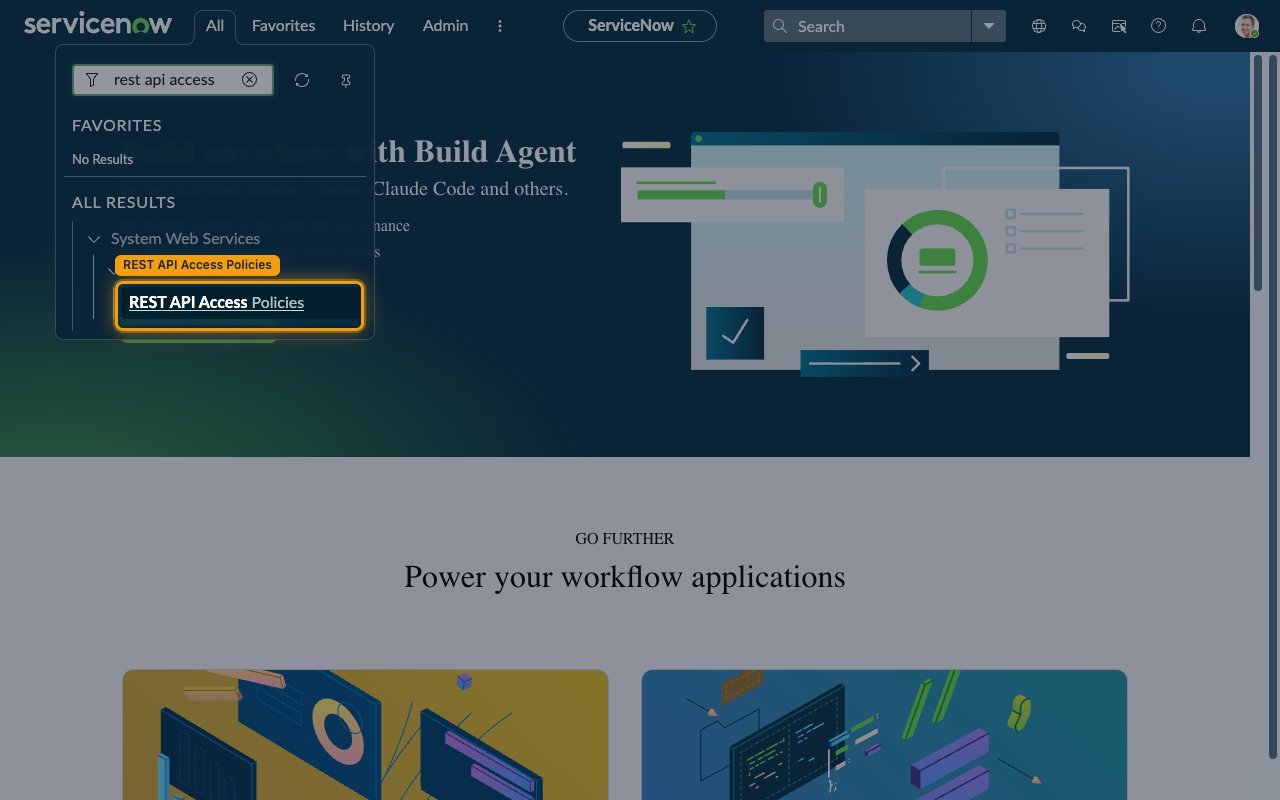
        <p>Click <strong>All</strong> in the top navigation bar, then type `rest api access` in the <strong>Filter</strong> box. Click <strong>REST API Access Policies</strong> under <strong>System Web Services</strong> > <strong>API Access Policies</strong>.</p>

        <img src="https://mintcdn.com/stackone-60/PxdKfT_CpY1KhZQN/connectors/servicenow/images/basic_auth-config-all-menu-rest-api-access.png?fit=max&auto=format&n=PxdKfT_CpY1KhZQN&q=85&s=88eb203f8e698fc603261419e3ac62b7" alt="All menu filtered to show the REST API Access Policies module" width="1280" height="800" data-path="connectors/servicenow/images/basic_auth-config-all-menu-rest-api-access.png" />
      </div>
    </Step>

    <Step title="Identify the Table API policy">
      <div data-guide-step data-guide-scopes="" data-guide-display-scopes-list="">
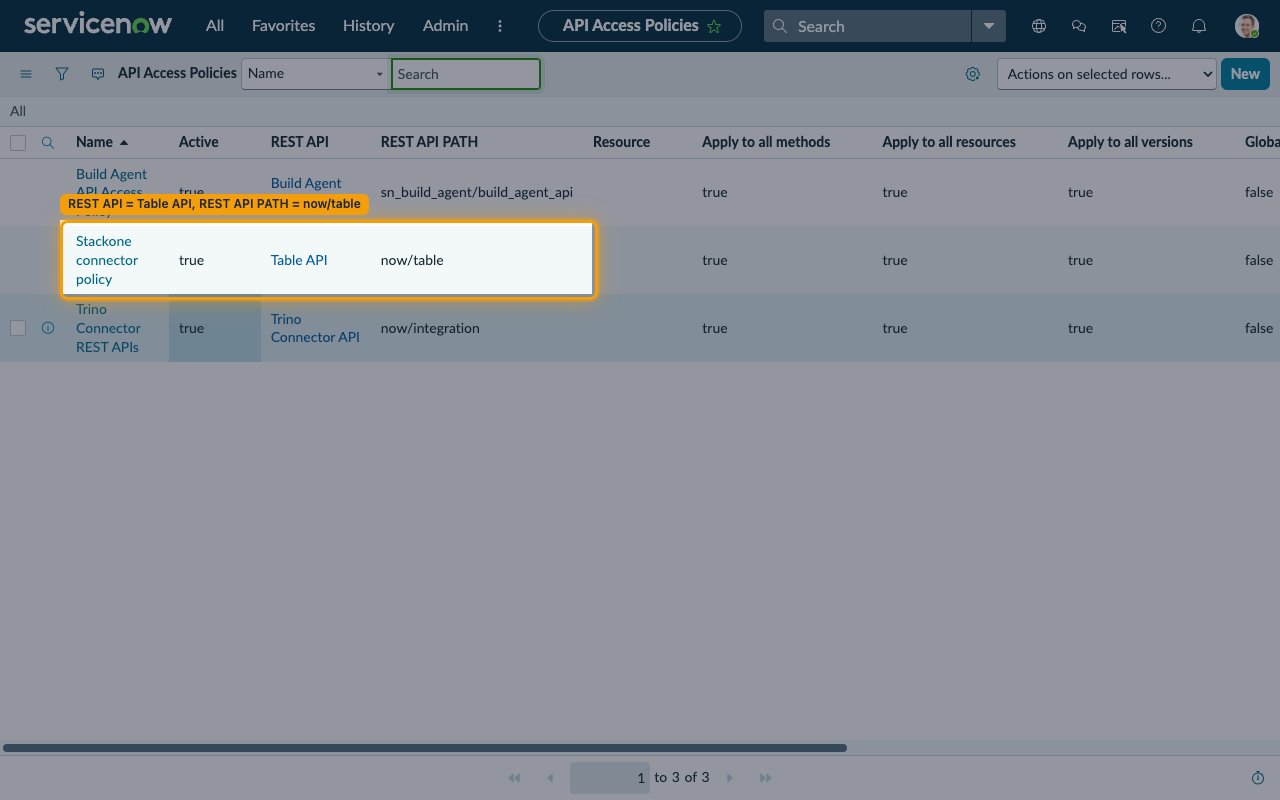
        <p>In the <strong>API Access Policies</strong> list, look for the policy that covers the Table API. Policy names vary by ServiceNow release and instance — identify it by its columns, not its name: <strong>REST API</strong> = <strong>Table API</strong> and <strong>REST API PATH</strong> = `now/table`.</p>

        <ul>
          <li>Depending on your ServiceNow release and instance configuration, this may be a single Table API policy or separate `Table GET API Access Policy` and `Table POST API Access Policy` records</li>
          <li>If a Table API policy exists, continue to the next step to verify it</li>
          <li>If no Table API policy exists, skip ahead to the step for creating a new policy</li>
        </ul>

        <img src="https://mintcdn.com/stackone-60/PxdKfT_CpY1KhZQN/connectors/servicenow/images/basic_auth-config-policy-list-table-api.png?fit=max&auto=format&n=PxdKfT_CpY1KhZQN&q=85&s=10f406ed5dcd2d9a1adad9e6e86d88bd" alt="API Access Policies list with the Table API policy row highlighted" width="1280" height="800" data-path="connectors/servicenow/images/basic_auth-config-policy-list-table-api.png" />
      </div>
    </Step>

    <Step title="Verify the policy is Active">
      <div data-guide-step data-guide-scopes="" data-guide-display-scopes-list="">
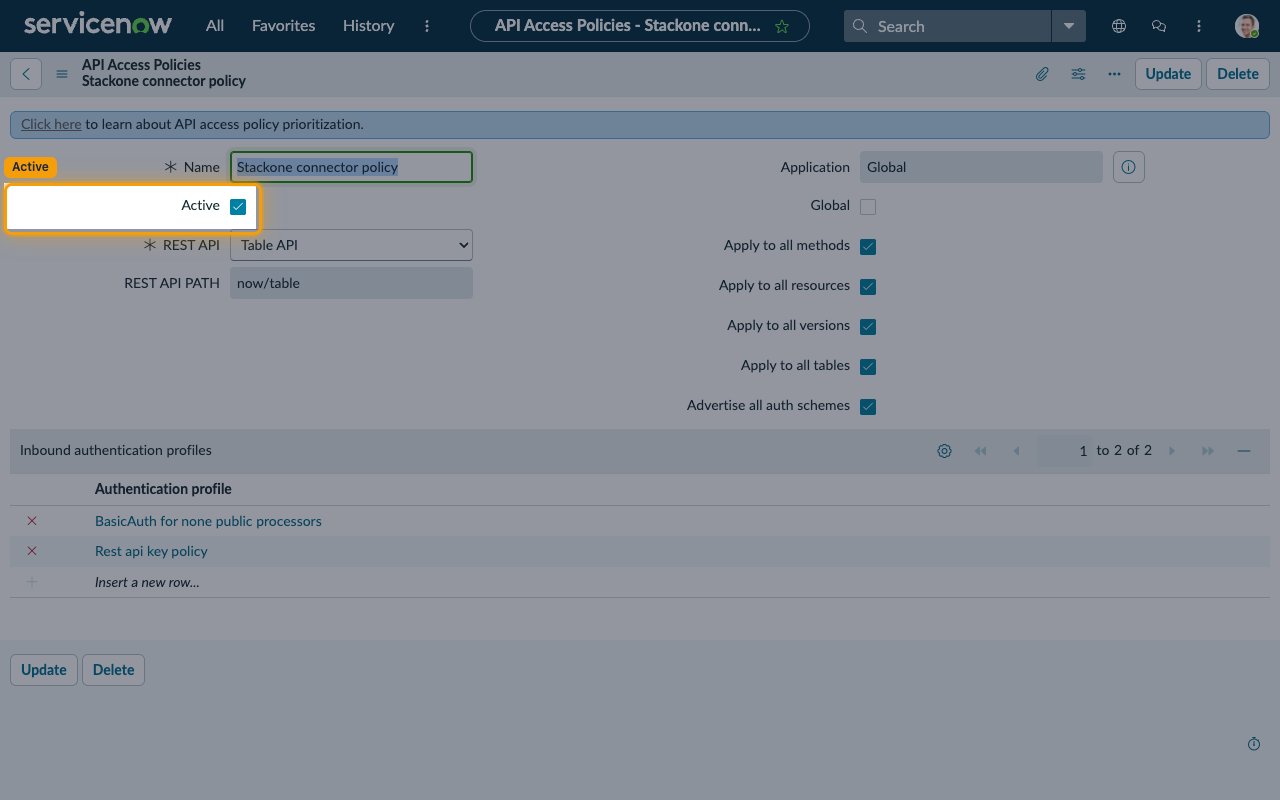
        <p>Open the Table API policy record and confirm <strong>Active</strong> is checked. Also confirm the coverage checkboxes are ticked - <strong>Apply to all methods</strong>, <strong>Apply to all resources</strong>, <strong>Apply to all versions</strong>, and <strong>Apply to all tables</strong>.</p>

        <img src="https://mintcdn.com/stackone-60/PxdKfT_CpY1KhZQN/connectors/servicenow/images/basic_auth-config-policy-active.png?fit=max&auto=format&n=PxdKfT_CpY1KhZQN&q=85&s=9d1ad615a4a775f5cd501c3a3929a893" alt="Table API access policy record with the Active checkbox highlighted" width="1280" height="800" data-path="connectors/servicenow/images/basic_auth-config-policy-active.png" />
      </div>
    </Step>

    <Step title="Confirm the policy allows Basic Auth">
      <div data-guide-step data-guide-scopes="" data-guide-display-scopes-list="">
        <p>On the same policy record, Basic Auth is allowed if either of the following is true. Click <strong>Update</strong> if you changed anything.</p>

        <ul>
          <li><strong>Advertise all auth schemes</strong> is checked, or</li>
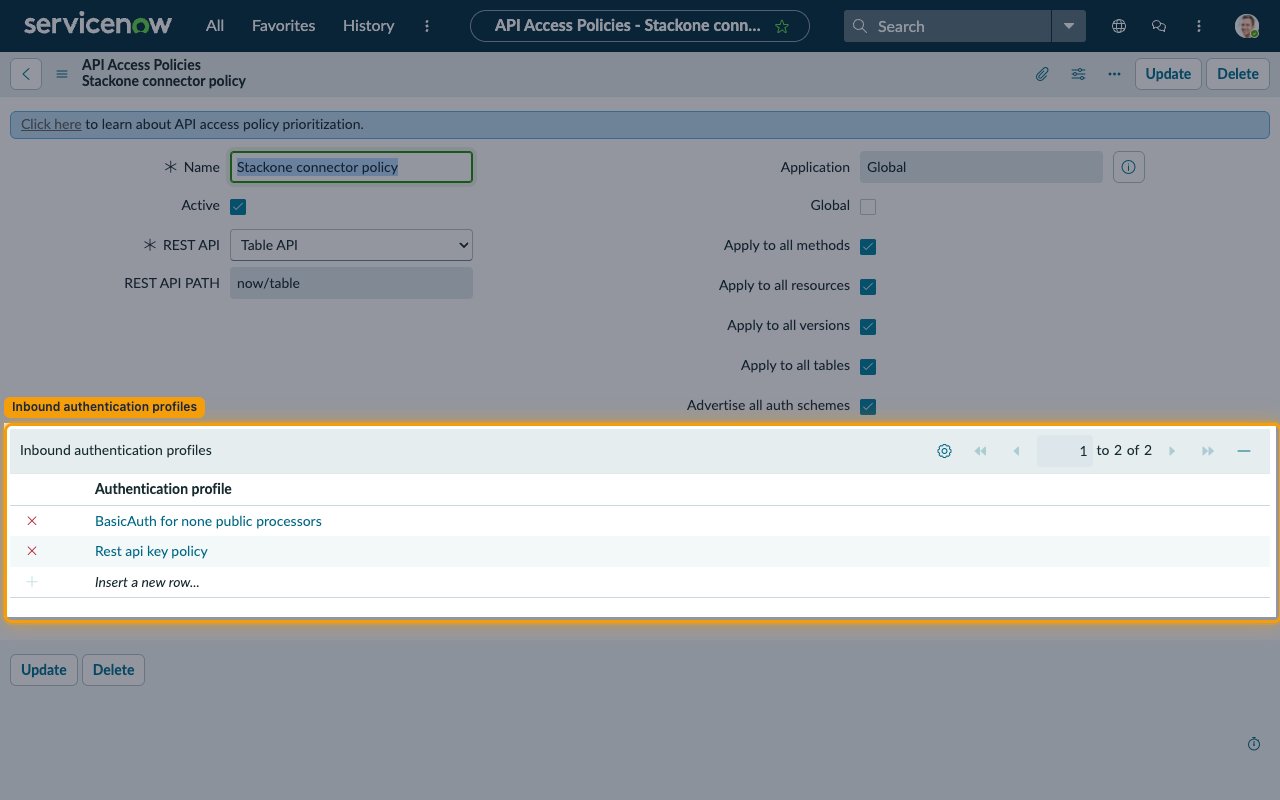
          <li><strong>BasicAuth for none public processors</strong> appears in the <strong>Inbound authentication profiles</strong> related list. To add it, click <strong>Insert a new row\...</strong>, pick <strong>BasicAuth for none public processors</strong>, then click <strong>Update</strong></li>
        </ul>

        <img src="https://mintcdn.com/stackone-60/PxdKfT_CpY1KhZQN/connectors/servicenow/images/basic_auth-config-inbound-profiles-list.png?fit=max&auto=format&n=PxdKfT_CpY1KhZQN&q=85&s=6f6115de6f61d51e33fe4b5f86dc3fa0" alt="Inbound authentication profiles related list on the policy showing BasicAuth for none public processors" width="1280" height="800" data-path="connectors/servicenow/images/basic_auth-config-inbound-profiles-list.png" />
      </div>
    </Step>

    <Step title="Create a new policy only if none exists">
      <div data-guide-step data-guide-scopes="" data-guide-display-scopes-list="">
        <p>If the list has no Table API policy at all, click <strong>New</strong> and fill in the form.</p>

        <ul>
          <li><strong>Name</strong>: enter a descriptive name (for example, `StackOne Connector Policy`)</li>
          <li><strong>Active</strong>: leave checked</li>
          <li><strong>Global</strong>: leave unchecked unless the policy should apply across all application scopes</li>
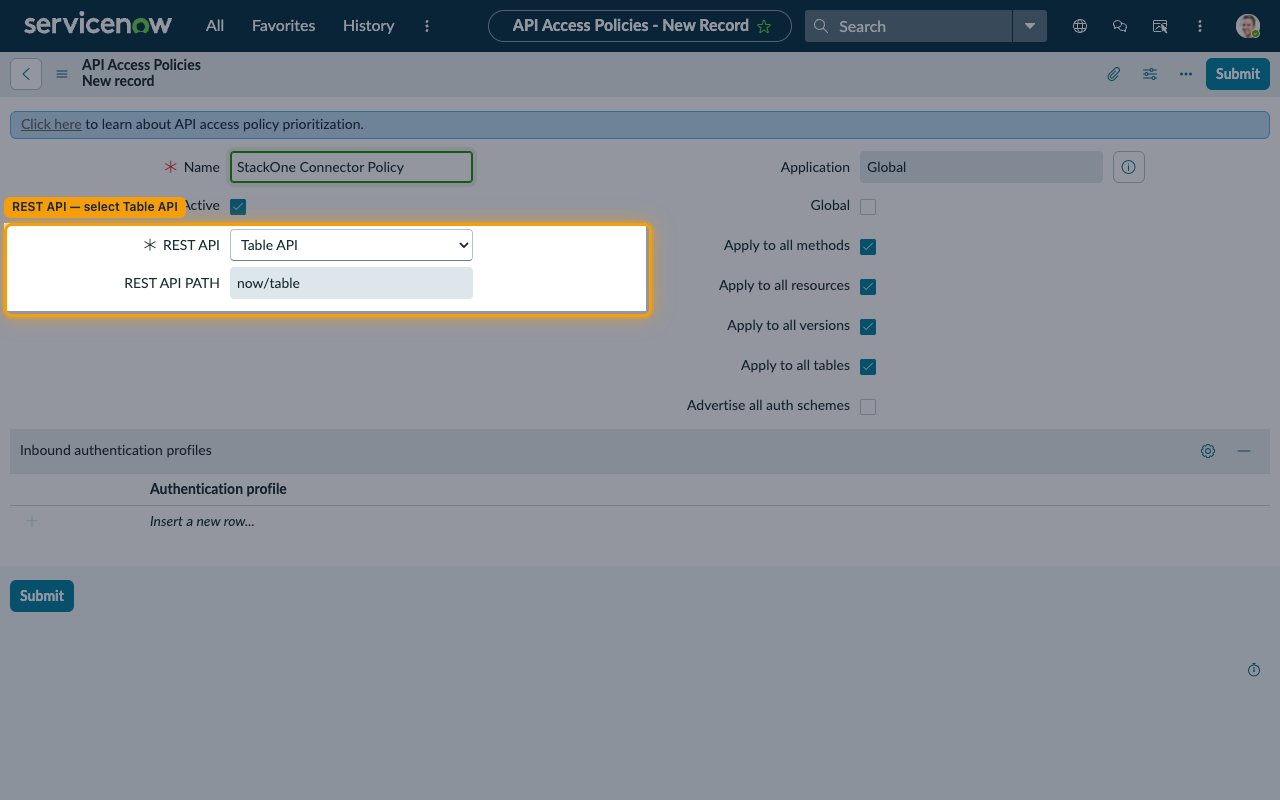
          <li><strong>REST API</strong>: select <strong>Table API</strong> (<strong>REST API PATH</strong> auto-fills to `now/table`)</li>
          <li><strong>Apply to all methods</strong>, <strong>Apply to all resources</strong>, <strong>Apply to all versions</strong>, <strong>Apply to all tables</strong>: check all four</li>
          <li><strong>Advertise all auth schemes</strong>: check it to allow Basic Auth alongside any explicit profiles, or leave it unchecked and add <strong>BasicAuth for none public processors</strong> under <strong>Inbound authentication profiles</strong> via <strong>Insert a new row\...</strong></li>
          <li>Click <strong>Submit</strong></li>
        </ul>

        <img src="https://mintcdn.com/stackone-60/PxdKfT_CpY1KhZQN/connectors/servicenow/images/basic_auth-config-new-policy-form.png?fit=max&auto=format&n=PxdKfT_CpY1KhZQN&q=85&s=92398ebe6ac560d34c1f6a5d189a01b5" alt="New API Access Policy form with REST API set to Table API" width="1280" height="800" data-path="connectors/servicenow/images/basic_auth-config-new-policy-form.png" />
      </div>
    </Step>
  </Steps>
</section>

<section data-guide-section data-guide-scopes="">
  <h2>Activate the BasicAuth Inbound Authentication Profile</h2>

  <p>ServiceNow ships a built-in inbound authentication profile named <strong>BasicAuth for none public processors</strong> that handles Basic Auth across all non-public REST endpoints. If it is inactive, every Basic Auth request returns HTTP 401 even with valid credentials.</p>

  <Steps>
    <Step title="Open Inbound Authentication Profile">
      <div data-guide-step data-guide-scopes="" data-guide-display-scopes-list="">
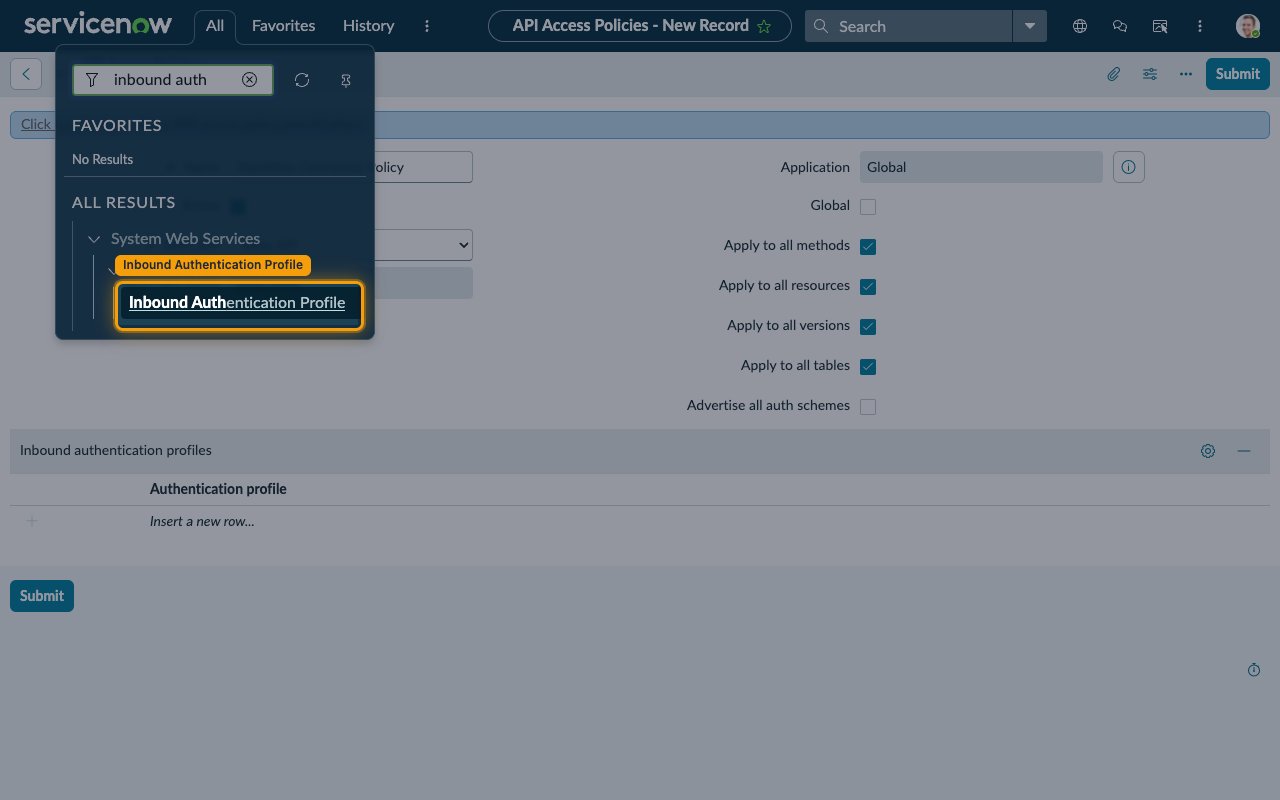
        <p>Click <strong>All</strong> in the top navigation bar, type `inbound auth` in the <strong>Filter</strong> box, then click <strong>Inbound Authentication Profile</strong> under <strong>System Web Services</strong> > <strong>API Access Policies</strong>.</p>

        <img src="https://mintcdn.com/stackone-60/PxdKfT_CpY1KhZQN/connectors/servicenow/images/basic_auth-config-all-menu-inbound-auth.png?fit=max&auto=format&n=PxdKfT_CpY1KhZQN&q=85&s=1171aebc7b6db69316927936b9569072" alt="All menu filtered to show the Inbound Authentication Profile module" width="1280" height="800" data-path="connectors/servicenow/images/basic_auth-config-all-menu-inbound-auth.png" />
      </div>
    </Step>

    <Step title="Find the BasicAuth profile">
      <div data-guide-step data-guide-scopes="" data-guide-display-scopes-list="">
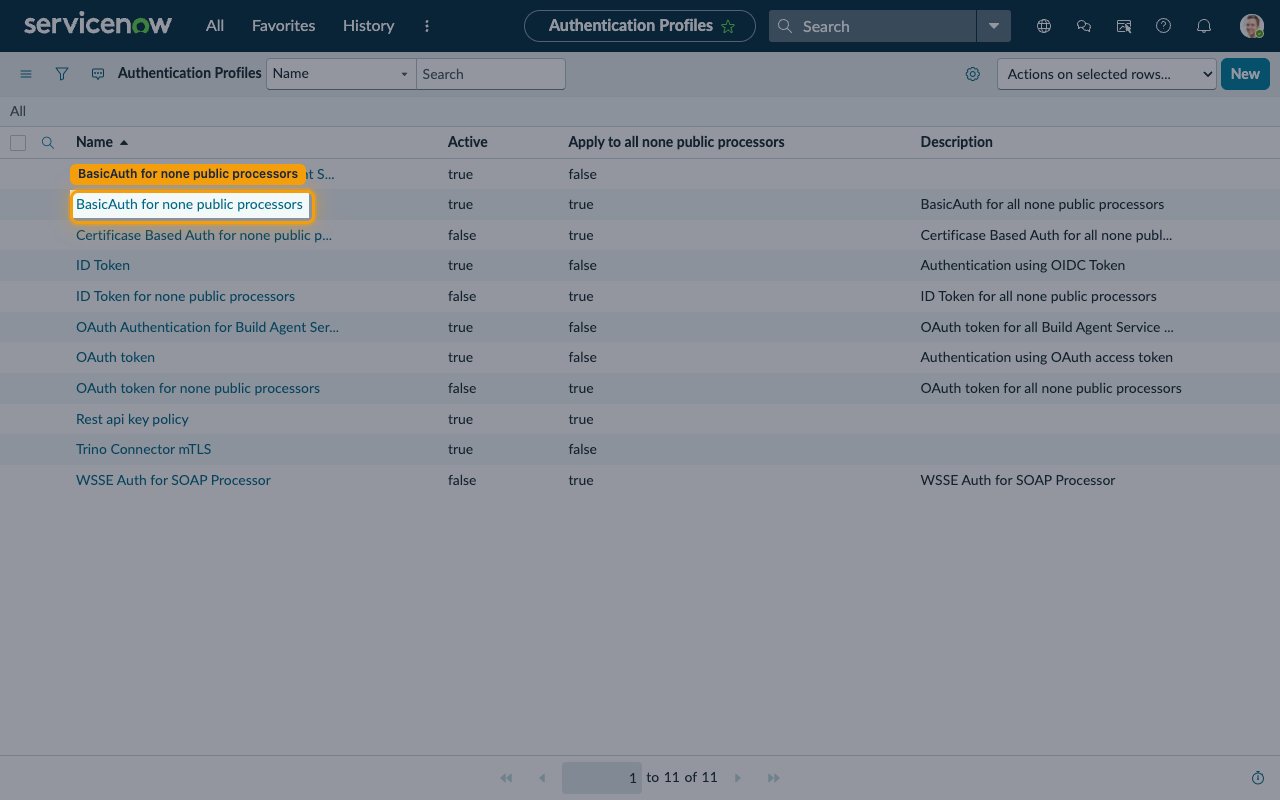
        <p>In the <strong>Authentication Profiles</strong> list, look for the row named <strong>BasicAuth for none public processors</strong> (its <strong>Apply to all none public processors</strong> column reads true).</p>

        <img src="https://mintcdn.com/stackone-60/PxdKfT_CpY1KhZQN/connectors/servicenow/images/basic_auth-config-auth-profiles-list.png?fit=max&auto=format&n=PxdKfT_CpY1KhZQN&q=85&s=4decb40706dcd52a0340946b24331787" alt="Authentication Profiles list with BasicAuth for none public processors highlighted" width="1280" height="800" data-path="connectors/servicenow/images/basic_auth-config-auth-profiles-list.png" />
      </div>
    </Step>

    <Step title="Verify the profile is Active">
      <div data-guide-step data-guide-scopes="" data-guide-display-scopes-list="">
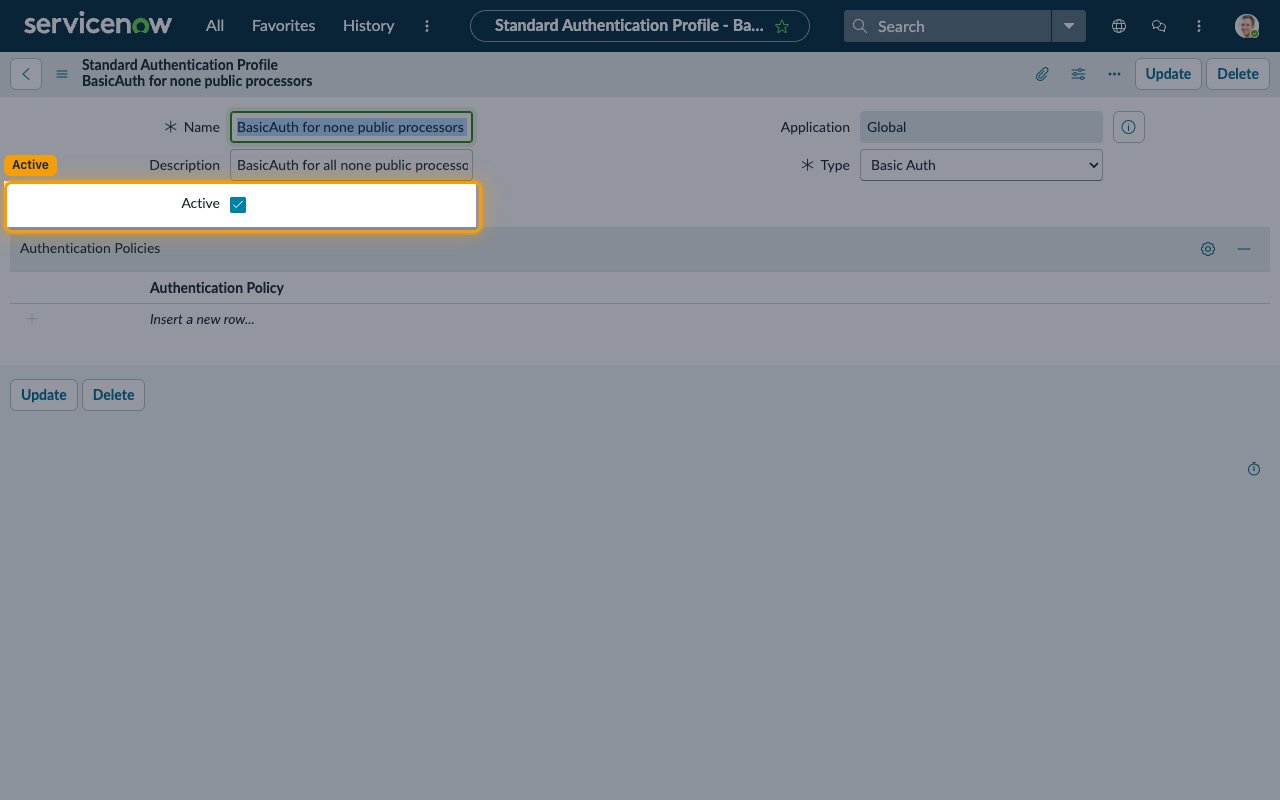
        <p>Open the record. If <strong>Active</strong> is unchecked, check it and click <strong>Update</strong>. The <strong>Type</strong> field reads <strong>Basic Auth</strong>. Because <strong>Apply to all none public processors</strong> is true, no further wiring is required.</p>

        <img src="https://mintcdn.com/stackone-60/PxdKfT_CpY1KhZQN/connectors/servicenow/images/basic_auth-config-basicauth-profile-active.png?fit=max&auto=format&n=PxdKfT_CpY1KhZQN&q=85&s=d65eba7b1ff89c3c73cb7c899f0cf382" alt="BasicAuth for none public processors record with the Active checkbox highlighted" width="1280" height="800" data-path="connectors/servicenow/images/basic_auth-config-basicauth-profile-active.png" />
      </div>
    </Step>

    <Step title="Create the profile only if missing">
      <div data-guide-step data-guide-scopes="" data-guide-display-scopes-list="">
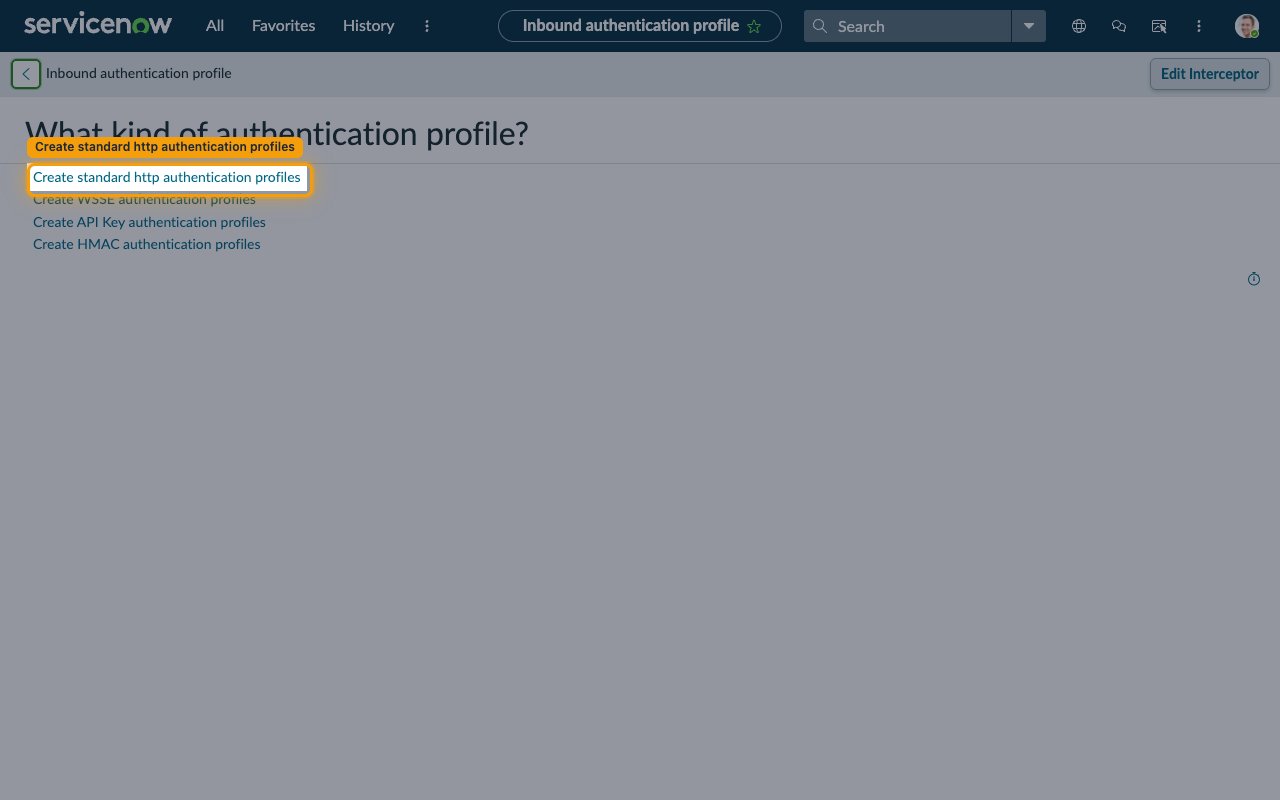
        <p>On hardened instances the profile may have been removed. From the <strong>Authentication Profiles</strong> list, click <strong>New</strong>. When the form asks <strong>What kind of authentication profile?</strong>, select <strong>Create standard http authentication profiles</strong>.</p>

        <ul>
          <li><strong>Name</strong>: enter a descriptive name (for example, `BasicAuth for none public processors`)</li>
          <li><strong>Active</strong>: check it</li>
          <li><strong>Apply to all none public processors</strong>: check it</li>
          <li>Click <strong>Submit</strong></li>
        </ul>

        <img src="https://mintcdn.com/stackone-60/PxdKfT_CpY1KhZQN/connectors/servicenow/images/basic_auth-config-profile-type-standard-http.png?fit=max&auto=format&n=PxdKfT_CpY1KhZQN&q=85&s=0072203d40e4854d746de0fcc5235d3a" alt="What kind of authentication profile page with Create standard http authentication profiles highlighted" width="1280" height="800" data-path="connectors/servicenow/images/basic_auth-config-profile-type-standard-http.png" />
      </div>
    </Step>
  </Steps>
</section>

<section data-guide-section data-guide-scopes="">
  <h2>Enter your credentials in StackOne</h2>

  <p>Collect the three values below and enter them in StackOne Hub.</p>

  <Steps>
    <Step title="Fill in the connection fields">
      <div data-guide-step data-guide-scopes="" data-guide-display-scopes-list="">
        <p>Each field in StackOne Hub maps to your ServiceNow account details.</p>

        <ul>
          <li><strong>Instance Name</strong> — the subdomain of your ServiceNow URL, without `.service-now.com`. Format: `{your-instance}`. Example: `dev12345` (from `https://dev12345.service-now.com`)</li>
          <li><strong>Username</strong> — the <strong>User name</strong> you use to sign in to ServiceNow</li>
          <li><strong>Password</strong> — the <strong>Password</strong> for that account</li>
          <li><strong>Native Webhook URL</strong> — read-only; StackOne fills this automatically for webhook events, no action needed</li>
          <li>The account must have roles that grant Table API access (such as admin or itil)</li>
        </ul>
      </div>
    </Step>
  </Steps>
</section>

<div data-whitelabel-hide>
  <h2>Linking the Account from the Hub</h2>

  <Steps>
    <Step title="Navigate to the Hub">
      Use one of the three <a href="/connect/managing-connectors/linking-accounts">Linking Account Methods</a> to access the Hub.
    </Step>

    <Step title="Fill out the fields">
      Fill out the following fields using details from your provider:

      <ul>
        <li><strong>Instance Name</strong></li>
        <li><strong>Username</strong></li>
        <li><strong>Password</strong></li>
      </ul>
    </Step>

    <Step title="Connect">
      <ul>
        <li>Click <strong>Connect</strong></li>
        <li>If applicable, the provider will redirect you to a sign-in or authorization page. Complete the provider's authorization flow.</li>
        <li>Once authorization is successful, you will see a confirmation popup</li>
      </ul>
    </Step>
  </Steps>

  <p>If the account linking is successful, you will see the newly linked account in your <a href="/gateway/concepts/linked-accounts">Accounts</a> page.</p>
</div>

## Next Steps

<Columns cols={2}>
  <Card title="Webhooks setup" href="/connectors/servicenow/guides/webhook-setup">
    <p className="connector-page-auth-description" style={{ fontSize: '14px', marginTop: 0, marginBottom: 0 }}>
      Configure receiving Events for ServiceNow into StackOne.
    </p>
  </Card>
</Columns>