> ## Documentation Index
> Fetch the complete documentation index at: https://docs.stackone.com/llms.txt
> Use this file to discover all available pages before exploring further.

# Connect Squarespace with API Key – StackOne Hub

> Link a Squarespace account in the StackOne Hub using API Key. End-user guide to authorize the integration and start using Squarespace actions.

<Warning>Generating Developer API Keys is a paid Squarespace feature (shown as a Premium Feature banner in the key dialog). A Squarespace Commerce plan is required to use the Commerce APIs this connector relies on.</Warning>

<Panel>
  <div className="not-prose guides-scope-selector" data-guides-scope-selector data-guide-actions-json="[{&#x22;id&#x22;:&#x22;squarespace_list_inventory&#x22;,&#x22;label&#x22;:&#x22;List Inventory&#x22;,&#x22;scopes&#x22;:[&#x22;inventory.read&#x22;]},{&#x22;id&#x22;:&#x22;squarespace_get_inventory&#x22;,&#x22;label&#x22;:&#x22;Get Inventory&#x22;,&#x22;scopes&#x22;:[&#x22;inventory.read&#x22;]},{&#x22;id&#x22;:&#x22;squarespace_adjust_inventory&#x22;,&#x22;label&#x22;:&#x22;Adjust Stock Quantities&#x22;,&#x22;scopes&#x22;:[&#x22;inventory&#x22;]},{&#x22;id&#x22;:&#x22;squarespace_list_orders&#x22;,&#x22;label&#x22;:&#x22;List Orders&#x22;,&#x22;scopes&#x22;:[&#x22;orders.read&#x22;]},{&#x22;id&#x22;:&#x22;squarespace_get_order&#x22;,&#x22;label&#x22;:&#x22;Get Order&#x22;,&#x22;scopes&#x22;:[&#x22;orders.read&#x22;]},{&#x22;id&#x22;:&#x22;squarespace_create_order&#x22;,&#x22;label&#x22;:&#x22;Create Order&#x22;,&#x22;scopes&#x22;:[&#x22;orders&#x22;]},{&#x22;id&#x22;:&#x22;squarespace_fulfill_order&#x22;,&#x22;label&#x22;:&#x22;Fulfill Order&#x22;,&#x22;scopes&#x22;:[&#x22;orders&#x22;]},{&#x22;id&#x22;:&#x22;squarespace_list_products&#x22;,&#x22;label&#x22;:&#x22;List Products&#x22;,&#x22;scopes&#x22;:[&#x22;products.read&#x22;]},{&#x22;id&#x22;:&#x22;squarespace_get_product&#x22;,&#x22;label&#x22;:&#x22;Get Product&#x22;,&#x22;scopes&#x22;:[&#x22;products.read&#x22;]},{&#x22;id&#x22;:&#x22;squarespace_create_product&#x22;,&#x22;label&#x22;:&#x22;Create Product&#x22;,&#x22;scopes&#x22;:[&#x22;products&#x22;]},{&#x22;id&#x22;:&#x22;squarespace_update_product&#x22;,&#x22;label&#x22;:&#x22;Update Product&#x22;,&#x22;scopes&#x22;:[&#x22;products&#x22;]},{&#x22;id&#x22;:&#x22;squarespace_delete_product&#x22;,&#x22;label&#x22;:&#x22;Delete Product&#x22;,&#x22;scopes&#x22;:[&#x22;products&#x22;]},{&#x22;id&#x22;:&#x22;squarespace_create_product_variant&#x22;,&#x22;label&#x22;:&#x22;Create Product Variant&#x22;,&#x22;scopes&#x22;:[&#x22;products&#x22;]},{&#x22;id&#x22;:&#x22;squarespace_update_product_variant&#x22;,&#x22;label&#x22;:&#x22;Update Product Variant&#x22;,&#x22;scopes&#x22;:[&#x22;products&#x22;]},{&#x22;id&#x22;:&#x22;squarespace_delete_product_variant&#x22;,&#x22;label&#x22;:&#x22;Delete Product Variant&#x22;,&#x22;scopes&#x22;:[&#x22;products&#x22;]},{&#x22;id&#x22;:&#x22;squarespace_upload_product_image&#x22;,&#x22;label&#x22;:&#x22;Upload Product Image&#x22;,&#x22;scopes&#x22;:[&#x22;products&#x22;]},{&#x22;id&#x22;:&#x22;squarespace_get_product_image_status&#x22;,&#x22;label&#x22;:&#x22;Get Product Image Upload Status&#x22;,&#x22;scopes&#x22;:[&#x22;products.read&#x22;]},{&#x22;id&#x22;:&#x22;squarespace_update_product_image&#x22;,&#x22;label&#x22;:&#x22;Update Product Image&#x22;,&#x22;scopes&#x22;:[&#x22;products&#x22;]},{&#x22;id&#x22;:&#x22;squarespace_reorder_product_image&#x22;,&#x22;label&#x22;:&#x22;Reorder Product Image&#x22;,&#x22;scopes&#x22;:[&#x22;products&#x22;]},{&#x22;id&#x22;:&#x22;squarespace_assign_product_image_to_variant&#x22;,&#x22;label&#x22;:&#x22;Assign Product Image To Variant&#x22;,&#x22;scopes&#x22;:[&#x22;products&#x22;]},{&#x22;id&#x22;:&#x22;squarespace_delete_product_image&#x22;,&#x22;label&#x22;:&#x22;Delete Product Image&#x22;,&#x22;scopes&#x22;:[&#x22;products&#x22;]},{&#x22;id&#x22;:&#x22;squarespace_list_profiles&#x22;,&#x22;label&#x22;:&#x22;List Profiles&#x22;,&#x22;scopes&#x22;:[&#x22;profiles.read&#x22;]},{&#x22;id&#x22;:&#x22;squarespace_get_profile&#x22;,&#x22;label&#x22;:&#x22;Get Profile&#x22;,&#x22;scopes&#x22;:[&#x22;profiles.read&#x22;]},{&#x22;id&#x22;:&#x22;squarespace_list_store_pages&#x22;,&#x22;label&#x22;:&#x22;List Store Pages&#x22;,&#x22;scopes&#x22;:[&#x22;products.read&#x22;]},{&#x22;id&#x22;:&#x22;squarespace_list_transactions&#x22;,&#x22;label&#x22;:&#x22;List Transactions&#x22;,&#x22;scopes&#x22;:[&#x22;transactions.read&#x22;]},{&#x22;id&#x22;:&#x22;squarespace_get_transaction&#x22;,&#x22;label&#x22;:&#x22;Get Transaction&#x22;,&#x22;scopes&#x22;:[&#x22;transactions.read&#x22;]}]" style={{ borderRadius: '8px', padding: '16px', marginBottom: '24px' }}>
    <div className="guides-scope-selector__title" style={{ fontSize: '16px', fontWeight: '600', marginBottom: '12px' }}>Select Actions to adjust the guide</div>
    <div className="guides-scope-selector__muted" style={{ fontSize: '13px', marginBottom: '12px' }}>Some actions may require additional configuration in the provider to be accessible. Choose the actions you need and the guide will be updated.</div>

    <div style={{ display: 'flex', gap: '8px', marginBottom: '12px', flexWrap: 'wrap' }}>
      <input type="text" placeholder="Search actions..." className="guides-scope-selector__input" data-guide-action-search style={{ padding: '8px 12px', borderRadius: '6px', fontSize: '13px', flex: 1, minWidth: '160px' }} />

      <button type="button" className="guides-scope-selector__quick-btn" data-guide-select-all style={{ padding: '6px 10px', borderRadius: '6px', fontSize: '12px', cursor: 'pointer' }}>Select all</button>
      <button type="button" className="guides-scope-selector__quick-btn" data-guide-clear style={{ padding: '6px 10px', borderRadius: '6px', fontSize: '12px', cursor: 'pointer' }}>Clear</button>
    </div>

    <div className="guides-scope-selector__list" style={{ maxHeight: '240px', overflowY: 'auto', borderRadius: '6px', marginBottom: '12px' }}>
      <div className="guides-scope-selector__list-header" style={{ display: 'flex', alignItems: 'center', gap: '10px', padding: '8px 12px', fontSize: '12px', fontWeight: '600', position: 'sticky', top: 0, zIndex: 1 }}>
        <div style={{ width: '16px', flexShrink: 0 }} />

        <div style={{ flex: 1, textAlign: 'left' }}>Action</div>
        <div style={{ minWidth: '120px', marginLeft: 'auto', textAlign: 'right' }}>Scope(s)</div>
      </div>

      <div className="guides-scope-selector__muted" data-guide-loading style={{ padding: '16px', textAlign: 'center', fontSize: '13px' }}>Loading actions...</div>
      <div className="guides-scope-selector__muted" data-guide-no-results hidden style={{ padding: '16px', textAlign: 'center', fontSize: '13px' }}>No actions match your search.</div>
    </div>

    <div className="guides-scope-selector__url-section" style={{ marginTop: '12px', paddingTop: '12px' }}>
      <div className="guides-scope-selector__muted" style={{ fontSize: '12px', fontWeight: '500', marginBottom: '6px' }}>Dynamic Guide URL</div>

      <div style={{ display: 'flex', alignItems: 'center', gap: '8px', flexWrap: 'wrap' }}>
        <input type="text" readOnly className="guides-scope-selector__input" data-guide-url style={{ flex: 1, minWidth: '200px', padding: '8px 10px', borderRadius: '6px', fontSize: '12px', fontFamily: 'monospace' }} />

        <button type="button" className="guides-scope-selector__copy-btn" data-guide-copy-url style={{ width: '120px', padding: '8px 14px', borderRadius: '6px', fontSize: '13px', fontWeight: '500', cursor: 'pointer', whiteSpace: 'nowrap', marginLeft: 'auto' }}>Copy URL</button>
      </div>

      <div style={{ marginTop: '12px' }}>
        <div className="guides-scope-selector__muted" style={{ fontSize: '12px', fontWeight: '500', marginBottom: '6px' }}>Scopes Selected</div>

        <div style={{ display: 'flex', alignItems: 'stretch', gap: '8px', flexWrap: 'wrap' }}>
          <pre className="guides-scope-selector__input" role="textbox" aria-readonly="true" tabIndex={0} data-guide-scopes-output style={{ flex: 1, minWidth: '200px', minHeight: '88px', maxHeight: '120px', overflowY: 'auto', margin: 0, padding: '8px 10px', borderRadius: '6px', fontSize: '12px', fontFamily: 'monospace', whiteSpace: 'pre-wrap' }} />

          <div className="guides-scope-selector__muted" style={{ display: 'flex', flexDirection: 'column', gap: '8px', fontSize: '12px', fontWeight: '500', flexShrink: 0, alignItems: 'flex-start' }}>
            <div style={{ whiteSpace: 'nowrap' }}>Separator</div>

            <select className="guides-scope-selector__input" data-guide-scope-delimiter style={{ width: '100%', padding: '6px 10px', borderRadius: '6px', fontSize: '12px' }}>
              <option value="space">Space</option>
              <option value="comma">Comma</option>
              <option value="semicolon">Semicolon</option>
              <option value="pipe">Pipe</option>
              <option value="newline">Newline</option>
            </select>

            <button type="button" className="guides-scope-selector__copy-btn" data-guide-copy-scopes style={{ width: '120px', padding: '8px 14px', borderRadius: '6px', fontSize: '13px', fontWeight: '500', cursor: 'pointer', whiteSpace: 'nowrap' }}>Copy scopes</button>
          </div>
        </div>
      </div>
    </div>
  </div>
</Panel>

<section data-guide-section data-guide-scopes="">
  <h2>Generate an API key</h2>

  <p>Create a Developer API key from your Squarespace site settings to authenticate Commerce API requests.</p>

  <Steps>
    <Step title="Sign in to Squarespace">
      <div data-guide-step data-guide-scopes="" data-guide-display-scopes-list="">
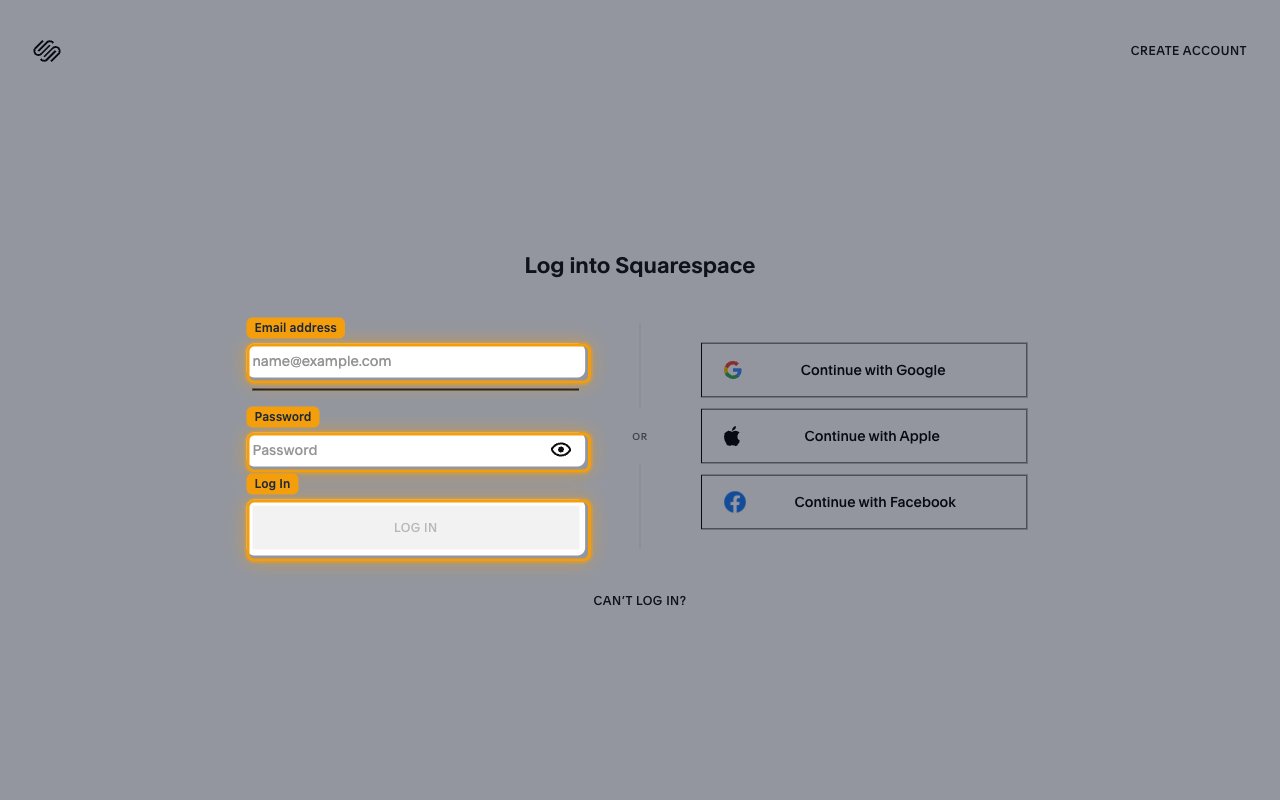
        <p>Sign in at the <a href="https://login.squarespace.com/" target="_blank" rel="noopener noreferrer">Squarespace login page</a> and open the site you want to connect.</p>

        <img src="https://mintcdn.com/stackone-60/yO-ZxG3tMH0aPDGY/connectors/squarespace/images/custom-config-sign-in.png?fit=max&auto=format&n=yO-ZxG3tMH0aPDGY&q=85&s=5cf2f53ee92d96192a2b141d4e3b4c28" alt="Squarespace login screen with email address and password fields" width="1280" height="800" data-path="connectors/squarespace/images/custom-config-sign-in.png" />
      </div>
    </Step>

    <Step title="Open Developer Tools">
      <div data-guide-step data-guide-scopes="" data-guide-display-scopes-list="">
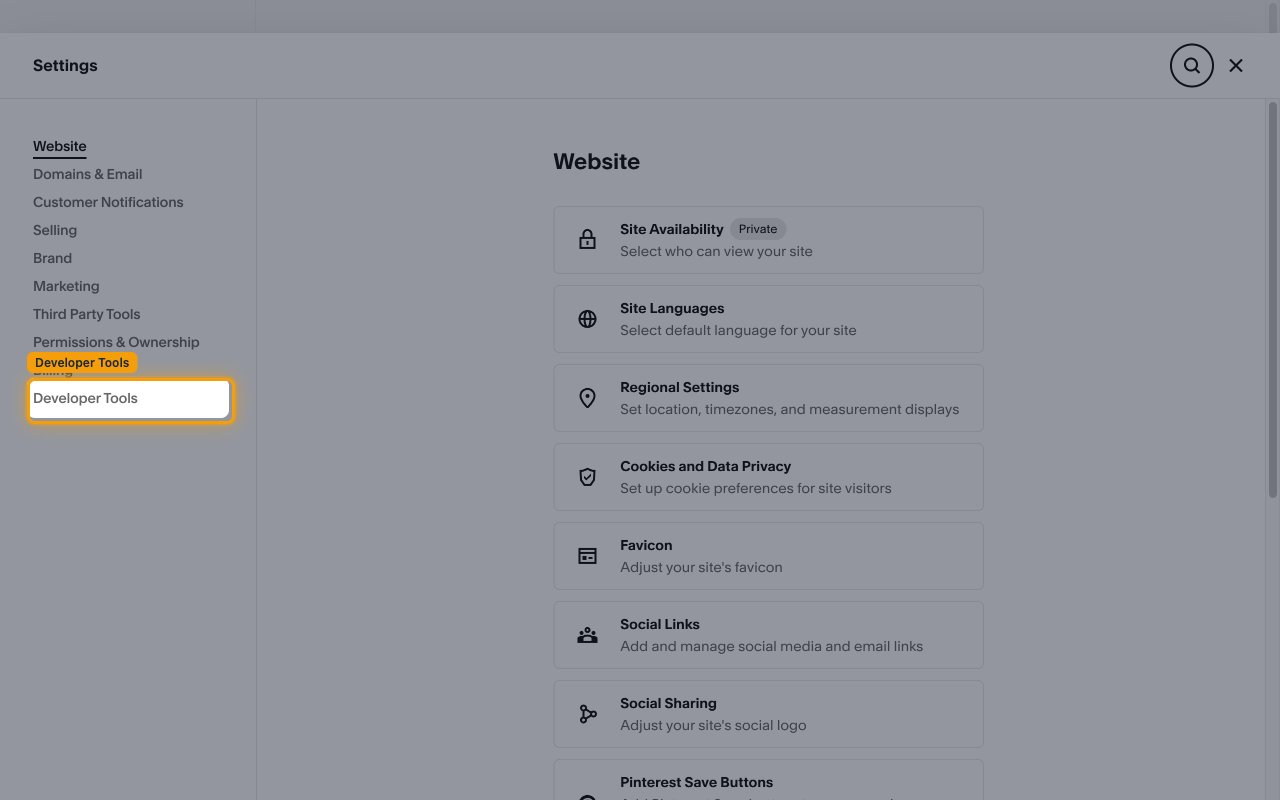
        <p>In your site dashboard, open <strong>Settings</strong>, then select <strong>Developer Tools</strong> from the settings menu.</p>

        <img src="https://mintcdn.com/stackone-60/yO-ZxG3tMH0aPDGY/connectors/squarespace/images/custom-config-developer-tools.png?fit=max&auto=format&n=yO-ZxG3tMH0aPDGY&q=85&s=ab6ce82b755ea89bb219d8313b2b9f75" alt="Squarespace Settings panel with the Developer Tools menu item highlighted" width="1280" height="800" data-path="connectors/squarespace/images/custom-config-developer-tools.png" />
      </div>
    </Step>

    <Step title="Open Developer API Keys">
      <div data-guide-step data-guide-scopes="" data-guide-display-scopes-list="">
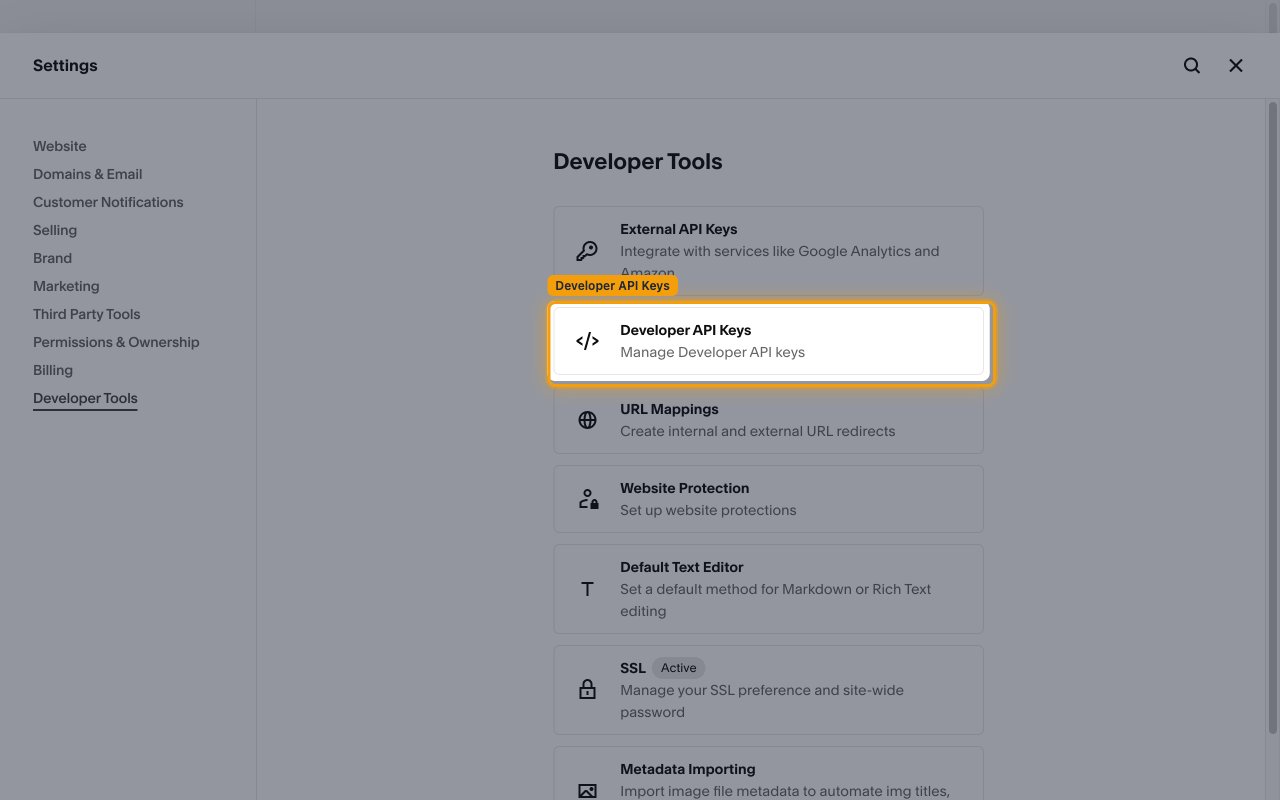
        <p>Under <strong>Developer Tools</strong>, click <strong>Developer API Keys</strong> (<strong>Manage Developer API keys</strong>).</p>

        <img src="https://mintcdn.com/stackone-60/yO-ZxG3tMH0aPDGY/connectors/squarespace/images/custom-config-developer-api-keys.png?fit=max&auto=format&n=yO-ZxG3tMH0aPDGY&q=85&s=90d430e333fb61ba41964084669addb4" alt="Developer Tools settings with the Developer API Keys option highlighted" width="1280" height="800" data-path="connectors/squarespace/images/custom-config-developer-api-keys.png" />
      </div>
    </Step>

    <Step title="Generate a new key">
      <div data-guide-step data-guide-scopes="" data-guide-display-scopes-list="">
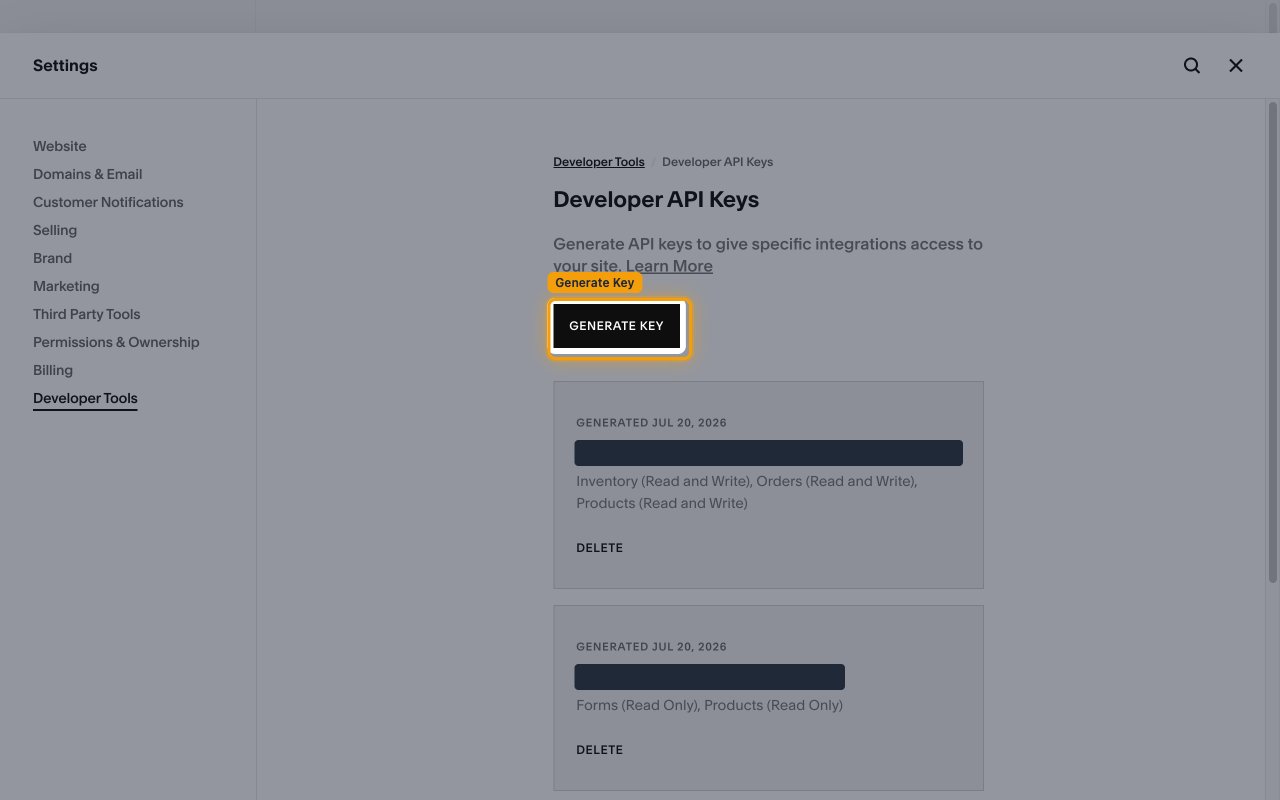
        <p>On the <strong>Developer API Keys</strong> page, click <strong>GENERATE KEY</strong> to open the key dialog.</p>

        <img src="https://mintcdn.com/stackone-60/yO-ZxG3tMH0aPDGY/connectors/squarespace/images/custom-config-generate-key.png?fit=max&auto=format&n=yO-ZxG3tMH0aPDGY&q=85&s=e99b87b6919625e30c86b73ab922d296" alt="Developer API Keys page with the GENERATE KEY button highlighted" width="1280" height="800" data-path="connectors/squarespace/images/custom-config-generate-key.png" />
      </div>
    </Step>

    <Step title="Enter a key name and select permissions">
      <div data-guide-step data-guide-scopes="inventory.read,inventory,orders.read,orders,products.read,products,profiles.read,transactions.read" data-guide-display-scopes-list="inventory.read,inventory,orders.read,orders,products.read,products,profiles.read,transactions.read">
        <div className="connector-guide-actions-badge" data-guide-actions-badge data-guide-actions-badge-scopes="inventory.read,inventory,orders.read,orders,products.read,products,profiles.read,transactions.read" style={{ display: 'block', width: 'fit-content', maxWidth: '100%', padding: '2px 8px', borderRadius: '8px', fontSize: '12px', marginBottom: '8px', marginTop: '-10px', whiteSpace: 'nowrap', overflowX: 'auto', overflowY: 'hidden', msOverflowStyle: 'none', scrollbarWidth: 'none' }}>
          <span>Enables actions: </span><span data-guide-actions-badge-labels>Adjust Stock Quantities, Assign Product Image To Variant, Create Order, Create Product, Create Product Variant, Delete Product, Delete Product Image, Delete Product Variant, Fulfill Order, Get Inventory, Get Order, Get Product, Get Product Image Upload Status, Get Profile, Get Transaction, List Inventory, List Orders, List Products, List Profiles, List Store Pages, List Transactions, Reorder Product Image, Update Product, Update Product Image, Update Product Variant, Upload Product Image</span>
        </div>

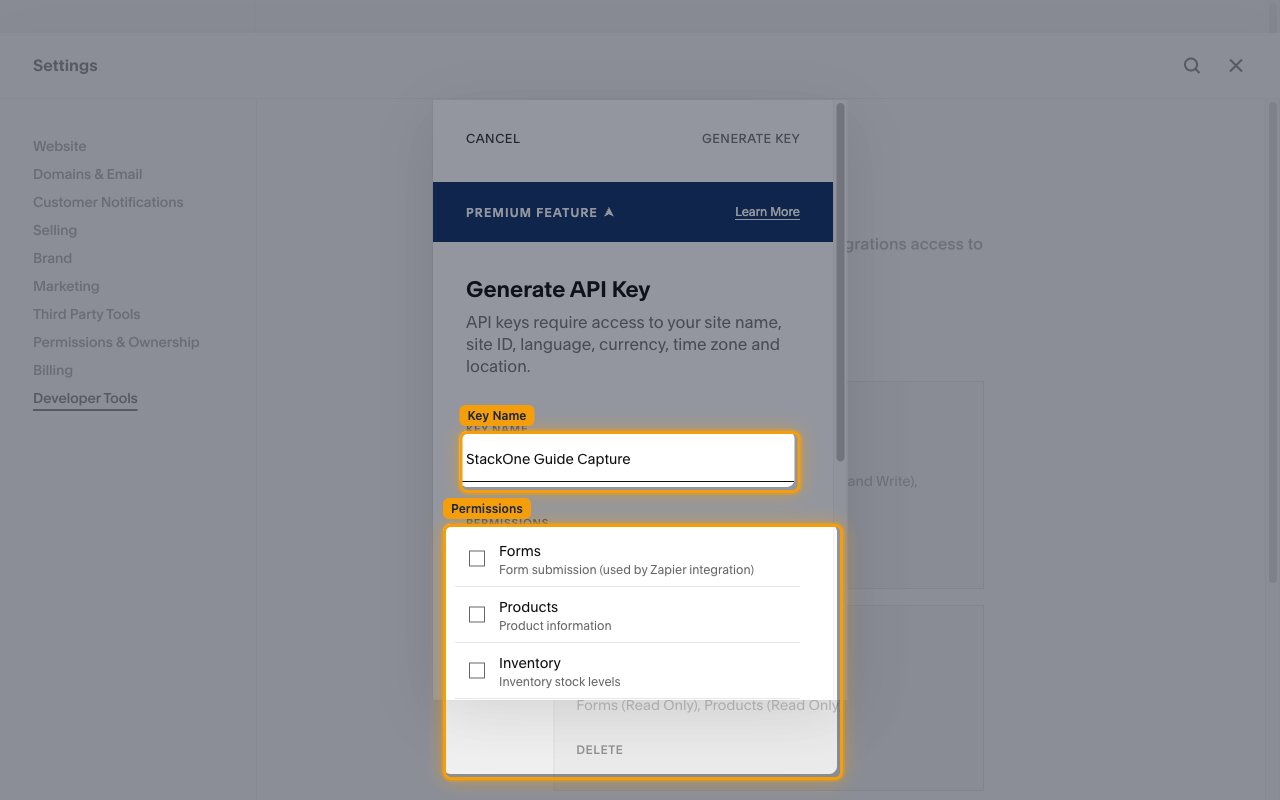
        <p>In the <strong>Generate API Key</strong> dialog, enter a <strong>Key Name</strong> to identify the integration. Under <strong>Permissions</strong>, tick the checkbox for each category this connector needs — for example <strong>Products</strong>, <strong>Inventory</strong>, <strong>Orders</strong>, <strong>Transactions</strong>, and <strong>Profiles</strong>. The scope identifiers listed below are StackOne references only — they map to these Squarespace categories (and the access levels set in the next step). You do not type them into Squarespace; just tick the matching category checkboxes.</p>

        <ul>
          <li><strong>Key Name</strong> — a label for the key, e.g. `StackOne Integration` (or any name you prefer).</li>
        </ul>

        <img src="https://mintcdn.com/stackone-60/yO-ZxG3tMH0aPDGY/connectors/squarespace/images/custom-config-permissions.png?fit=max&auto=format&n=yO-ZxG3tMH0aPDGY&q=85&s=b7092188ff216b894b09315e46066126" alt="Generate API Key dialog showing the Key Name field and the Permissions checklist" width="1280" height="800" data-path="connectors/squarespace/images/custom-config-permissions.png" />

        <div style={{ marginTop: '8px' }} data-guide-display-scopes>
          <div className="connector-guide-scopes-container">
            <ul className="not-prose" style={{ listStyleType: "'- '", paddingLeft: '1em', margin: 0 }}>
              <li style={{ overflowWrap: 'anywhere', wordBreak: 'break-word' }} data-guide-display-scope="inventory.read">
                <button type="button" className="connector-guide-scope-copy" aria-label="Copy inventory.read" title="Copy scope" data-copy="inventory.read">
                  <span className="connector-guide-scope-copy__label">inventory.read</span>
                  <span className="connector-guide-scope-copy__icon" aria-hidden="true">⧉</span>
                </button>
              </li>

              <li style={{ overflowWrap: 'anywhere', wordBreak: 'break-word' }} data-guide-display-scope="inventory">
                <button type="button" className="connector-guide-scope-copy" aria-label="Copy inventory" title="Copy scope" data-copy="inventory">
                  <span className="connector-guide-scope-copy__label">inventory</span>
                  <span className="connector-guide-scope-copy__icon" aria-hidden="true">⧉</span>
                </button>
              </li>

              <li style={{ overflowWrap: 'anywhere', wordBreak: 'break-word' }} data-guide-display-scope="orders.read">
                <button type="button" className="connector-guide-scope-copy" aria-label="Copy orders.read" title="Copy scope" data-copy="orders.read">
                  <span className="connector-guide-scope-copy__label">orders.read</span>
                  <span className="connector-guide-scope-copy__icon" aria-hidden="true">⧉</span>
                </button>
              </li>

              <li style={{ overflowWrap: 'anywhere', wordBreak: 'break-word' }} data-guide-display-scope="orders">
                <button type="button" className="connector-guide-scope-copy" aria-label="Copy orders" title="Copy scope" data-copy="orders">
                  <span className="connector-guide-scope-copy__label">orders</span>
                  <span className="connector-guide-scope-copy__icon" aria-hidden="true">⧉</span>
                </button>
              </li>

              <li style={{ overflowWrap: 'anywhere', wordBreak: 'break-word' }} data-guide-display-scope="products.read">
                <button type="button" className="connector-guide-scope-copy" aria-label="Copy products.read" title="Copy scope" data-copy="products.read">
                  <span className="connector-guide-scope-copy__label">products.read</span>
                  <span className="connector-guide-scope-copy__icon" aria-hidden="true">⧉</span>
                </button>
              </li>

              <li style={{ overflowWrap: 'anywhere', wordBreak: 'break-word' }} data-guide-display-scope="products">
                <button type="button" className="connector-guide-scope-copy" aria-label="Copy products" title="Copy scope" data-copy="products">
                  <span className="connector-guide-scope-copy__label">products</span>
                  <span className="connector-guide-scope-copy__icon" aria-hidden="true">⧉</span>
                </button>
              </li>

              <li style={{ overflowWrap: 'anywhere', wordBreak: 'break-word' }} data-guide-display-scope="profiles.read">
                <button type="button" className="connector-guide-scope-copy" aria-label="Copy profiles.read" title="Copy scope" data-copy="profiles.read">
                  <span className="connector-guide-scope-copy__label">profiles.read</span>
                  <span className="connector-guide-scope-copy__icon" aria-hidden="true">⧉</span>
                </button>
              </li>

              <li style={{ overflowWrap: 'anywhere', wordBreak: 'break-word' }} data-guide-display-scope="transactions.read">
                <button type="button" className="connector-guide-scope-copy" aria-label="Copy transactions.read" title="Copy scope" data-copy="transactions.read">
                  <span className="connector-guide-scope-copy__label">transactions.read</span>
                  <span className="connector-guide-scope-copy__icon" aria-hidden="true">⧉</span>
                </button>
              </li>
            </ul>
          </div>
        </div>
      </div>
    </Step>

    <Step title="Set the access level for each permission">
      <div data-guide-step data-guide-scopes="" data-guide-display-scopes-list="">
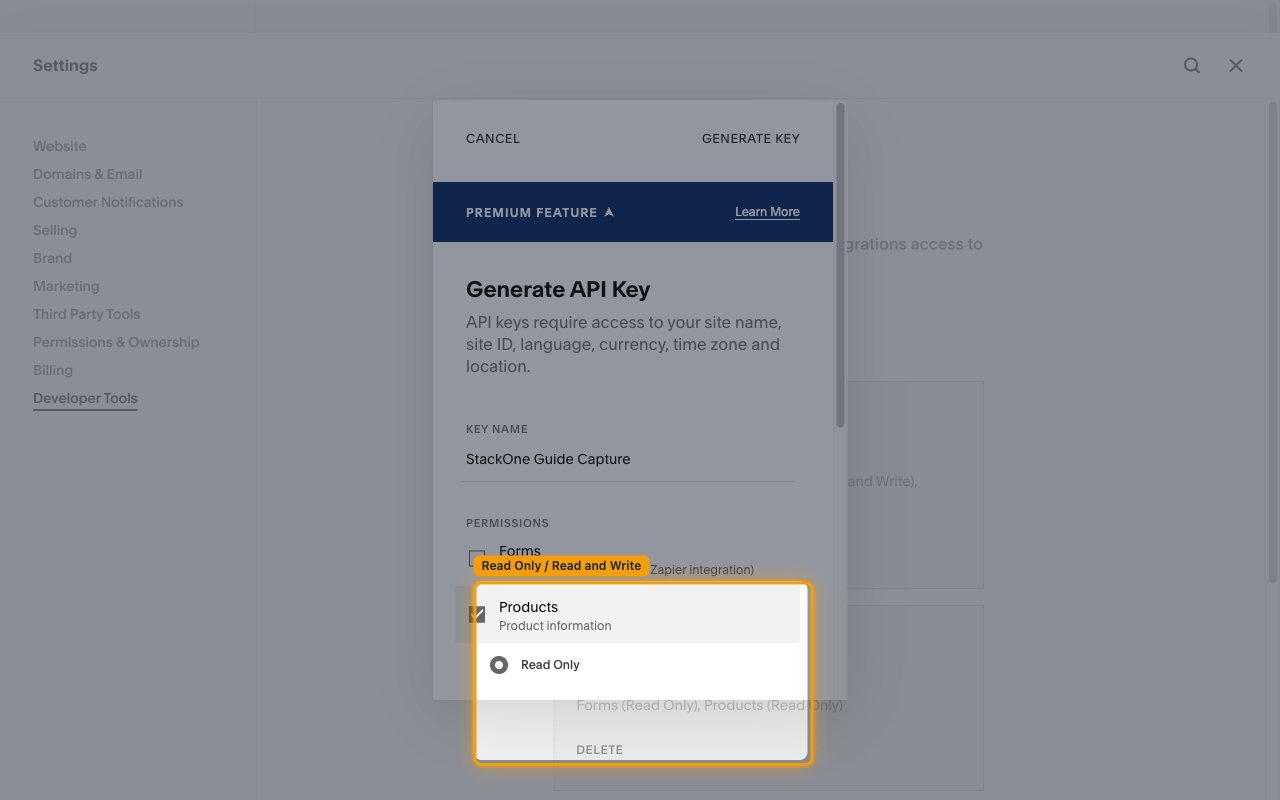
        <p>After ticking a category, choose its access level — <strong>Read Only</strong> or <strong>Read and Write</strong>.<br /><br />Use the scopes above as a guide: a scope ending in `.read` (for example `products.read`) only needs <strong>Read Only</strong>, while a scope without the `.read` suffix (for example `products`, `inventory`, or `orders`) needs <strong>Read and Write</strong>.</p>

        <img src="https://mintcdn.com/stackone-60/yO-ZxG3tMH0aPDGY/connectors/squarespace/images/custom-config-access-level.png?fit=max&auto=format&n=yO-ZxG3tMH0aPDGY&q=85&s=910541c888ed817462d7cdc7d6782016" alt="Products permission expanded to show the Read Only and Read and Write access-level options" width="1280" height="800" data-path="connectors/squarespace/images/custom-config-access-level.png" />
      </div>
    </Step>

    <Step title="Create and copy the API key">
      <div data-guide-step data-guide-scopes="" data-guide-display-scopes-list="">
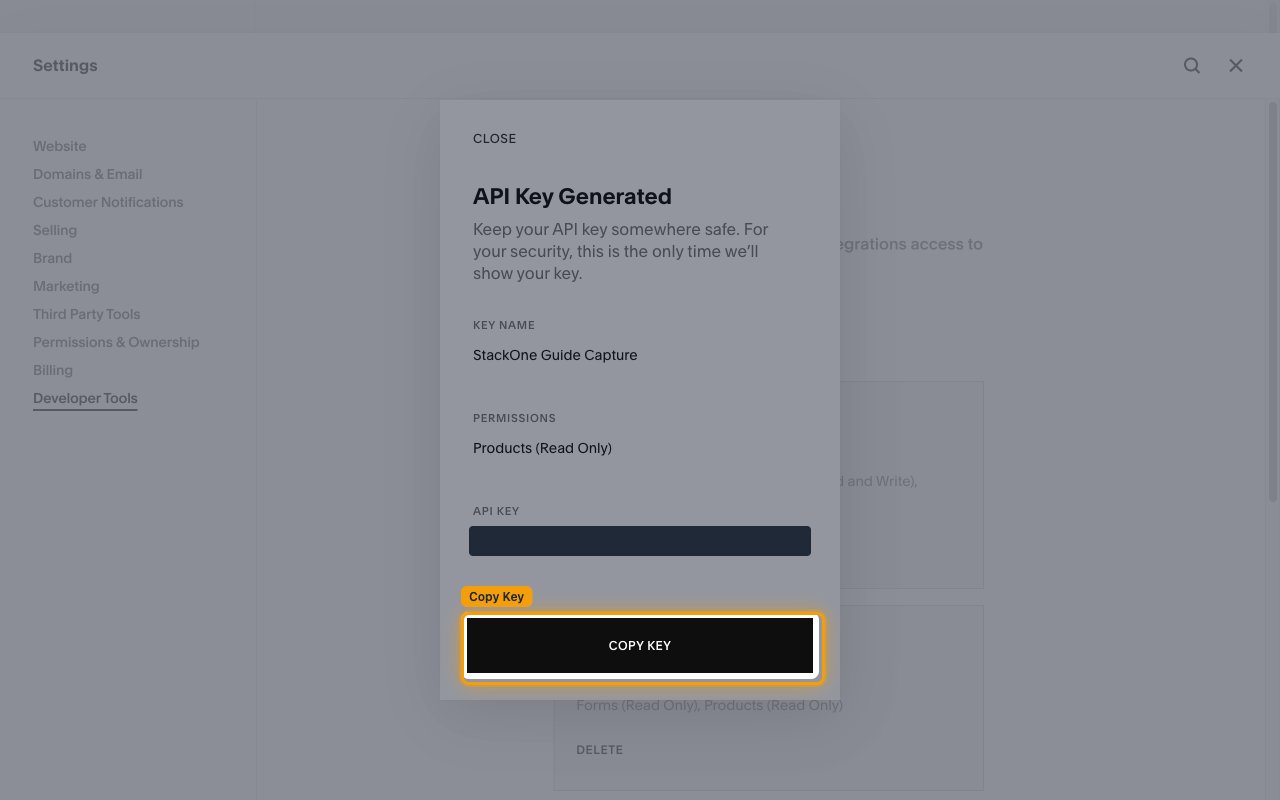
        <p>Click <strong>GENERATE KEY</strong> in the dialog to create the key. On the <strong>API Key Generated</strong> screen, click <strong>COPY KEY</strong> and store the value securely, then paste it into the <strong>API Key</strong> field in StackOne Hub.</p>

        <ul>
          <li><strong>Keep your API key somewhere safe. For your security, this is the only time we’ll show your key.</strong> The key cannot be retrieved again once you close this screen.</li>
          <li>API keys do not expire as long as your site remains active.</li>
        </ul>

        <img src="https://mintcdn.com/stackone-60/yO-ZxG3tMH0aPDGY/connectors/squarespace/images/custom-config-copy-key.png?fit=max&auto=format&n=yO-ZxG3tMH0aPDGY&q=85&s=e83ad825a68a5078d838698171af23e7" alt="API Key Generated screen with the key value redacted and the COPY KEY button highlighted" width="1280" height="800" data-path="connectors/squarespace/images/custom-config-copy-key.png" />
      </div>
    </Step>
  </Steps>
</section>

<div data-whitelabel-hide>
  <h2>Linking the Account from the Hub</h2>

  <Steps>
    <Step title="Navigate to the Hub">
      Use one of the three <a href="/connect/managing-connectors/linking-accounts">Linking Account Methods</a> to access the Hub.
    </Step>

    <Step title="Fill out the fields">
      Fill out the following fields using details from your provider:

      <ul>
        <li><strong>API Key</strong></li>
      </ul>
    </Step>

    <Step title="Connect">
      <ul>
        <li>Click <strong>Connect</strong></li>
        <li>If applicable, the provider will redirect you to a sign-in or authorization page. Complete the provider's authorization flow.</li>
        <li>Once authorization is successful, you will see a confirmation popup</li>
      </ul>
    </Step>
  </Steps>

  <p>If the account linking is successful, you will see the newly linked account in your <a href="/gateway/concepts/linked-accounts">Accounts</a> page.</p>
</div>