> ## Documentation Index
> Fetch the complete documentation index at: https://docs.stackone.com/llms.txt
> Use this file to discover all available pages before exploring further.

# Connect TalentLyft with Access Token – StackOne Hub

> Link a TalentLyft account in the StackOne Hub using Access Token. End-user guide to authorize the integration and start using TalentLyft actions.

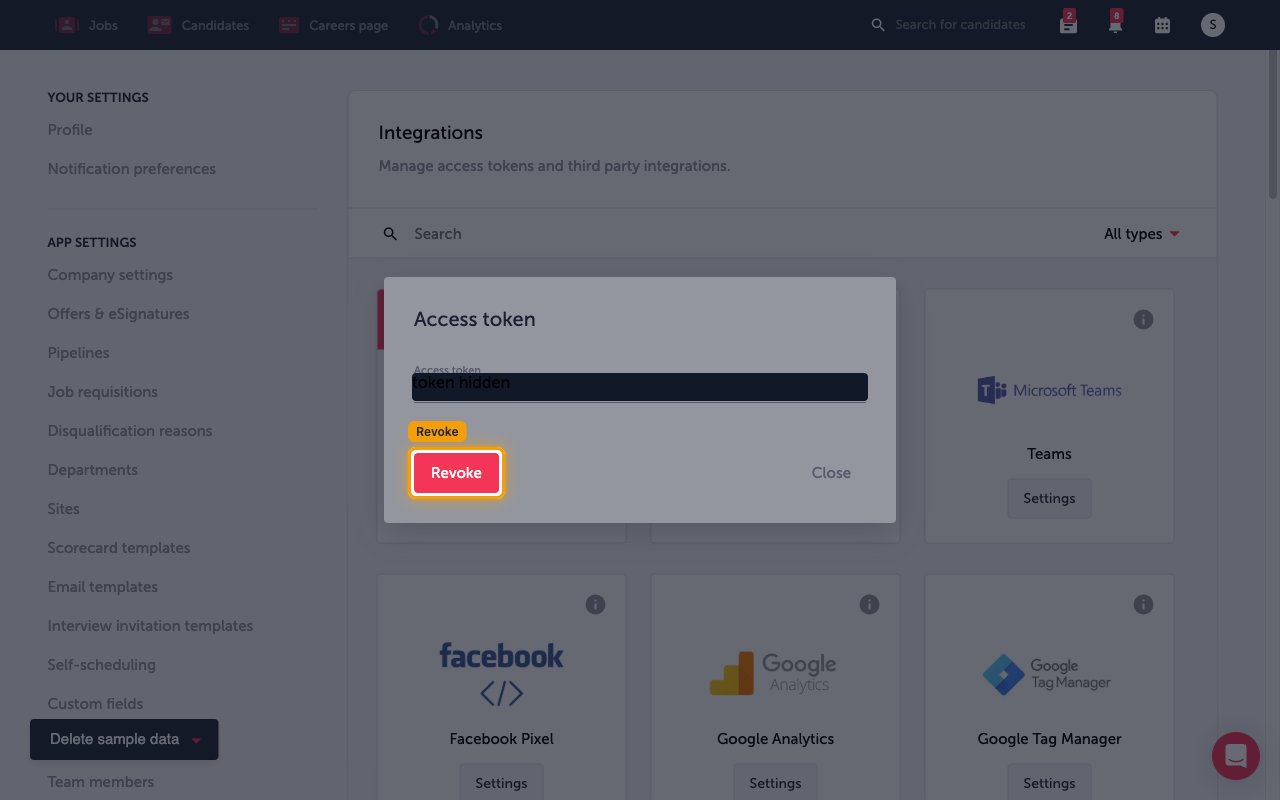
<Warning>If an access token already exists, the Access token dialog shows a Revoke button instead of Generate. Revoking removes the current token, and any integration still using the previous token stops working until it is updated with the new one.</Warning>

<section data-guide-section data-guide-scopes="">
  <h2>Before you begin</h2>

  <p>Make sure you can reach your TalentLyft integration settings before generating a token.</p>

  <ul>
    <li>An active TalentLyft account that can open <strong>Settings → Integrations</strong></li>
    <li>Sign in at the <a href="https://app.talentlyft.com" target="_blank" rel="noopener noreferrer">TalentLyft dashboard</a></li>
  </ul>
</section>

<section data-guide-section data-guide-scopes="">
  <h2>Open the Access token settings</h2>

  <p>The access token is generated from the Integrations page in your TalentLyft account settings.</p>

  <Steps>
    <Step title="Open the profile menu">
      <div data-guide-step data-guide-scopes="" data-guide-display-scopes-list="">
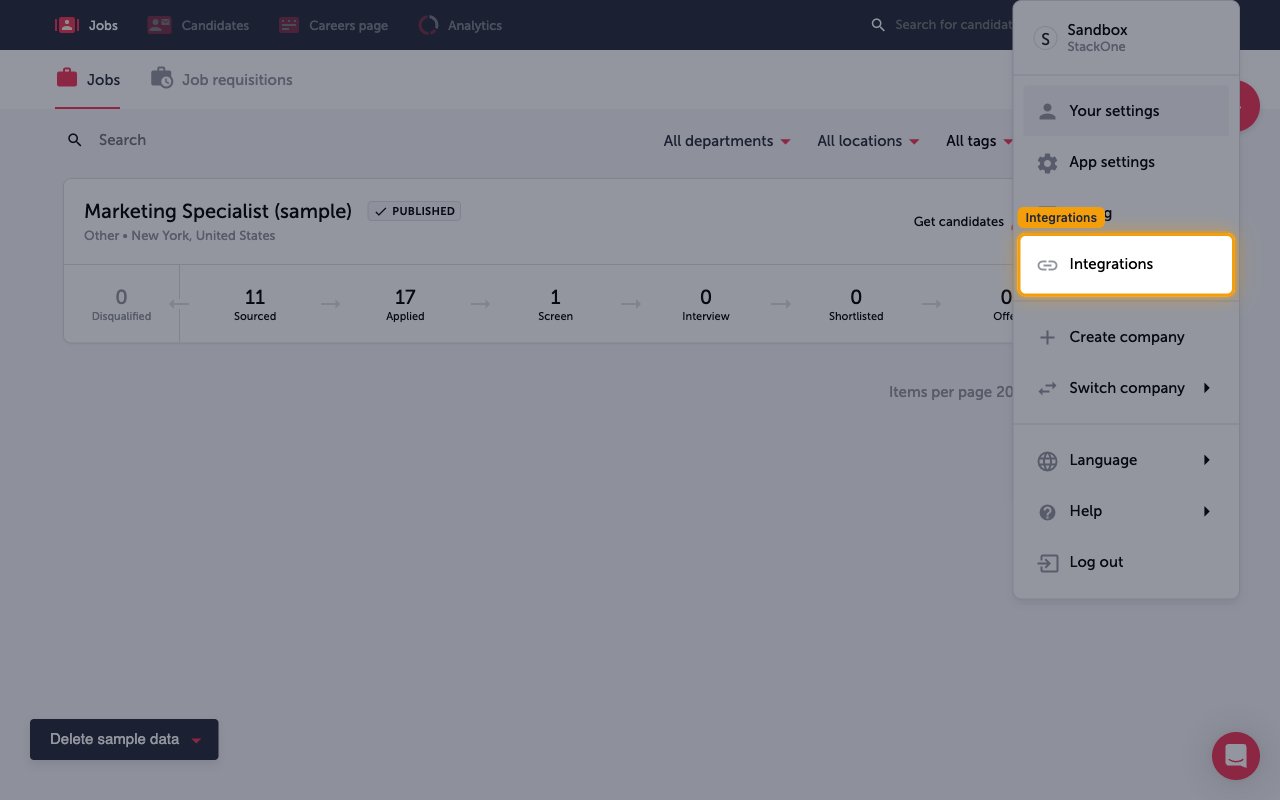
        <p>In the top-right corner of the TalentLyft dashboard, click your <strong>Profile icon</strong>, then select <strong>Integrations</strong> from the menu.</p>

        <img src="https://mintcdn.com/stackone-60/yO-ZxG3tMH0aPDGY/connectors/talentlyft/images/custom-config-profile-menu.png?fit=max&auto=format&n=yO-ZxG3tMH0aPDGY&q=85&s=81237b4800dce8c30736ac905672aaea" alt="TalentLyft profile menu with the Integrations option" width="1280" height="800" data-path="connectors/talentlyft/images/custom-config-profile-menu.png" />
      </div>
    </Step>

    <Step title="Open the Access token settings">
      <div data-guide-step data-guide-scopes="" data-guide-display-scopes-list="">
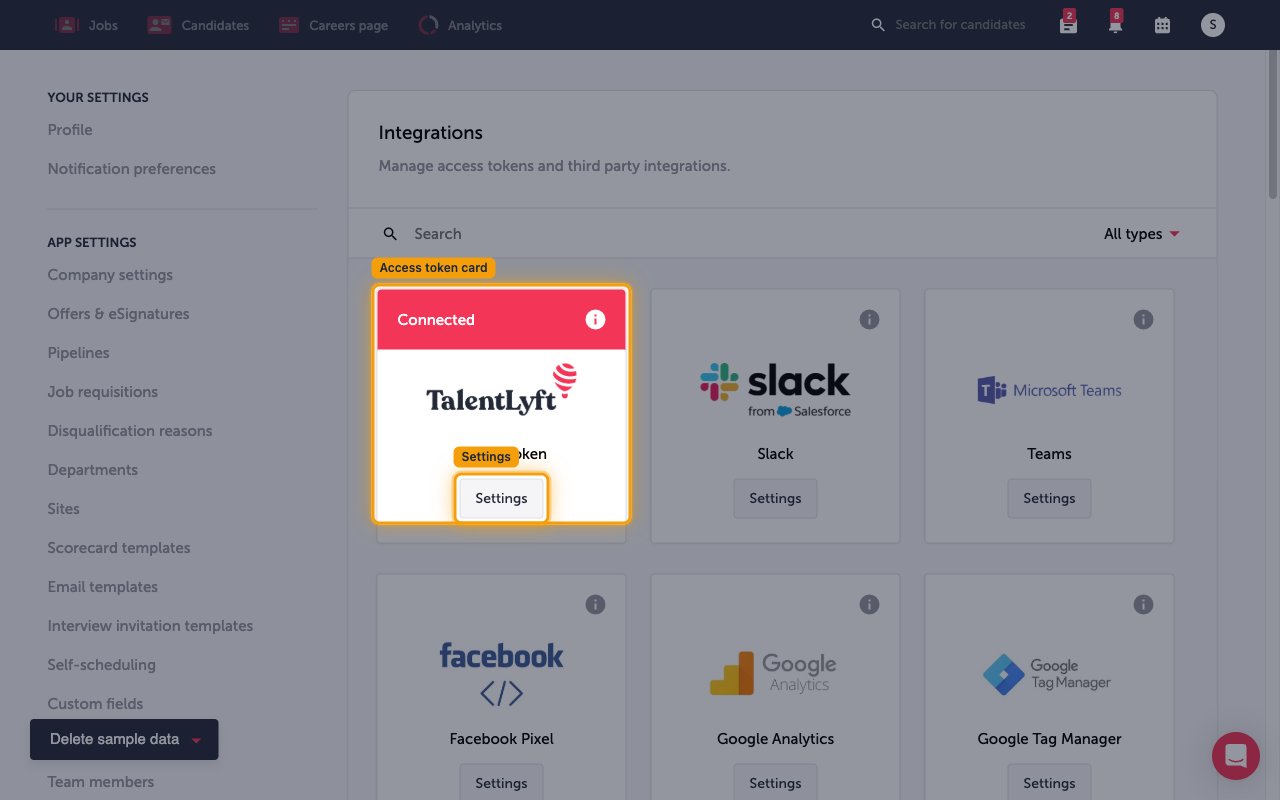
        <p>On the <strong>Integrations</strong> page ("Manage access tokens and third party integrations"), find the <strong>Access token</strong> card and click <strong>Settings</strong> on it.</p>

        <img src="https://mintcdn.com/stackone-60/yO-ZxG3tMH0aPDGY/connectors/talentlyft/images/custom-config-integrations.png?fit=max&auto=format&n=yO-ZxG3tMH0aPDGY&q=85&s=99dfdf5891f18eec04663737ad707df7" alt="Integrations page showing the Access token card and its Settings button" width="1280" height="800" data-path="connectors/talentlyft/images/custom-config-integrations.png" />
      </div>
    </Step>
  </Steps>
</section>

<section data-guide-section data-guide-scopes="">
  <h2>Generate the access token</h2>

  <p>Generate the token and copy its value so you can paste it into StackOne.</p>

  <Steps>
    <Step title="Generate and copy the token">
      <div data-guide-step data-guide-scopes="" data-guide-display-scopes-list="">
        <p>In the <strong>Access token</strong> dialog, create the token and copy the value shown in the <strong>Access token</strong> field.</p>

        <ul>
          <li>If no token exists yet, click <strong>Generate</strong> to create one.</li>
          <li>If a token already exists, the dialog shows <strong>Revoke</strong> and <strong>Close</strong> instead of Generate. Click <strong>Revoke</strong> to remove the current token, then reopen the dialog and click <strong>Generate</strong> to create a new one.</li>
          <li>Copy the value shown in the <strong>Access token</strong> field immediately.</li>
          <li>The token grants full API access to your TalentLyft data — store it securely.</li>
        </ul>

        <img src="https://mintcdn.com/stackone-60/yO-ZxG3tMH0aPDGY/connectors/talentlyft/images/custom-config-access-token-dialog.png?fit=max&auto=format&n=yO-ZxG3tMH0aPDGY&q=85&s=64bd53cae7edf2aff8dff9b3396ca573" alt="Access token dialog with the token field and the Revoke and Close buttons" width="1280" height="800" data-path="connectors/talentlyft/images/custom-config-access-token-dialog.png" />
      </div>
    </Step>

    <Step title="Paste the token into StackOne">
      <div data-guide-step data-guide-scopes="" data-guide-display-scopes-list="">
        <p>Paste the copied value into the <strong>Access Token</strong> field in StackOne Hub to complete the connection.</p>
      </div>
    </Step>
  </Steps>
</section>

<div data-whitelabel-hide>
  <h2>Linking the Account from the Hub</h2>

  <Steps>
    <Step title="Navigate to the Hub">
      Use one of the three <a href="/connect/managing-connectors/linking-accounts">Linking Account Methods</a> to access the Hub.
    </Step>

    <Step title="Fill out the fields">
      Fill out the following fields using details from your provider:

      <ul>
        <li><strong>Access Token</strong></li>
      </ul>
    </Step>

    <Step title="Connect">
      <ul>
        <li>Click <strong>Connect</strong></li>
        <li>If applicable, the provider will redirect you to a sign-in or authorization page. Complete the provider's authorization flow.</li>
        <li>Once authorization is successful, you will see a confirmation popup</li>
      </ul>
    </Step>
  </Steps>

  <p>If the account linking is successful, you will see the newly linked account in your <a href="/gateway/concepts/linked-accounts">Accounts</a> page.</p>
</div>