

 MCP
MCP A2A
A2AOverview
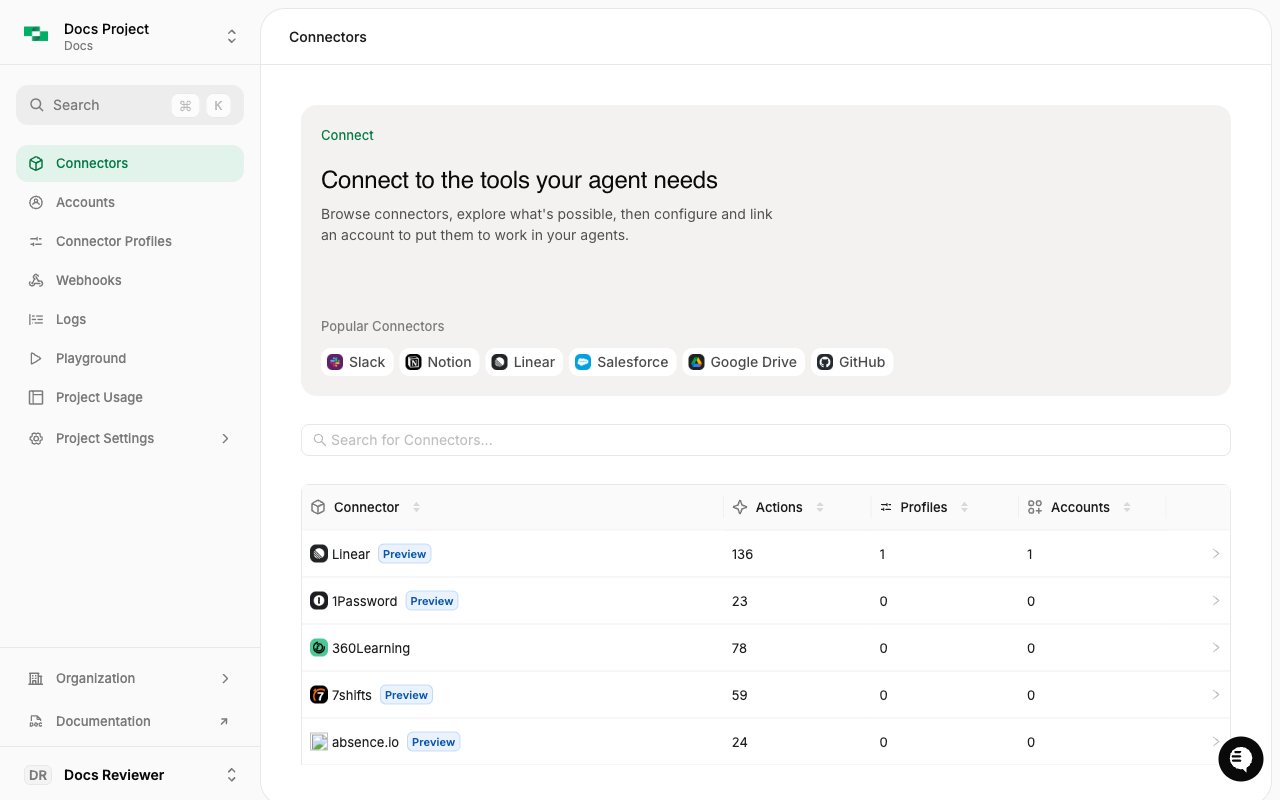
The Connectors page (app.stackone.com/connectors) shows all available connectors and their actions. Use it to find actions, check parameters, and test them in the Playground.Browse All Actions
View the complete catalog of actions across all connectors
Filter & Search
Find specific actions by category, provider, or keyword
View Details
See action parameters, inputs, outputs, and descriptions
Test Instantly
Jump to the AI Playground to test any action with real data
Accessing the Connectors Page
- Navigate to app.stackone.com/connectors
- Sign in to your StackOne account
- Browse connectors and click on any to view its available actions
Understanding Actions
Actions are the building blocks of StackOne connectors. Each action represents a specific operation you can perform with a provider, such as:- List operations - Retrieve collections of records (e.g., list employees, list contacts)
- Get operations - Fetch a single record by ID
- Create operations - Add new records to a system
- Update operations - Modify existing records
- Delete operations - Remove records
Action Types
Provider-Specific Actions
Provider-Specific Actions
Direct access to provider APIs. These actions expose the full capabilities of each integration.Examples:
gong_crm_search_calls- Search CRM calls in Gongashby_list_applications- List applications from Ashby ATSworkday_list_employees- List employees from Workday HRISsalesforce_list_accounts- List accounts from Salesforce CRM
Unified Actions
Unified Actions
Standardized actions that work consistently across all providers in a category. Use these when you want your agent or application to work with any provider without provider-specific code.Examples:
iam_list_users- List users from Okta, Azure AD, Google Workspace, or any IAM provideriam_list_groups- List groups across identity providersdocuments_list_files- List files from Google Drive, SharePoint, Dropbox, or any document providerdocuments_download_file- Download files with a consistent interface
Using the Actions Explorer
Browsing Connectors
The main page lists all available connectors in a sortable table. Each row shows:| Column | Description |
|---|---|
| Connector | Connector name and icon, with a Preview badge for connectors in preview |
| Actions | Number of actions the connector supports |
| Profiles | Number of connector profiles configured |
| Accounts | Number of linked accounts |
Exploring Connector Actions
Selecting a connector opens its detail page, with Actions, Profiles, Accounts, and Logs tabs. The header has three actions:- Profile - Configure a connector profile
- Link Account - Connect an account for this connector
- Use in Agent - Open setup for MCP clients and the Playground (see below)
From Explorer to Execution
Once you’ve found an action you want to use, you have several options:Test in AI Playground
Test the action interactively with natural language using LLMs
Use via MCP
Access the action through StackOne’s MCP server
Call via SDK
Use the AI Toolset SDKs to call the action programmatically
Direct API Call
Execute the action directly via the Actions RPC API
Example: Using an Action
After finding an action likeworkday_list_employees, here’s how you’d use it:
- AI Playground
- MCP
- TypeScript SDK
- Actions API
- Go to app.stackone.com/playground
- Select your Workday account
- Ask: “List all employees from Workday”
- The AI will automatically use the
workday_list_employeesaction
Best Practices
Start with the Playground
Start with the Playground
Before integrating actions into your application, test them in the AI Playground to understand their behavior and outputs.
Check Action Parameters
Check Action Parameters
Review the required and optional parameters for each action. Some actions require specific inputs to function correctly.
Monitor Usage
Monitor Usage
Use Request Logs to monitor action executions and troubleshoot issues.
Related Resources
AI Playground
Test actions interactively with LLMs
MCP Quickstart
Connect via MCP protocol
Execute Actions
Direct RPC execution guide