

 MCP
MCP A2A
A2AOverview
Claude Code is Anthropic’s CLI for developers. It provides built-in commands for managing MCP servers.For complete Claude Code MCP documentation, see the official MCP guide.
Setup
Get your MCP URL from the dashboard
- Go to Connectors in the left nav and open the connector you want to use
- Click Use Connector in the top right
- On the Use tab, click MCP Server under “Use with Agent Client”
- Select a linked account from the dropdown
- Choose Claude Code as the client
- Copy the generated command
Add StackOne MCP Server
Run the command from the dashboard in your terminal. It looks like this:
Alternative: Manual API key setup
Alternative: Manual API key setup
If you prefer to use your API key and account ID directly, set your encoded API key as an environment variable first:Then add the server:
- macOS / Linux
- Windows (PowerShell)

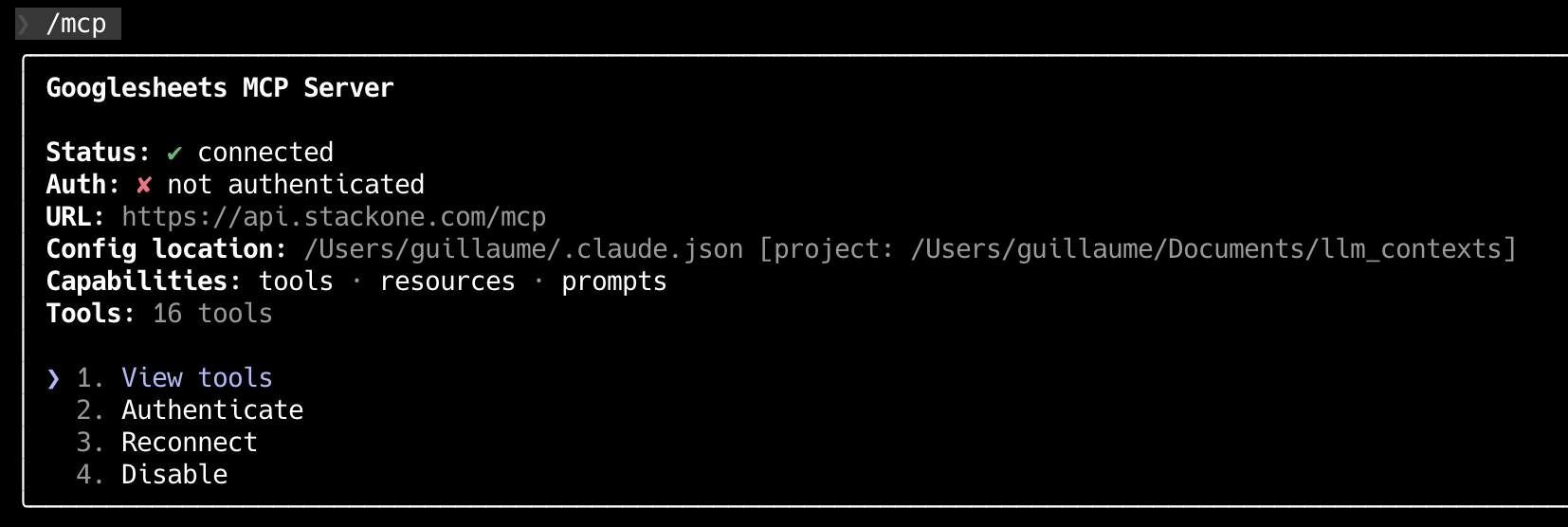
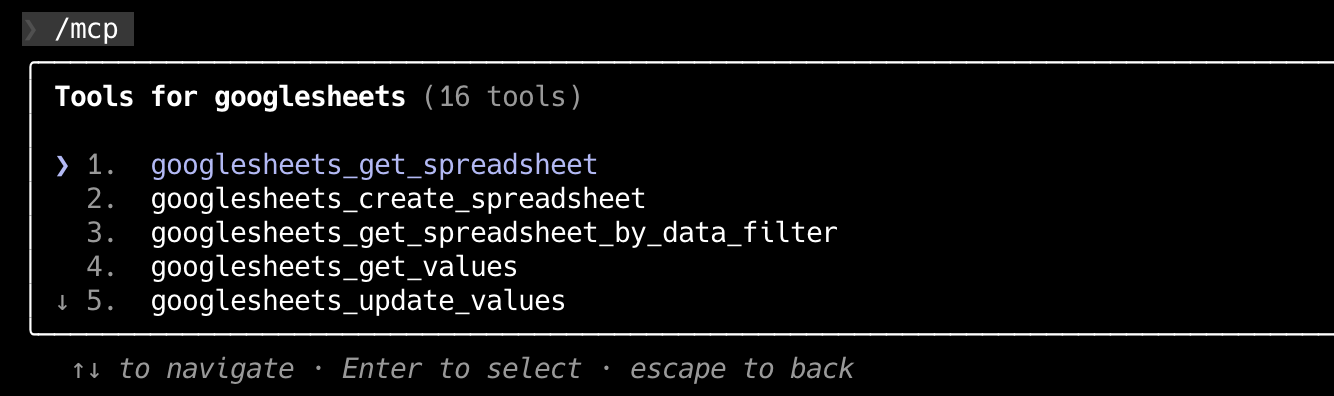
Adding Multiple Accounts
Get a separate token for each account from the dashboard, then add them as distinct servers:Scope Options
Control where the configuration is stored:| Scope | Flag | Storage Location | Use Case |
|---|---|---|---|
| Local | (default) | .claude.json in current directory | Project-specific |
| Project | --scope project | .mcp.json at project root | Team collaboration (version controlled) |
| User | --scope user | ~/.claude.json | Personal tools across all projects |
Management Commands
Programmatic Integration
For programmatic integration with Anthropic’s Claude API, see the Anthropic SDK Framework Guide.Next Steps
Claude Desktop
Set up MCP in the Claude Desktop app
Authentication Guide
Configure authentication and security