

 MCP
MCP A2A
A2AOverview
StackOne supports SAML 2.0-based Single Sign-On (SSO), allowing your organization members to authenticate through your identity provider (IdP). Once configured and verified, users with matching email domains are automatically redirected to your IdP for authentication. This guide covers:- Configuring SSO in StackOne
- Setting up a SAML application in Okta
- Completing the SSO registration
- Verifying your domain
Prerequisites
- Org Admin role in your StackOne organization
- Access to your identity provider’s admin dashboard (e.g., Okta)
- Ability to manage DNS records for your organization’s domain
Configure SSO in StackOne
Navigate to Organization Settings > Security > SSO to begin the setup process. StackOne walks you through a three-step configuration flow.Copy the Service Provider details
The first step displays two values you’ll need when configuring your identity provider: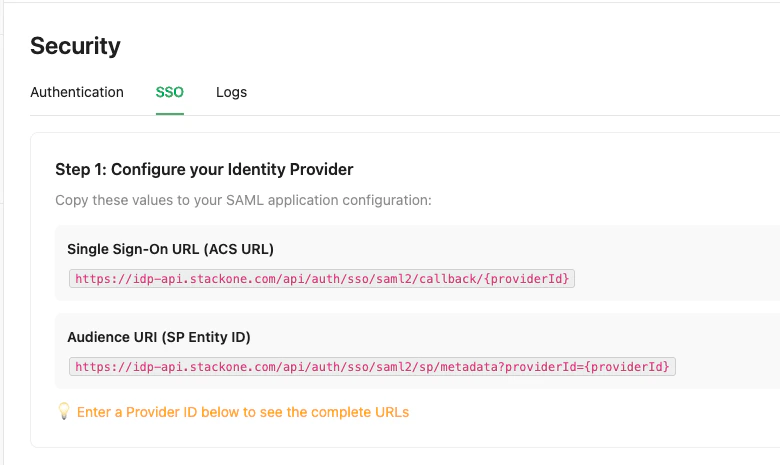
- ACS URL (Assertion Consumer Service URL) — the endpoint where your IdP sends SAML assertions
- SP Entity ID (Service Provider Entity ID) — the metadata URL that identifies StackOne as the service provider
your-company-sso). It must be lowercase and can contain letters, numbers, hyphens, and dots.The ACS URL and SP Entity ID update automatically based on your Provider ID.Configure your identity provider
After setting up the SAML application in your IdP (see Okta example below), collect these three values from the IdP: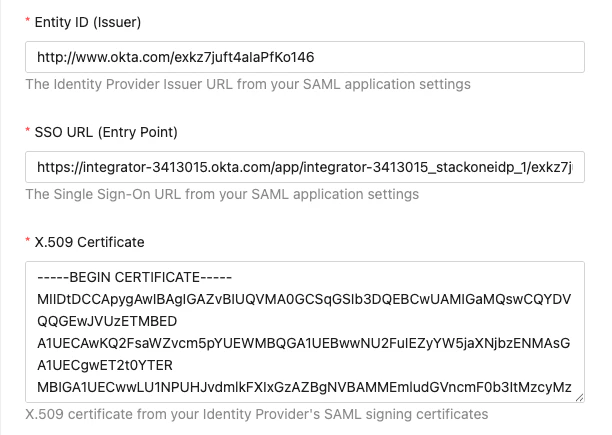
- Identity Provider Issuer (Entity ID) — the IdP’s unique identifier URL
- Identity Provider Single Sign-On URL — the IdP’s login endpoint
- X.509 Certificate — the signing certificate in PEM format
Register the SSO provider
Fill in the registration form with the values collected from your IdP:
Click Register SSO Provider to save the configuration.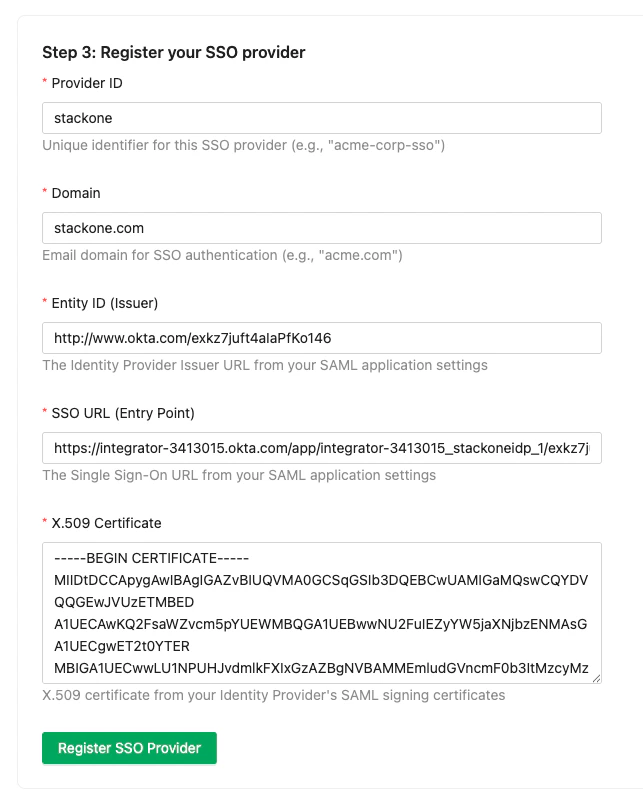
| Field | Description | Example |
|---|---|---|
| Provider ID | Unique identifier (set in step 1) | acme-corp-sso |
| Domain | Email domain for SSO users | acme.com |
| Entity ID (Issuer) | IdP issuer URL from step 2 | http://www.okta.com/exk... |
| SSO URL (Entry Point) | IdP login URL from step 2 | https://acme.okta.com/app/.../sso/saml |
| X.509 Certificate | Signing certificate from step 2 | -----BEGIN CERTIFICATE-----... |
Set Up a SAML Application in Okta
This section walks through creating a SAML 2.0 application in Okta. If you use a different identity provider, the general flow is similar — you’ll need to provide the ACS URL and SP Entity ID from StackOne, then retrieve the IdP issuer, SSO URL, and certificate.Create a new application
In your Okta admin dashboard, go to Applications > Applications and click Create App Integration.Select: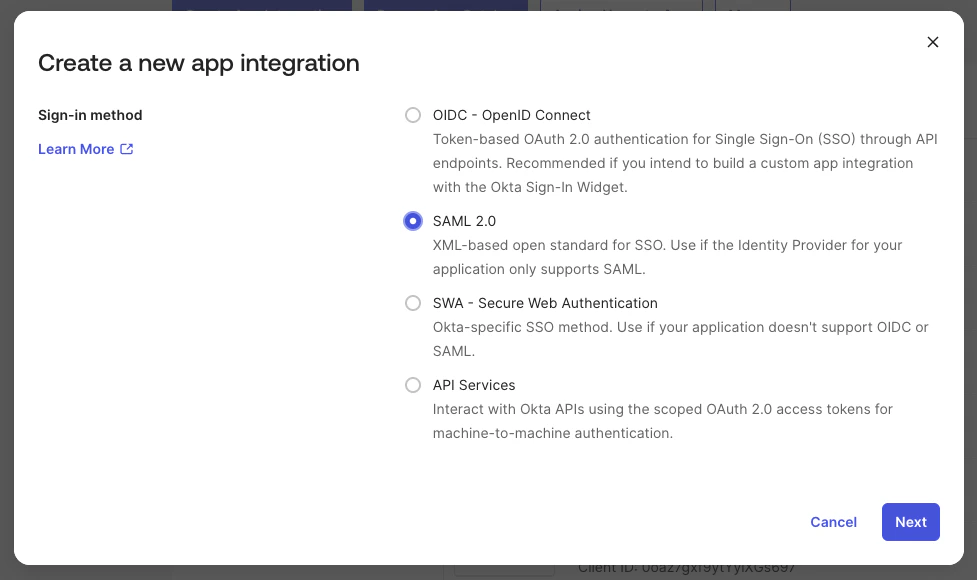
- Sign-in method: SAML 2.0
Configure general settings
Enter a name for the application (e.g., “StackOne SSO”) and optionally upload a logo.Click Next.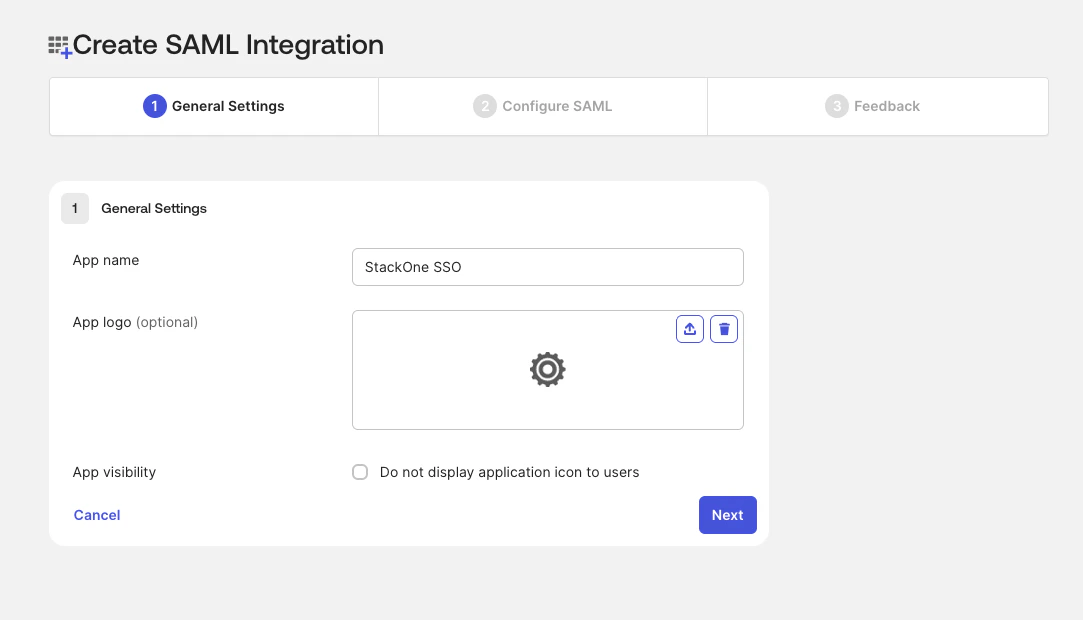
Configure SAML settings
In the SAML Settings section, enter the values from StackOne’s SSO setup (step 1):
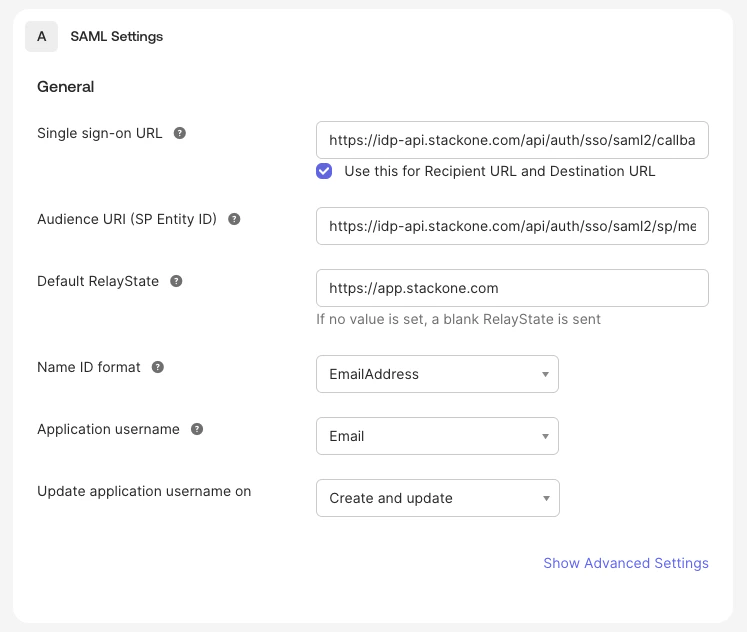
| Okta Field | Value from StackOne |
|---|---|
| Single sign-on URL | ACS URL |
| Audience URI (SP Entity ID) | SP Entity ID |
| Default RelayState | https://app.stackone.com |
| Name ID format | EmailAddress |
| Application username |
Copy the IdP values
After creating the application, go to the Sign On tab and on the right you will find the SAML Setup section. Click View SAML setup instructions.From here, copy: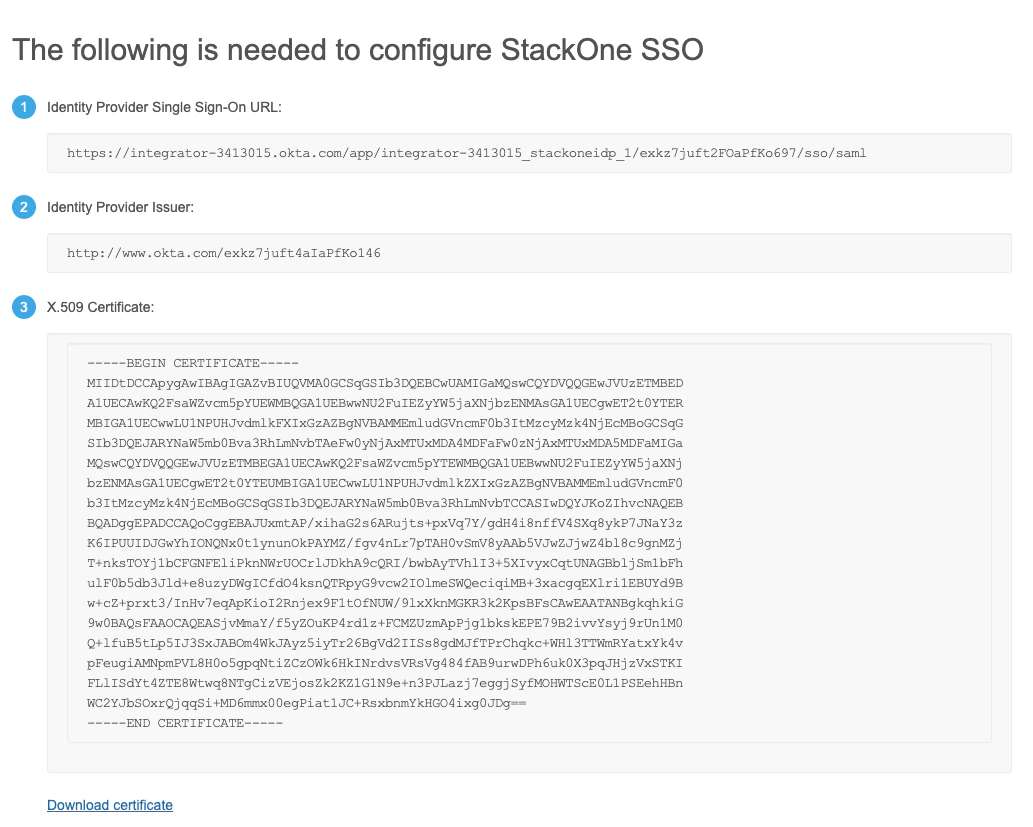
- Identity Provider Single Sign-On URL
- Identity Provider Issuer
- X.509 Certificate
Okta generates a separate signing certificate for each new app. If you’ve set up StackOne SSO before, copy the certificate from this app’s setup instructions rather than reusing an earlier download.
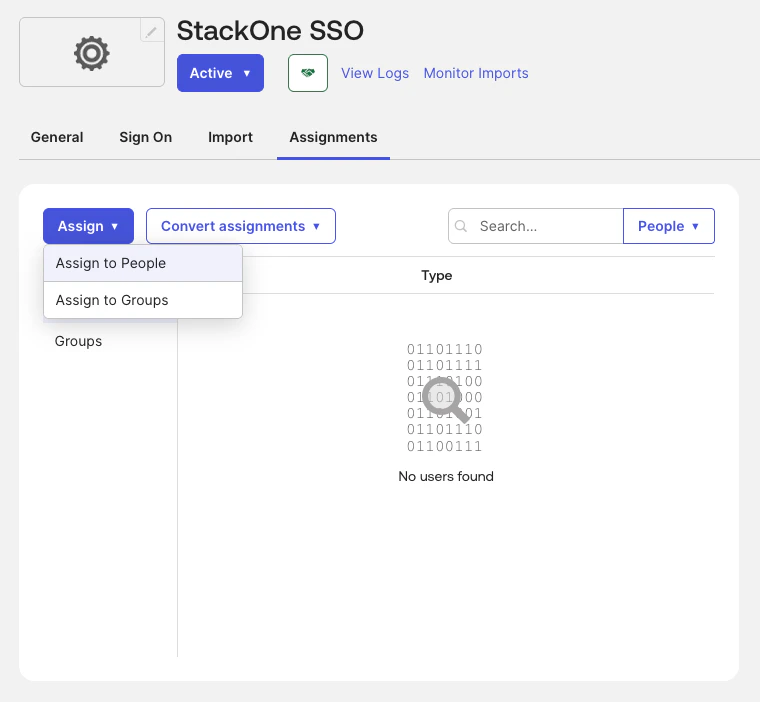
Complete the SSO Registration in StackOne
Return to the StackOne SSO setup page and paste the values from Okta into the Step 2 and Step 3 fields as described in Configure SSO in StackOne. After clicking Register SSO Provider, you’ll see a provider card with your SSO configuration details.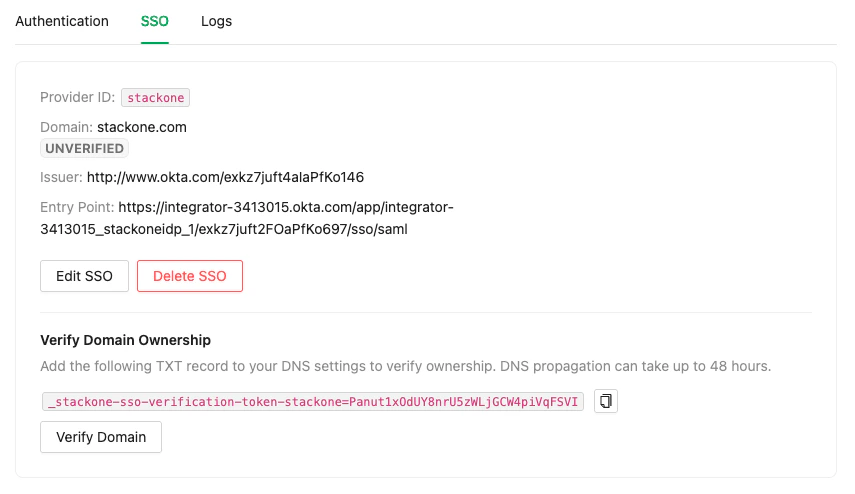
Verify Your Domain
Domain verification is required to activate SSO. This ensures your organization owns the email domain used for SSO authentication.Copy the DNS TXT record
On the SSO provider card, find the Domain Verification section. It displays a DNS TXT record in this format:Copy the full record value.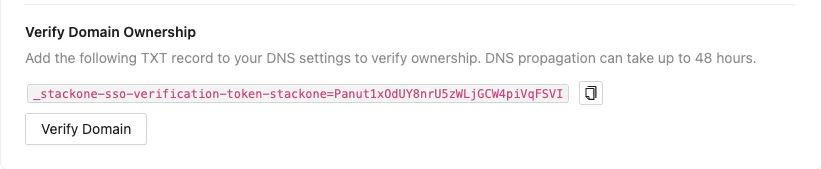
Add the TXT record to your DNS
Go to your domain’s DNS management panel (e.g., Cloudflare, Route 53, Google Cloud DNS) and add a TXT record:
- Name/Host: the email domain you registered in StackOne. That’s
@if it’s the root of your DNS zone, or the subdomain label if your email domain is a subdomain (e.g.,myformy.example.com). - Value: the full record from the previous step, as its own value.
- Providers like Cloudflare let you create a separate TXT record at the same name.
- Providers that keep one TXT record set per name (AWS Route 53, Google Cloud DNS) take multiple values in the same set — add the token as a new value on its own line, not appended to an existing value like your SPF string. See Route 53’s TXT record format for the value-per-line syntax.
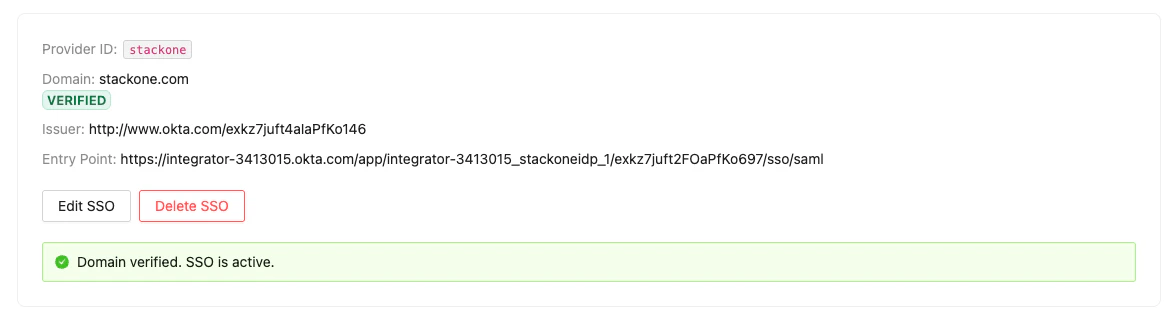
DNS propagation can take up to 48 hours, though it typically completes within minutes to a few hours. You can check what’s publicly visible with Google Admin Toolbox Dig.
Managing Your SSO Configuration
Once SSO is configured, you can:- Edit SSO settings — Update the domain, issuer, entry point, or certificate by clicking Edit SSO on the provider card
- Delete SSO — Remove the SSO configuration entirely by clicking Delete SSO
Troubleshooting
| Symptom | Likely Cause | Fix |
|---|---|---|
| SSO tab not visible | Feature not enabled for your organization | Contact StackOne support to enable SSO |
ERROR_UNMATCH_CERTIFICATE_DECLARATION_IN_METADATA | The registered certificate doesn’t match the one your IdP signs with — Okta generates a separate certificate for each app | Re-copy the X.509 certificate from this app’s View SAML setup instructions and update it via Edit SSO |
ERR_UNMATCH_ISSUER | The Entity ID (Issuer) doesn’t match the issuer your IdP sends | Copy the Identity Provider Issuer (http://www.okta.com/exk...) from the setup instructions and update it via Edit SSO |
| ”Provider domain has not been verified” | Domain verification hasn’t completed | Complete the domain verification step |
| ”Another organization has already verified this domain” | A domain can be verified by one organization at a time | The organization holding the domain deletes its SSO provider (Delete SSO), which releases it. Contact StackOne support if you don’t know which organization holds it |
| Domain verification keeps failing | TXT record on the wrong name, token not its own value, or DNS not propagated | The record name must be your registered email domain (@ for a root domain, the subdomain label otherwise); add the token as its own TXT value; check propagation with Google Admin Toolbox Dig |
| Users not redirected to IdP | Domain not verified | Complete the domain verification step |
| ”403 Forbidden” error | User lacks Org Admin role | Ensure you have the Org Admin role to manage SSO settings |
IdP-initiated sign-in is supported: users who click the StackOne tile in their Okta dashboard are signed in and land on the StackOne dashboard.