

 MCP
MCP A2A
A2AOverview
Workday Query Language (WQL) is a powerful capability that lets users run complex queries against Workday data structures. This guide introduces using WQL within StackOne integrations so you can retrieve and shape Workday data effectively through custom reports.Key Features of WQL
- Data retrieval: Extract specific data sources and their fields from Workday’s extensive datasets.
- Flexible querying: Construct queries to filter, sort, and aggregate Workday data.
- Nested data access: Access and work with nested data structures in Workday.
Example Query
Example WQL query to retrieve workers and selected attributes:Creating a custom report is optional for generating WQL (Workday Query Language). However, there are several ways to obtain WQL:
- Custom Report Feature: By using the custom report feature, users can more accurately tailor the data they wish to extract from the data source and then convert the report to WQL.
- Standard Reports: You can utilize existing standard reports and convert them directly to WQL. To do this, navigate to Convert Report to WQL and select the
Standard Report. - Data Source Navigation: You can also navigate to the Data Source using global search and access a specific data source (e.g., All Workers) to view the available data source fields. From there, you can form a WQL query according to the WQL syntax.
Create and View a Custom Report
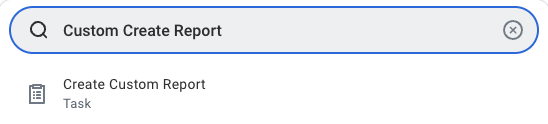
Configure custom report
Follow these steps to configure the custom report: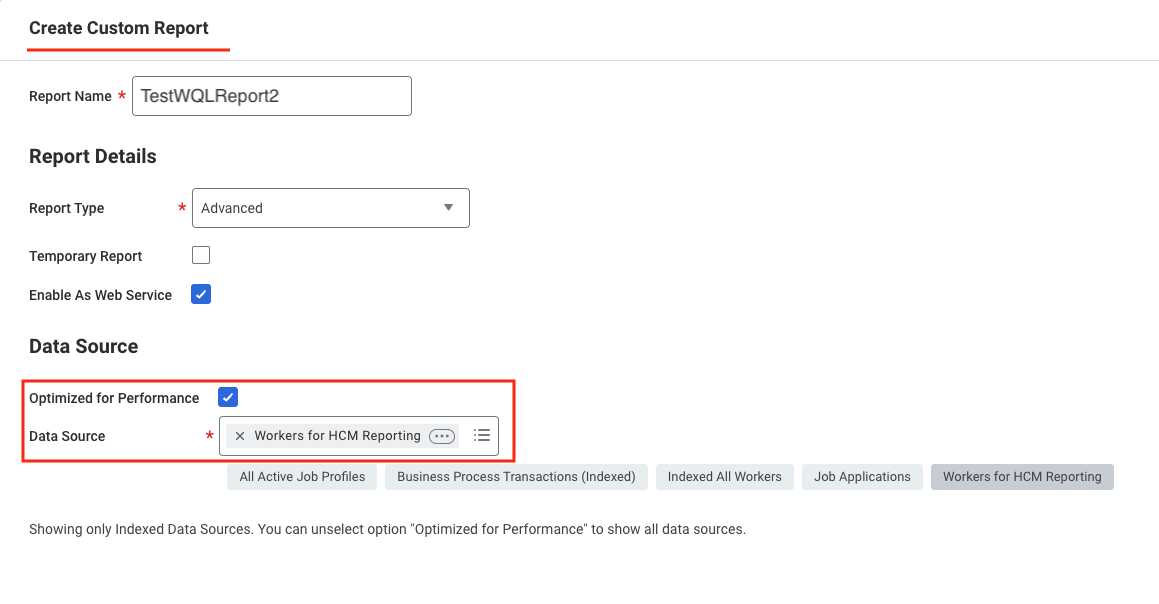
- Report Name: Must be unique within the tenant
- Report Type: Select Advanced
- Optimised for Performance: Tick this box to enhance performance
- Data Source: Choose the appropriate data source based on the data you need (e.g. Workers for HCM reporting).
OK to continue.Add and configure report fields:- Click the
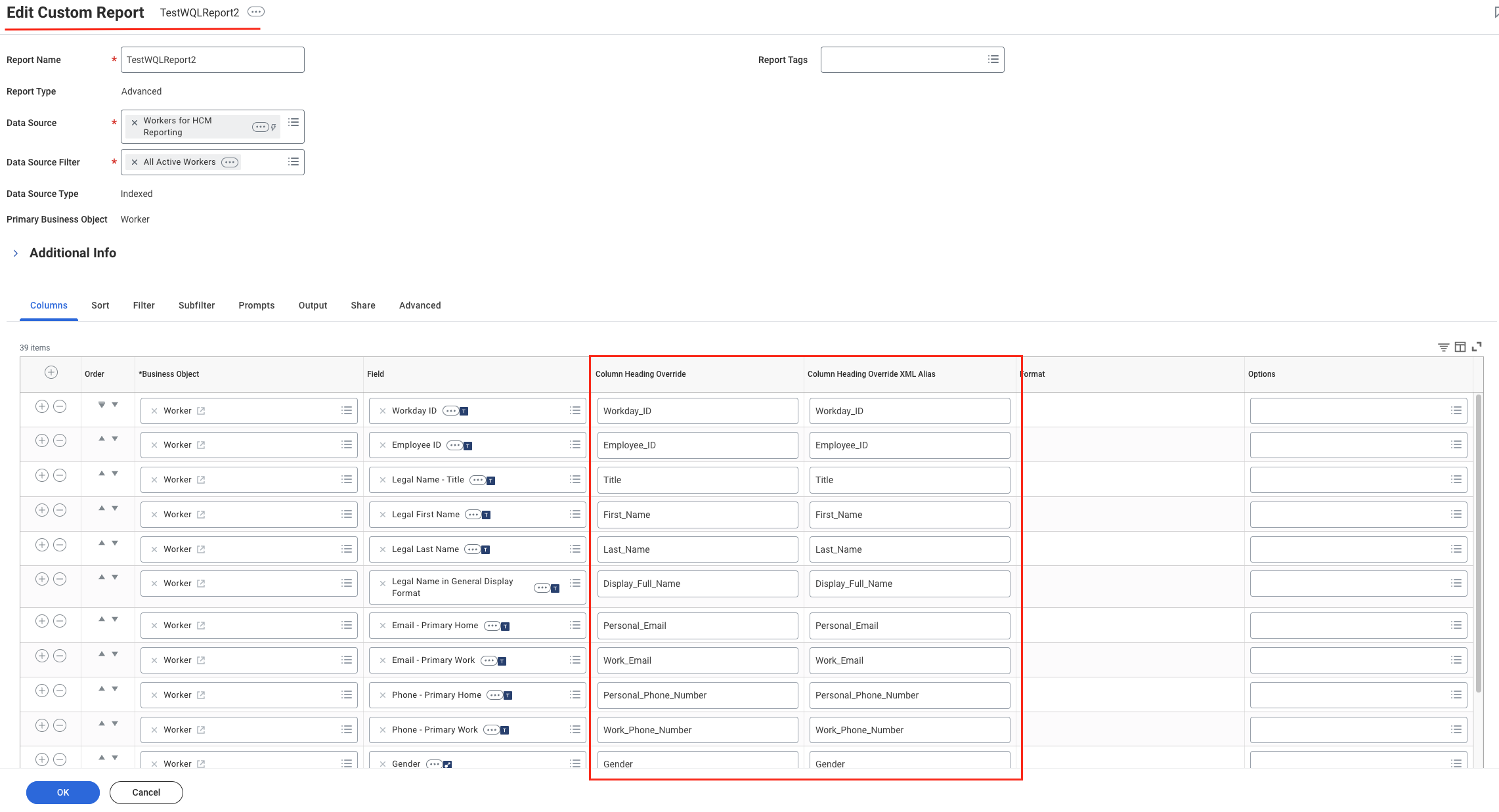
+icon to add a field. - Select a Business Object (e.g. Worker) in the Business Object column.
- Choose the specific field (e.g. Employee ID) in the Field column.
- Set aliases in Column Heading Override to ensure stable field names in API responses.
The Column Heading Override XML Alias column will appear only after you enable Enable As Web Service under the Advanced tab and save the report. You can view this column when you return to edit the report.
Add the following field aliases in your report. The aliases serve as stable identifiers for the API responses but the underlying fields must be properly configured.
- Workday_ID
- Employee_ID
- Title
- First_Name
- Last_Name
- Display_Full_Name
- Personal_Email
- Work_Email
- Personal_Phone_Number
- Work_Phone_Number
- Gender
- Ethnicity
- Date_Of_Birth
- Marital_Status
- Job_Title
- Company
- Hire_Date
- Original_Hire_Date
- Employment_Status
- Location
- Employment_Type
- Manager
- Cost_Centers
- National_Identifier_Numbers
- Termination_Date
- Home_Address
- Home_Address_Country
- Home_Address_Postal_Code
- Home_Address_State
- Home_Address_City
- Work_Address
- Work_Address_Country
- Citizenships
- Job_Code
- Effective_Date
- Grade
- Benefits
- Skills
Configure report prompts
- Tick Populate Undefined Prompt Defaults to make prompt default fields visible in the report table. Once the
Prompt Defaultsgrid is visible, the ticked Populate Undefined Prompt Defaults field will be unticked again. - Tick Display Prompt Values in Subtitle to enable prompt display.
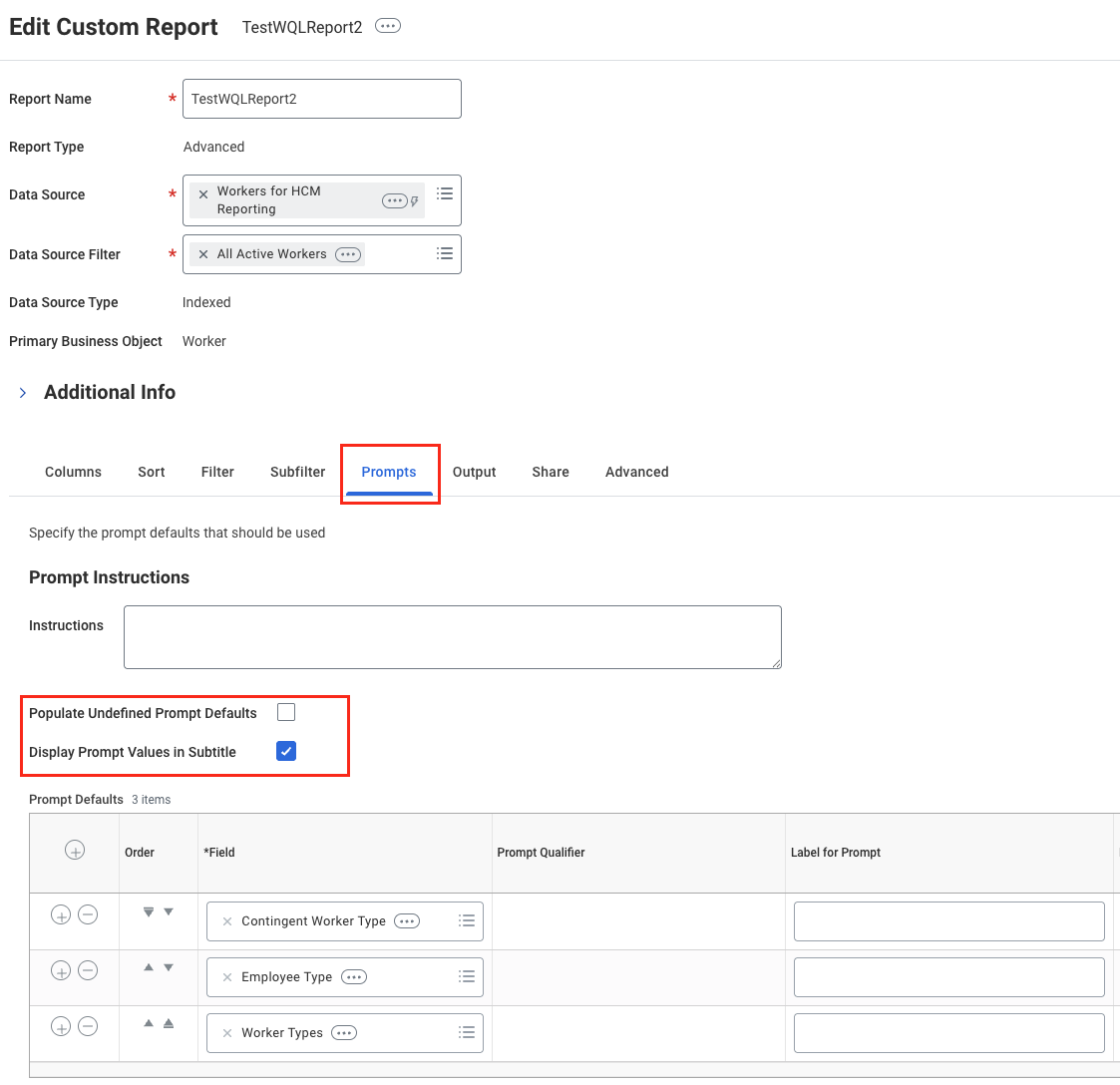
OK to save the report.Go to View Custom Report
Search for 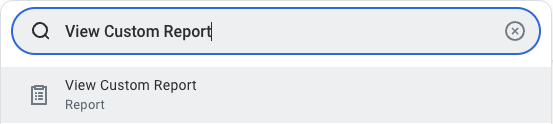
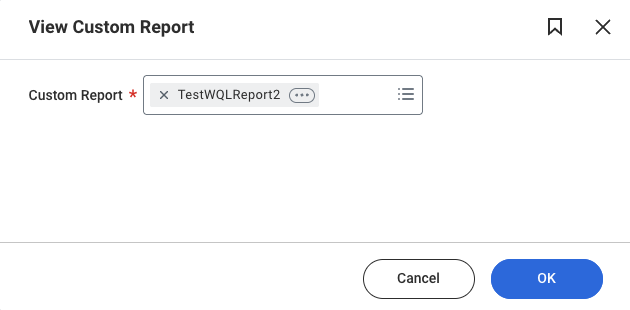
View Custom Report.OK to open it.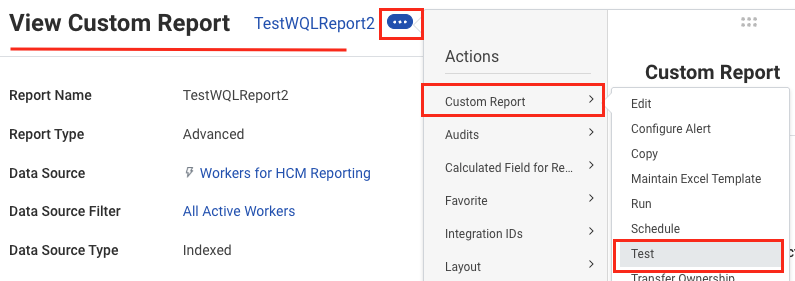
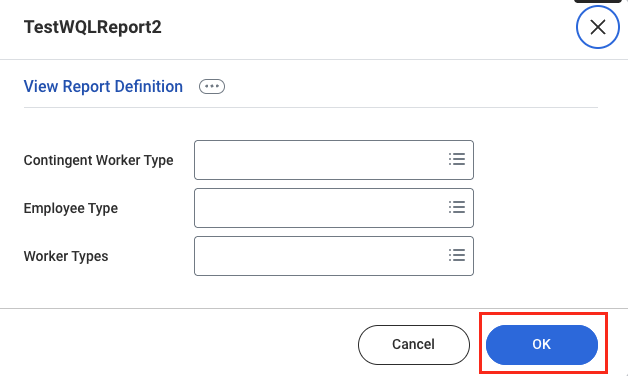
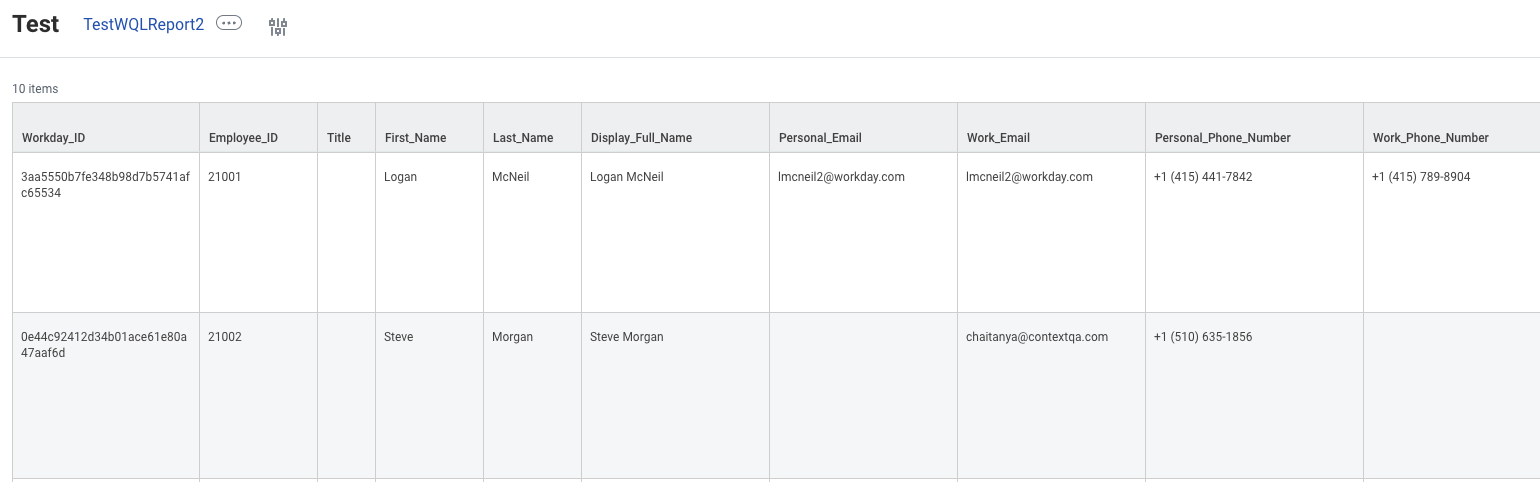
Convert the Report to WQL in Workday
Go to Convert Reports to WQL
Use the global search bar to search for “Convert Reports to WQL”.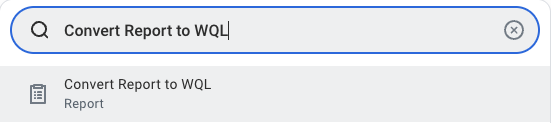
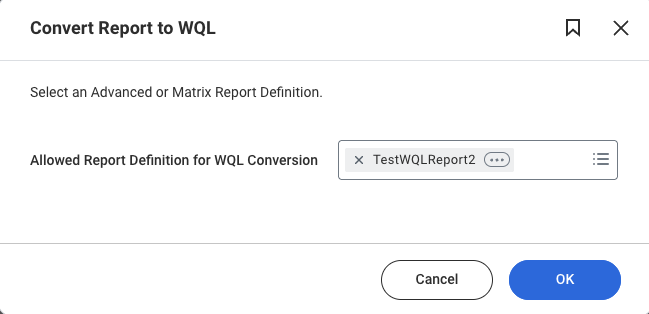
OK.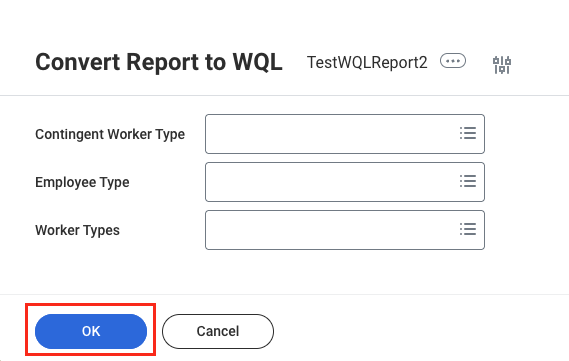
Get the generated WQL query
You are taken to a page showing the generated WQL query for your custom report.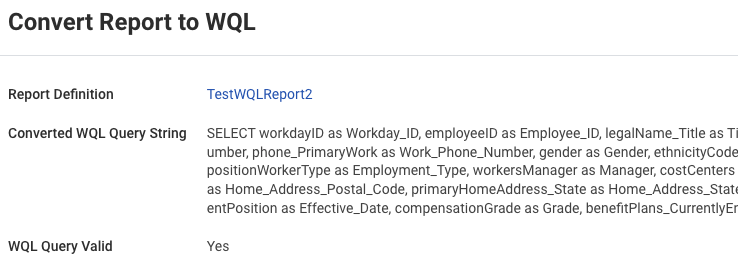
Employee WQL Query field when connecting through the StackOne Connector Hub.WQL does not support calculated fields when converting custom reports to WQL.
StackOne Configuration
To enable Workday WQL in StackOne, go to the HRIS category on the Integrations page and enable Workday WQL.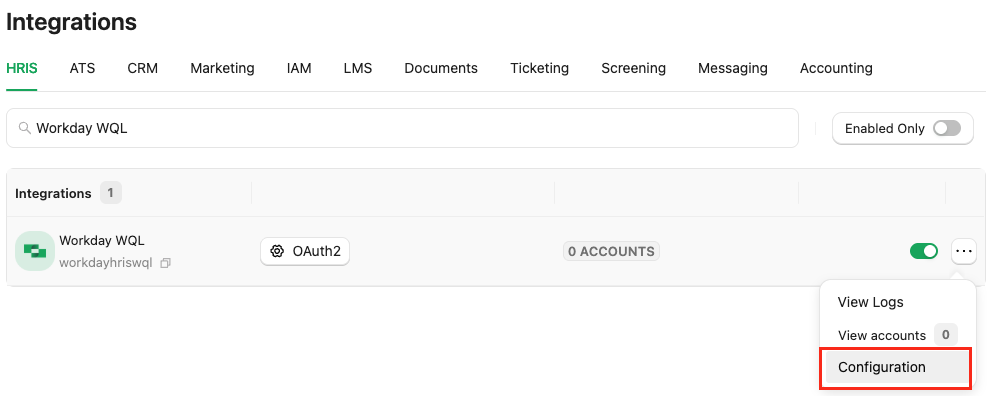
OAuth2 as the authentication type.
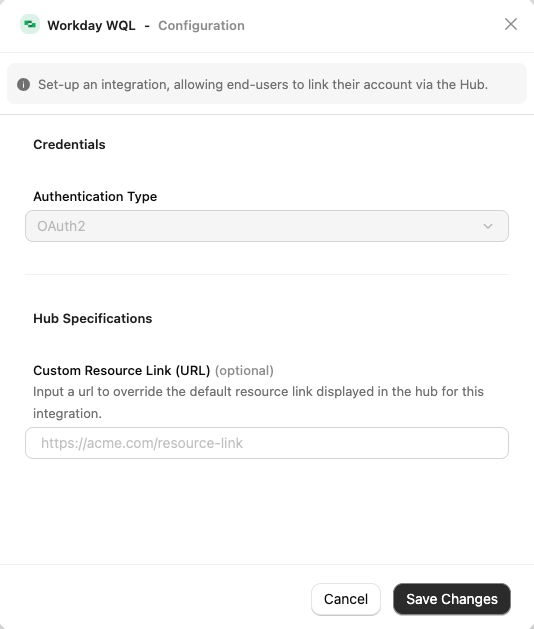
Confirm or Save Changes to enable the Workday integration, allowing users to link their accounts via the StackOne Connector Hub.
ATS User Enablement
Users connect their Workday accounts through the StackOne Connector Hub by providing the WQL query generated in their Workday account.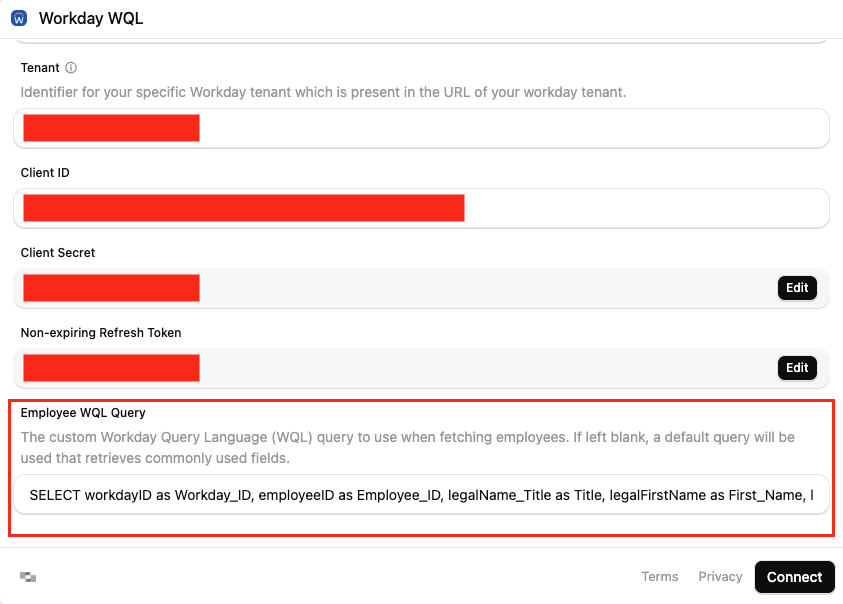
Users will receive data based on the WQL query provided during the connection setup when they request a list of employees using the Unified APIs.
Limitations of WQL
- Calculated fields: WQL does not support calculated fields when converting custom reports to WQL.