

Create an OAuth application
Register an OAuth2 application in your Sentry organization to enable OAuth authentication.
1
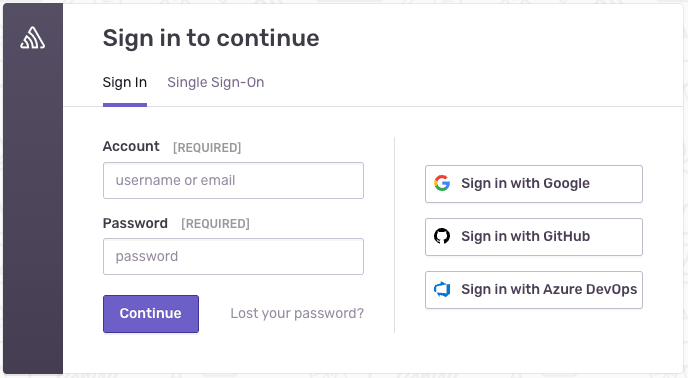
Sign in to Sentry
Sign in to your Sentry account.
2
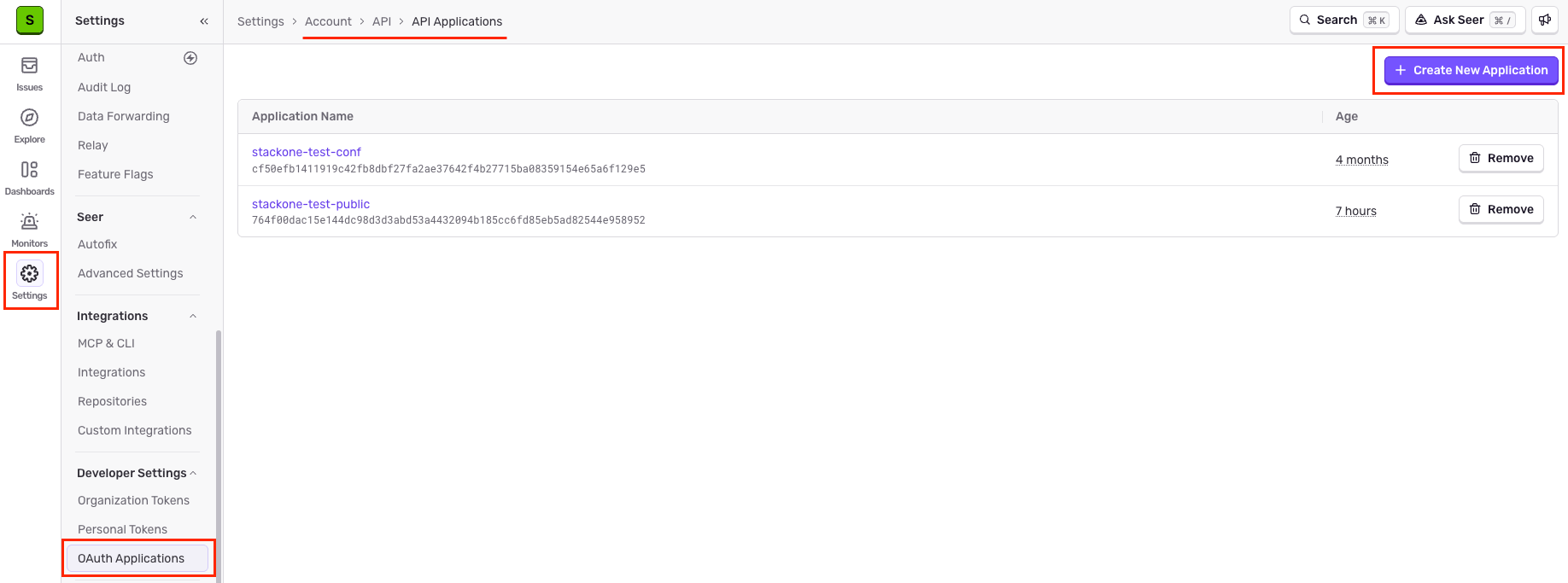
Go to OAuth Applications
Navigate to Settings > Developer Settings > OAuth Applications. Click + Create New Application.
3
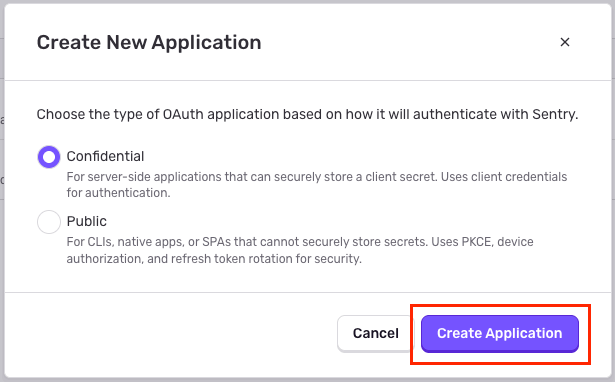
Create a new OAuth application
Start the process of creating a new OAuth application in Sentry.
- Select Confidential as the application type.
- Click Create Application to create the OAuth application.
4
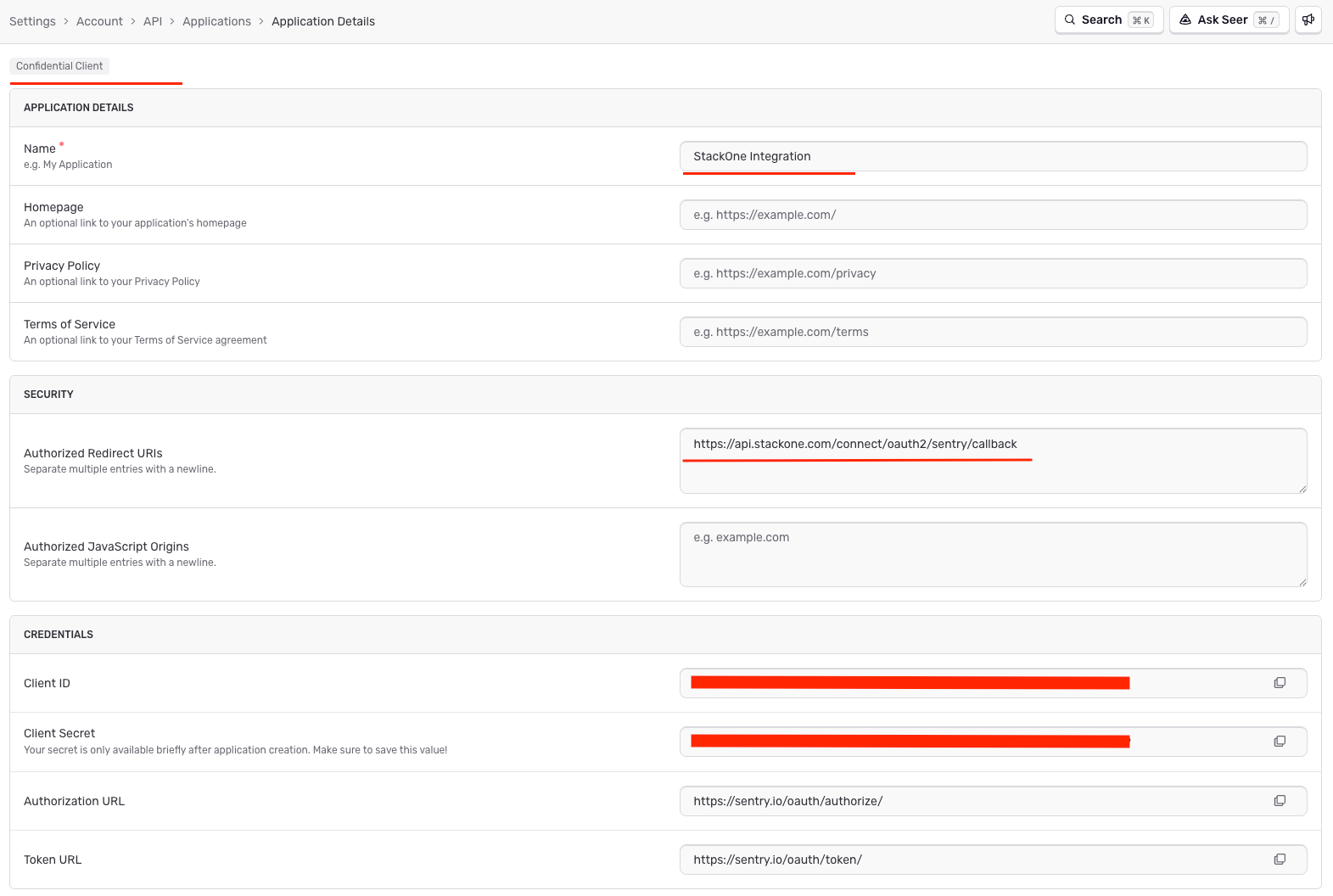
Configure application settings
Fill in the application details.
- Application Name:
StackOne Integration - Redirect URI:
https://api.stackone.com/connect/oauth2/sentry/callback - Copy both the Client ID and Client Secret. The secret is shown only once; store it securely for later use.
- The form will be auto-saved.
Select OAuth scopes
Sentry does not have a scope selection step in the OAuth application form. Enter a space-separated list of scopes in the Scopes field when configuring the connector profile.
1
Select required scopes
These are the scopes required for your use case:
Creating the StackOne Connector Profile
To create the Connector Profile in StackOne for Sentry:1
Navigate to Connector Profiles
Login to StackOne and navigate to Connector Profiles
2
Create New Connector Profile
- Click + Connector Profile
- Search for and select Sentry
- Select Type as OAuth 2.0 (Confidential Application)
- Fill out the fields using details retrieved from your provider:
- Client ID
- Client Secret
- Scopes (Optional)
- (Optional) Select Actions to be enabled for this Connector Profile
- Click Create profile