A Vimeo Pro, Business, or Premium account is recommended for full API access.

Sign in to Vimeo Developer Portal

To use the Vimeo API with OAuth 2.0, you need a Vimeo account. If you do not have one, sign up at Vimeo.
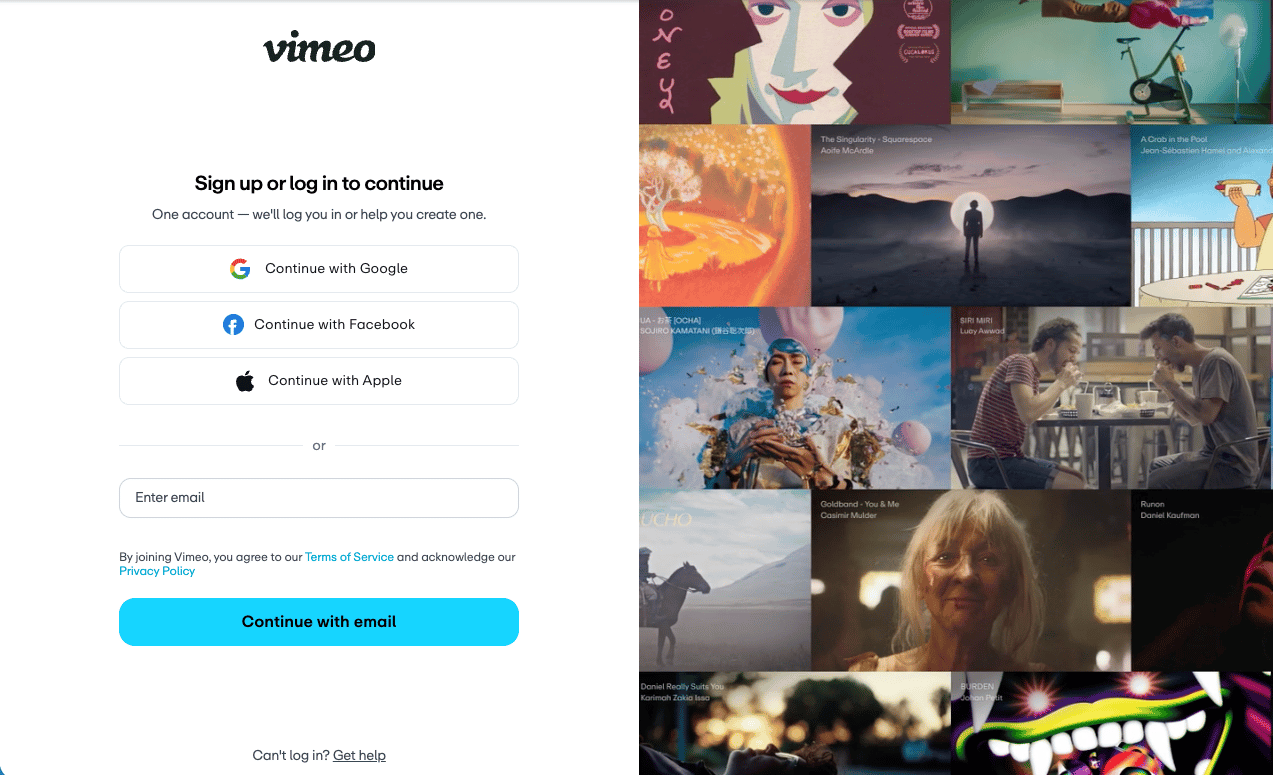
Vimeo sign-in page

Register a Vimeo App

To use the Vimeo API with OAuth 2.0, you need to register an application on the Vimeo Developer site.

1

Access Vimeo Developer Portal

Go to the Vimeo Developer Portal and sign in with your Vimeo account.
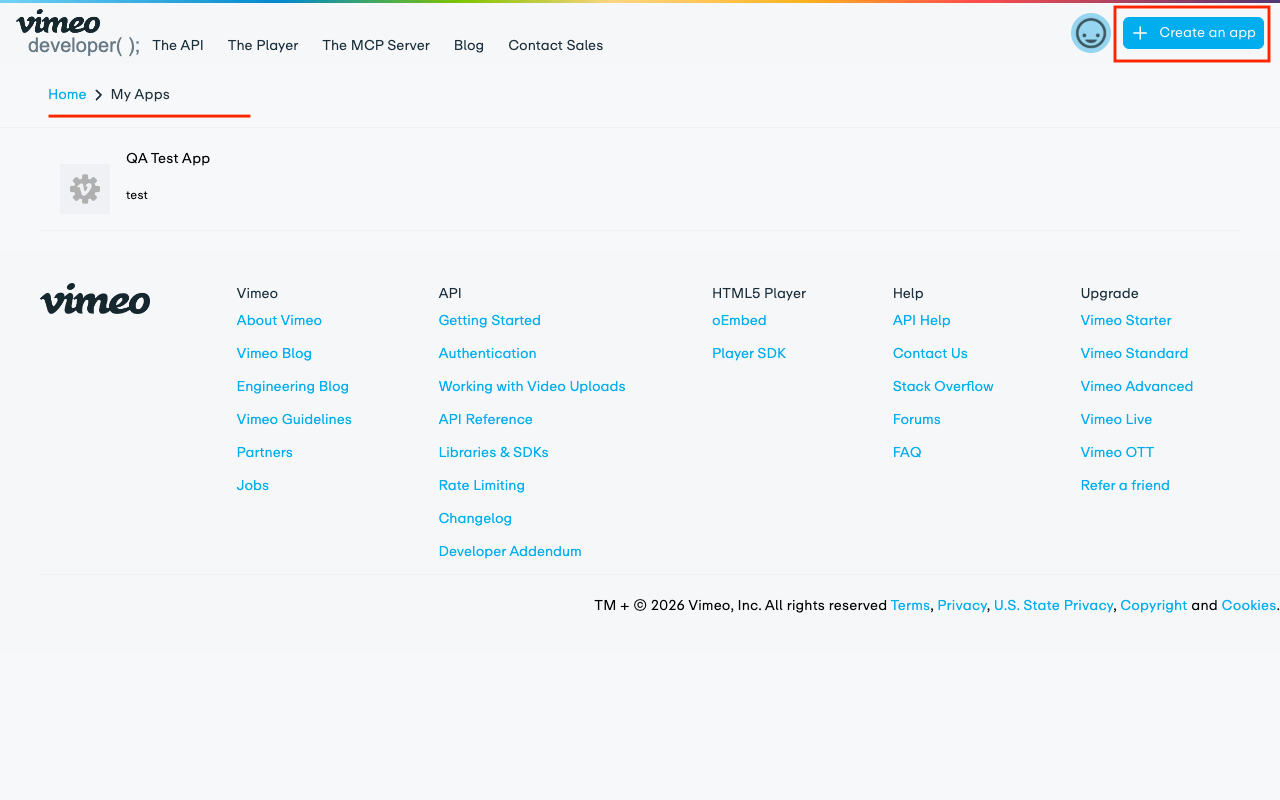
Vimeo Developer Portal My Apps page
2

Create a New App

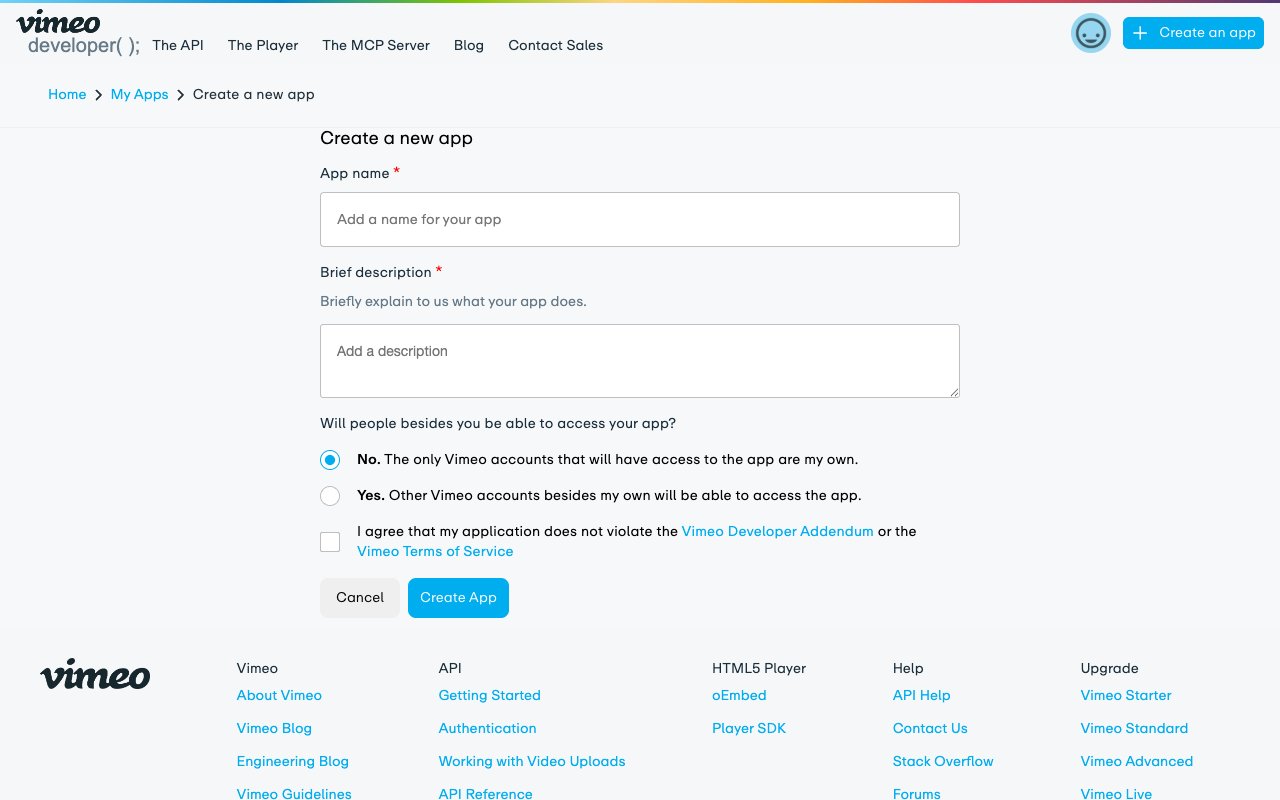
Click the + Create an app link in the centre of the page or the top-right corner and fill in the required details.

  • App name: Choose a unique name for your app. For example: StackOne Integration.
  • App description: Provide a brief description of your app’s functionality.
  • Will people besides you be able to access your app?: Select No unless you are building a multi-user integration.
  • Tick the checkbox to agree to the Vimeo API Terms of Service.
  • Click Create App to proceed.
Vimeo Create a New App form
3

Copy Your App Credentials

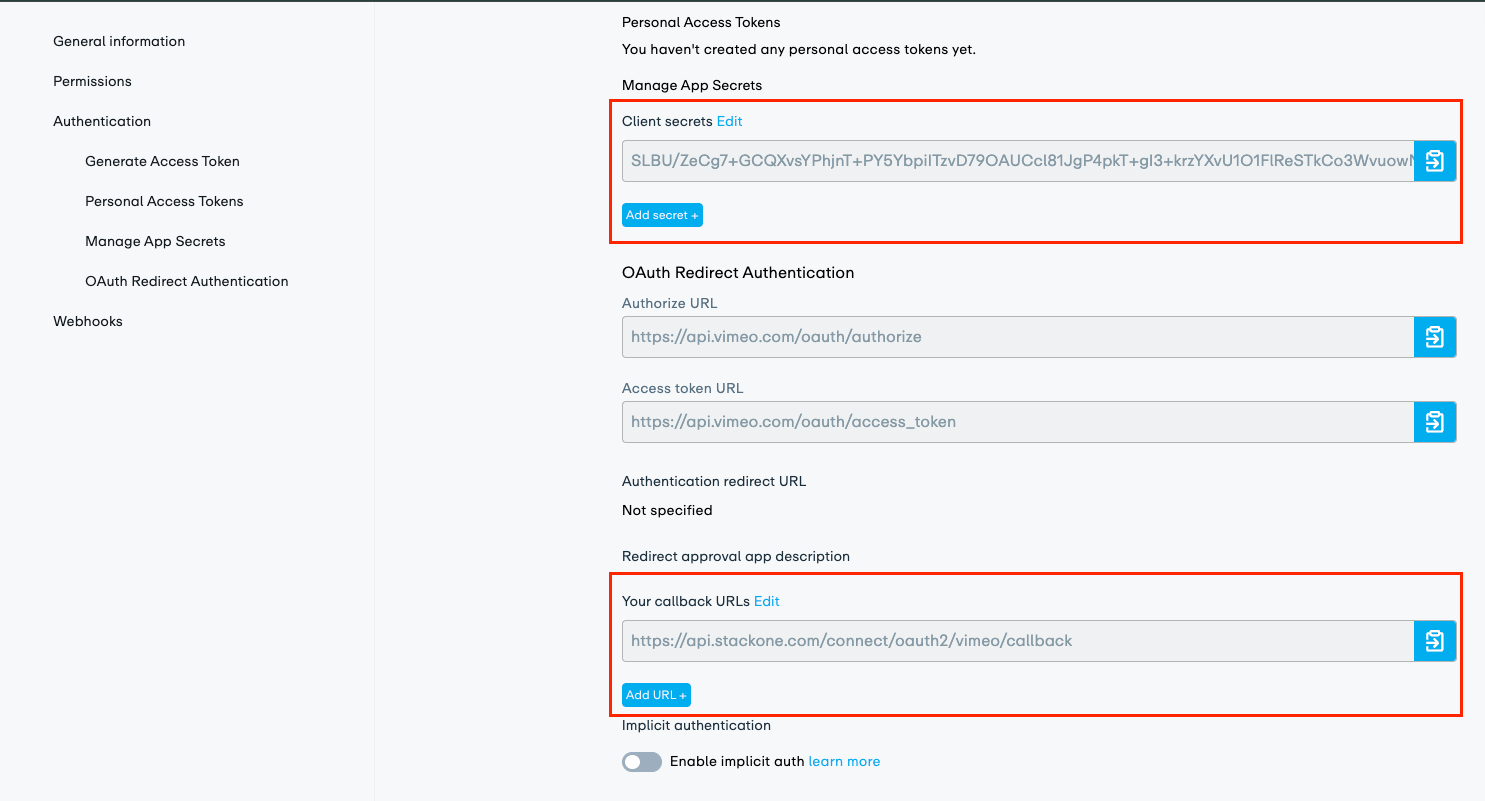
After creating the app, you will be redirected to the app settings page. If not, click on your app name from the My Apps list to open its settings. Note the Client Identifier and Client Secret displayed at the top of the page — you will need these when creating the StackOne Connector Profile.
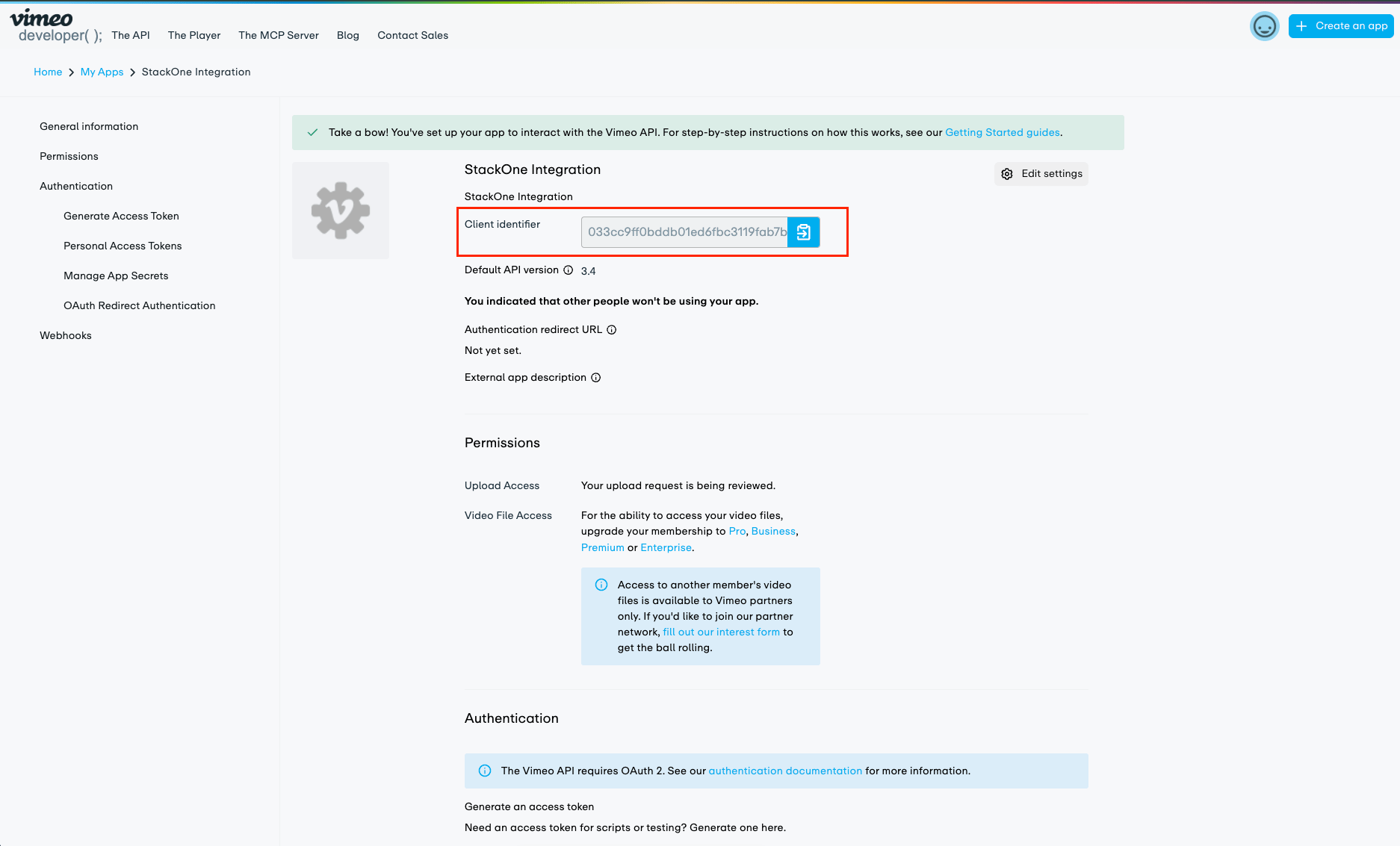
Vimeo app settings page showing Client Identifier and Client Secrets

Configure Scopes

Configure the OAuth scopes your app needs to access Vimeo resources.

1

Select Scopes

Enables actions: Add Comment Reply, Add To Watch Later, Add To Watch Later By User ID, Add Video Comment, Add Video Credit, Add Video Tag, Add Video To Channel, Add Video To Folder, Add Video To Folder By User ID, Add Video To Showcase, Add Video To Showcase By User ID, Create Channel, Create Folder, Create Folder By User ID, Create Showcase, Create Showcase By User ID, Delete Channel, Delete Folder, Delete Folder By User ID, Delete Showcase, Delete Showcase By User ID, Delete Text Track, Delete Video, Delete Video Comment, Edit Text Track, Edit User, Edit User By ID, Edit Video Comment, Follow User, Get Authenticated User, Get Channel, Get Creative Commons Licenses, Get Folder, Get Folder By User ID, Get Languages, Get Showcase, Get Showcase By User ID, Get Text Track, Get User, Get Video, Get Video Comment, Like Video, Like Video By User ID, List Categories, List Channel Videos, List Channels, List Comment Replies, List Content Ratings, List Embed Presets, List Folder Videos, List Folder Videos By User ID, List Folders, List Folders By User ID, List Groups, List Liked Videos, List Portfolios, List Related Videos, List Showcase Videos, List Showcase Videos By User ID, List Showcases, List Showcases By User ID, List Text Tracks, List Text Tracks By Album ID, List Text Tracks By Channel ID, List Text Tracks By Version ID, List User Followers, List User Following, List User Liked Videos By ID, List User Videos By ID, List Video Comments, List Video Credits, List Video Tags, List Video Thumbnails, List Videos, List Watch History, List Watch Later, List Watch Later By User ID, Remove From Watch Later, Remove From Watch Later By User ID, Remove Video From Folder, Remove Video From Folder By User ID, Remove Video From Showcase, Remove Video From Showcase By User ID, Remove Video Tag, Search Users, Search Videos, Unfollow User, Unlike Video, Unlike Video By User ID, Update Channel, Update Folder, Update Folder By User ID, Update Showcase, Update Showcase By User ID, Update Video

In the Authentication section of your app settings, select the Authenticated (you) radio button. Then select the necessary scopes from the list below. The public scope is required.

  • NOTE: The upload scope is not available in a sandbox environment, so it is excluded from the default scopes list. You can still add it manually if needed.
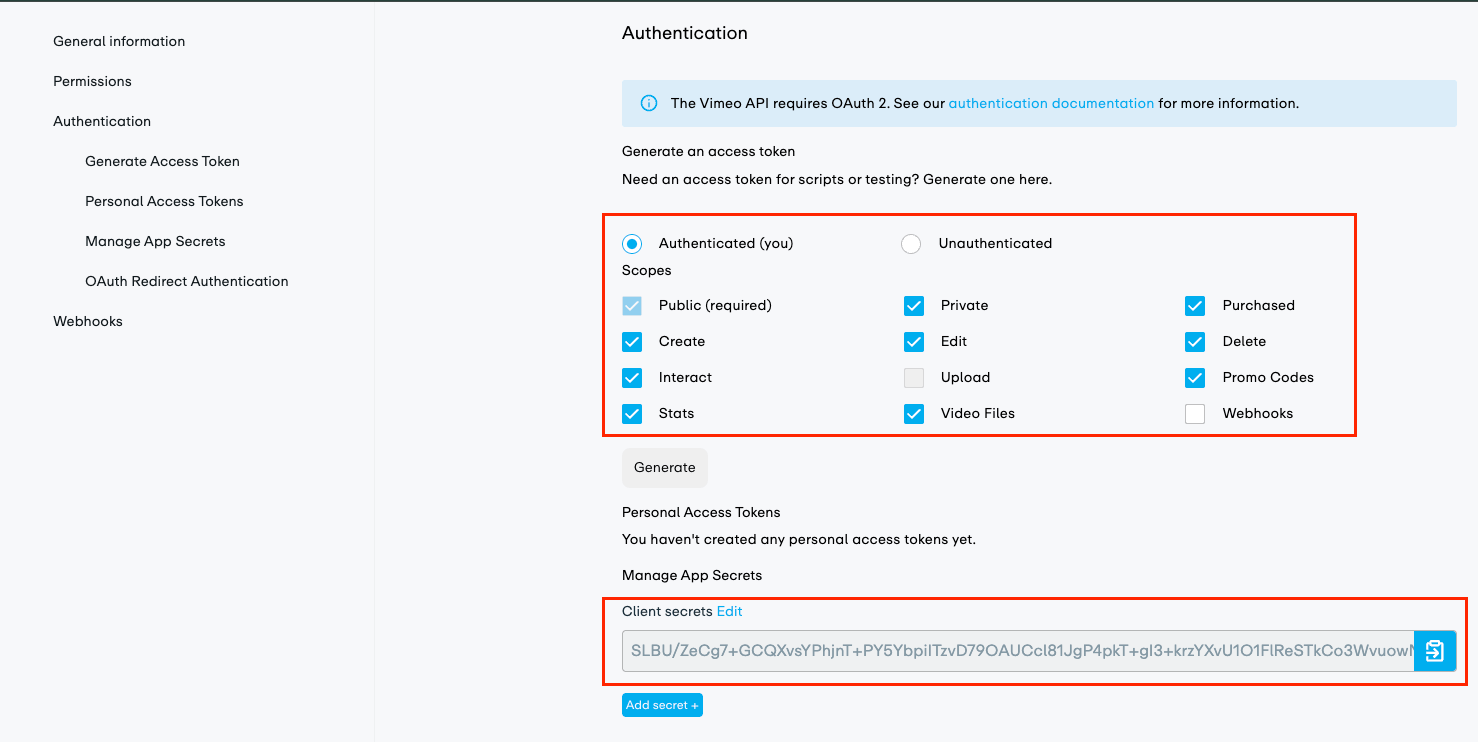
Vimeo Authentication section with Authenticated (you) radio button and Generate button

Configure OAuth Redirect URI

Add the StackOne callback URL so Vimeo can redirect users back after authorisation.

1

Add Callback URL

Scroll down to the Callback URLs section in your app settings and click Add URL.

  • A modal will open where you can enter the redirect URI.
  • Enter https://api.stackone.com/connect/oauth2/vimeo/callback as the redirect URI.
  • Click Add.
Vimeo OAuth Redirect Authentication section with callback URLs

Creating the StackOne Connector Profile

To create the Connector Profile in StackOne for Vimeo:
1

Navigate to Connector Profiles

Login to StackOne and navigate to Connector Profiles
2

Create New Connector Profile

  • Click + Connector Profile
  • Search for and select Vimeo
  • Select Type as OAuth 2.0
  • Fill out the fields using details retrieved from your provider:
    • Client ID
    • Client Secret
    • Scopes (Optional)
  • (Optional) Select Actions to be enabled for this Connector Profile
  • Click Create profile
Congratulations! The new Connector Profile will now show up in your project ready to be used. You can now continue to Link Accounts for Vimeo.