

Generate an API key
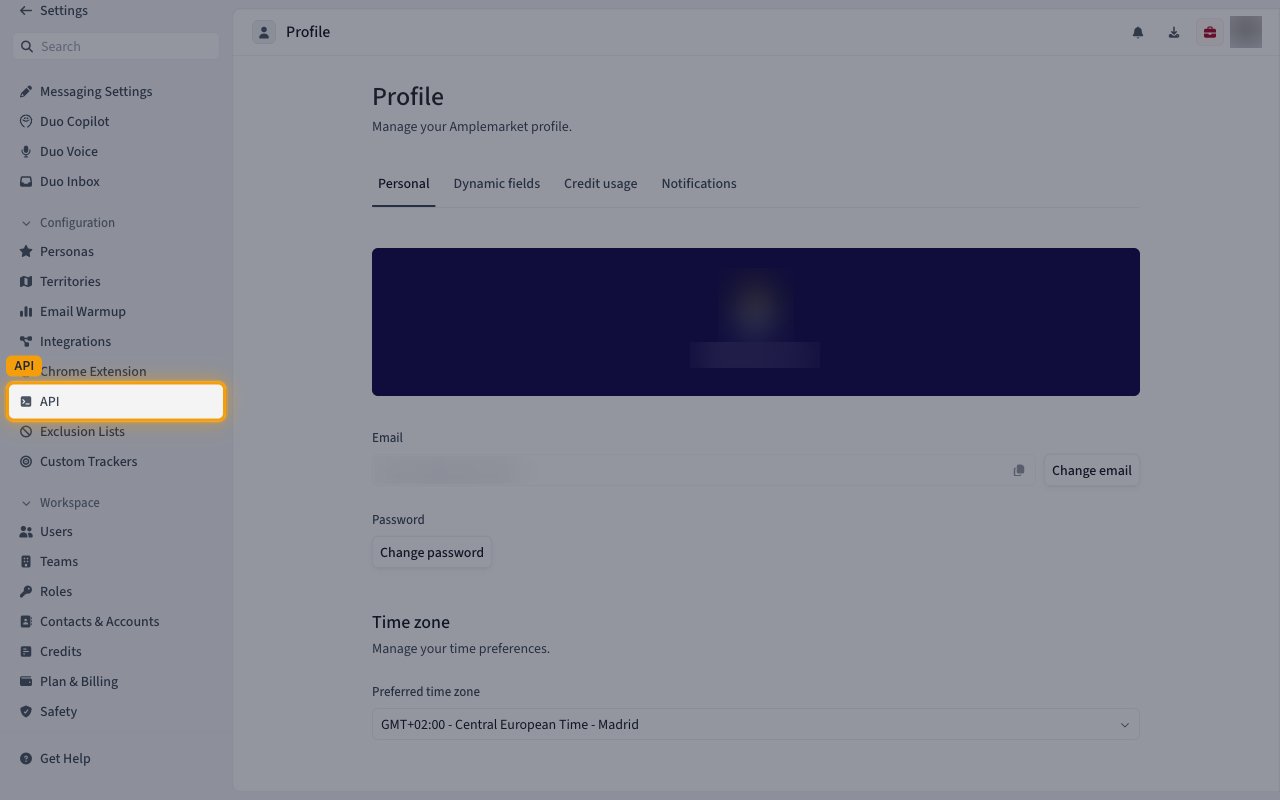
Amplemarket API keys are created and managed from the API page under your account’s Configuration settings.
1
Open the API settings
2
Create a new API key
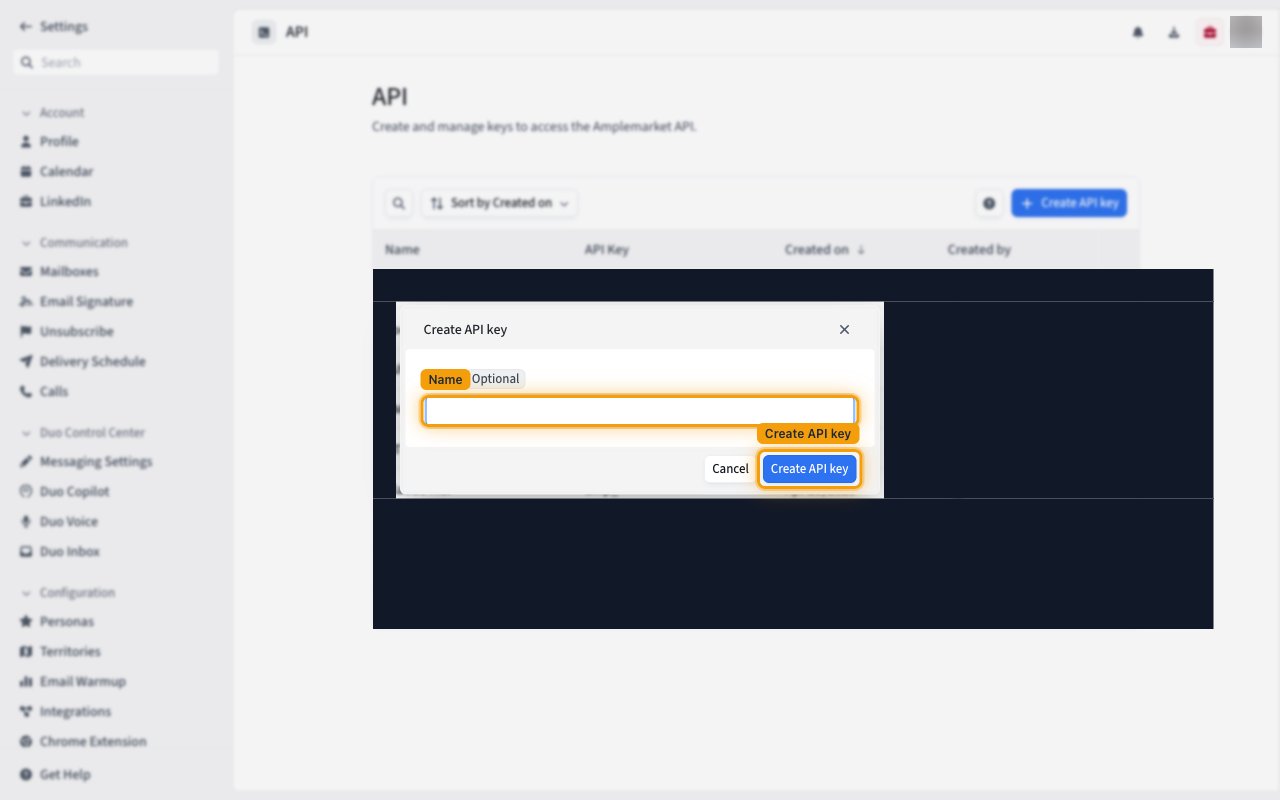
On the API page, click + Create API key.
- A Create API key dialog opens with an optional Name field.
- Enter a name to identify this key (for example,
StackOne), then click Create API key to generate it.
3
Copy your API key
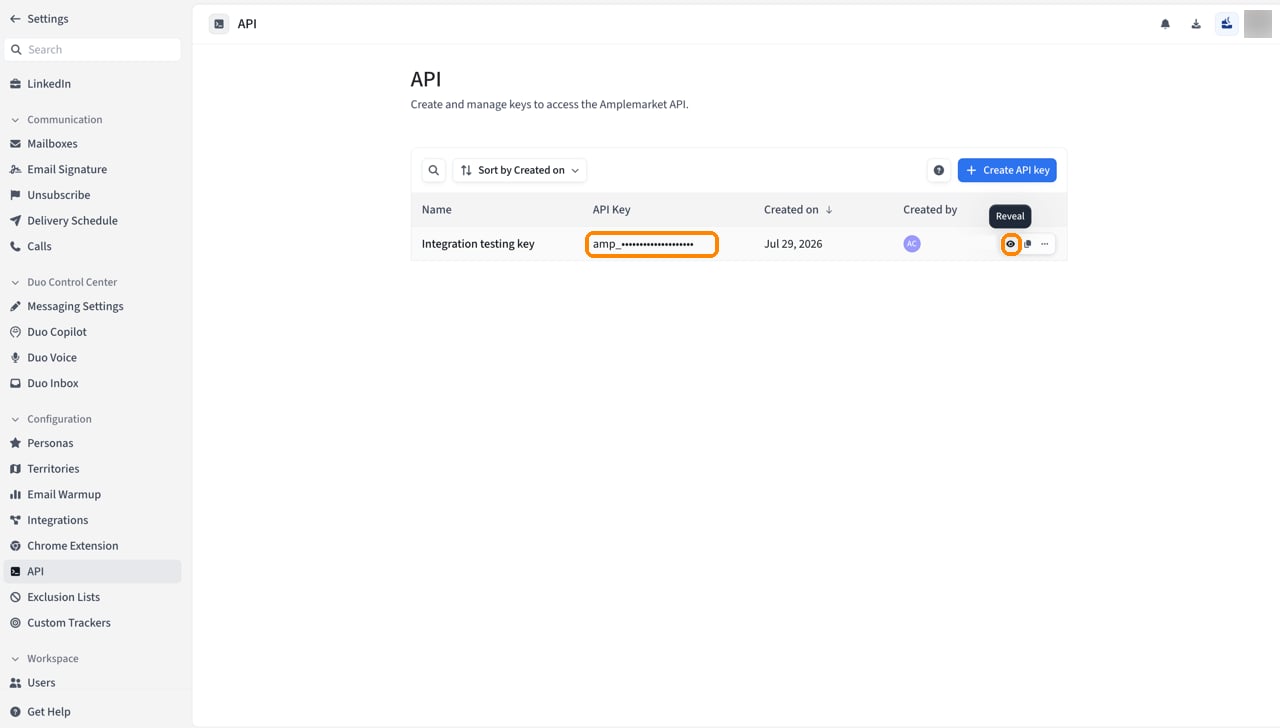
Your new key appears at the top of the table, masked by default.
- Click the eye icon in the key’s row to reveal the value, then click the copy icon next to it to copy the key.
- The key remains available in this table — you can return to Configuration > API and reveal it again at any time if you need to view it later.
- Paste the copied value into the API Key field in StackOne Hub.
Linking the Account from the Hub
1
Navigate to the Hub
Use one of the three Linking Account Methods to access the Hub.
2
Fill out the fields
Fill out the following fields using details from your provider:
- API Key
3
Connect
- Click Connect
- If applicable, the provider will redirect you to a sign-in or authorization page. Complete the provider’s authorization flow.
- Once authorization is successful, you will see a confirmation popup
If the account linking is successful, you will see the newly linked account in your Accounts page.