

Find your Username and Region
Sign in to Auvik and collect the two values that identify your account.
Sign in to Auvik
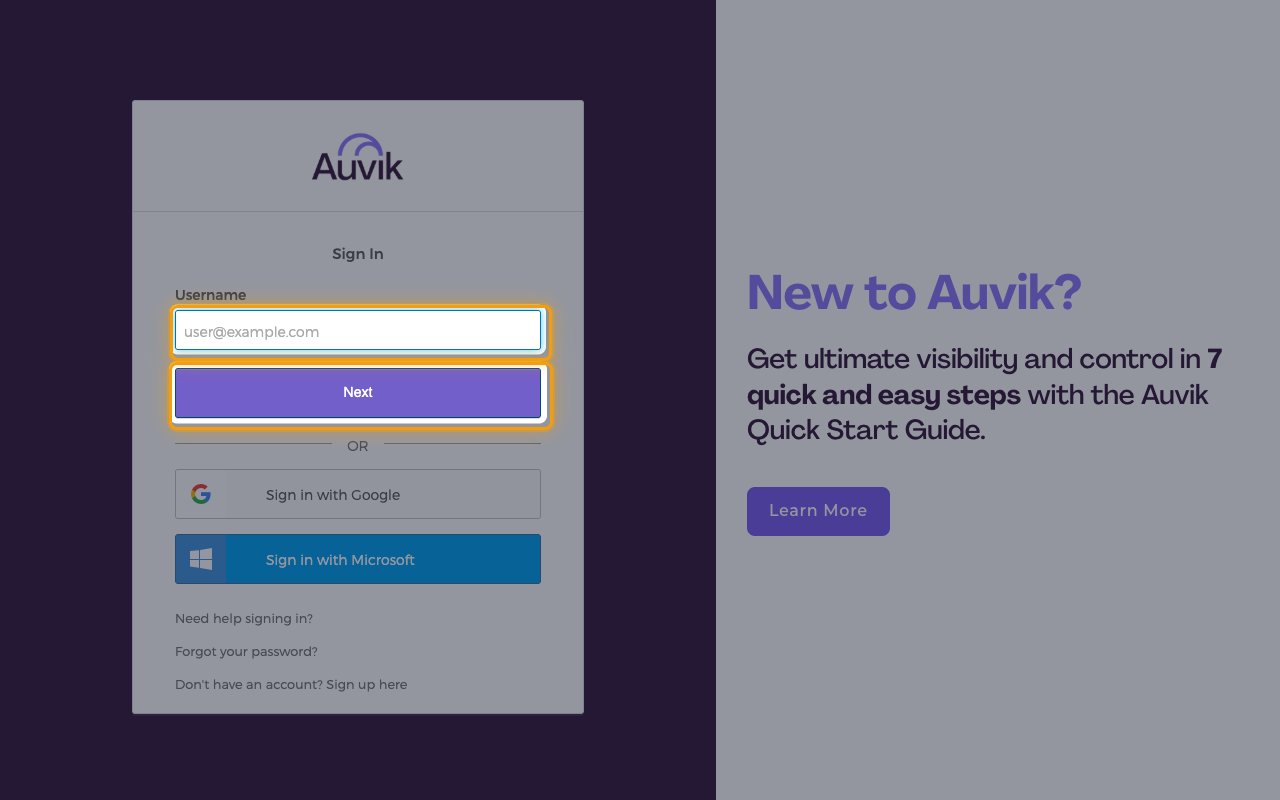
Open the Auvik sign-in page and sign in as the user you want StackOne to authenticate as. Sign-in is two steps: type the address in Username, click Next, then enter the password on the screen that follows.
- Sign in with Google and Sign in with Microsoft are available if your Auvik account uses one of those identity providers.
- Use a dedicated Auvik user as a service account rather than an individual employee’s login — if that person’s account is deactivated, the API key stops working.
Find your Region / Cluster
Your Region / Cluster is the middle segment of your Auvik dashboard address, between your site name and my.auvik.com. Read it from your browser’s address bar once you are signed in.
- Format:
https://{domain-prefix}.{region}.my.auvik.com - Example: for
https://stackonedev.lnx.my.auvik.com, the Region / Cluster islnx - Enter this value in the Region / Cluster field in StackOne Hub.
- If the region is wrong, or your account is later moved to another cluster, Auvik responds with an HTTP 308 redirect pointing at your account’s actual cluster.
Copy your Username
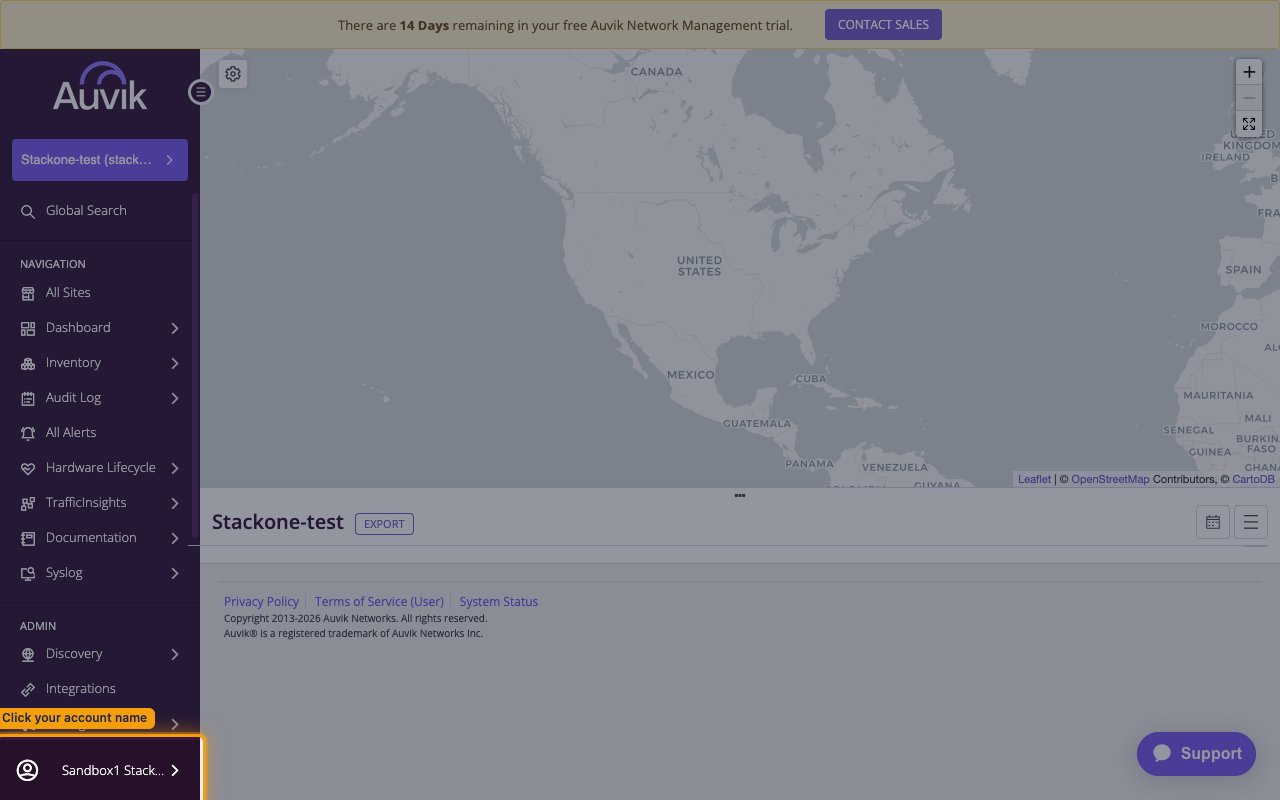
In the left navigation, click your account name at the bottom, then click Edit Profile to open the Profile page. The address in the Email field is your Username.
- Copy the Email value and paste it into the Username field in StackOne Hub.
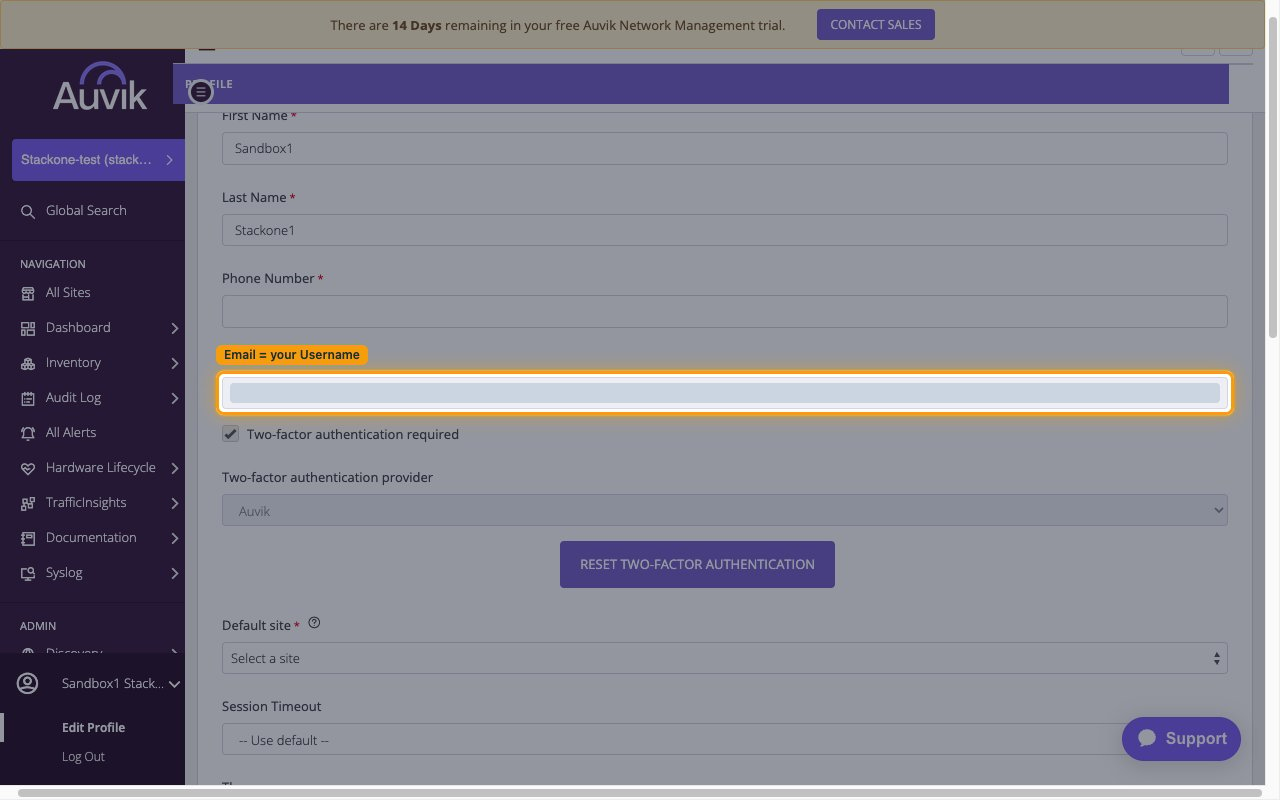
Locate the Email field
On the Profile page, the Email field near the top holds the sign-in address you need.
Generate your API Key
Generate an API Key on the same Profile page. This is the value StackOne uses as the password.
Open the API Key section
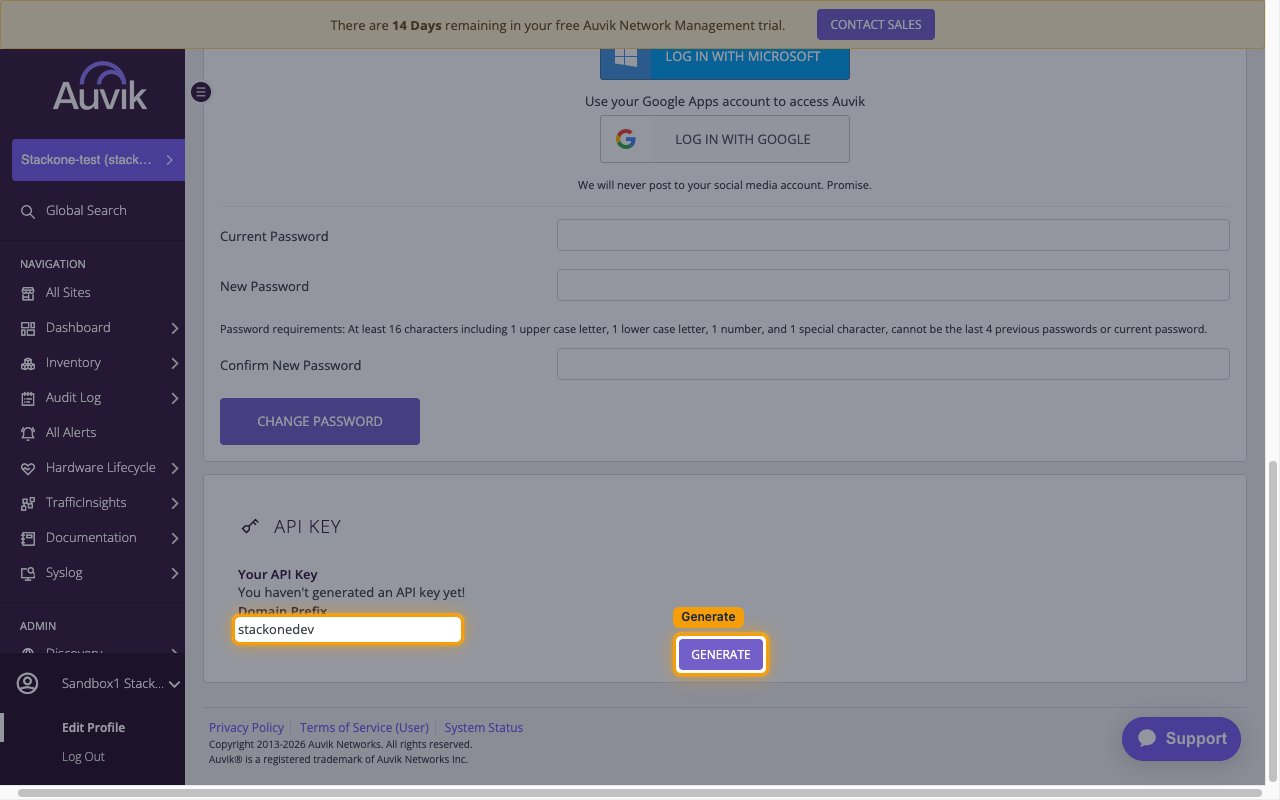
Scroll to the bottom of the Profile page to the API Key section. If you have never created one, Your API Key reads You haven't generated an API key yet! and a Generate button is shown. If a key already exists, the buttons read Regenerate and Revoke instead.
- The Domain Prefix shown here (for example
stackonedev) is your site name — it is not the Region / Cluster. - Regenerate immediately invalidates the previous key, so only use it if you are ready to update everywhere the old key is in use.
Copy the key and finish
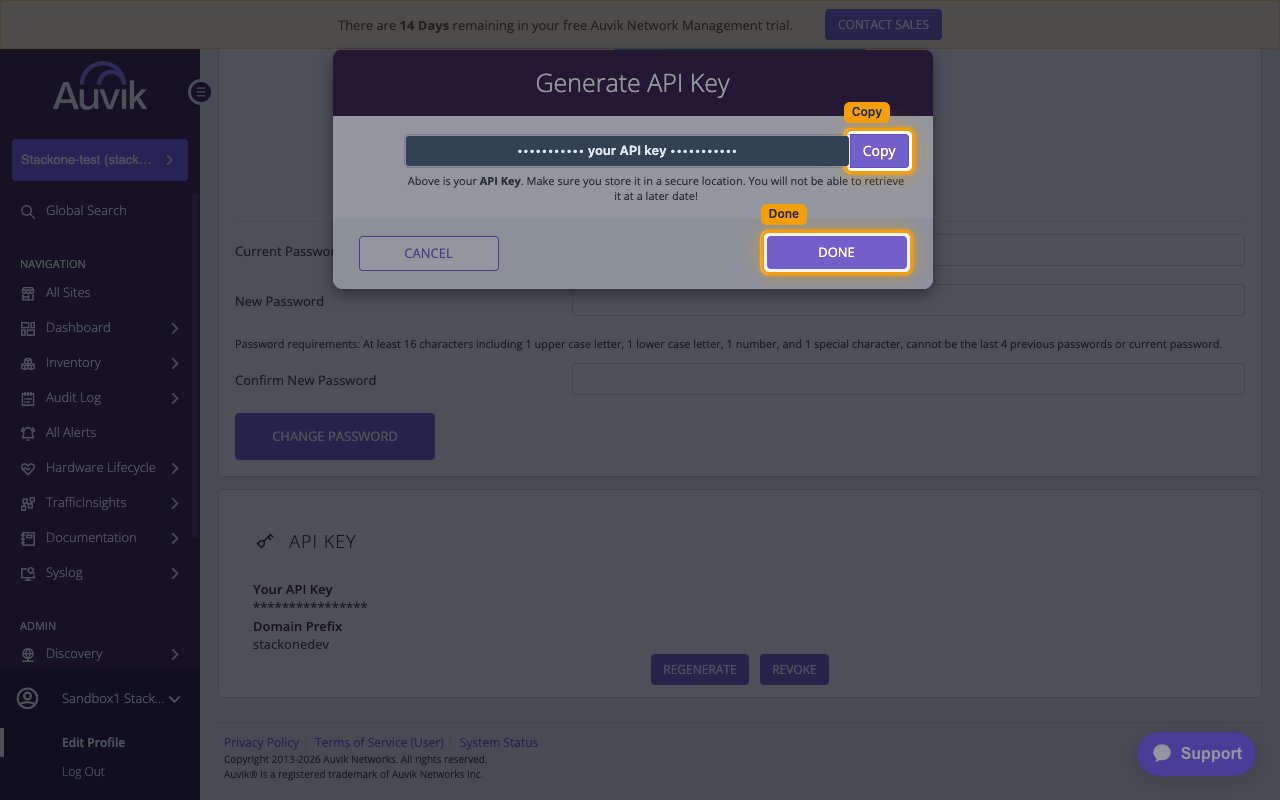
Click Generate. In the Generate API Key dialog, click Copy to copy the key, then click Done.
- The API Key is only displayed once, at generation time, and cannot be retrieved later. Auvik states: Above is your API Key. Make sure you store it in a secure location. You will not be able to retrieve it at a later date!
- Paste the copied key into the API Key field in StackOne Hub before closing the dialog — once you click Done the full value is replaced by asterisks and cannot be read again.
- Clicking Cancel discards the dialog, but the key has already been created at this point.
Linking the Account from the Hub
Navigate to the Hub
Fill out the fields
- Region / Cluster
- Username
- API Key
Connect
- Click Connect
- If applicable, the provider will redirect you to a sign-in or authorization page. Complete the provider’s authorization flow.
- Once authorization is successful, you will see a confirmation popup
If the account linking is successful, you will see the newly linked account in your Accounts page.
Next Steps
Webhooks setup
Configure receiving Events for Auvik into StackOne.