

Generate your CATS API Key
Create a new API key from your CATS account settings to authenticate with StackOne.
Go to the CATS login page
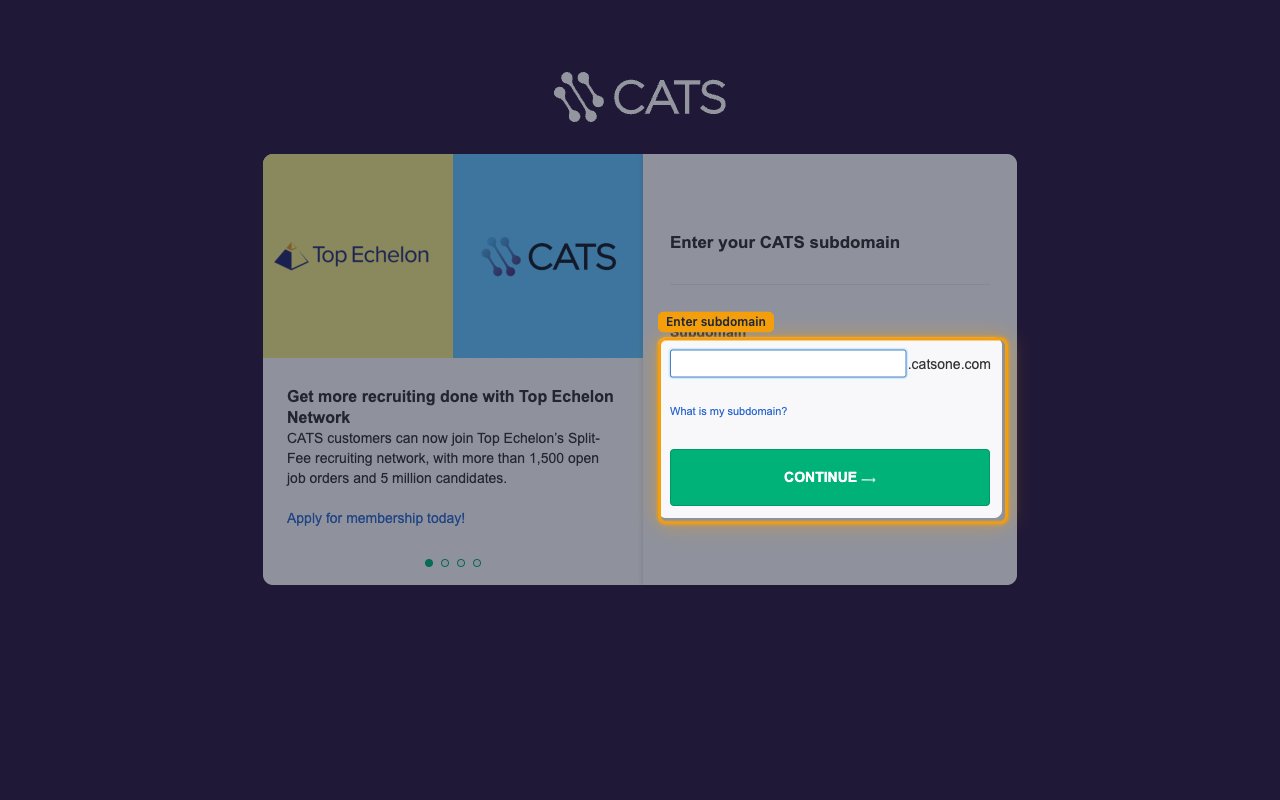
Navigate to login.catsone.com. Enter your Subdomain and click Continue.
- Your Subdomain is the first part of your CATS URL: if your full URL is
https://yourcompany.catsone.com, thenyourcompanyis your subdomain.
Sign in with your credentials
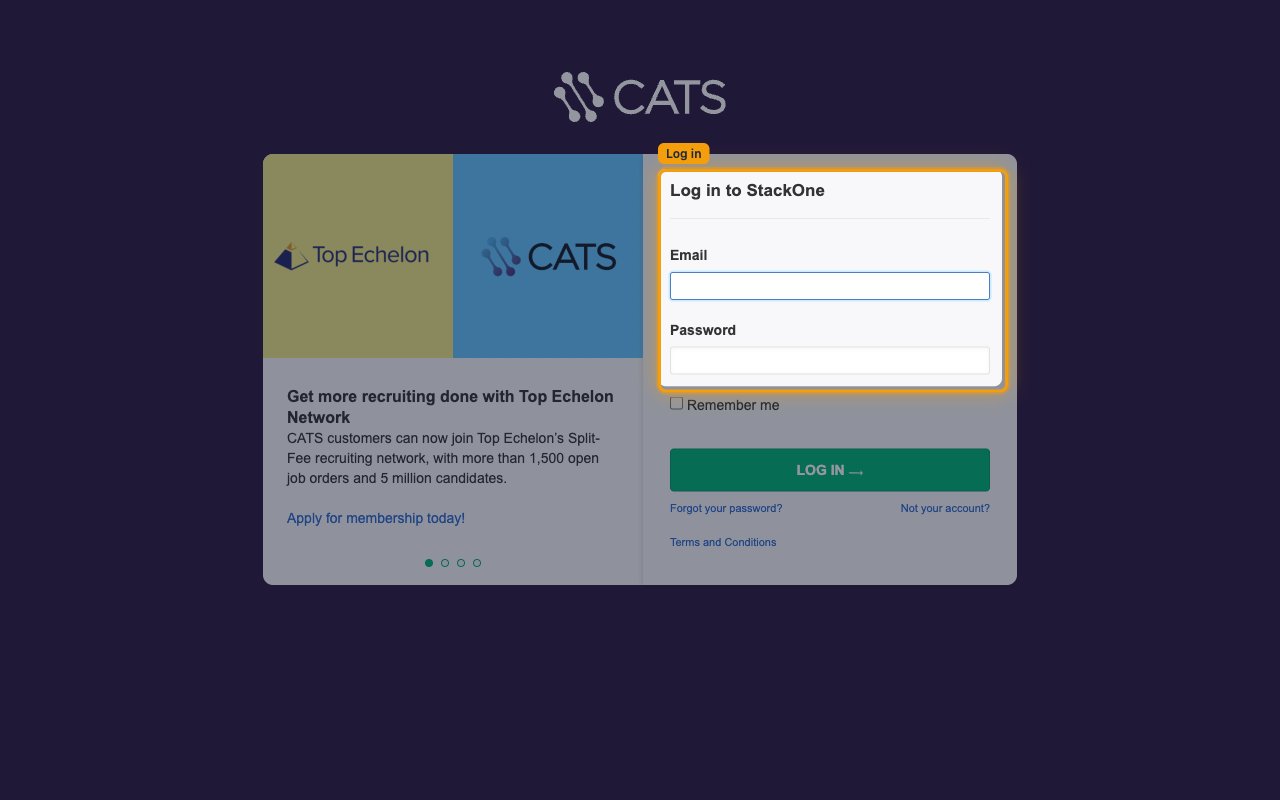
Enter your Email and Password on your subdomain login page and click Log In.
Open Settings
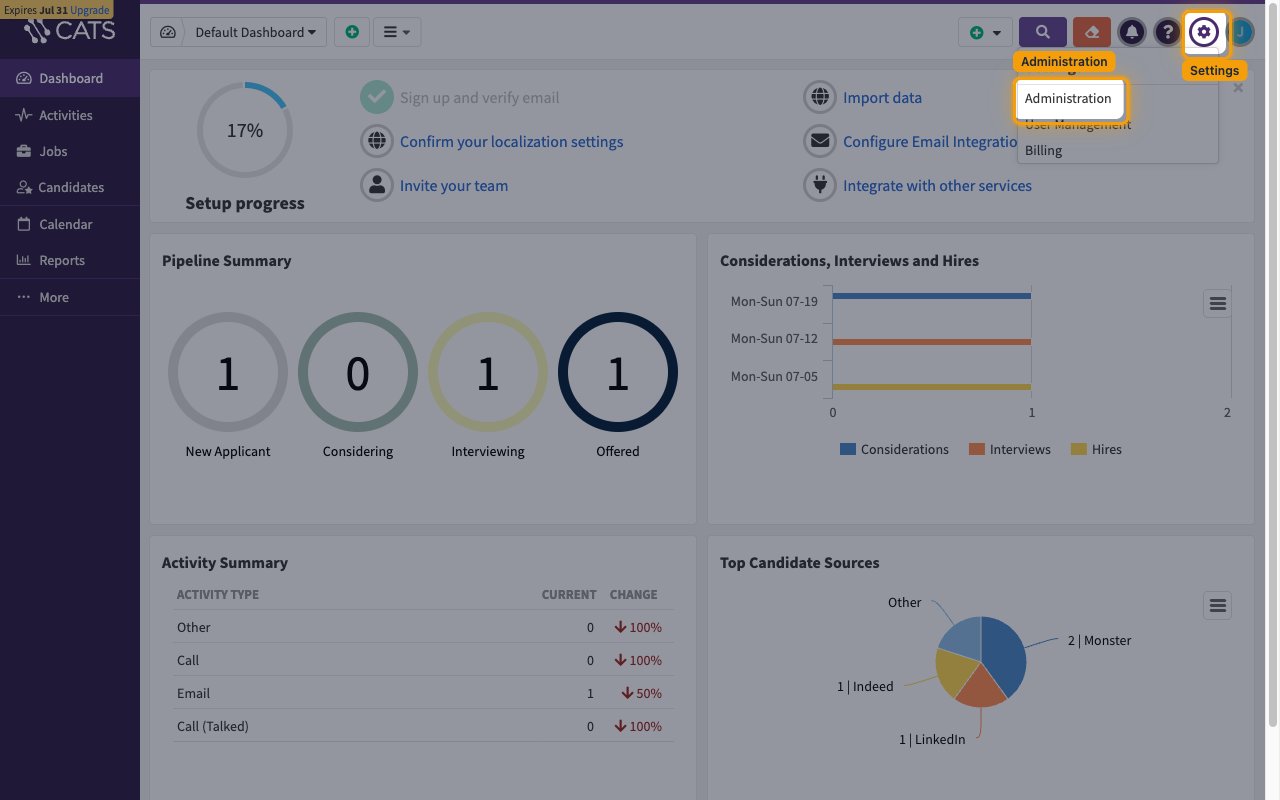
After logging in, click the Settings (⚙) gear icon in the top-right navigation bar.
- In the Settings menu, click Administration.
Navigate to API Keys
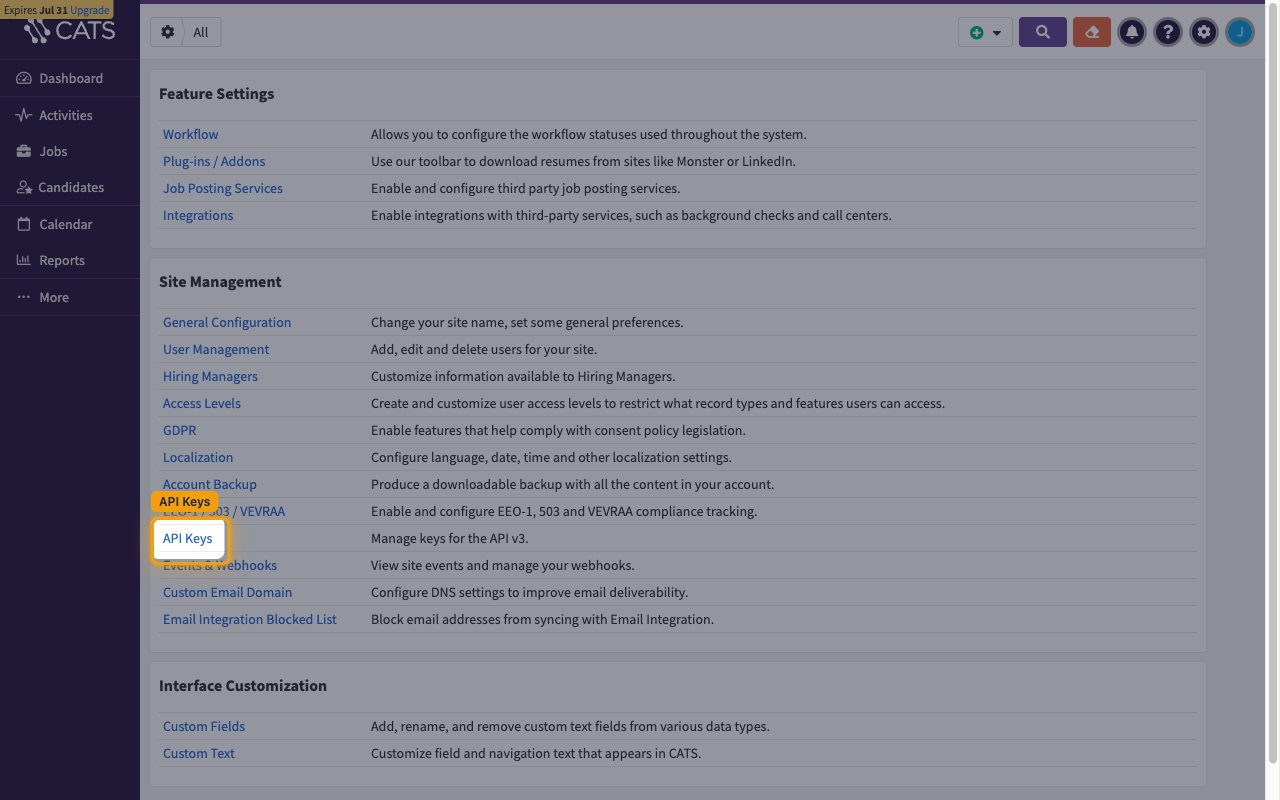
On the Administration page, under Site Management, click API Keys.
Add a new API Key
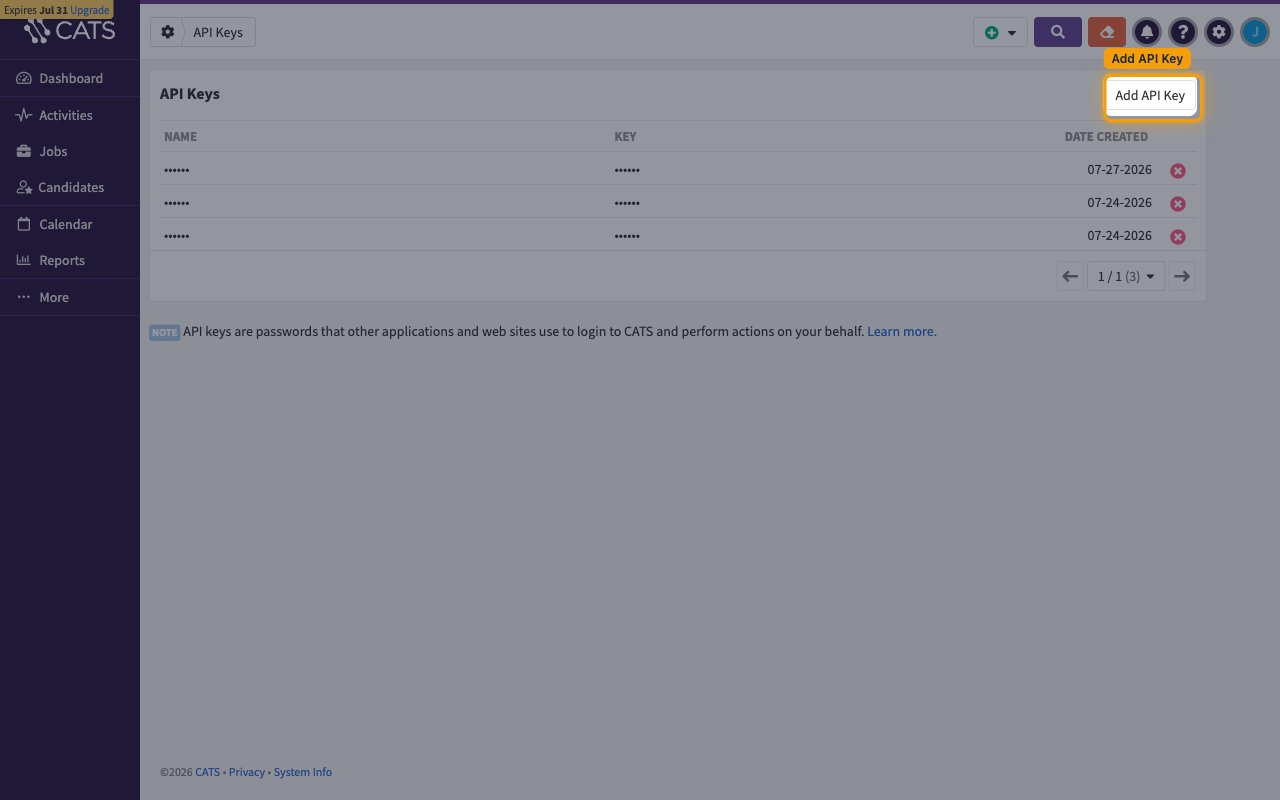
Click Add API Key in the top-right corner of the API Keys page. A Generate New API Key dialog will appear.
Enter a key name and generate
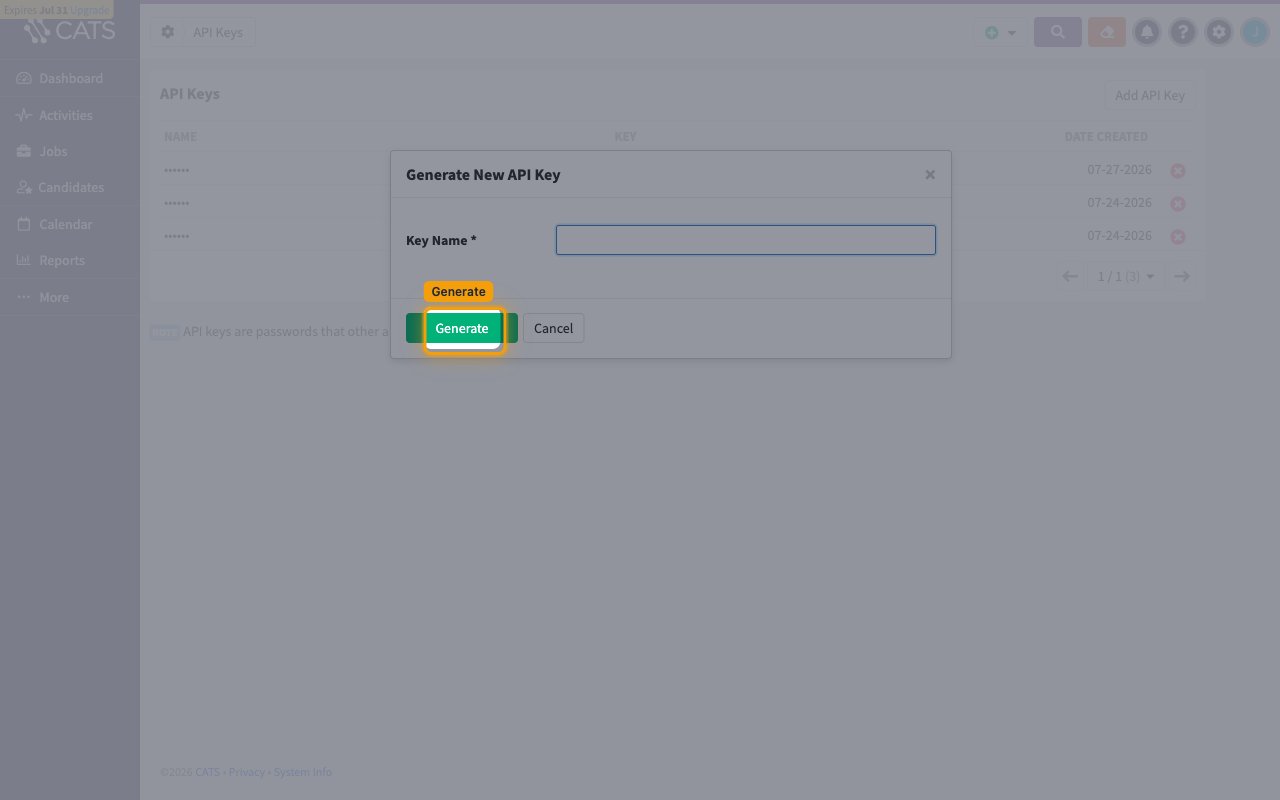
Enter a descriptive name in the Key Name field (e.g., “StackOne Integration”) and click Generate.
Copy your API Key
The new key will appear in the list. Copy the value from the KEY column and paste it into the API Key field in StackOne.
Linking the Account from the Hub
Navigate to the Hub
Fill out the fields
- API Key
Connect
- Click Connect
- If applicable, the provider will redirect you to a sign-in or authorization page. Complete the provider’s authorization flow.
- Once authorization is successful, you will see a confirmation popup
If the account linking is successful, you will see the newly linked account in your Accounts page.