

Generate your Cohere API key
Create an API key in the Cohere Dashboard and paste it into StackOne Hub to authenticate your connection.
Open the API Keys page
Sign in to the Cohere Dashboard, then click API Keys in the left sidebar under Platform.
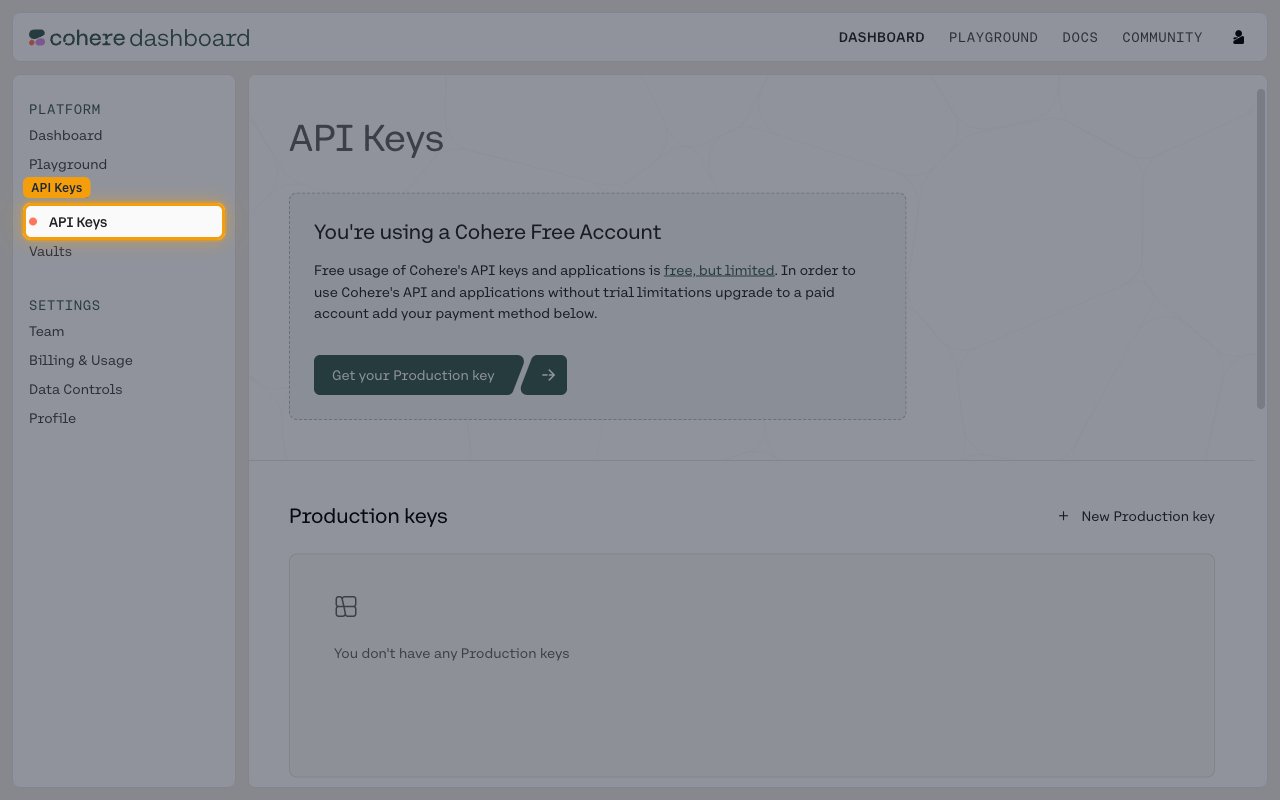
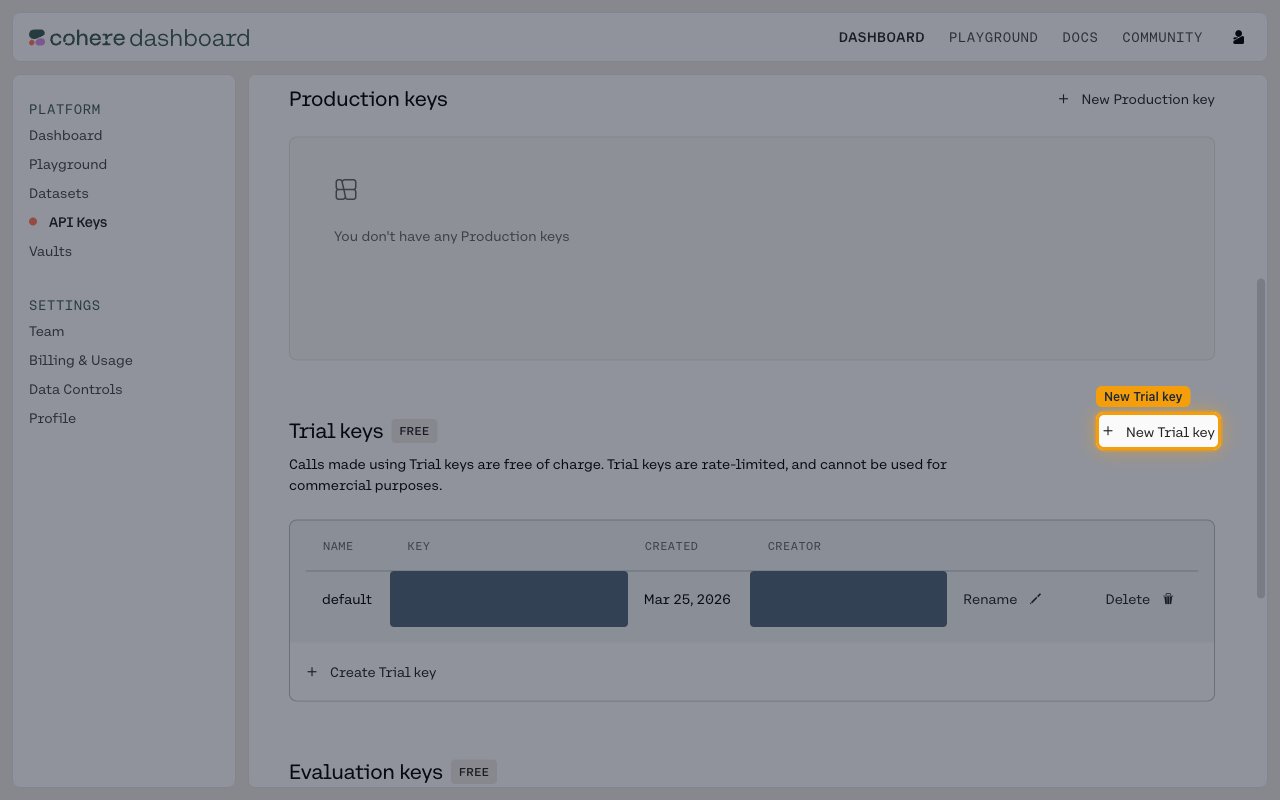
Create a Trial key
In the Trial keys section, click + New Trial key (or + Create Trial key below the keys table).
- Trial keys are free of charge and rate-limited, and cannot be used for commercial purposes.
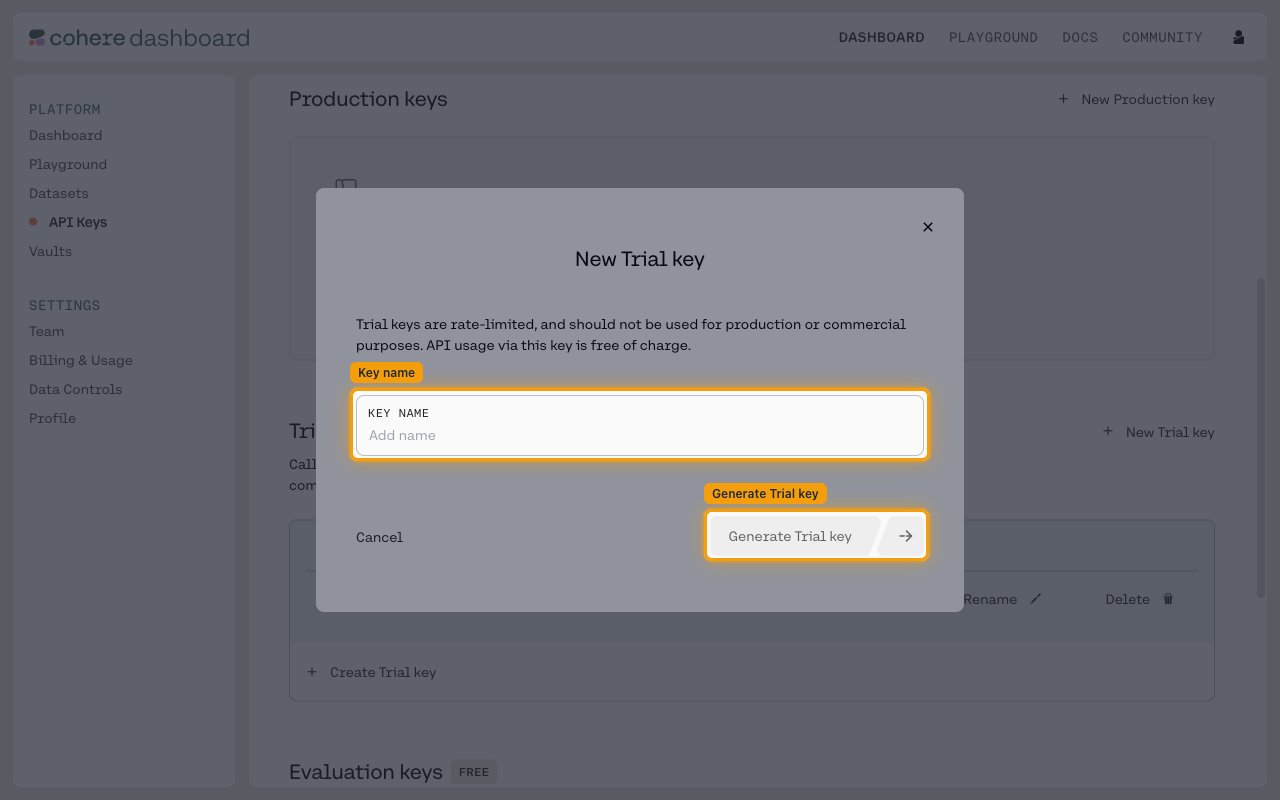
Generate the Trial key
In the New Trial key dialog, enter a Key name, then click Generate Trial key.
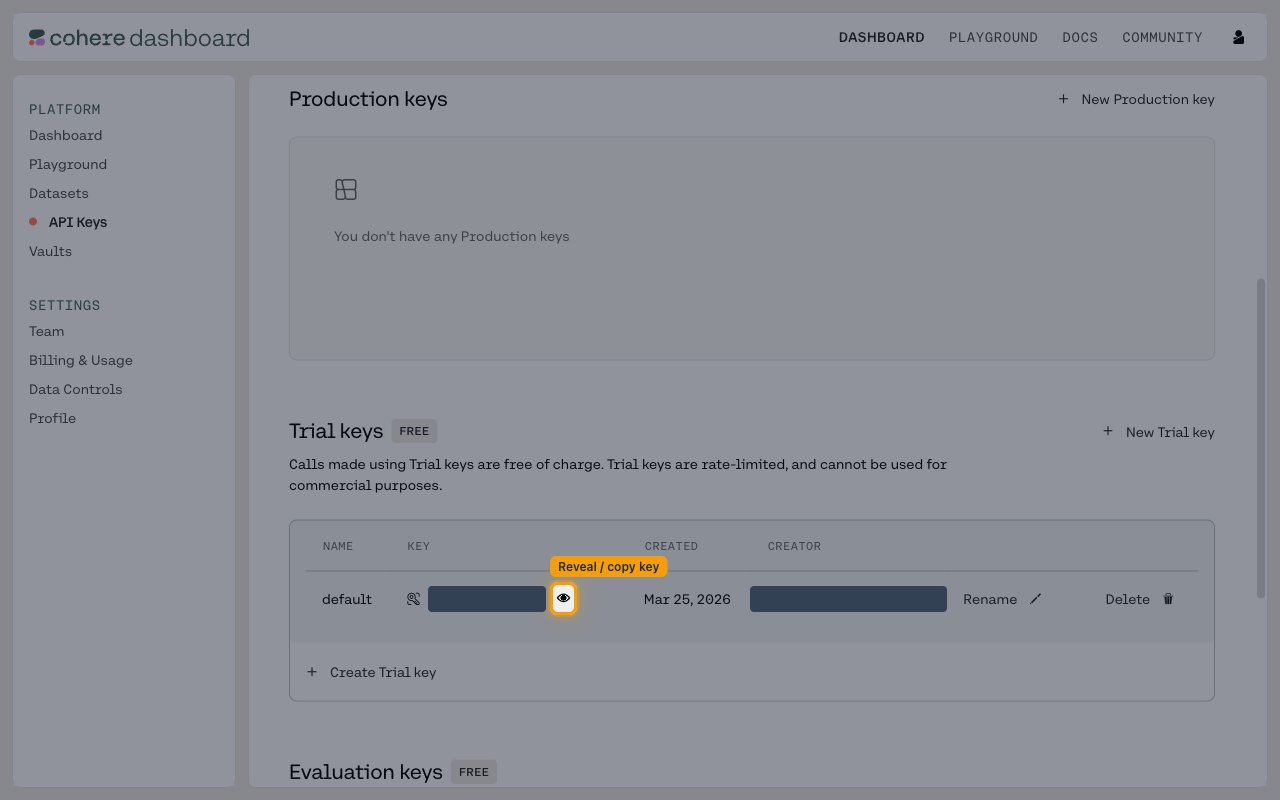
Copy your API key
Reveal the key with the eye icon next to it, then copy the value. Paste it into the API Key field in StackOne Hub.
- Important: Store your API key securely - it provides access to your Cohere account.
Create a Production key for commercial use
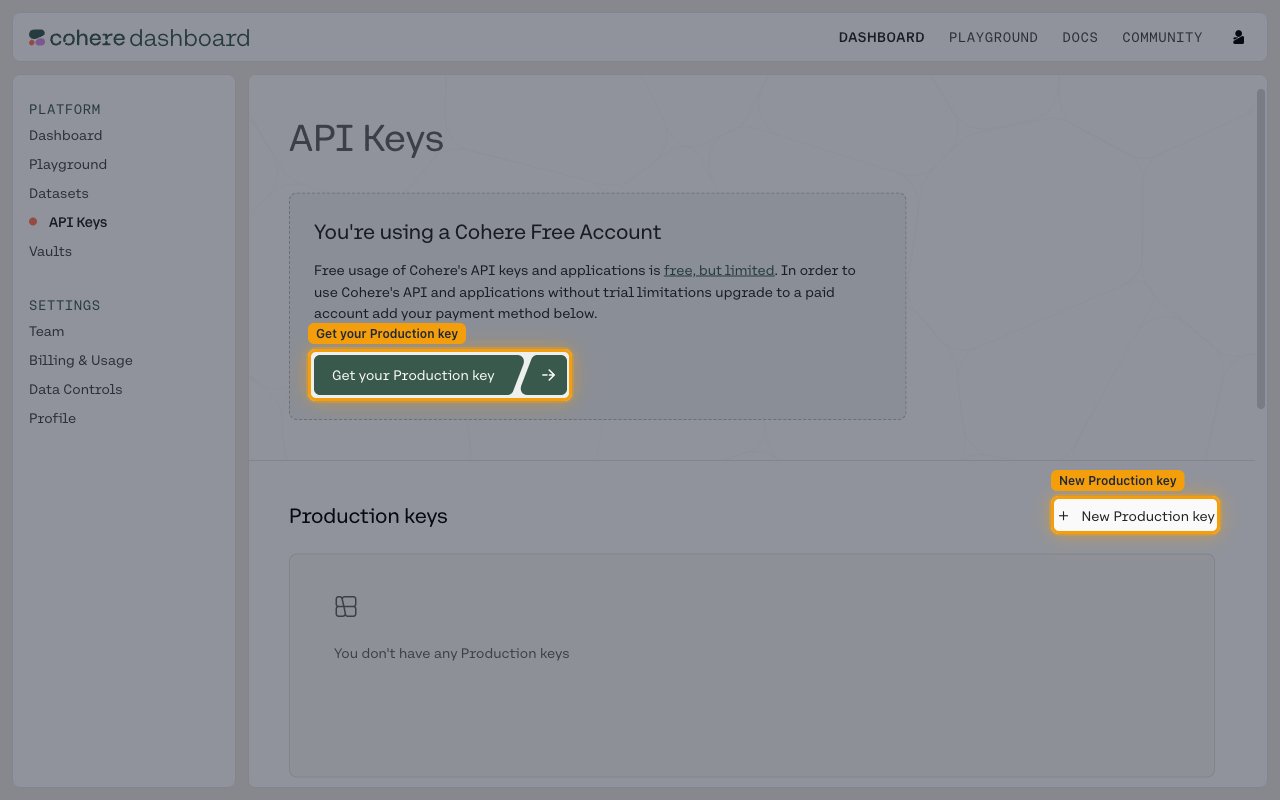
Trial keys cannot be used for production or commercial purposes. On a free account, click Get your Production key to add a payment method and upgrade, then click + New Production key under Production keys to create one.
Linking the Account from the Hub
Navigate to the Hub
Fill out the fields
- API Key
Connect
- Click Connect
- If applicable, the provider will redirect you to a sign-in or authorization page. Complete the provider’s authorization flow.
- Once authorization is successful, you will see a confirmation popup
If the account linking is successful, you will see the newly linked account in your Accounts page.