

Create your Re:amaze account
If you do not have a Re:amaze account, sign up at Re:amaze.
Verify your email address
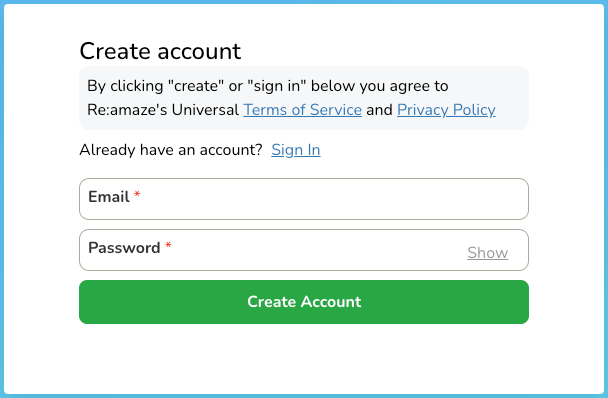
Visit Re:amaze Sign Up and complete the verification process.
- Provide your email address and password.
- Verify your email address using the confirmation email sent to you with a verification code.
Complete registration
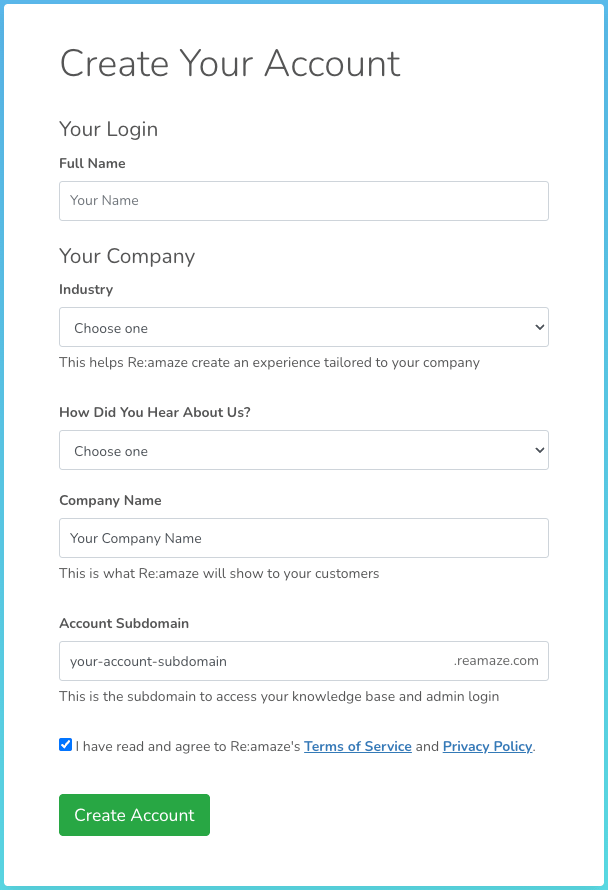
After verifying your email address, enter your company information and create your Re:amaze account.
- Full Name: Enter your full name as you would like it to appear in your Re:amaze account.
- Select your
Industry,Hear About Us?, andCompany Name. - Account Subdomain or Brand domain: Enter a unique subdomain for your Re:amaze account. This will form part of your account URL (e.g.,
https://{yourcompany}.reamaze.io). - Agree to the Re:amaze Terms by ticking the checkbox.
- Click Create Account to complete the sign-up process.
- Copy and save your Account Subdomain or Brand domain for future reference.
Identify your brand domain
Your brand domain was set during registration. It is the first part of your Re:amaze account URL.
- Format:
https://{brand}.reamaze.io - Example: If your URL is
https://yourcompany.reamaze.io, your brand domain isyourcompany
Access your Re:amaze account
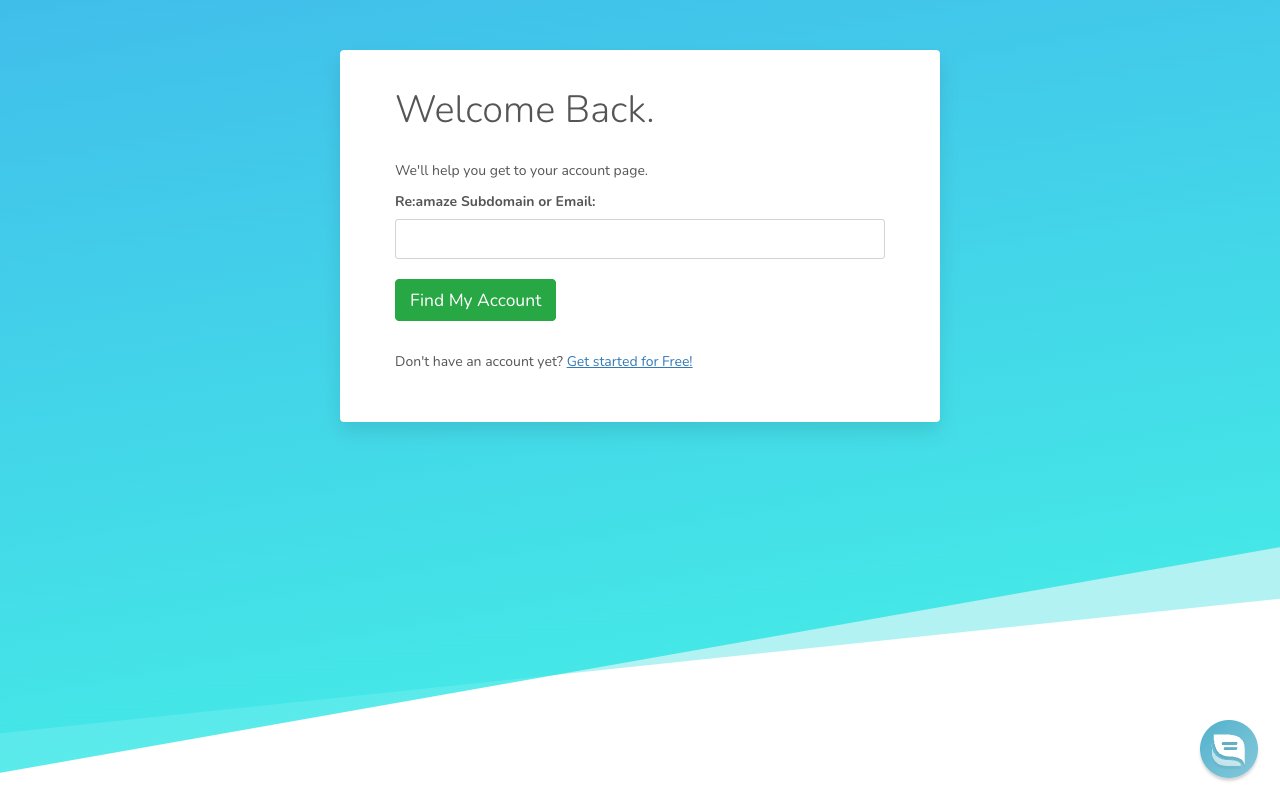
Navigate to the Login page, or go directly to https://{brand}.reamaze.io/login if you already know your brand domain.
- Re:amaze Subdomain or Email: Enter your brand domain (e.g.,
yourcompany) or the email address associated with your Re:amaze account. - You will be redirected to your account login page, or to a Select an account page where you need to select your company.
Sign in to your Re:amaze account
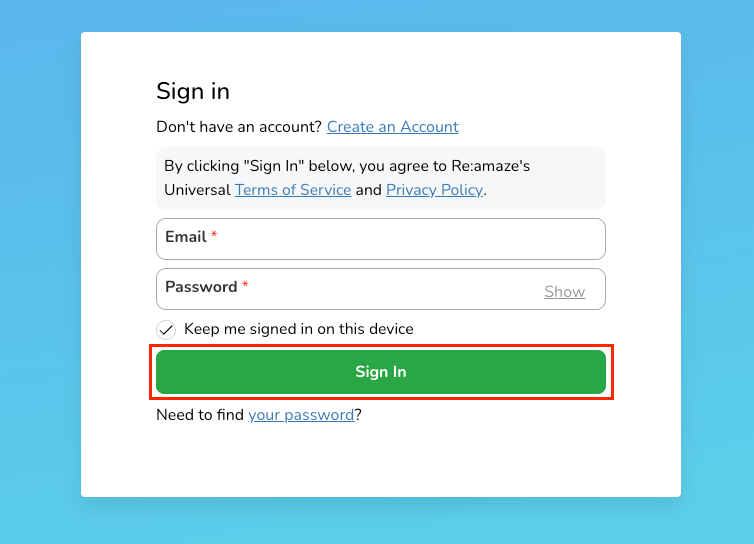
Enter your credentials at https://{brand}.reamaze.io/login, replacing {brand} with your brand domain.
- Email: Enter the email address you used to register your Re:amaze account.
- Password: Enter your account password.
- Click Sign In to access your Re:amaze account.
Find your login email
The login email is the email address associated with your Re:amaze account. It is used as the API authentication username.
Locate your login email
This is typically the email address you used during registration.
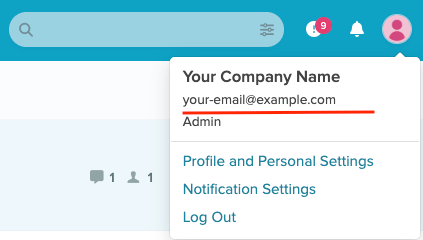
- You can confirm your email by clicking the avatar icon in the top-right corner.
Generate an API token
An API token is required to authenticate with the Re:amaze API.
Access API Token settings
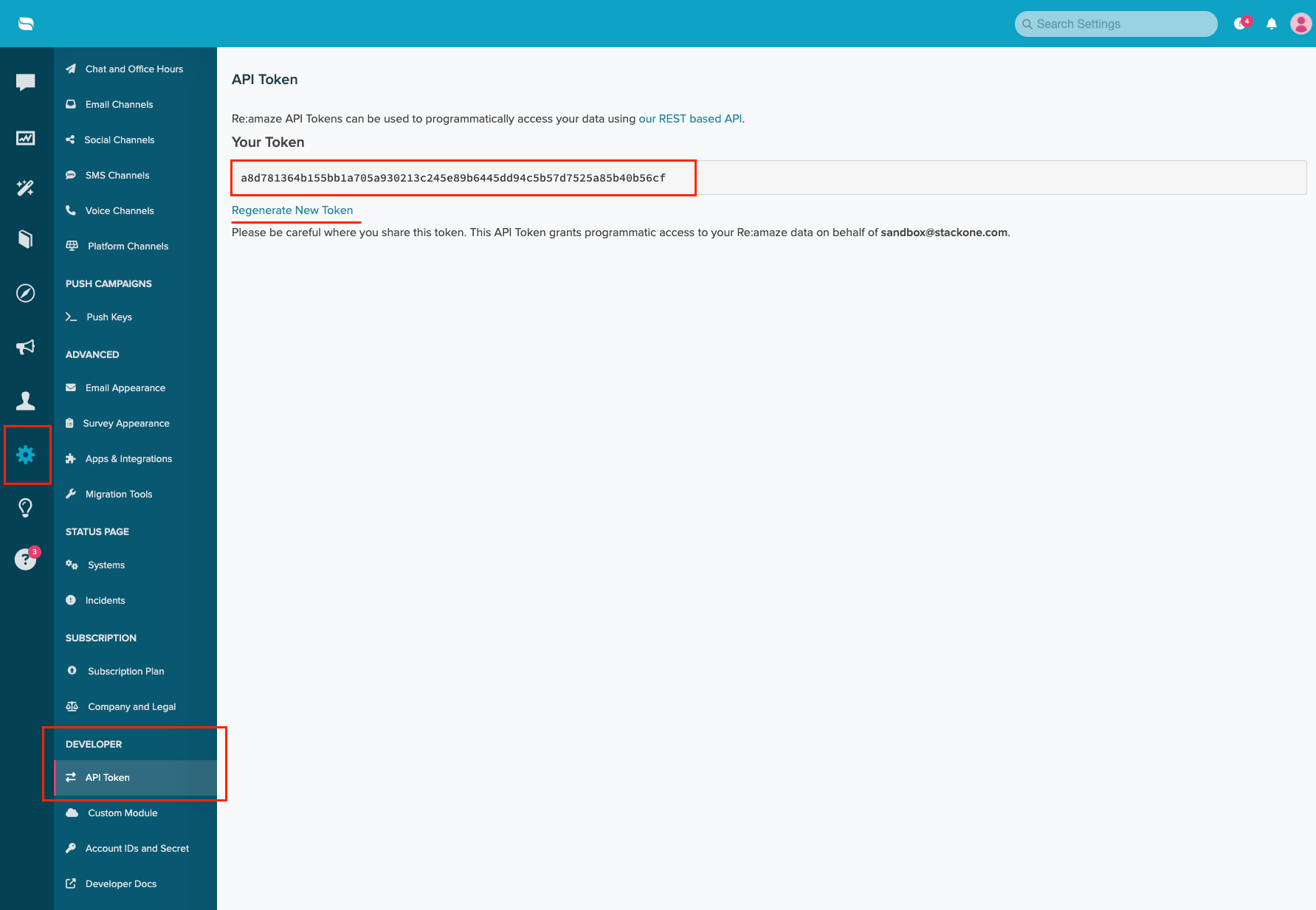
Navigate to Settings in the left sidebar.
- Scroll down to the Developer section.
- Click on API Token.
Generate or copy your token
If you do not have a token yet, click Generate New Token to create one. Copy the token value and store it securely.
- If you already have a token, you can copy it from the Your Token field.
- Caution: The API token grants full access to your Re:amaze account. Store it securely and do not share it.
Linking the Account from the Hub
Navigate to the Hub
Fill out the fields
- Brand Domain
- Login Email
- API Token
Connect
- Click Connect
- If applicable, the provider will redirect you to a sign-in or authorization page. Complete the provider’s authorization flow.
- Once authorization is successful, you will see a confirmation popup
If the account linking is successful, you will see the newly linked account in your Accounts page.